First, leave your old iPhone as it is
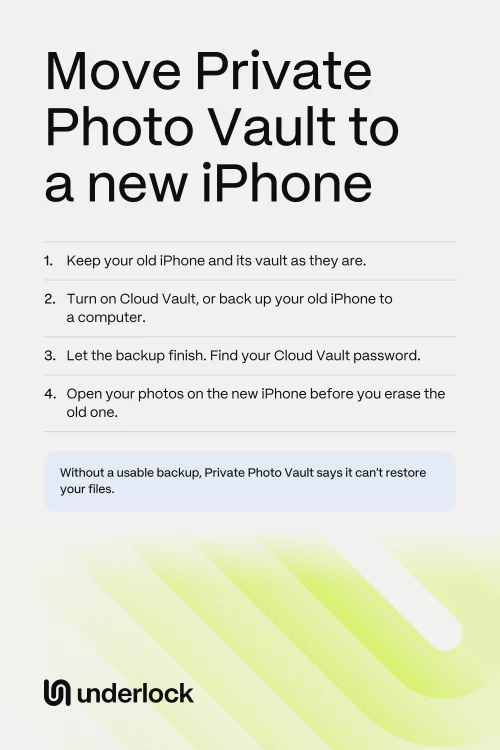
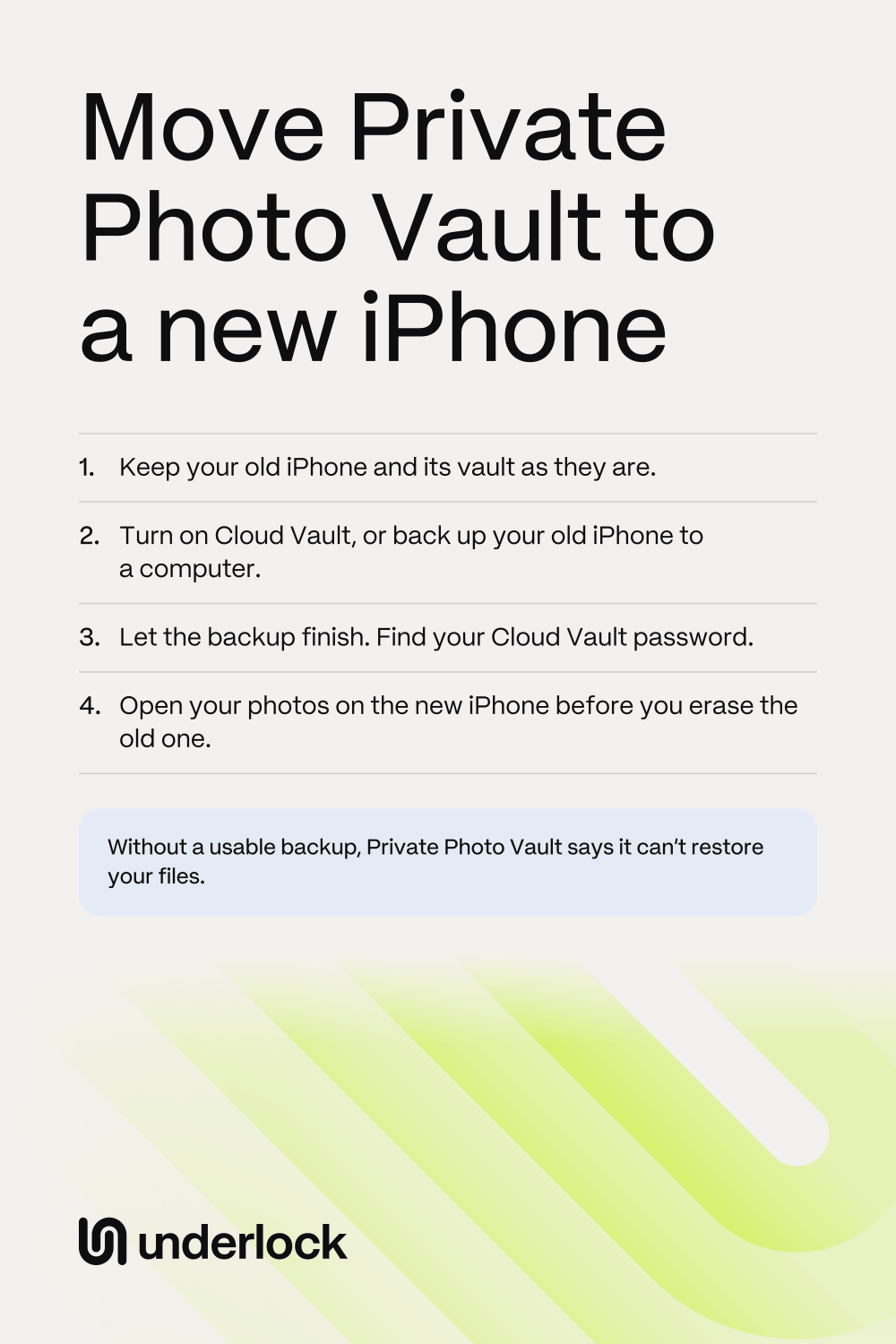
Private Photo Vault says to keep your old iPhone and its vault until your files open on the new iPhone. The company also says not to delete the app or reset your iPhone to fix a problem. Either one can remove files stored only on that iPhone. Before you move, do 2 things:
- Open a few photos and videos now. If any are missing or won’t open, sort that out before you change iPhones. Private Photo Vault says a new install can’t bring back a file that was never backed up.
- Check whether you have a backup at all. Using the vault on your iPhone doesn’t back up your photos, and neither does having Premium. Private Photo Vault says you have to turn on Cloud Vault and let your files finish uploading.
Won’t the app open on your old iPhone? See Private Photo Vault not working? first.
Private Photo Vault’s 2 ways to move
- Cloud Vault. Private Photo Vault recommends this way. Cloud Vault needs Premium, an account, internet and a password you choose. Current prices are on the app’s page in the App Store, and they can change.
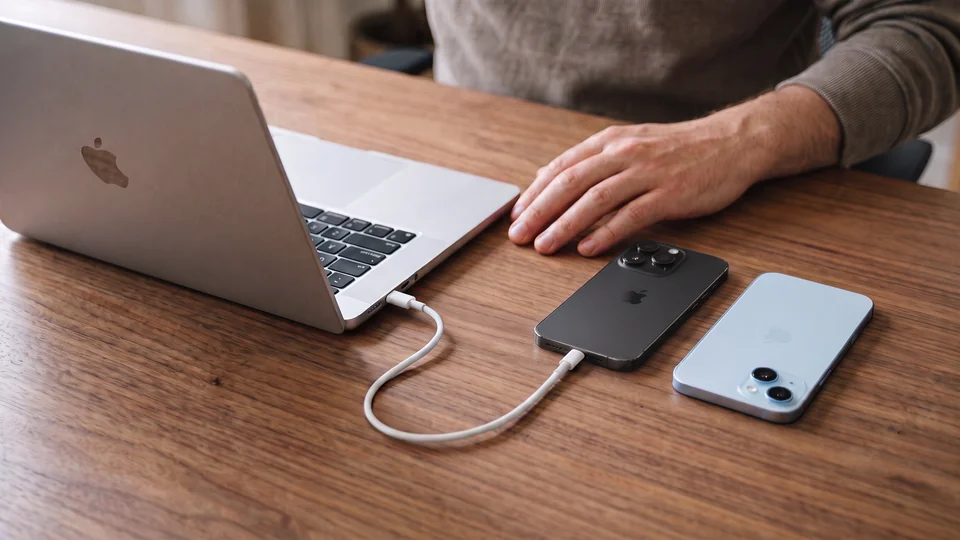
- A backup on a computer. You back up your whole iPhone to a Mac or PC with a cable. Then you restore that backup to your new iPhone.
Not ready to use either one? See what else Private Photo Vault offers.
Move with Cloud Vault
These are Private Photo Vault’s steps.
- On your old iPhone, update Private Photo Vault in the App Store.
- Open Private Photo Vault, then open Settings. Tap Cloud Vault.
- Follow the steps on the screen to start Premium and make an account.
- Choose a Cloud Vault password. Write the password down, or save it in a password manager.
- Keep your old iPhone online until the backup finishes. Only files that finished uploading can come back.
- On your new iPhone, download Private Photo Vault from the App Store.
- Open Private Photo Vault, then open Settings. Tap Cloud Vault, then sign in to your Cloud Vault account.
- Type your Cloud Vault password.
- Open your important photos, and play your important videos.
Paying for Premium already? On your new iPhone, open Settings in Private Photo Vault, then tap Restore Purchase. Use the same Apple Account that made the purchase. Keep Premium until your photos are on your new iPhone. Private Photo Vault says that switching to its free plan, Basic, deletes your Cloud Vault backup.
Move with a backup on a computer
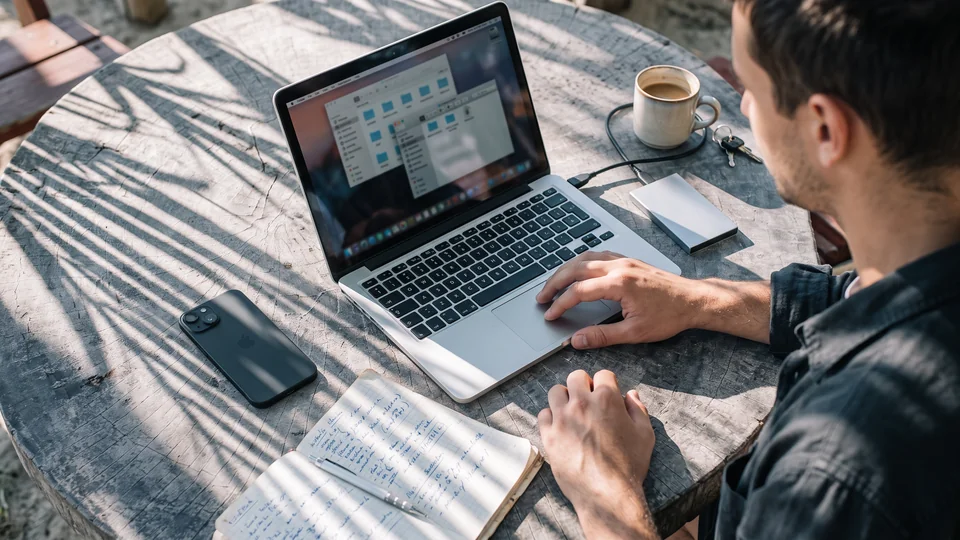
This way uses Apple’s own backup, so you need a Mac or PC and a cable.
- Connect your old iPhone to your computer.
- Back up your old iPhone. On a Mac, use Finder. On a PC, use the Apple Devices app or iTunes. Apple’s backup steps show how.
- Restore that backup to your new iPhone. A restore can replace what’s already on your new iPhone, so read Apple’s restore steps first.
- Open Private Photo Vault on your new iPhone.
- Open your important photos, and play your important videos.
Private Photo Vault says not to assume that a phone backup holds every vault file. So keep your old iPhone until you’ve checked.
iCloud Backup and Quick Start
Your iPhone’s normal iCloud Backup may not be enough. Private Photo Vault says some people have had problems getting vault files back from one. So the company asks you to use Cloud Vault or a computer backup instead. Apple’s Quick Start copies your apps and their data, but Private Photo Vault’s pages don’t mention Quick Start. So make a Cloud Vault or computer backup first, even if you use Quick Start.
If you have no backup yet
If your photos are only on your old iPhone, choose a way to move them before you erase anything. Private Photo Vault names these options:
- Turn on Cloud Vault. Follow the steps above.
- Back up to a computer. Follow the steps above.
- WiFi Transfer. WiFi Transfer moves files between the app and a web browser on your computer. Open WiFi Transfer in the app on your old iPhone, then follow the instructions there. Download your files to your computer. Then do the same on your new iPhone, and upload the files. Private Photo Vault says its features vary by device and plan, so check that your app has WiFi Transfer.
- Export. Export moves files out of the vault. The steps are in a video on the Tutorials page of Private Photo Vault’s website, called Export, move & delete files. To check what you saved, see how to save photos out of a vault app.
A copy outside the vault doesn’t have the vault’s lock. Private Photo Vault says an exported photo may show in the Photos app or in a folder on your computer. Uploading to the vault doesn’t remove the copy from your computer. So delete that copy once your files open on your new iPhone.
If your old iPhone is lost or broken
Your photos can come back only from a backup you already made. Private Photo Vault says signing in can’t bring back files that were never backed up. Try these, in this order:
- Try Cloud Vault, even if you’re not sure you turned it on. On your new iPhone, download Private Photo Vault. Open the app, then open Settings. Tap Cloud Vault, then sign in. Type your Cloud Vault password. The files that finished uploading come back.
- Did you back up your old iPhone to a computer? Restore that backup to your new iPhone with Apple’s restore steps.
- Do you have only an iCloud backup of your iPhone? Private Photo Vault says copies of your vault files may be in that backup. The company also says some people have had problems getting vault files back from one. If this backup is all you have, you can try Apple’s restore steps.
- Still missing photos? Contact Private Photo Vault before you delete or reinstall the app. Use the form on the Support page of its website, or email support@privatephotovault.com. Give your iPhone model, the app’s version and what happened. Private Photo Vault asks you not to send passwords, PINs or private photos.
- With no usable backup. Private Photo Vault says it can’t restore your files.
- If you pay for Premium. Don’t switch to the free plan, Basic, until your photos are back. Private Photo Vault says that switching deletes your Cloud Vault backup.
- If your old iPhone is broken. Keep the iPhone, even if it won’t turn on, because your vault may still be on it. See when your iPhone goes in for repair.
- If your old iPhone was lost or stolen. See when your iPhone is lost or stolen.
Check your photos before you erase your old iPhone
Installing the app doesn’t prove that your photos moved. Private Photo Vault asks you to check these on your new iPhone:
- Look through the albums you care about.
- Check older photos as well as recent ones.
- Open your videos and play them. A small preview picture is not enough.
- Lock the app, then open the app again.
Only then, erase your old iPhone. For Apple’s steps, see before you sell, trade in or hand down your iPhone. Keep your Cloud Vault password for your next iPhone.
How a move works in Underlock
We make Underlock, a private vault for photos, videos, files and notes. You open your vault by drawing a pattern on a grid of dots.
Underlock is coming soon to the App Store. Here’s how it will work.
- Your iPhone’s backup carries your vault. Your iPhone’s backup holds your vault’s encrypted files. On your new iPhone, restore that backup. Your 12 words then open your vault, and you choose a new pattern.
- Your 12 words are on paper. Your 12 words are the recovery phrase Underlock asks you to write on paper at setup.
- Without a backup, your vault stays on your old iPhone. If you lose that iPhone, nobody can bring your vault back, not even us.
Moving from another vault app? See how to switch to Underlock.
Questions people ask
Not by itself. Installing the app on your new iPhone brings back only the files in a backup. So use Cloud Vault or a computer backup, and let the backup finish first.
No. Cloud Vault is a Premium feature, and Private Photo Vault’s free version doesn’t back up to Cloud Vault. Current prices are on the app’s page in the App Store, and they can change.
Private Photo Vault can reset that passcode through a recovery email, if you set one up. See Forgot your Private Photo Vault PIN or password? Don’t delete the app to reset the passcode. Private Photo Vault says files stored only in the app can be lost.
Yes, once your photos are on your new iPhone. When Premium ends, Private Photo Vault lets you renew or switch to Basic, its free plan. On Basic, photos stored in the app stay, but your Cloud Vault backup is deleted. So you then have no backup. See what happens if you stop paying.
No. Private Photo Vault says there’s no browser login and no online photo viewer. You open Cloud Vault in the app on your phone.
Yes, with Cloud Vault. Private Photo Vault says Cloud Vault backs up and syncs your photos and videos between iPhone and Android. Some features of the app differ between the two.
You may have removed the app from your Home Screen. Swipe past your last Home Screen page, and look in App Library. Did you have the separate Pro version? Look for an app named SV. Private Photo Vault says it renamed that version and gave it a new icon.
Not yet. Wait until your files open on your new iPhone, because deleting the app removes the photos stored in it. Deleting the app doesn’t cancel a subscription either. See what deleting a vault app does.