Which password did you forget?
We don’t make Private Photo Vault. These steps come from Private Photo Vault’s own pages, and the company can change them. The app has 3 locks, and each lock has a different way back in:
- The app passcode. This is the PIN, password or pattern that opens Private Photo Vault. A recovery email can reset this lock, if you set one up. See Reset your app passcode.
- An album password. This is a second lock on one album. The same recovery email can reset this lock. See Reset an album password.
- The Cloud Vault password. This password protects Cloud Vault, the app’s online backup. Private Photo Vault says this password can’t be recovered. See Forgot your Cloud Vault password.
A decoy password isn’t a way back in. A decoy password opens a different vault, and Private Photo Vault says it isn’t a password recovery method.
Reset your app passcode
Did you turn on Face ID or Touch ID for the app? Try Face ID or Touch ID first. If the app opens, skip to After you’re back in. If not, Private Photo Vault says you can use a recovery email, if you set one up when you first used the app. The 8 wrong tries in these steps come from Private Photo Vault’s FAQ, as the way to bring up the recovery prompt. The FAQ doesn’t mention losing any files. Take these steps:
- Open Private Photo Vault.
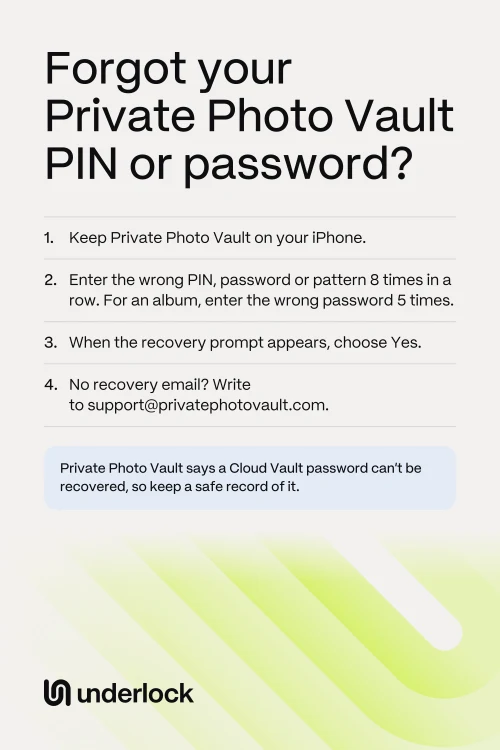
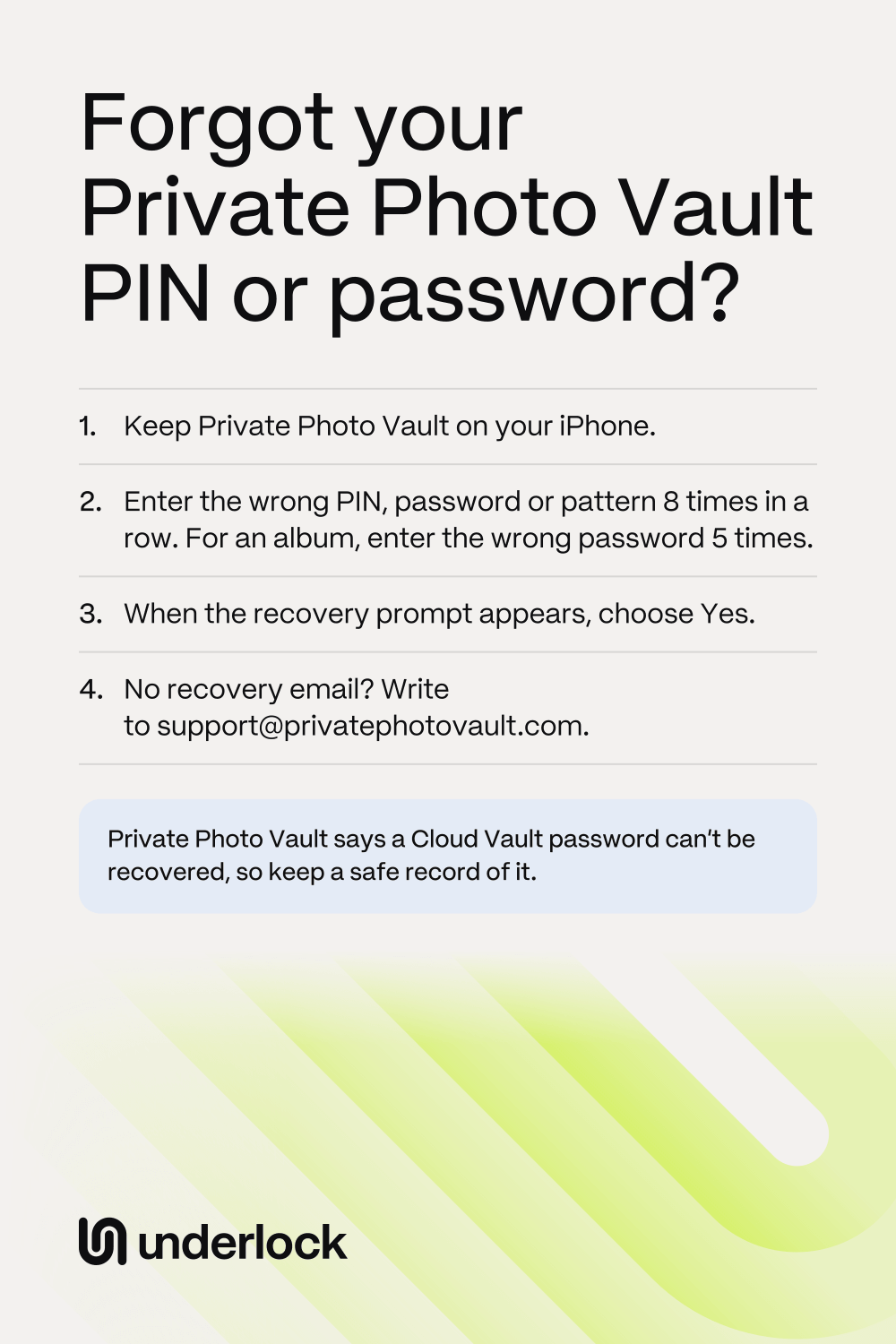
- Enter the wrong PIN, password or pattern 8 times in a row.
- When the password recovery prompt appears, choose Yes.
- Follow what the app shows next. Private Photo Vault’s FAQ doesn’t list the next screens, and says options can vary by app version.
- Check the inbox of your recovery email. Look in the spam folder too.
If you turned on a setting called Timeout, it may stop you before 8 tries: Timeout locks login attempts after a number of tries you choose. If no prompt appears, see If you have no recovery email.
Reset an album password
An album password uses the same recovery email. You need to be inside the app for these steps, so if you also forgot the app passcode, reset your app passcode first. Then:
- Open the locked album in Private Photo Vault.
- Enter the album password wrong 5 times in a row.
- When the password recovery prompt appears, choose Yes.
- Follow what the app shows.
If you have no recovery email
Private Photo Vault says that without a recovery email, app and album passwords can’t be recovered through these steps. The company’s FAQ gives no other way. So ask the company’s support team what they can do:
- Keep Private Photo Vault on your iPhone.
- Write to support@privatephotovault.com. Or fill in the support form at privatephotovault.com/support.
- In your message, give your phone model, your app version if you know it, and what happened.
- Leave out your passwords, PINs and private photos. Private Photo Vault asks you not to send them.
- Ask whether any way back in is left. Wait for the answer before you delete or reinstall anything.
Private Photo Vault says its team replies as soon as possible.
Forgot your Cloud Vault password
Cloud Vault is Private Photo Vault’s online backup, an optional Premium feature. Private Photo Vault says your Cloud Vault password is never uploaded to its servers, so its team can’t get the password back for you. Your app passcode and recovery email can’t recover the password either. Without the password, you can’t open your backup on another device. If your files still open on your iPhone, take these steps:
- Keep the app on this iPhone. If you’re changing phones, keep this iPhone too until support answers. Private Photo Vault says to keep your access to the files.
- Save the photos you can’t lose to the Photos app. See how to save photos out of a vault app.
- Ask Private Photo Vault support about your options, before you delete the app or change phones.
Paying for Premium? Save your photos before you cancel. Private Photo Vault says that when you switch to Basic, its free version, your cloud backup is deleted. Photos stored in the app stay in the app. See what happens if you stop paying.
Can you get files back without a backup?
It depends on what happened to your files:
- The app is still on your iPhone. A forgotten password doesn’t remove your files. The files are still stored in the app. So keep the app, and ask support.
- You deleted the app, or reset your iPhone. Private Photo Vault says that without a usable backup, it can’t restore deleted files. Signing in can’t bring back files that were never backed up.
- You have a Cloud Vault backup. Files that finished uploading are in the backup. On your new device, open the app, then open Settings, then Cloud Vault. Sign in, then use your Cloud Vault password.
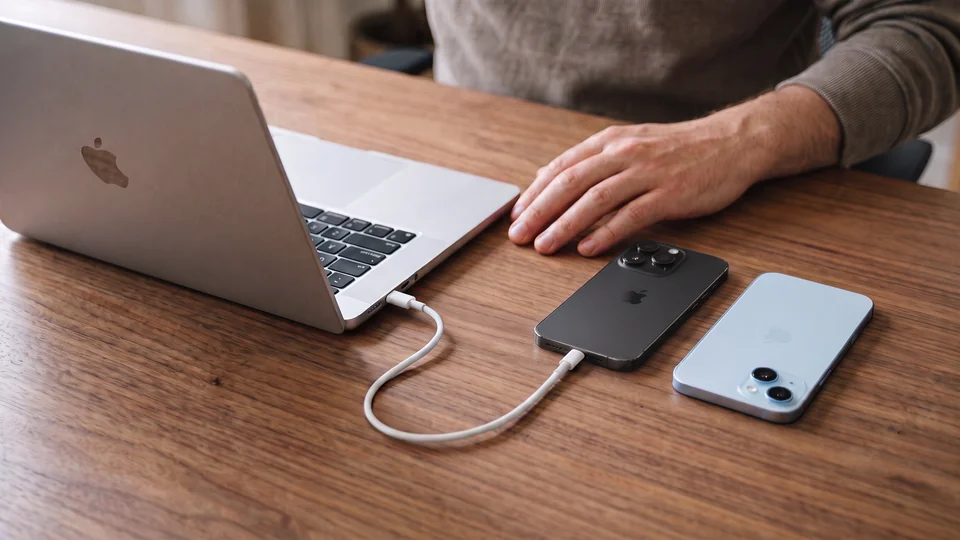
- You have a computer backup. Private Photo Vault says you may be able to restore a backup of your iPhone that contains your vault. The company also warns that a restore can replace what’s on your iPhone now.
- You have an iCloud backup of your iPhone. Private Photo Vault says some people have reported problems restoring vault data this way.
See what’s in your iPhone backup, and what to try after deleting a vault app.
After you’re back in
- Write down your new passcode, somewhere only you can reach.
- Keep a record of your Cloud Vault password. Private Photo Vault says to save the password in a password manager, or to write the password down and keep it somewhere safe.
- Check that your backup finished. Private Photo Vault says a backup that’s turned on and a backup that’s complete are different things. Files that haven’t finished uploading can’t be restored.
- Ask about a recovery email. The FAQ speaks of setting one up when you first used the app. The FAQ doesn’t say whether you can add one later, so look in the app’s settings, or ask support.
- Keep your own copy. Save the photos you can’t lose to the Photos app.
Using a different vault app? See Forgot your photo vault password? Private Photo Vault won’t open at all? See Private Photo Vault not working?
In Underlock, 12 words get you back in
We make Underlock, a private vault on your iPhone for photos, videos, files and notes. You open your vault by drawing a pattern on a grid of dots. If you forget your pattern, a recovery phrase gets you back in.
Underlock is coming soon to the App Store. Here’s how it will work.
- 12 words on paper. At setup, Underlock shows you 12 words to write on paper: your recovery phrase.
- If you forget your pattern. On the pattern screen, tap Use recovery phrase, then type your 12 words. Then choose a new pattern. Your photos are all still in your vault.
- If you forget your pattern and lose the paper. Nobody can open your vault, not even us.

See how the recovery phrase works.
Questions people ask
With a recovery email, if you set one up when you first used the app. Enter the wrong PIN, password or pattern 8 times in a row. When the password recovery prompt appears, choose Yes.
Not through these steps. Private Photo Vault says app and album passwords can’t be recovered this way without a recovery email. Ask the company’s support team what they can do, and keep the app on your iPhone.
Private Photo Vault’s FAQ doesn’t mention losing any files. The 8 wrong tries are the FAQ’s own way to bring up the password recovery prompt.
No. Private Photo Vault says the password is never uploaded to its servers, so its team can’t recover the password. Your app passcode and recovery email can’t recover it either.
Private Photo Vault says not to uninstall the app to reset a password, because files stored only in the app can be lost.
No. Underlock is a different app, from a different company. Only Private Photo Vault can help with its own passwords.
No. We can’t see your files, your pattern or your recovery phrase, so we have nothing to reset. Your 12 words let you choose a new pattern yourself.