

Add a vault in Settings
Inside any vault, go to Settings, then More vaults, then Add another vault. The new vault gets its own pattern and its own recovery phrase: 12 words you write on paper.
Language
Lock and hide
Keep anything
Learn and try
Setup and support
Keep work papers in one vault and personal photos in another. Each vault opens with its own pattern, from the same pattern screen.
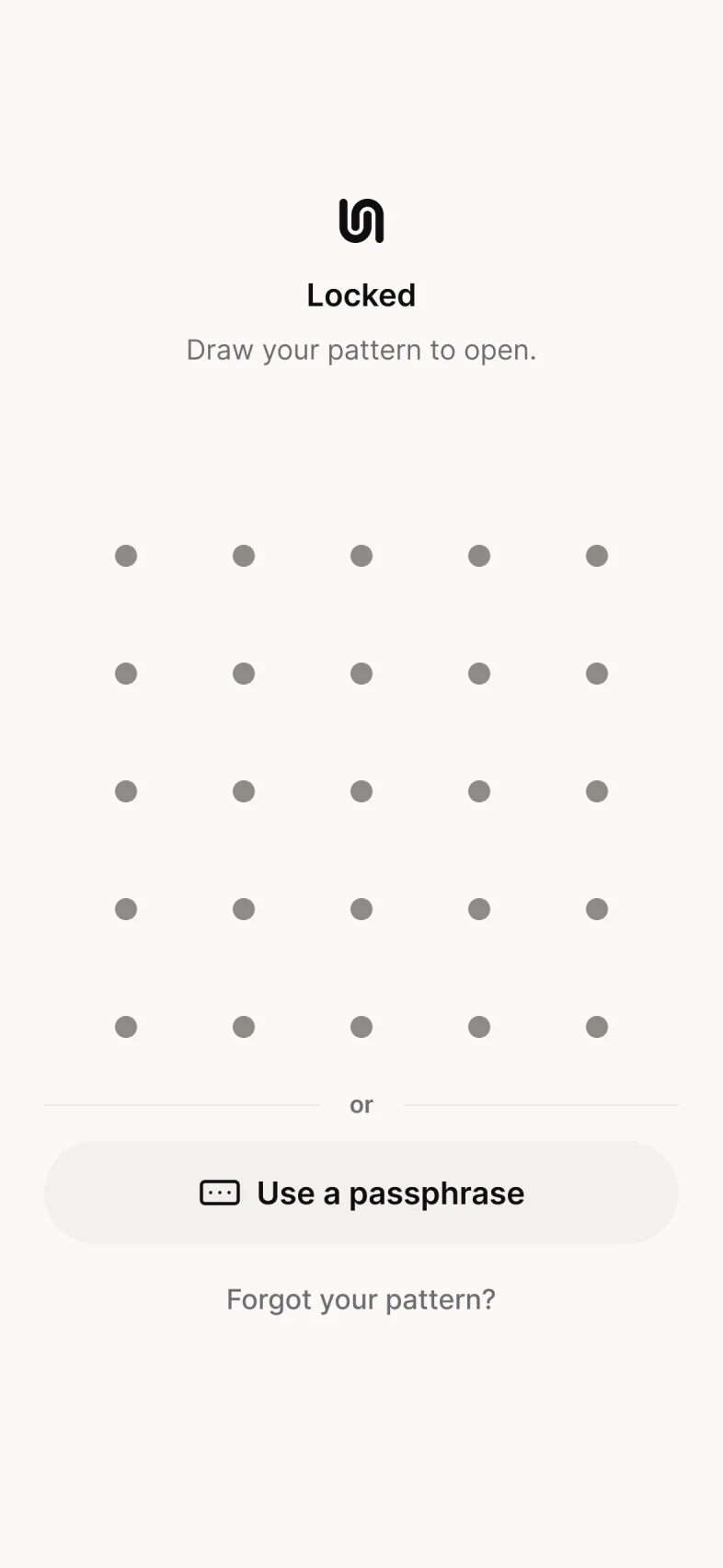
Coming soon to the App StoreThe pattern screen looks the same for every vault: no names, no list, no count.
Inside any vault, go to Settings, then More vaults, then Add another vault. The new vault gets its own pattern and its own recovery phrase: 12 words you write on paper.
Choose Copy to vault or Move to vault. Then draw the pattern of the vault the files should go to. There’s no list of vaults: the pattern you draw decides where the files go.
Keep one vault for things you’d be comfortable showing, in case someone ever makes you open Underlock.
The free plan gives you one vault, with no file limit. More vaults are part of Underlock Pro. If your Pro subscription ends, every vault still opens. You can add another vault once you have Pro again. See pricing
Lock the vault you’re in. Then draw the other vault’s pattern on the pattern screen. Work photos and personal photos on one iPhone
Yes. Each vault has its own 12 words, so keep one paper for each vault.
More vaults are part of Pro. Start free with one vault.
For iPhone with iOS 17 or later.