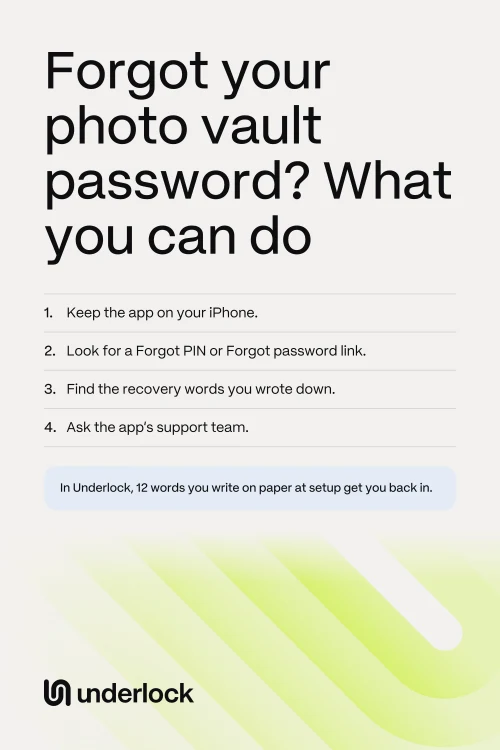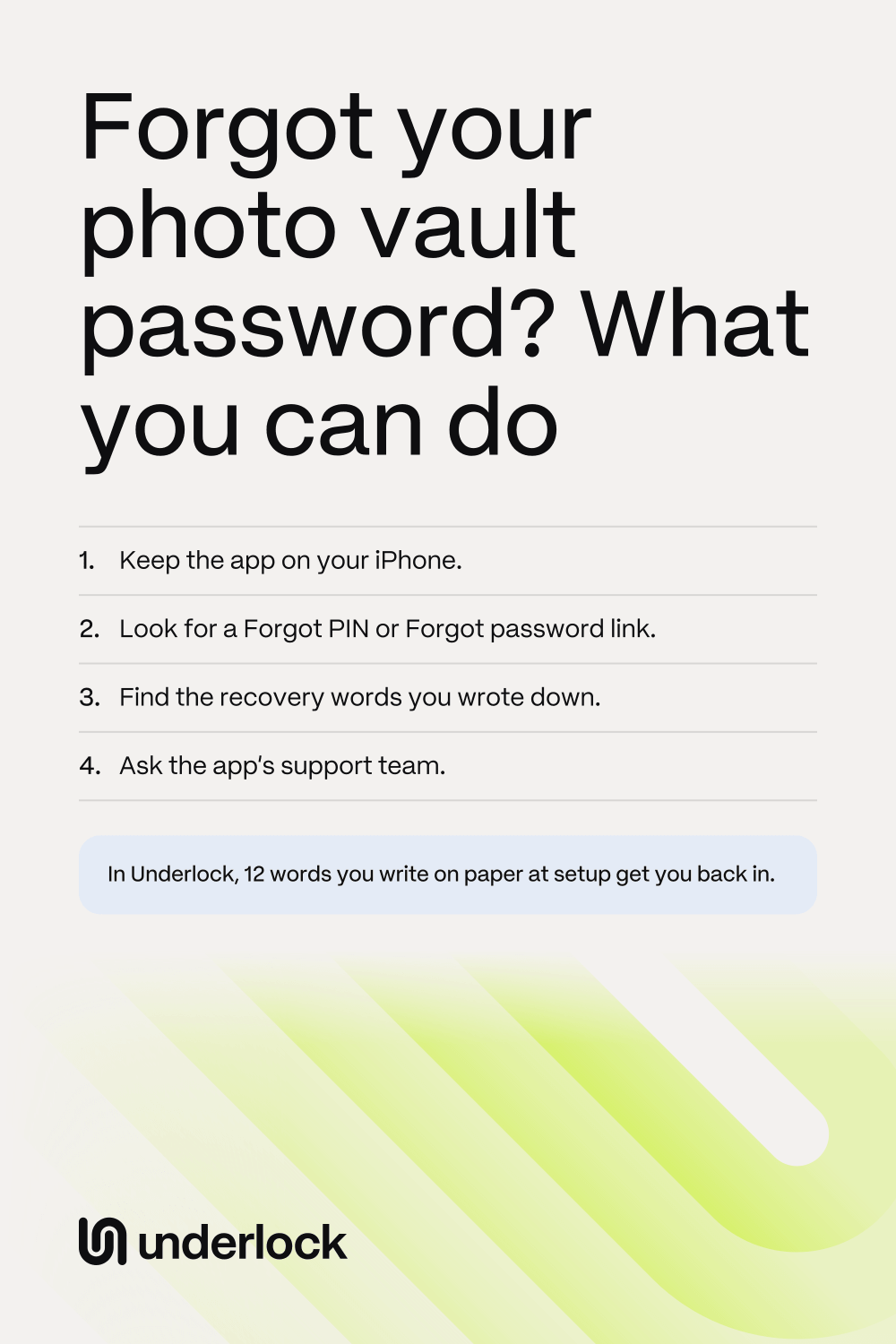
First, keep the app on your iPhone
Deleting an app removes the app and its data from your iPhone. In a vault app, that data is your photos, and the app may hold the only copy. So keep the app while you look for a way back in.
Reinstalling the app is no shortcut. You’d have to delete the app first, and your photos with it.
If your photos are in Apple’s Hidden album
The Hidden album is in the Photos app, under Utilities. The Hidden album has no password of its own. Face ID, Touch ID or your iPhone passcode opens the Hidden album. So if you can unlock your iPhone, you can open the Hidden album.
Find your app’s way back in
Each vault app has its own way back in, or none. Here’s what you may find:
- A code sent to your email. On the app’s lock screen, look for a link like Forgot PIN or Forgot password. The app emails a code to the address you gave at setup. Enter the code, then choose a new password.
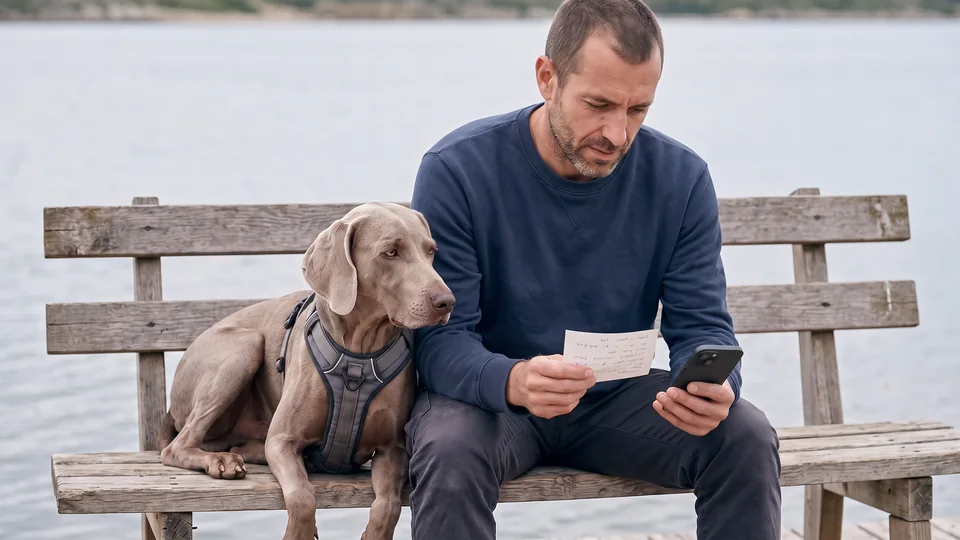
- A recovery phrase. Some apps show you words to write down at setup. Find where you wrote them down. On the app’s lock screen, look for a link to use your recovery phrase. Type the words in order, then choose a new password.
- No way back. Some apps can’t reset a forgotten password at all, not even through their support team.
Using Keepsafe or Private Photo Vault? We have steps for a forgotten Keepsafe PIN and a forgotten Private Photo Vault password. Can’t find a Forgot PIN or Forgot password link? Search the web for the app’s name and “forgot password” to find its help pages. Can’t get into the email you gave the app? Get back into that email first, with your email provider’s own recovery steps. Some apps can’t let you back in without that email. Did someone else set up the app for you? Ask them: they may know the email, or have the words written down.
Underlock’s way back in: 12 words on paper
Underlock is the vault app we make: a private vault for your iPhone that never asks for an email. You open your vault with a pattern you draw on a grid of dots. If you forget your pattern, your recovery phrase gets you back in: 12 words you wrote on paper at setup.
Underlock is coming soon to the App Store. Here’s how it will work.

- On the pattern screen, tap Use recovery phrase.
- Type the 12 words from your paper, in order.
- Tap Open. Underlock asks you for a new pattern.
- Draw a new pattern, then draw it again.
- Underlock says You’re back in. Tap Open vault.
Your new pattern opens your vault from now on. Your 12 words stay the same, so keep the paper somewhere safe. If you lose both your pattern and your 12 words, nobody can open your vault, not even us. We can’t see your files, your pattern or your recovery phrase, so we have nothing to reset.
Keep a way back in
- Write your recovery words on paper, if your app gives you some. Keep the paper somewhere safe. Don’t take a photo of the paper or type the words into another app.
- Keep the email you gave the app working, if your app resets by email. If the app lets you, add a second address.
- In Underlock, you can see your 12 words again from inside your vault, where they’re kept encrypted. Tap Settings at the top left, then Recovery phrase, then Show recovery phrase. Draw your pattern, and your 12 words appear.
Questions people ask
Through the app’s own way back in: a code sent to your email, or a recovery phrase you wrote down at setup. If the app has neither, ask its support team what they can do.
Only if the app has another way back in, such as a recovery phrase you wrote down. If it has none, ask its support team.
Only by starting over: deleting an app removes the app and its data from your iPhone, so the photos in it can go too.
No. We can’t see your files, your pattern or your recovery phrase, so we have nothing to reset. Your 12 words let you choose a new pattern yourself.
Then nobody can open your vault, not even us. That’s why, before your vault is made, Underlock checks that you wrote the 12 words down: it asks you for 3 of them.
Yes. A passphrase is a short sentence you type instead of drawing a pattern. It isn’t your recovery phrase. If you forget your passphrase, your 12 words get you back in the same way: on the passphrase screen, tap Use recovery phrase.