How much Keepsafe backs up
Keepsafe says that on a new device, only backed-up photos load. How many photos and videos Keepsafe backs up depends on your plan:
- Basic, the free plan: your first 200.
- Premium, monthly or yearly: up to 10,000.
- Premium, Lifetime plan: up to 100,000.
Have more than your plan backs up? Keepsafe says the extra photos and videos stay in the app, but with no backup. So those extras don’t come to your new iPhone. Photos in Keepsafe’s Trash count toward your limit too. To see how much room you have, open Keepsafe. On the main screen, where your albums show, tap the cloud icon.
Move with Keepsafe’s backup
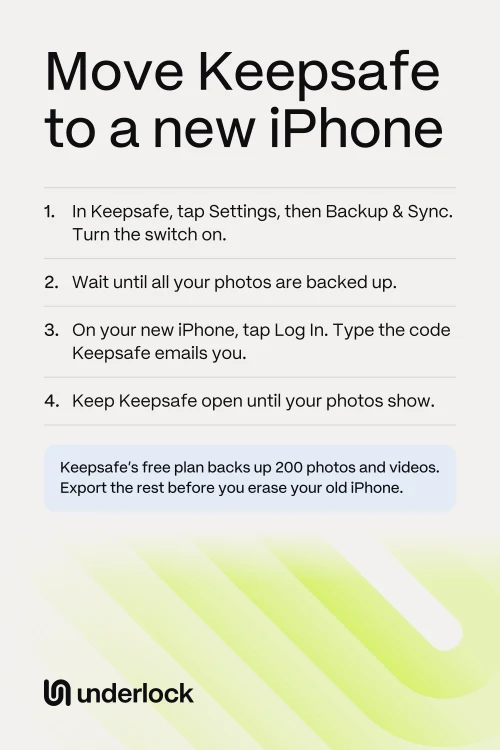
These are Keepsafe’s steps. You need the email address of your Keepsafe account, because Keepsafe sends a code there. Keep your old iPhone until the last step is done.
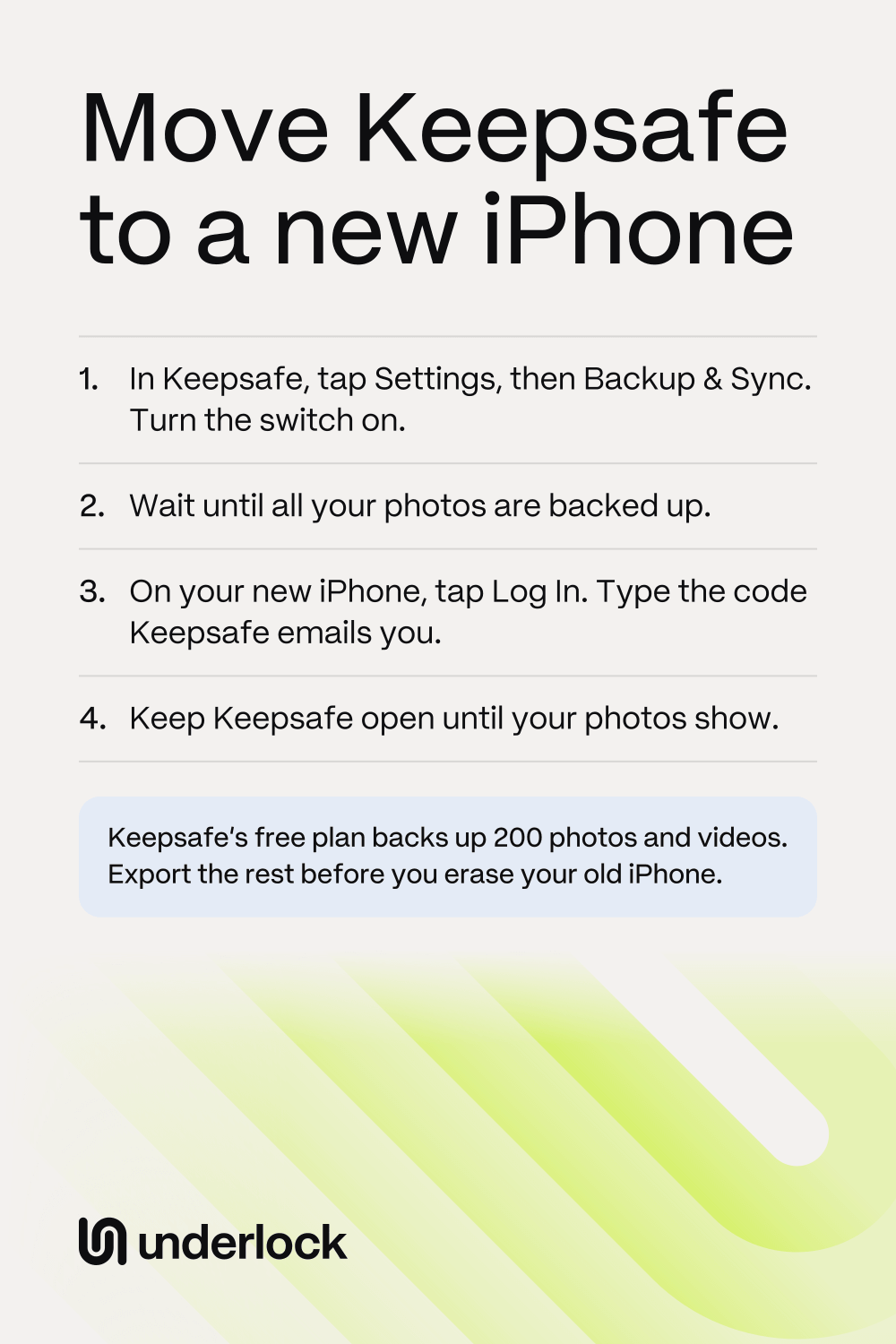
- On your old iPhone, open Keepsafe. Tap Settings in the bottom left corner, then tap Backup & Sync.
- Turn on the Backup & Sync switch. Wait until all your photos are backed up.
- On your new iPhone, download Keepsafe from the App Store.
- Tap Log In. Type the email address of your Keepsafe account.
- Find the 4-letter code in your email. Type the code in Keepsafe, then tap Log In.
- In Keepsafe on your new iPhone, turn on Backup & Sync too.
- Keep Keepsafe open, with the screen on, until all your photos show. Keepsafe says a large number of photos takes time.
- Open some older photos, and play some videos, to check them.
Paid for Premium, but your new iPhone shows Basic? Open Keepsafe’s Settings, then tap Account. Enter your PIN or pattern. Tap Account Type, then tap Restore Purchases.
If your photos don’t all fit in the backup
Keepsafe gives 2 ways:
- Upgrade to Premium, then follow the steps above. Current prices are on Keepsafe’s page in the App Store, and they can change. Keepsafe says you can cancel if you don’t want Premium after the first month or year. Keepsafe also says it doesn’t offer refunds. When Premium ends, all your photos stay in the app, but only 200 stay backed up.
- Move your photos yourself. This way costs nothing. Keepsafe also suggests this way if you have more than 10,000 photos. See the steps below.
Move your photos yourself, without the backup
These are Keepsafe’s steps for photos that aren’t backed up. Exporting takes a photo out of Keepsafe and puts it in the Photos app. There, the photo no longer has Keepsafe’s lock. Already logged in on your new iPhone? Only backed-up photos load there. So any photo missing there isn’t backed up, and that photo still needs these steps.
- On your old iPhone, open Keepsafe. Open an album.
- Tap Select in the top right corner. Choose the photos that aren’t backed up.
- Tap the send icon in the bottom left corner, then tap Export to Camera Roll.
- Do the same for each album, and for your videos.
- Move the photos to your new iPhone. Keepsafe says you can use email, messages or any way you like. For many photos, Apple’s Quick Start is easier, because it copies the photos in the Photos app too.
- On your new iPhone, open Keepsafe. Tap the + icon at the bottom of the screen.
- Choose the photos, then tap Add to Vault.
- Choose whether to keep or delete the originals in the Photos app. Keep Keepsafe open until the import finishes.
Can’t find an exported photo? Keepsafe says an exported photo goes back to the date it was taken, so scroll back in the Photos app. To leave no copies behind in the Photos app, see how to move photos into a vault without leaving copies. Won’t Keepsafe open on your old iPhone? See Keepsafe not working?
Does Quick Start or an iPhone backup move Keepsafe?
Keepsafe’s help doesn’t say. Keepsafe’s help names only 2 ways to move: its own backup and the export steps above. Apple’s Quick Start copies your apps and their data, so you can use Quick Start for the rest of your iPhone. For Keepsafe, follow Keepsafe’s steps. Then check that your photos open on your new iPhone.
If your old iPhone is lost or broken
You don’t need your old iPhone for these steps. You need the email address of your Keepsafe account:
- On your new iPhone, download Keepsafe from the App Store.
- Tap Log In. Type the email address of your Keepsafe account.
- Find the 4-letter code in your email. Type the code in Keepsafe, then tap Log In.
- Keep Keepsafe open, with the screen on, until your photos show.
- What comes back. Only photos that were backed up load. On the free plan, that means your first 200 at most. Keepsafe says photos you never backed up are “gone forever” if you lose your iPhone.
- If your old iPhone is broken. Keep the iPhone, even if it won’t turn on, because photos that aren’t backed up may still be on it. See when your iPhone goes in for repair.
- If you have an iCloud or computer backup of your old iPhone. Keepsafe’s help doesn’t say whether that backup holds Keepsafe’s photos, so ask Keepsafe’s support team.
- If your old iPhone was lost or stolen. See when your iPhone is lost or stolen.
If you can’t log in on your new iPhone
Logging in depends on your email, so most of these fixes start there:
- The code doesn’t come. Look in your Spam folder, and check that your inbox isn’t full. See what to try if the code doesn’t come.
- You forgot which email you used. Keepsafe can’t look up your email for you, but it can check an address you write from. See how to find your Keepsafe email.
- You can’t get into that email. Try your email provider’s own steps first. Keepsafe says that if you’ve lost the only email you verified for good, it can’t recover the account. See what to try.
- You forgot your PIN. On the PIN screen, tap Forgot PIN in the top right corner. See Forgot your Keepsafe PIN?
Still stuck? Email support@getkeepsafe.com from the address on your Keepsafe account. Keepsafe says it can’t help from an address with no account, and it asks for 24 hours to reply.
Check your photos before you erase your old iPhone
Keepsafe asks you to move your photos before you sell or trade in your old iPhone. So first check that your photos open on your new iPhone. Then erase your old iPhone: before you sell, trade in or hand down your iPhone has Apple’s steps.
Thinking of deleting Keepsafe from your old iPhone first? Keepsafe says it has no log out button, and that deleting the app permanently loses anything not backed up. Deleting the app doesn’t cancel Premium either. See what deleting a vault app does.
How a move works in Underlock
We make Underlock, a private vault for photos, videos, files and notes. You open your vault by drawing a pattern on a grid of dots.
Underlock is coming soon to the App Store. Here’s how it will work.
- Your iPhone’s backup carries your vault. Your iPhone’s backup holds your vault’s encrypted files. On your new iPhone, restore that backup. Your 12 words then open your vault, and you choose a new pattern.
- Your 12 words are on paper. Your 12 words are the recovery phrase Underlock asks you to write on paper at setup.
- Without a backup, your vault stays on your old iPhone. If you lose that iPhone, nobody can bring your vault back, not even us.
Moving from another vault app? See how to switch to Underlock.
Questions people ask
Yes, if your photos are in Keepsafe’s backup. Log in with the same email on your new phone. Photos that aren’t backed up stay behind, so export those first.
200. Keepsafe says its free plan, Basic, backs up your first 200 photos and videos. Keepsafe’s Premium plans back up 10,000 or 100,000.
Because Keepsafe’s free plan backs up 200 photos and videos. The rest stay in Keepsafe on your old iPhone. If you still have that iPhone, export the rest with the steps above. To save photos out of any vault app, see how to save photos out.
Yes. Keepsafe says you can log in on as many devices as you like with the same email. Your photos show on each device only if the backup is on and everything is backed up.
No. Keepsafe says all your photos stay in the app, but only 200 stay backed up. If Space Saver was on, Keepsafe first downloads your full-size photos, and those take up more space on your iPhone.
Keepsafe says the backed-up photos come back when you log in again. Anything not backed up is permanently lost when you delete the app. So check your new iPhone before you delete anything.
Yes, with Keepsafe’s backup. Install Keepsafe on your iPhone, then log in with the same email. Photos that are backed up load on your iPhone.