First, don’t delete the app
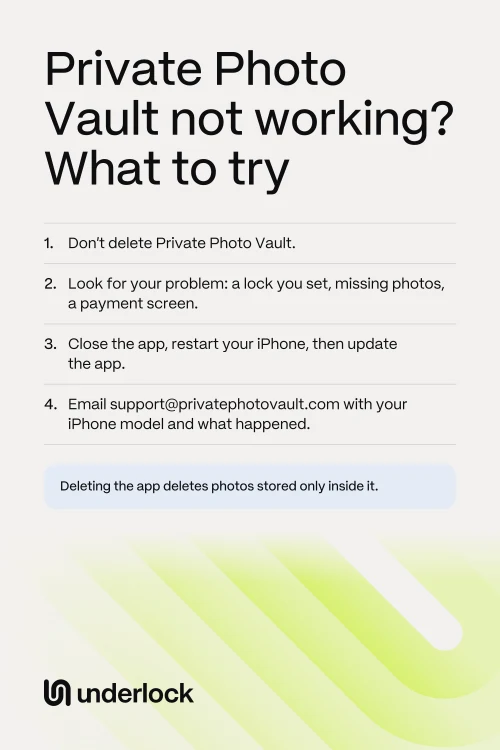
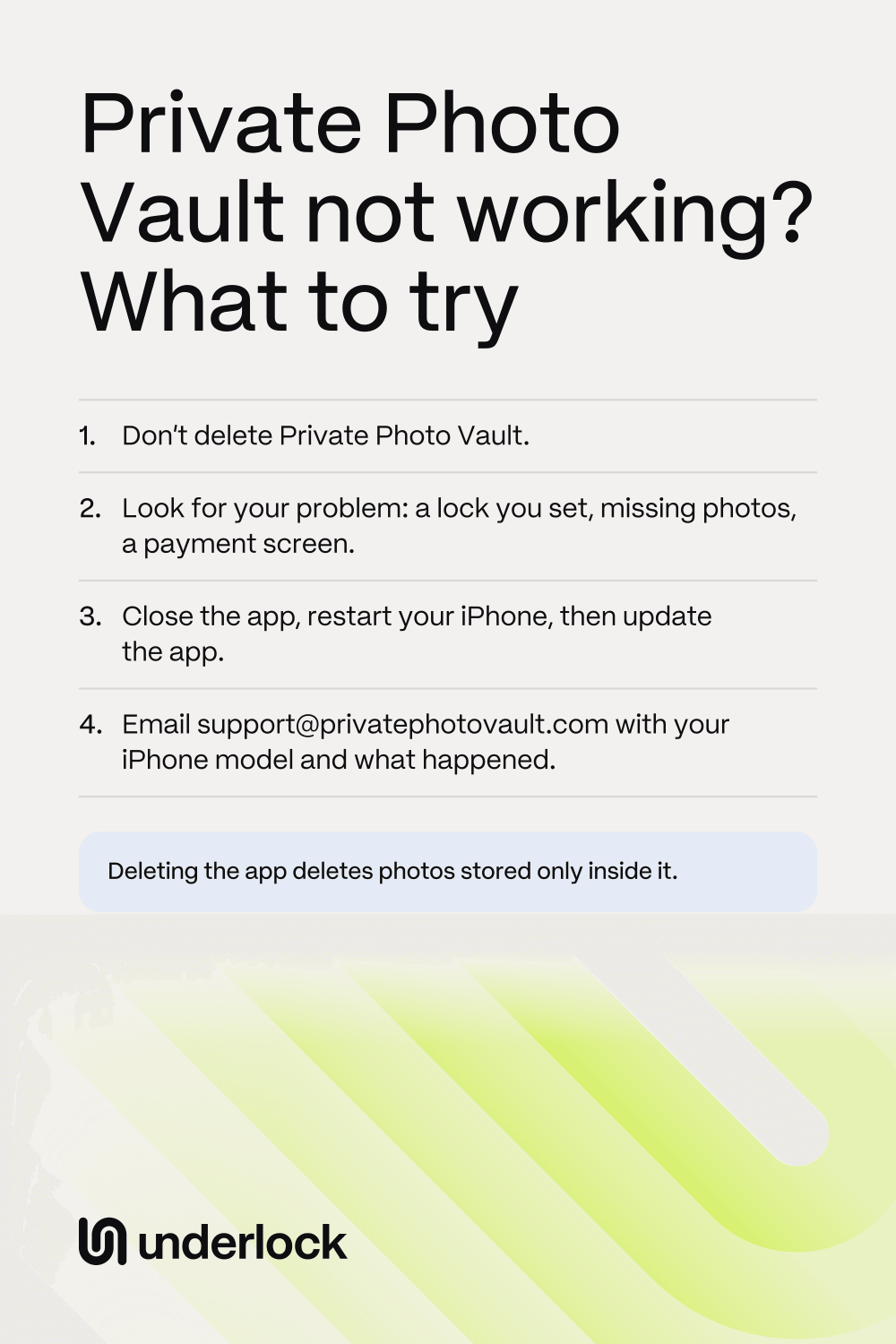
Private Photo Vault says deleting the app removes the photos and videos stored in it from your phone. The company asks you to contact its team before you delete or reinstall the app. So skip these 2 fixes for now:
- Deleting the app and downloading it again. Apple’s list of fixes ends with this step, and Apple warns that you might lose data stored in the app. To see what deleting does, read does deleting a vault app delete your photos?
- Resetting your iPhone. Private Photo Vault says not to reset your phone as a first fix. A reset can remove files stored only on that phone.
Is there a cloud symbol by the app’s icon? Your iPhone offloaded the app, and your photos are still there. Tap the icon to download the app again. See what offloading does. Already deleted the app? See what to try now.
If you can’t find the app
The app may still be on your iPhone. Look for the app in these ways:
- In App Library. Private Photo Vault says you may have removed the app from your Home Screen. Swipe past your last Home Screen page. Then type the name of the app in the search field at the top.
- Under another name. Did you have the separate Pro version? Look for an app named SV. Private Photo Vault says it renamed that version and gave it a new icon.
- With another icon. The app offers custom icons, so the icon may not look the way you remember.
If the app won’t let you in
Private Photo Vault’s pages name these locks. Each one is a setting in the app, and each one can keep you out:
- Your passcode doesn’t work. Private Photo Vault can reset your passcode through a recovery email, if you set one up. See Forgot your Private Photo Vault PIN or password?
- The app stops taking tries. A setting called Timeout locks login attempts after a number of tries you choose. The company’s page doesn’t say how long the lock lasts.
- The app is blocked where you are. A setting called Location Based Lock blocks the app in places you chose. So try the app somewhere outside those places.
- Face ID alone doesn’t open the app. A setting called Face ID + PIN asks for both. So type your vault PIN too.
If the app says Premium has expired
The Premium has Expired screen lets you renew or switch to the free plan, Basic. Cloud Vault is the app’s online backup. On Basic, Private Photo Vault says photos stored in the app stay, but your Cloud Vault backup is deleted. So take these steps in order:
- Did you use Space Saver? This Premium setting frees up space by keeping your original files in Cloud Vault. The company’s pages don’t say what happens to those originals on Basic. So if you used Space Saver, or you’re not sure, contact Private Photo Vault before you switch.
- Still want to stop paying? Scroll down on that screen, then tap Switch to Basic.
Paid already, but the app still acts like the free plan? Open Settings in Private Photo Vault, then tap Restore Purchase. Use the same Apple Account that made the purchase. If that doesn’t work, contact Private Photo Vault.
If your photos aren’t showing
Private Photo Vault’s pages point to these reasons, so check them in this order:
- You typed your other password. A decoy password opens a second vault with different photos. Lock the app, then open the app with your main password.
- A filter is on. An album can show only photos or only videos. A filter changes the view, and it doesn’t delete anything. Check the controls shown in your album.
- The photos are in a sub-album or a locked album. Albums can hold smaller albums, and an album can have its own password. Forgot that password? See Reset an album password.
- You reinstalled the app, or you’re on a new iPhone. Only files that finished uploading to Cloud Vault can come back. Open Settings in the app, tap Cloud Vault, then sign in. See what can come back.
Deleted a photo inside the app? Private Photo Vault’s pages don’t say whether the app keeps deleted photos, so ask its team. See how to look for deleted photos. No photos to choose from when you add new ones? The company names no cause, so check what the app can see.
If videos won’t show or won’t play
Private Photo Vault’s pages name no cause for a video that won’t play. The pages do give these facts, so check each one:
- File type. Private Photo Vault says it supports .mov and .mp4 files. If your video is another type, tell the support team.
- Space Saver. Space Saver keeps your original files in Cloud Vault, and Cloud Vault needs internet. So connect to Wi-Fi, then try the video again.
- Filters. If you see no videos at all, check for a filter, as above.
- Space on your iPhone. Open the Settings app, tap General, then tap iPhone Storage. Apple suggests keeping at least 1 GB free.
If you’re looking for a login page
Private Photo Vault says the app has no browser login and no online photo viewer. So you can’t open your photos on a website. Here’s what you sign in to, and where:
- The vault on your iPhone needs no account. Your own passcode opens the vault.
- Cloud Vault has an account, inside the app. Open Settings in the app, tap Cloud Vault, then sign in. Then type your Cloud Vault password. Your Cloud Vault password is separate from your app passcode.
Private Photo Vault says its website doesn’t collect your account details or your Cloud Vault password. So keep that password out of any website.
If the app won’t open at all
Private Photo Vault’s pages name no cause for an app that crashes or won’t open. So use Apple’s steps for any app, in Apple’s order. Our guide to a vault app that won’t open has each step in full.
- Close Private Photo Vault, then open the app again.
- Restart your iPhone, then open the app.
- Update the app. Open the App Store, tap your picture, then tap App Updates.
- If there’s no update, update iOS. Open the Settings app, tap General, then tap Software Update. The app’s App Store page says the app needs iOS 15 or later.
- Apple’s next step is deleting the app. Skip that step, and contact Private Photo Vault instead.
Use Cloud Vault, and have an iPad or another phone? Install the app there, then sign in with your Cloud Vault password. Files that finished uploading can load there, and nothing on your iPhone changes.
Contact Private Photo Vault
Do this before you delete or reinstall the app. Private Photo Vault’s Support page lists 2 ways, and its pages list no phone number:
- By email. Write to support@privatephotovault.com.
- By form. Fill in the form on the Support page of the company’s website, privatephotovault.com/support.
Give your iPhone model, the app’s version and what happened. The company asks you not to send passwords, PINs or private photos. The company says it replies as soon as possible.
Once the app opens, save your photos
Do these before you try anything else:
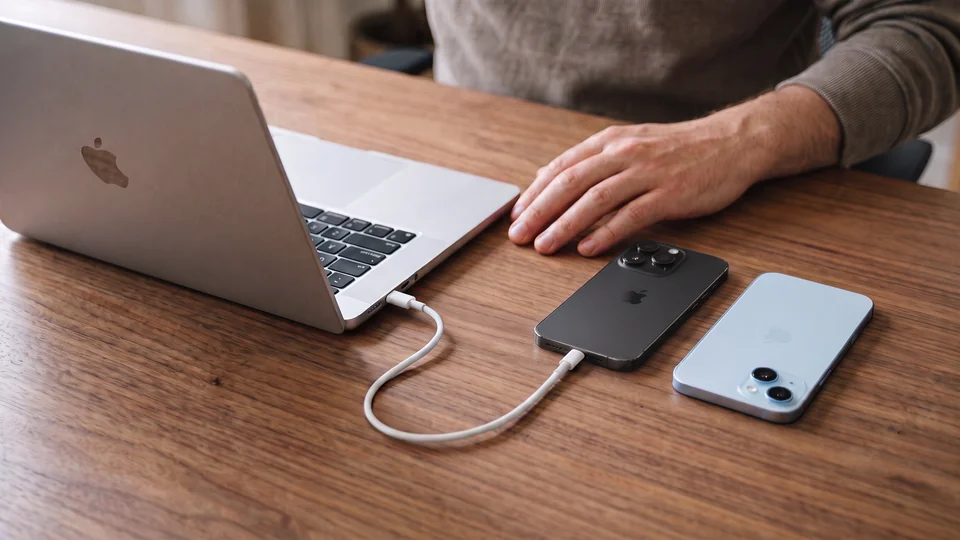
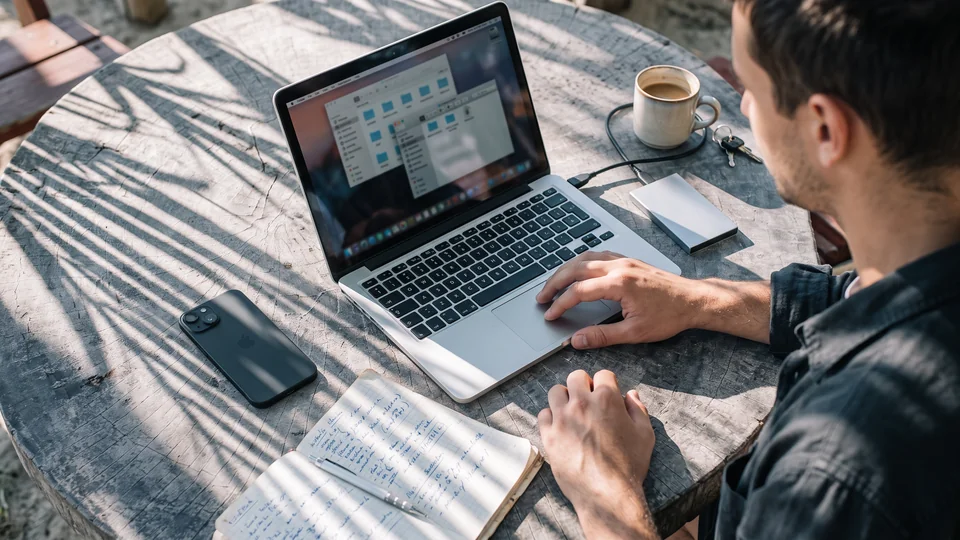
- Save the photos you can’t lose. See how to save your photos out of a vault app. The company’s own steps are in a video on the Tutorials page of its website, called Export, move & delete files. A saved photo can show in the Photos app, without the vault’s lock.
- Check your backup. Using the vault doesn’t back up your photos. See how Cloud Vault and a computer backup work.
If you move your photos to Underlock
We make Underlock, a private vault for photos, videos, files and notes. You open your vault by drawing a pattern on a grid of dots.
Underlock is coming soon to the App Store. Here’s how it will work.
- Save first. Save your photos from Private Photo Vault to the Photos app, as above.
- Then import. Open Underlock. Tap the Add button (a plus sign), then tap Import from Photos. Choose your photos.
- Then decide about the originals. Underlock asks Remove the originals from Photos? Tap Remove or Keep.
- Keep Private Photo Vault until you’ve checked. Delete the app only once your photos open in your vault.

For the whole move, see how to switch to Underlock.
Questions people ask
Reinstalling can cost you photos. To reinstall, you have to delete the app first, and only files in a usable backup can come back. So contact Private Photo Vault first.
Private Photo Vault’s pages don’t give one answer. Check first whether you typed your decoy password, or whether a filter is on. See If your photos aren’t showing.
No. Private Photo Vault says the app has no browser login and no online photo viewer. You open your photos and Cloud Vault in the app.
Private Photo Vault’s pages list no phone number. To reach the company, email support@privatephotovault.com, or use the form on the Support page of its website.
Your Premium plan probably ended. On the Premium has Expired screen, you can renew or tap Switch to Basic. On Basic, photos stored in the app stay, but your Cloud Vault backup is deleted. Is your plan still running? To cancel, open the Settings app, tap your name, then tap Subscriptions.
If you use Cloud Vault, sign in on another device: files that finished uploading can load there. For files stored only in the app, ask Private Photo Vault. The company’s pages give no way to reach those files without the app.
The app’s App Store page says the app needs iOS 15 or later. To see your version, open the Settings app. Tap General, then tap About.