Hide a photo or video
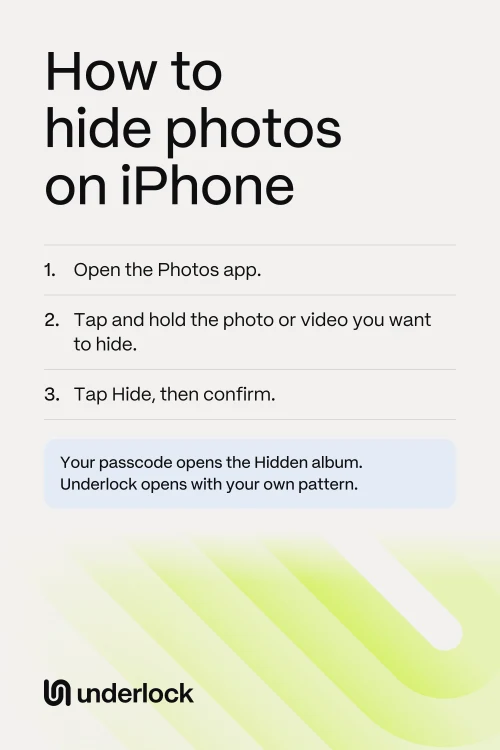
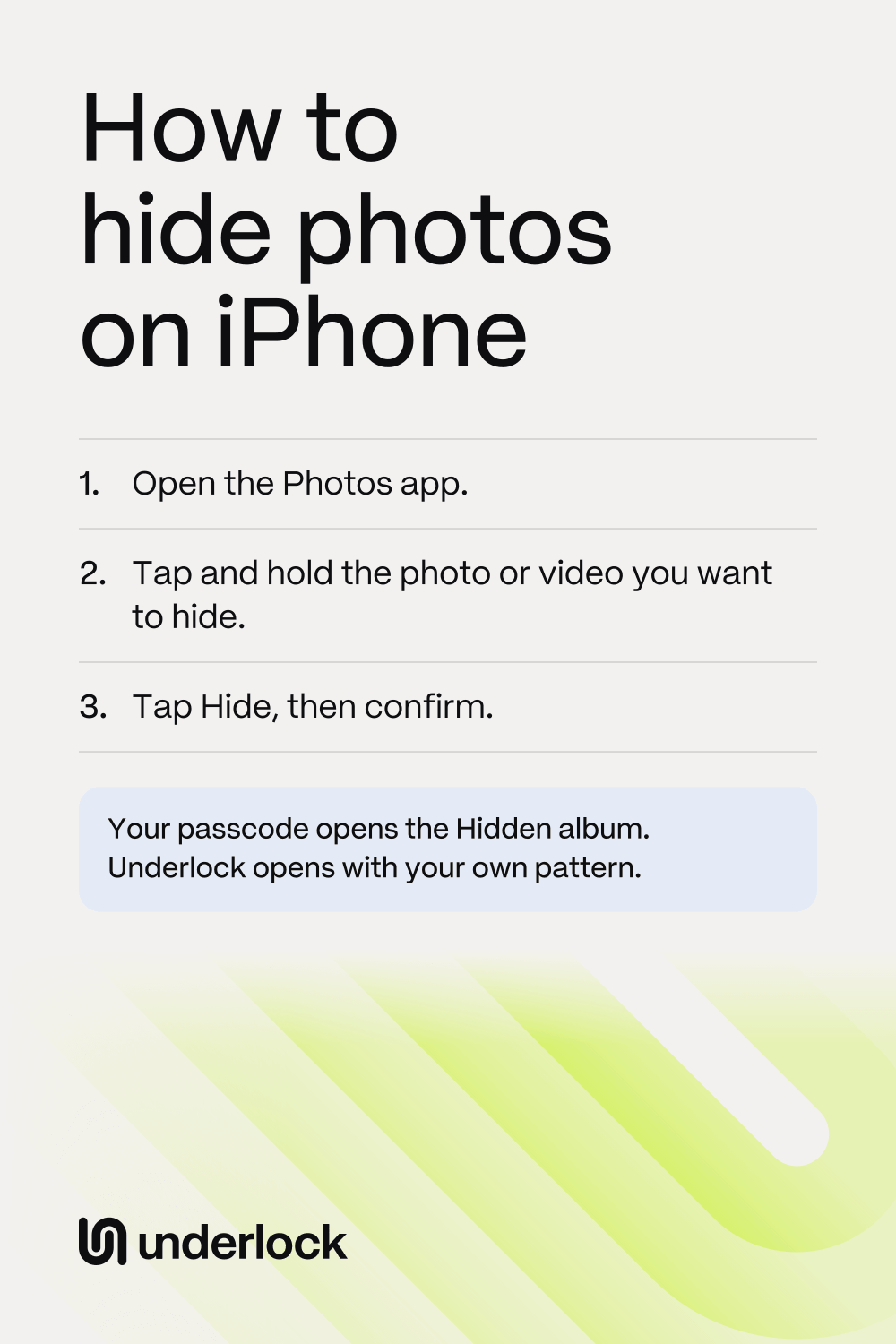
- Open the Photos app.
- Tap and hold the photo or video you want to hide.
- Tap Hide, then confirm.
To hide several at once, tap Select, tap each one, then tap the More button and tap Hide. The photos leave your library and move to the Hidden album. Nothing is deleted.
Find your hidden photos
- In Photos, tap Collections.
- Scroll down to Utilities and tap Hidden.
- Tap View Album, then use Face ID, Touch ID or your passcode.
To unhide a photo, tap and hold it, then tap Unhide.
Hide the Hidden album too
The Hidden album is listed in Photos under Utilities. You can take the album off the list:
- Open Settings, then tap Apps, then Photos.
- Tap Albums. If you don’t see Albums, go to the next step.
- Turn off Hidden Album. On an older iOS, the switch says Show Hidden Album.
Your hidden photos stay hidden, and the album comes back when you turn the switch on again. On the same screen, keep Use Face ID on (Use Touch ID or Use Passcode on some iPhones): it’s on by default, and with it off, the Hidden album opens without asking.
What hiding doesn’t do
Hiding keeps photos out of sight, but doesn’t lock them away from people who know your passcode.
- Hiding uses the lock you already have. The Hidden album opens with Face ID, Touch ID or your iPhone passcode. There’s no separate password, so anyone who knows your passcode can open the album.
- Hiding follows you to your other devices. With iCloud Photos, a photo you hide is hidden on your iPad and Mac too, and opens there with that device’s lock. On a Mac, the lock is Touch ID or the login password.
- Apple holds the keys to iCloud Photos, unless you turn on Advanced Data Protection. Advanced Data Protection is off by default, and in the UK you can’t turn it on.
- Hiding is for photos and videos. Documents and notes need somewhere else.
Your options, side by side
Apple’s options are free and already on your iPhone, and here’s what each option does and doesn’t do.
| Own lock, separate from your passcode | Opens with Face ID | Out of your camera roll | Cost | |
|---|---|---|---|---|
| Hidden album | No | Yes | Hidden, but still in the Photos app | Free, built in |
| Locked note in Notes (can’t hold videos) | Only with a separate Notes password | Yes | Only photos taken in Notes | Free, built in |
| Underlock | Yes, your own pattern | No | Yes, once you remove the originals | Free for one vault, with no file limit |
If nobody else who uses your iPhone knows your passcode, the Hidden album may be all you need.
Lock photos behind your own pattern
A vault app keeps photos behind a lock of its own. Here’s how it works with Underlock, a private vault for photos, videos, files and notes.
Underlock is coming soon to the App Store. Here’s how it will work.
- Open Underlock and tap Get started.
- Draw your pattern, at least 6 dots on a 5 by 5 grid, then draw it again. Prefer typing? Tap Use a passphrase instead.
- Write down the 12 words Underlock shows you. Then tap 3 of the words to check. The 12 words get you back in if you ever forget your pattern.
- Tap Add (the plus at the bottom right), then Import from Photos, and choose your photos. Keep the app open until the import finishes.
- When Underlock asks about the originals, tap Remove. Confirm when iOS asks. Then delete the originals from Photos’ Recently Deleted too.
For new private photos, use the camera inside Underlock. Nothing goes to Photos.
Questions people ask
Yes. The Hidden album is built into Photos: tap and hold a photo, tap Hide, then confirm. The album opens with Face ID, Touch ID or your passcode.
Hiding never deletes anything. A hidden photo moves to the Hidden album and stays on your iPhone, and in iCloud if you use iCloud Photos.
Not a separate one. The Hidden album uses your iPhone’s own Face ID, Touch ID or passcode. For a lock of its own, use a vault app: Underlock opens with a pattern or passphrase you choose.
The same way as a photo: tap and hold the video, tap Hide, then confirm. The video goes to the same Hidden album. See how to hide videos on iPhone for more.
Yes, if iCloud Photos is on, and they’re hidden on your other devices too. Under Apple’s standard protection, Apple holds the keys to iCloud Photos.
Yes, if they look: the Hidden album is listed under Utilities unless you turn off the Hidden Album switch. With Underlock, the app’s icon is on your Home Screen, but without your pattern the app shows only the pattern screen.