Where the originals stay
Importing puts a copy of each photo in your vault. The originals stay in the Photos app until you remove them.
- In your library. Your library keeps the originals, on your iPhone and on your other devices with iCloud Photos.
- In Recently Deleted, for 30 days. A photo you delete waits in Recently Deleted for 30 days. Face ID, Touch ID or your iPhone passcode opens Recently Deleted, so anyone who knows your passcode can look there.
- In places you shared the photos. A photo you also added to a Shared Library, a shared album or a message can stay in those places. See other places a copy can stay.
Before you start, merge duplicates
If a photo is in your library twice, deleting one copy leaves the other copy behind. So merge duplicates first, in the Photos app. Already imported the photos? Merge now, before you delete the originals.
- Tap Collections, tap Utilities, then tap Duplicates. If you don’t see Duplicates, your library has no duplicates.
- For each photo you’re moving, tap Merge next to the photo’s duplicates, then confirm.
Merging keeps one copy of each photo, at the highest quality. The extra copies go to Recently Deleted, like any deleted photo.
Move the photos, then remove the originals
These steps work with any vault app. Follow the steps in this order, so you never delete a photo before your vault has its copy.
- Import the photos into the vault app.
- In the vault app, check that every photo and video is there. Open a few photos to check that the photos look right.
- Check whether the vault app backs up your photos. Once you delete the originals, the vault may hold your only copy. Without a backup, losing your iPhone would mean losing the photos.
- If the vault app offers to remove the originals after the import, use that offer. Confirm when your iPhone asks. The originals go to Recently Deleted, as any deleted photo does.
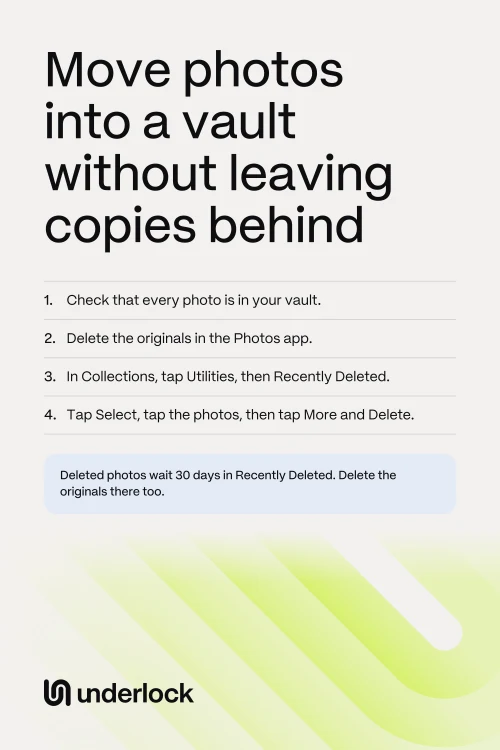
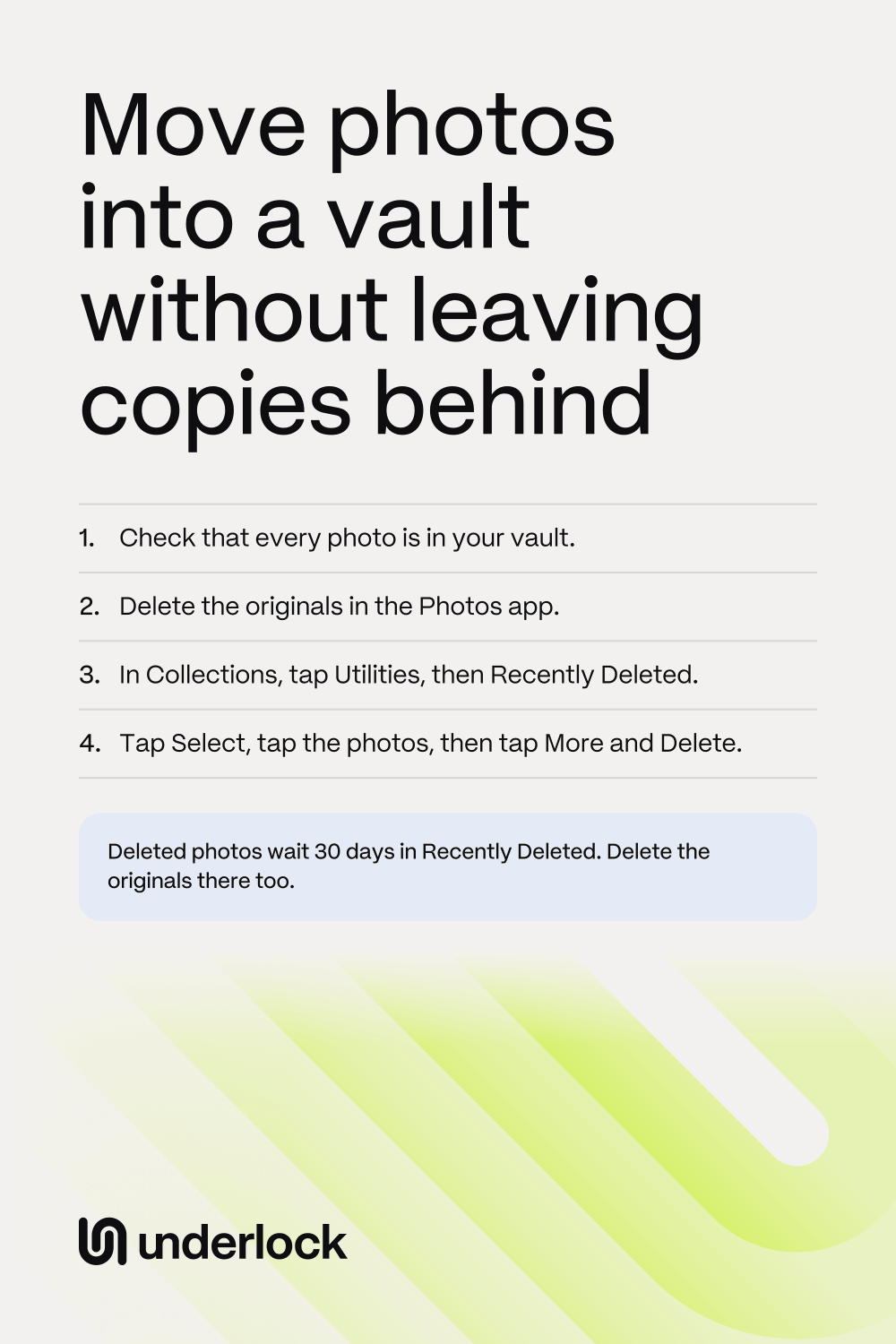
- If the vault app doesn’t offer, delete the originals yourself. In the Photos app, tap Select, then tap each original, or slide your finger across the originals. Tap the Delete button (the trash can), then confirm.
- In the Photos app, tap Collections. Scroll down to Utilities, tap Utilities, then tap Recently Deleted.
- Tap View Album, then use Face ID, Touch ID or your iPhone passcode.
- Tap Select, then tap the photos to delete for good.
- Tap the More button (three dots), then tap Delete. Confirm when your iPhone asks.
Apple says you can’t get back a photo you delete from Recently Deleted. With iCloud Photos on, each delete also happens on your other devices and on iCloud.com. When you delete the originals, the photos move to Recently Deleted on every device. When you delete the photos from Recently Deleted, the photos are gone from every device.
Other places a copy can stay
Deleting the originals in your library doesn’t reach every copy. Check these places too:
- A device without iCloud Photos. A delete on your iPhone reaches only devices that use iCloud Photos with the same Apple Account. An iPad or Mac without iCloud Photos keeps its own copies. Delete the photos on that device too, and then in that device’s Recently Deleted. On a Mac, Apple’s steps for the Mac show how.
- A Shared Library. An iCloud Shared Photo Library is a photo library you share with up to five other people. Everyone in the shared library sees its photos. A photo you added goes through the steps above as usual. You can also delete a photo someone else added: the photo then disappears from the shared library for everyone. But that photo isn’t gone for good yet. The photo waits in Recently Deleted, and only the person who added the photo can delete it from there. If that person doesn’t delete the photo, the photo is deleted for good after 30 days.
- A shared album. A shared album is one album you share with people you choose. In the Photos app, tap Collections, then scroll down to Shared Albums. Open the album. To take a photo out of the album for everyone, tap the photo. Then tap the Delete button, and tap Delete From All Devices. You can delete the photos you added. If you made the album, you can delete any photo in it. If someone saved a photo from the album to their own library, the saved photo stays in their library.
- Messages. A photo you sent or got in Messages stays in the conversation. To delete the photo from the conversation, touch and hold the photo, tap More, then tap the Delete button. Deleting a message on your iPhone doesn’t delete the message for the person who got it. Deleted messages wait in Recently Deleted, in Messages, for 30 days: Apple’s steps show how to delete them for good. Photos you sent by email or in another chat app stay in those apps too.
- Another app that backs up your photos. If another app copies your photos to its own online storage, that app may still have a copy. Check that app too.
Check that no copy is left
- In the Photos app, open Recently Deleted again. Check that the photos you deleted are gone. A photo someone else added to a Shared Library can stay in Recently Deleted for up to 30 days.
- Scroll through your library to where the photos were. Check that the originals are gone from your library too.
- On your iPad and Mac, open the Photos app and look there too.
- Open any shared album or Shared Library you added the photos to, and look there.
For new private photos, use the vault app’s own camera, if the vault app has one. See how to keep photos out of your camera roll.
Moving photos into Underlock
We make Underlock, a private vault for photos, videos, files and notes.

Underlock is coming soon to the App Store. Here’s how it will work.
- No smaller copy. Underlock doesn’t shrink what it imports. See how to test 1 photo.
- Remove, right after the import. When an import finishes, Underlock asks whether to remove the originals from the Photos app. Tap Remove. Confirm when your iPhone asks.
- Then Recently Deleted. The originals wait in Recently Deleted, in the Photos app, for 30 days. Check your vault, then delete the originals from Recently Deleted, as in the steps above.
- If the originals stay. If Underlock can’t remove the originals, Underlock says so. You can then delete the originals in the Photos app yourself.
- New photos skip the Photos app. Photos and videos you take with the camera inside Underlock go straight into your vault. Nothing goes to the Photos app.
See how Underlock’s import works, from setup to the last step. See also what deleting a vault app does to the photos inside it.
Questions people ask
No. Importing puts a copy of each photo in the vault app. The originals stay in the Photos app until you delete the originals.
The Photos app keeps deleted photos for 30 days, so you can get them back. To delete the photos sooner, open Recently Deleted, then tap Select. Tap the photos. Tap the More button (three dots), then tap Delete.
Yes, if your iPad and Mac use iCloud Photos with the same Apple Account. A device without iCloud Photos keeps its own copy, so delete the photo there too.
Photos synced to your iPhone from a computer can’t be deleted in the Photos app. To take the photos off your iPhone, turn off photo syncing on that computer: Apple’s steps show how. The originals stay on the computer, so delete the originals there too.
No. Underlock doesn’t shrink what it imports. For a photo from the Photos app, your iPhone chooses the file Underlock gets.