How an app gets your photos
An app needs your OK before it can see your library. The first time an app asks, your iPhone shows a question, and you choose an answer. Your answer gives the app one of these:
- Full access. The app can see every photo and video in your library. Apple says full access includes the photos in your Hidden album, even when the Hidden album is locked.
- Limited access. You choose some photos and videos. The app can see only those photos and videos.
- None. The app can’t see your photos.
Some apps never see your library. When you add a photo in one of these apps, the app opens Apple’s photo picker: a screen of your photos. You choose photos there, and the app gets only those. Because these apps never see your library, they don’t need to ask first. So these apps may not be in the list in Settings. If a photo has a location, the location goes to the app with the photo. To keep the location to yourself, remove the location from the photo first. Our guide to removing location from photos shows how.
Check and change what each app can see
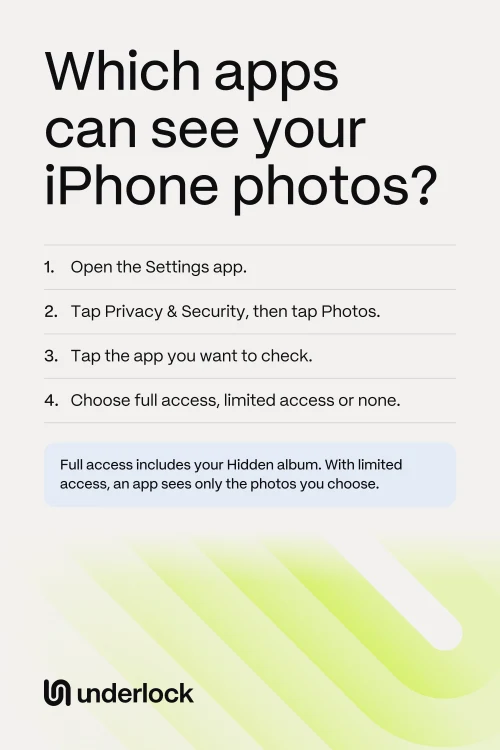
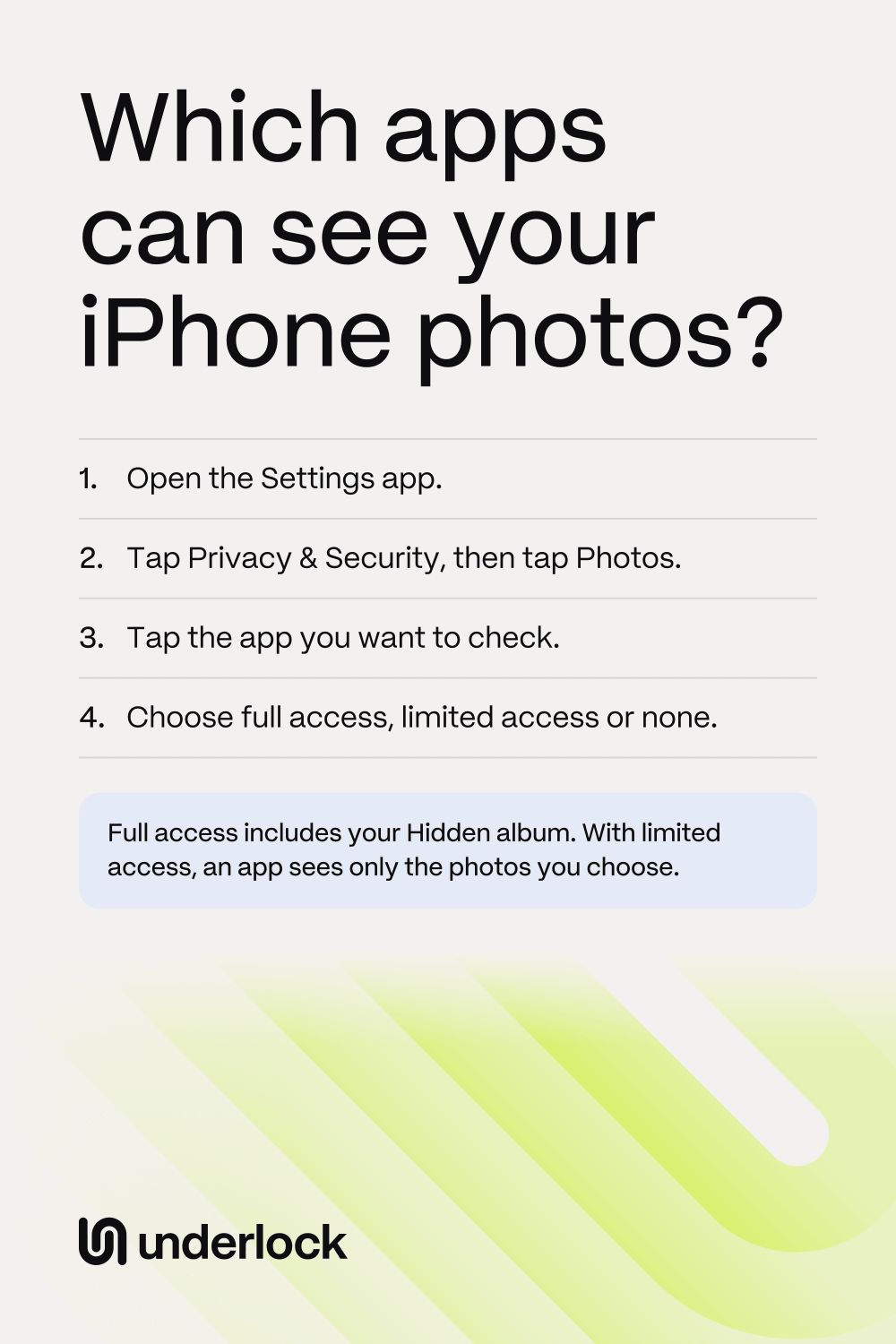
- Open the Settings app.
- Tap Privacy & Security.
- Tap Photos. You see the apps that asked to see your photos.
- Tap the app you want to check. You see what the app can see now.
- Choose full access, limited access or none.
If you choose limited access, your iPhone shows your photos. Choose the photos the app may see. You can change your answer at any time.
Can apps see your Hidden album?
Yes, if the app has full access. Apple says full access includes the photos in your Hidden album, even while the album is locked. The album’s lock asks for Face ID, Touch ID or your iPhone passcode before the album opens. But the lock doesn’t stop an app with full access.
In the Photos app, a hidden photo shows only in the Hidden album, and never in Memories. But an app with full access can still see the photo. To keep your hidden photos away from an app, give the app limited access. Then choose only the photos you want the app to have.
See when apps used your photos
App Privacy Report shows how many times, and when, each app used your photos in the last 7 days. The report covers your camera, microphone and location too. The report starts counting only once you turn it on. To turn on App Privacy Report:
- Open the Settings app.
- Tap Privacy & Security.
- Scroll down, then tap App Privacy Report.
- Tap Turn On App Privacy Report.
Then use your phone as usual. Open the report again another day. Tap an app to see what the app used, your photos included. For other settings to check, see iPhone privacy settings to turn on and off.
Keep private photos outside the Photos app
We make Underlock, a private vault for photos, videos, files and notes. Photos in your vault aren’t in the Photos app. So even an app with full access to your photos can’t see the photos in your vault.

Underlock is coming soon to the App Store. Here’s how it will work.
- Your own pattern. You open your vault by drawing a pattern on a grid of dots. Your iPhone passcode, Face ID and Touch ID don’t open your vault.
- Move photos in. Tap the Add button (a plus sign), then Import from Photos. Choose your photos. Importing puts a copy of each photo in your vault. Keep Underlock open until the import finishes.
- Remove the originals. When the import finishes, Underlock asks whether to remove the originals from the Photos app. An app with full access can still see the originals you keep in the Photos app. If you tap Remove, the originals move to Recently Deleted, in the Photos app. Recently Deleted keeps the originals for 30 days.
- Then delete the originals for good. Your vault keeps its own copy. Anyone with your iPhone passcode can open Recently Deleted, under Utilities in the Photos app. So delete the originals from Recently Deleted. Apple’s page shows how to delete from Recently Deleted.
- 12 words to get back in. At setup, Underlock shows you 12 words to write on paper: your recovery phrase. If you forget your pattern, the 12 words open your vault. Keep the paper somewhere safe. If you forget your pattern and lose the paper, nobody can open your vault, not even us.
- Locks as you leave. By default, your vault locks as soon as you leave Underlock for another app.
See how Underlock’s setup works, step by step.
Questions people ask
Yes, if the app has full access. Apple says full access includes the photos in your Hidden album, even while the album is locked. To keep your hidden photos away from an app, give the app limited access.
The app can see every photo and video in your library, hidden ones too. With limited access, the app can see only the photos you choose.
Open the Settings app. Tap Privacy & Security, then tap Photos. Tap the app, then choose none.
Yes. Any app that can see a photo can see the photo’s location too. To keep the location to yourself, remove the location from the photo first. Our guide to removing location from photos shows how.
No. Photos in your vault aren’t in the Photos app. So even an app with full access to your photos can’t see the photos in your vault. Originals you keep in the Photos app stay where apps with full access can see them.
Yes. Underlock is free forever: one vault, no file limit. If the free plan ever changes, you keep the plan you started with. More vaults come with Pro, Underlock’s paid plan.