Before you start
Check these 4 things first, so nothing gets lost on the way out:
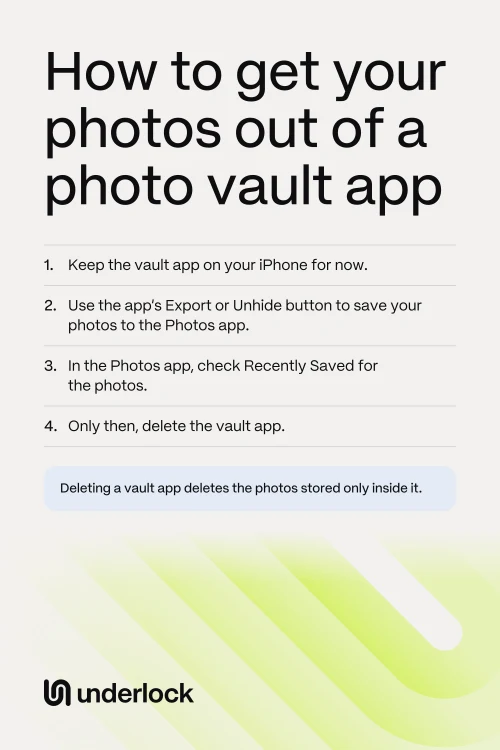
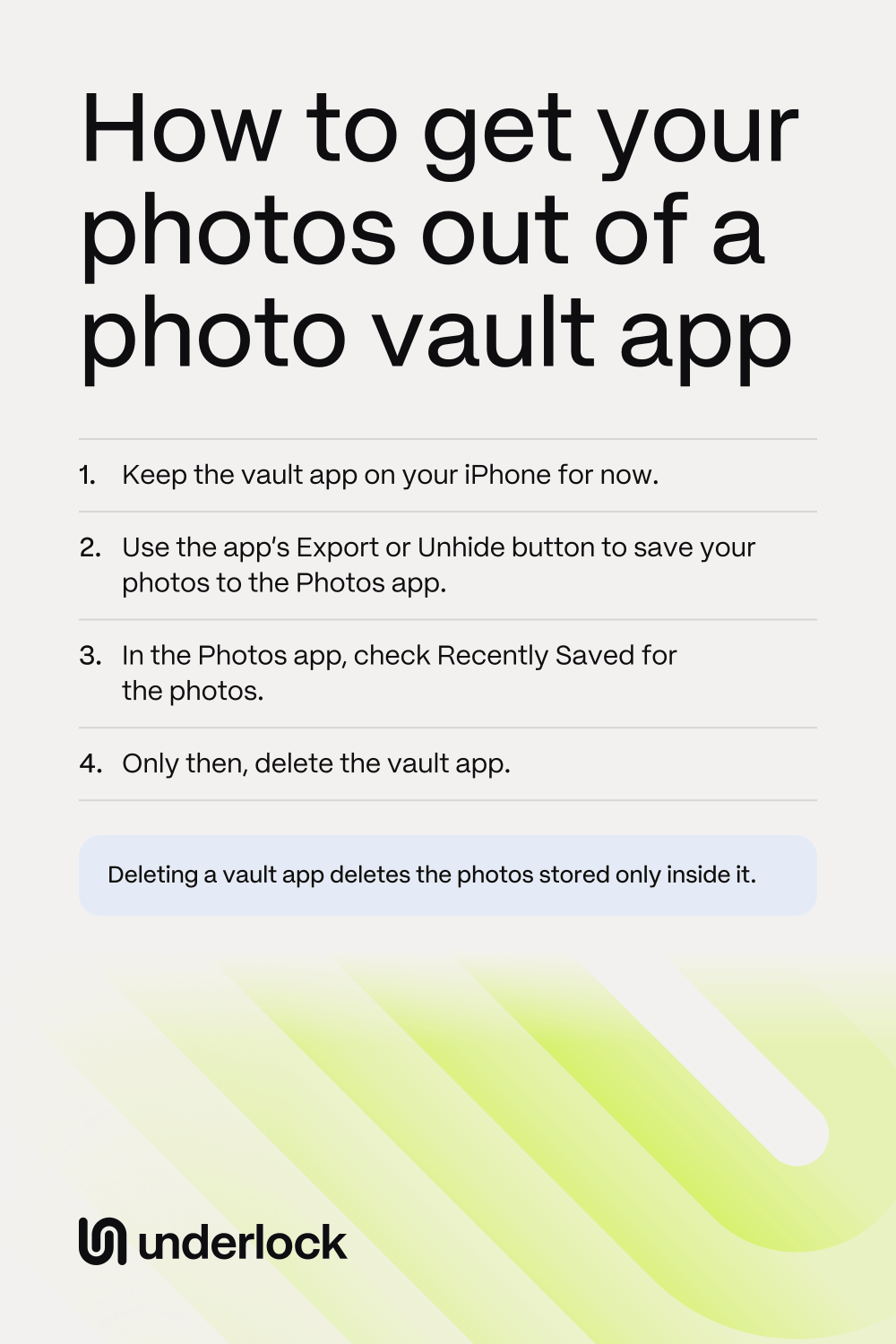
- Keep the vault app on your iPhone. Deleting a vault app deletes the photos stored only inside it. Delete the app only after your photos are out and checked.
- Make room. Saving photos out makes a second copy, so your photos take up space twice until you delete the vault app. To check your space, open the Settings app, tap General, then tap iPhone Storage.
- Know who can see the Photos app. Photos you save show in your library with your other photos. If iCloud Photos is on, the photos also show on your other devices with the same Apple Account.
- Don’t cancel a paid plan yet. Some vault apps delete their backup when a paid plan ends. So cancel only after your photos are out. See what happens if you stop paying.
Save your photos to the Photos app
Each vault app has its own buttons, but the steps usually go like this:
- Open the vault app, then open an album.
- Tap the app’s button for choosing photos, often called Select. Choose the photos you want to save.
- Tap the app’s button for saving photos out. Apps call it different things, such as Export or Unhide.
- Choose the Photos app as the place to save the photos. Some apps call the Photos app the camera roll or the gallery.
- Do the same for every album, and for your videos.
- Look in the app’s trash too, for photos you deleted but still want.
Can’t find the button? See what each app’s own pages say. Some apps let you save to a computer too.
Check that your photos came out
Check before you delete anything from the vault app:
- Open the Photos app. Tap Collections, then tap Recently Saved.
- Look for every album you saved.
- Open a few photos. Play a few videos to the end.
- Can’t find a photo? Some apps give a saved photo the date it was taken, not today’s date. So scroll back to that date.
Once everything opens, you can delete the photos from the vault app, or delete the app itself. See what to do before you delete a vault app. To keep the saved photos out of sight for now, hide them in the Photos app. Moving them into another vault? See how to move photos into a vault without leaving copies.
If the app asks you to pay first
Some vault apps show a screen that asks you to pay when a plan or a free trial ends. Before you pay, try these steps, in this order:
- Look on that screen for a free version, if the app has one. In Keepsafe and Private Photo Vault, the button is Switch to Basic. It can be lower down the screen, or can show after you close the screen.
- Try saving 1 photo to the Photos app. If it saves, save the rest.
- Paid for the app before? Look for Restore Purchases in the app’s settings.
- Still blocked? Ask the company that makes the app. On the app’s page in the App Store, scroll down to Ratings & Reviews, then tap App Support.
If you choose to pay for one more month, save everything while the plan runs. Then cancel. See what to do if your plan has already ended.
The way out in Keepsafe, Private Photo Vault and other apps
This is what each company says on its own pages or its App Store page. An app can change its buttons, so if a step doesn’t match, ask the company.
- Keepsafe. Open an album, then tap Select in the top right corner. Choose the photos. Tap the send icon in the bottom left corner, then tap Export to Camera Roll. Keepsafe says an exported photo goes back to the date it was taken, so scroll back in the Photos app to find it.
- Private Photo Vault. Its App Store page lists export to the Photos app. The steps are in a video called Export, move & delete files, on the Tutorials page of its website. To copy files to a computer, Private Photo Vault offers WiFi Transfer, which moves files between the app and a web browser on your computer. Paying for Premium? Private Photo Vault says switching to its free version deletes your Cloud Vault backup, so keep Premium until your photos are out.
- Hide It Pro. Its App Store page says you can unhide photos and videos back to your phone’s gallery. The page also says you can export all your files in one tap with USB export. Hide It Pro’s pages don’t give the steps.
- Calculator# Hide Photos Videos. Calculator#'s App Store page and website don’t say whether, or how, you can save photos back to the Photos app. So ask the company. On its App Store page, scroll down to Ratings & Reviews, then tap App Support.
- Calculator Lock - Secure Vault. Its App Store page says you can export your files from inside the app, and they move back to your phone. The page doesn’t give the steps. It also says that uninstalling the app loses all your files.
Moving to a new iPhone instead? See Move Keepsafe to a new iPhone or Move Private Photo Vault to a new iPhone.
Getting your photos out of Underlock
We make Underlock, a private vault for photos, videos, files and notes. You open your vault by drawing a pattern on a grid of dots.
Underlock is coming soon to the App Store. Here’s how it will work.
- Share anything out, Pro or not. You can share any photo, video, file or note out of your vault, on the free plan too. If Pro ends, every vault still opens, and you can still share out everything.
- One photo. Open the photo, then tap Share. Underlock asks you to confirm, with a Remove location switch that is on. To keep where the photo was taken, turn the switch off. Tap Share again, then tap Save Image to save the photo to the Photos app.
- Many at once. Tap Select, choose the photos, then tap Share.

A photo you share leaves the vault, and is no longer encrypted. Underlock tells you so before it shares.
Questions people ask
Open the vault app and choose your photos. Then use the app’s Export or Unhide button to save them to the Photos app. Check them under Recently Saved in the Photos app before you delete anything.
Look in the Photos app: tap Collections, then Recently Saved. Some apps put a saved photo back at the date it was taken, and Keepsafe says it does. So scroll back to that date too.
It depends on the app. Keepsafe and Private Photo Vault both say your photos stay in the app on their free version, called Basic. Neither company’s pages say whether Basic lets you save photos out. So save 1 photo as a test, and ask the company if it doesn’t work.
Some apps can. Private Photo Vault offers WiFi Transfer to a web browser on your computer, and Hide It Pro’s App Store page lists USB export. With any app, you can save the photos to the Photos app first.
Yes. You can share anything out of Underlock, Pro or not. Pro is Underlock’s paid plan, and the free plan is one vault with no file limit.