The numbers, from 4,479 App Store reviews
We collected 4,479 App Store reviews of 6 vault apps. Of those reviews, 1,439 give 1 or 2 stars. Here is what those 1,439 reviews mention:
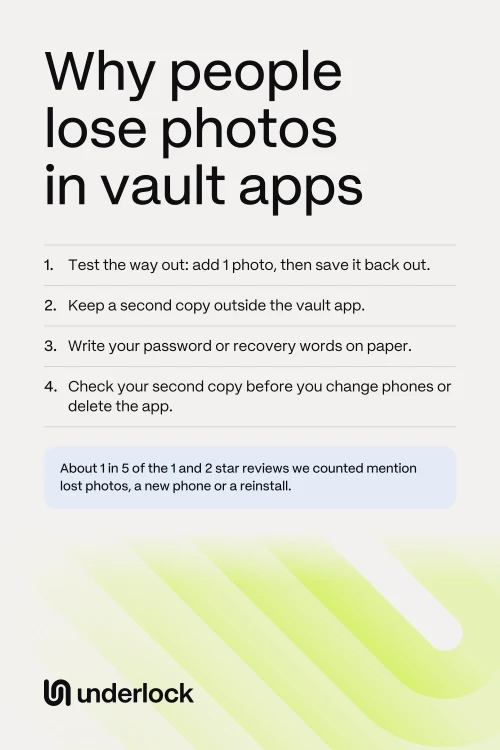
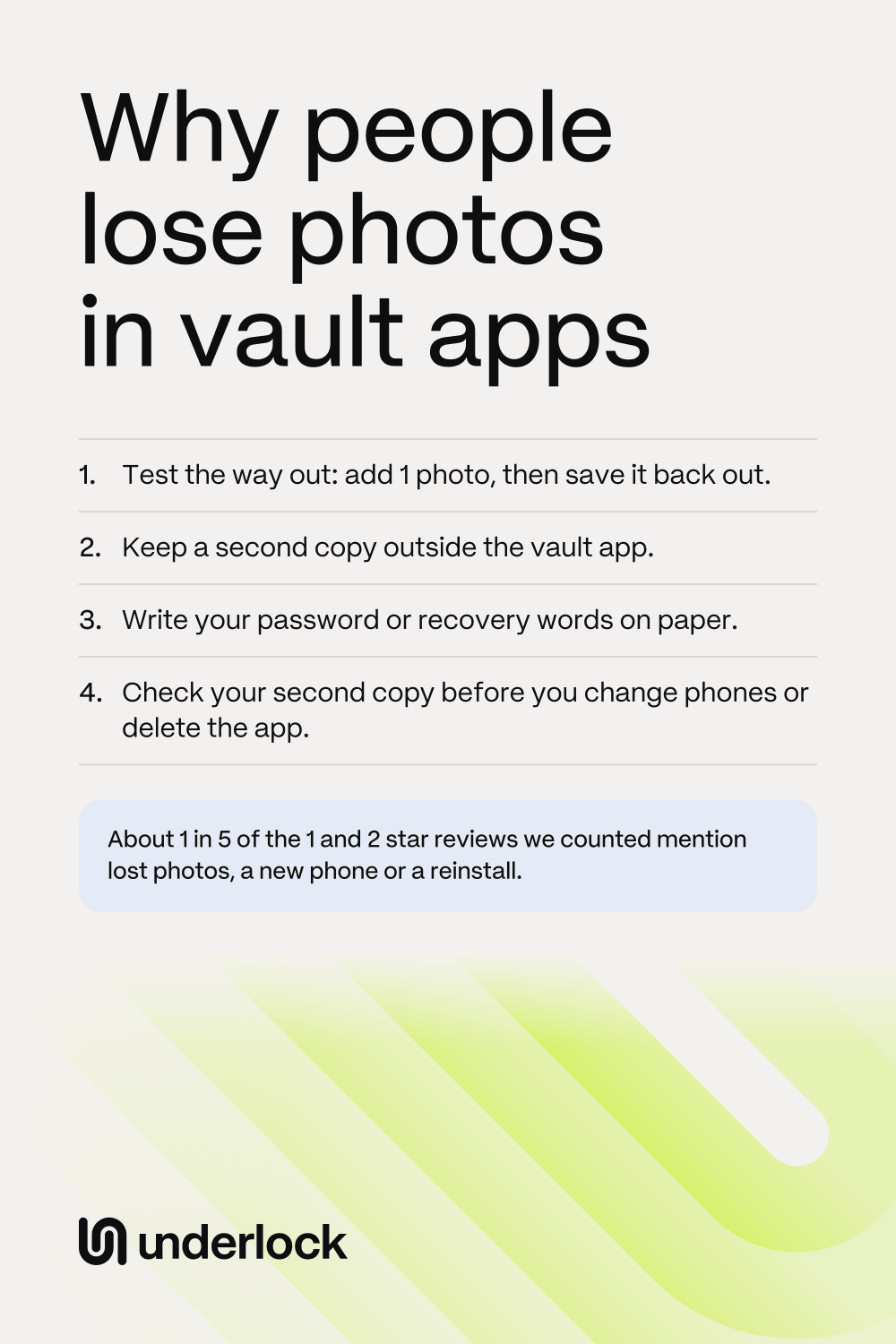
- 323 of 1,439 (22%) mention lost photos, a new phone or a reinstall. That’s about 1 in 5. The next 3 lines show what’s inside that number. One review can count in more than one of them, so they add up to more than 323.
- 202 of 1,439 (14%) say photos were lost, gone or disappeared.
- 107 of 1,439 (7%) mention deleting, reinstalling or offloading the app.
- 79 of 1,439 (5%) mention a new phone.
- Also, 80 of 1,439 (6%) mention a forgotten password or being locked out. This is a separate count from the 323.
- Also, 33 of 1,439 (2%) mention paying to get photos back. This is a separate count too.
Across all 4,479 reviews, at every star rating, 568 mention lost photos, a new phone or a reinstall. That’s 13%. Most of the 4,479 reviews, 2,621 of them, give 4 or 5 stars.
How we counted, and what the numbers can’t show
Apple publishes the most recent and most helpful reviews of each app in a public feed. We downloaded those feeds for 6 vault apps, from the US App Store, in October 2026. So we have many reviews, but not every review. The reviews are dated May 2017 to October 2026.
- Keyword matching. A computer searched each review for words like "lost all", "new phone" and "reinstall". So the counts are approximate, because those words can show up in a review about something else.
- A second check. We then checked 60 of the 323 reviews, chosen at random. In 52 of the 60, photos really were gone or out of reach. In the other 8, the words matched for another reason, like a reinstall to fix a crash. That brings the 22% down to about 19%, so "about 1 in 5" still holds.
- Reviews, not people. These numbers count reviews. They can’t tell you how many people lose photos, because someone who lost photos has more reason to write a review.
- US reviews, some of them old. The reviews are in English. An app can also change after someone reviews it.
- No app names. The counts are about vault apps as a group, so this page names no app and ranks none.
- Who counted. We make Underlock, a vault app, so keep that in mind. Underlock wasn’t on the App Store when we collected the reviews, so Underlock isn’t in the counts.
Photos gone after an update or a crash
202 of the 1,439 reviews say photos were lost, gone or disappeared. 55 of those 202 also mention an update. Some reviews don’t say what caused the loss. What you can do:
- Keep a second copy of anything you can’t lose, outside the vault app.
- Check before you remove the originals. Open a few photos in the vault app. Then delete the originals from the Photos app.
- Is the app not opening? Keep the app on your iPhone, because deleting a vault app deletes photos stored only inside the app. See how to get your photos out first.
- Are your photos already gone? See what to try in a vault app.
The app was deleted or reinstalled
107 of the 1,439 reviews mention deleting, reinstalling or offloading the app. Some of those reviews mention a reinstall only as a way to fix a crash. But deleting a vault app does delete every photo stored only inside the app. What you can do:
- Save your photos first. Before you delete a vault app, save the photos you want to keep. See what to do before you delete.
- Short of space? Deleting a vault app to free up space deletes the photos too. Offloading the app removes the app and keeps the photos. Offloading frees only the space the app itself takes, not the space your photos take.
- Do kids use your iPhone? See when kids or family use your phone.
A forgotten password
80 of the 1,439 reviews mention a forgotten password or being locked out. Without a way back in, your photos stay locked inside the app. What you can do:
- Write down your way back in. Put your password on paper, along with your recovery words if the app gives you some. Keep the paper somewhere safe.
- Keep your email working. If the app resets your password by email, make sure you can still open that email address.
- Already locked out? See what you can do when you forget a vault password.
A new phone
79 of the 1,439 reviews mention a new phone. Some reviewers opened the vault app on a new phone and found the vault empty. Each vault app has its own way to move to a new phone, so check before you change phones:
- On your old iPhone, look in the vault app’s help pages. Find out how the app moves to a new phone.
- If the app has a backup, check that the backup has finished.
- Make a second copy of anything you can’t lose.
- Set up your new iPhone.
- Open the vault app on your new iPhone. Check that your photos open.
- Only then, erase your old iPhone.
See what to do before you sell, trade in or hand down your iPhone.
A charge to get photos out
33 of the 1,439 reviews mention paying to get photos back. In many of those reviews, a limit or a trial ran out, and the app then asked for money. What you can do:
- Test the way out first. Add 1 photo to the vault app, then save that photo back to the Photos app. If the app asks for money, you know before you move everything.
- Read the free plan. Check how many photos the free plan keeps, and whether the free plan lets you take photos out.
- Save before you cancel. Some vault apps delete their backup when a paid plan ends. So save your photos before you stop paying.
Where a second copy can go
A second copy helps with every cause on this page, because your photos no longer depend on one app. You have 3 places to choose from:
- The vault app’s own backup, if it has one. Check that the backup has finished. Then ask the company what happens to the backup if you stop paying.
- A computer only you can open. Save the photos to the Photos app, then transfer the photos to your Mac or PC. Once the photos are on the computer, you can delete the photos from the Photos app. Then delete the photos from Recently Deleted.
- The Photos app. Saving your photos to the Photos app is the simplest choice. But anyone who can open the Photos app on your iPhone can then see those photos.
Whichever you choose, open a few photos from the second copy to check them.
How Underlock handles these causes
We make Underlock, a private vault for photos, videos, files and notes. You open your vault by drawing a pattern on a grid of dots.
Underlock is coming soon to the App Store. Here’s how it will work.
- A deleted app or a new phone. Your vault is on this iPhone. Deleting Underlock deletes your vault. Before you delete Underlock or change phones, save the photos you want to keep.
- A forgotten pattern. If you forget your pattern, your recovery phrase gets you back in: 12 words you write on paper at setup. If you lose both, nobody can open your vault, not even us.
- Getting your photos out. Underlock is free for one vault, with no file limit. You can share anything out of Underlock on any plan. If a paid plan ends, every vault still opens.
- A delete by mistake. Files you delete wait in Recently deleted for 30 days.
None of this replaces a second copy of anything you can’t lose.
Questions people ask
We can’t say. Our counts show what reviews mention. The counts don’t show how many people use vault apps, or how many of those people lost photos.
Yes. Please say that the counts are approximate, that they come from keyword matching, and that Underlock did the count. Underlock makes a vault app.
6 vault apps on the US App Store. This page counts vault apps as a group, so it names none of them.
No. Underlock wasn’t on the App Store when we collected the reviews.
Look in the Photos app first, because originals you never deleted are still there. Then see what to try in a vault app.