Before you start
We don’t make LockMyPix. These steps come from LockMyPix’s own help pages, and LockMyPix can change them. You need 3 things:
- Your LockMyPix password. Use a PIN or a pattern? Where this guide says password, read your PIN or pattern. LockMyPix encrypts your files with your password, so a backup opens only with the same password.
- Your old iPhone, with LockMyPix still on it. LockMyPix keeps your files on that iPhone until you back them up. So keep the old iPhone until your photos show on the new one, even if that means trading it in later.
- The same Apple Account on both iPhones, if you use the Cloud. LockMyPix says your backup is kept in that account.
Photos in LockMyPix’s Trash aren’t in any backup, LockMyPix says. So restore any you want to keep before you back up. Paid for Premium? LockMyPix says Premium is tied to the Apple Account you paid with, so use the same one on your new iPhone.
Move with LockMyPix’s Cloud
LockMyPix’s help calls this the easiest way. The Cloud backs up to your own iCloud, and LockMyPix says your files are encrypted before they go. The backup takes space in your iCloud storage. Apple gives you 5 GB for free, and more storage costs money. LockMyPix’s pages don’t say whether the Cloud is free or needs Premium on iPhone.
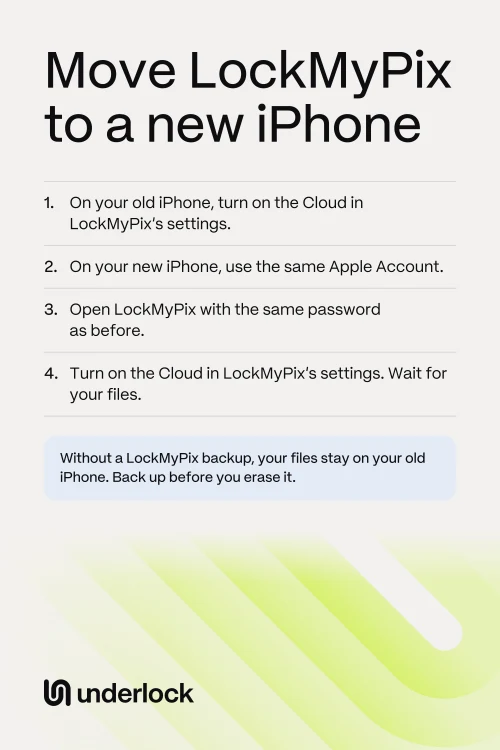
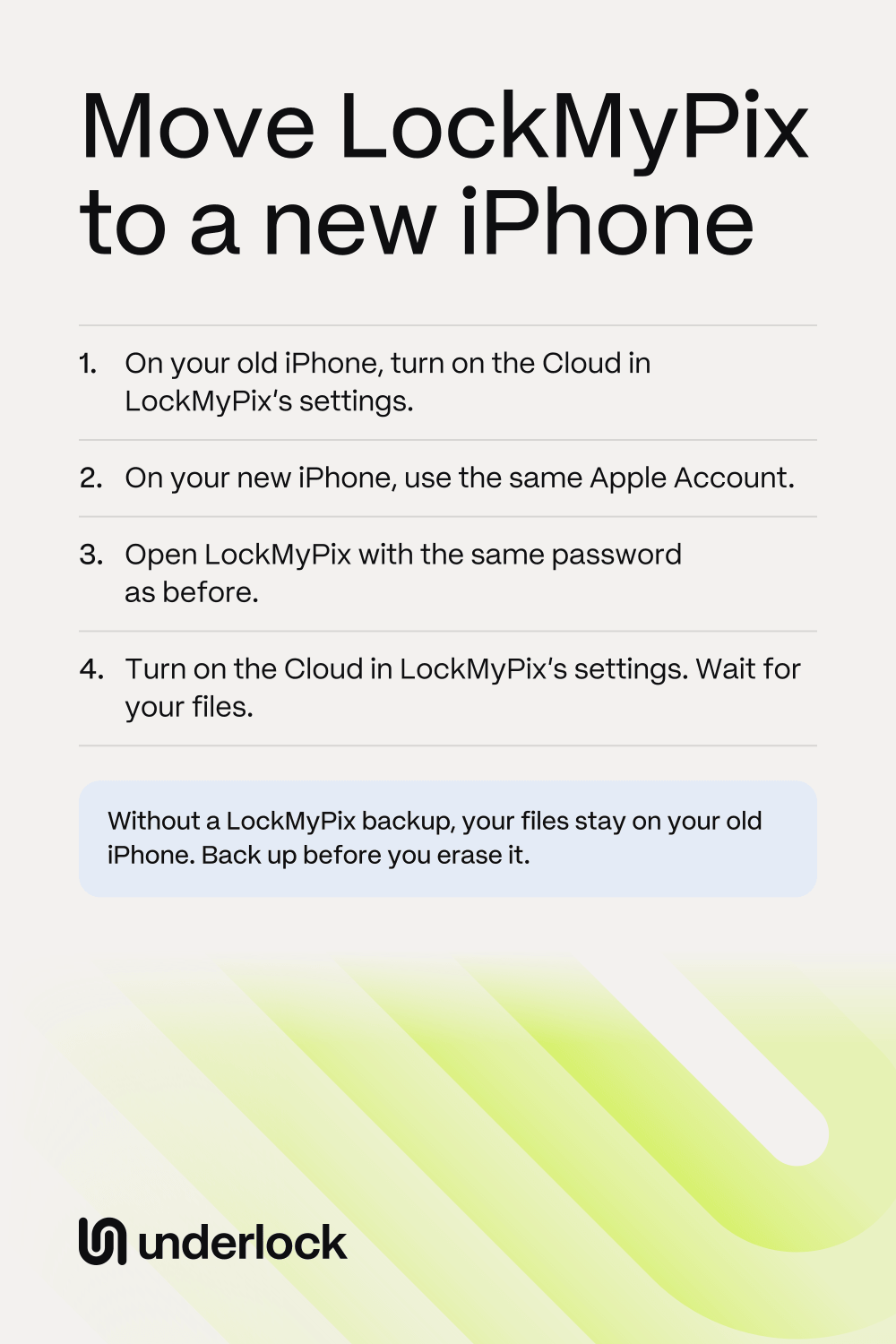
- On your old iPhone, open LockMyPix.
- Open LockMyPix’s settings, and turn on the Cloud.
- On your new iPhone, sign in with the same Apple Account as on your old iPhone.
- Download LockMyPix from the App Store, then open it.
- Create the same password you used on your old iPhone.
- Open LockMyPix’s settings, and turn on the Cloud.
- Wait while LockMyPix downloads your files. LockMyPix says this can take a while if you have many files.
- Open some older photos, and play some videos, to check them.
LockMyPix’s pages don’t say how to see that a backup has finished. So keep your old iPhone, with LockMyPix on it, until your files show on the new one.
Move with a backup file
A backup file is a copy of your vault that you keep yourself. LockMyPix says the file is encrypted. On iPhone, LockMyPix’s help says you can email the file to yourself. For a large backup, its help also names a computer or a cloud service.
- On your old iPhone, open LockMyPix’s settings, then tap Create Backup.
- Find the file. LockMyPix’s help says the Import Backup screen, in LockMyPix’s settings, also shows where your backups are saved.
- Send the backup file to yourself by email.
- On your new iPhone, open the email. Touch and hold the backup file, then choose Save to Files.
- Download LockMyPix from the App Store, then open it.
- Create the same password you used on your old iPhone.
- Open LockMyPix’s settings, then tap Import Backup.
- Choose your backup file.
- Open some older photos, and play some videos, to check them.
If LockMyPix says your password doesn’t match the backup, change your password in LockMyPix’s settings to the one the backup was made with. Then import the backup again. If your backup file doesn’t show in LockMyPix, ask LockMyPix’s support where to put the file. LockMyPix’s help says it looks only in certain places, such as a folder named exactly LockMyPix backups.
Does Quick Start or an iPhone backup move LockMyPix?
We don’t know, and LockMyPix’s help doesn’t say. So don’t count on either one. Make a LockMyPix backup as well, with one of the 2 ways above. You can still use Apple’s Quick Start for the rest of your iPhone, because Quick Start copies your apps and their data. Then check that your photos open in LockMyPix on your new iPhone.
If you didn’t make a backup
LockMyPix keeps your files only on your iPhone, until you turn on a backup. LockMyPix’s help says that after an iPhone is reset, only a backup brings your files back. What you can still do depends on your old iPhone:
- Your old iPhone still works. Make a backup now, with the Cloud or a backup file. Keep LockMyPix on that iPhone until your files show on the new one.
- You deleted LockMyPix from your old iPhone. LockMyPix’s help says that on iPhone, deleting the app deletes its files, unless you made a backup.
- Your old iPhone is broken. Keep the iPhone, even if it won’t turn on, because your files may still be on it. See when your iPhone goes in for repair.
- Your old iPhone was lost or stolen. LockMyPix says it can’t erase your vault from afar. Its help points to Apple’s own way to erase a lost iPhone. See when your iPhone is lost or stolen.
- You have an iCloud or computer backup of your old iPhone. LockMyPix’s help doesn’t say whether that backup holds LockMyPix’s files. Ask LockMyPix’s support before you erase anything.
If LockMyPix won’t open on your new iPhone
These are the problems LockMyPix’s help names, with its own fixes:
- You forgot your password. See Forgot your LockMyPix password?
- Your photos don’t show after you open LockMyPix. LockMyPix says files show only with the exact password they were locked with, capitals included. Try the password you used on your old iPhone.
- LockMyPix refuses a password you’re sure of. LockMyPix’s help says this can happen when your new iPhone copied LockMyPix’s data from the old one. Its fix is an option called Delete Keyfile, inside LockMyPix’s password deep check. LockMyPix says you can then open LockMyPix with any password, but your files show only with your real one. Then move your files with the Cloud or a backup file.
- Premium shows as not active. Sign in with the Apple Account you paid with. LockMyPix says Premium is tied to that account.
Not sure, or still stuck? Write to support@lockmypix.com before you delete anything.
After the move, before you erase your old iPhone
Password recovery doesn’t move to your new iPhone. LockMyPix says recovery turns off by itself when you change phones. To turn it on again, on your new iPhone:
- Open LockMyPix.
- Open LockMyPix’s settings.
- Tap E-Mail Address, then enter an email address that only you can get into. Or tap Alternative Access Password to set a second password.
- Check that your photos and videos open.
Then erase your old iPhone: before you sell, trade in or hand down your iPhone has Apple’s steps. Thinking of deleting LockMyPix from your old iPhone first? On iPhone, that deletes LockMyPix’s files, so check your new iPhone first. See what deleting a vault app does.
How a move works in Underlock
We make Underlock, a private vault for photos, videos, files and notes. You open your vault by drawing a pattern on a grid of dots.
Underlock is coming soon to the App Store. Here’s how it will work.
- Your iPhone’s backup carries your vault. Your iPhone’s backup holds your vault’s encrypted files. On your new iPhone, restore that backup. Your 12 words then open your vault, and you choose a new pattern.
- Your 12 words are on paper. Your 12 words are the recovery phrase Underlock asks you to write on paper at setup.
- Without a backup, your vault stays on your old iPhone. If you lose that iPhone, nobody can bring your vault back, not even us.
Moving from another vault app? See how to switch to Underlock.
Questions people ask
Yes, with a LockMyPix backup: its Cloud, or a backup file. On the new iPhone, open LockMyPix with the same password as before. Without a backup, your files stay on your old iPhone.
Yes. LockMyPix’s help says its Cloud uses your own iCloud on iPhone, and encrypts your files first. Use the same Apple Account on both iPhones.
Yes. LockMyPix encrypts your files with your password, and a backup opens only with the same one. If the two differ, LockMyPix’s help says to change your password to the backup’s, then import again.
Yes, with a backup file. LockMyPix says its Cloud can’t move a vault between iCloud and Google Drive. Make a backup file, move the file to the other phone, then import it.
No. LockMyPix says files in its Trash aren’t in any backup. Restore the ones you want before you back up.
Yes, if you use the same Apple Account. LockMyPix says Premium is tied to the account you paid with.
No. LockMyPix says recovery turns off by itself when you change phones. Turn it on again in LockMyPix’s settings.