What did you forget?
We don’t make LockMyPix. These steps come from LockMyPix’s own help pages, and LockMyPix can change them. LockMyPix opens with a PIN, a password or a pattern. Use a PIN or a pattern? Where this guide says password, read your PIN or pattern. Start with the one that matches your problem:
- Your LockMyPix password, PIN or pattern. If you set up a recovery email, LockMyPix shows you your password after an emailed code.
- You set up a second password instead. LockMyPix calls it an Alternative Access Password. See Use your second password.
- The password LockMyPix shows doesn’t open your vault. See If the password doesn’t work.
- You can’t get into your recovery email. See If you can’t get into that email.
- A password on one folder. LockMyPix’s pages don’t say how to reset a folder’s password, so write to LockMyPix’s support.
Get your password by email
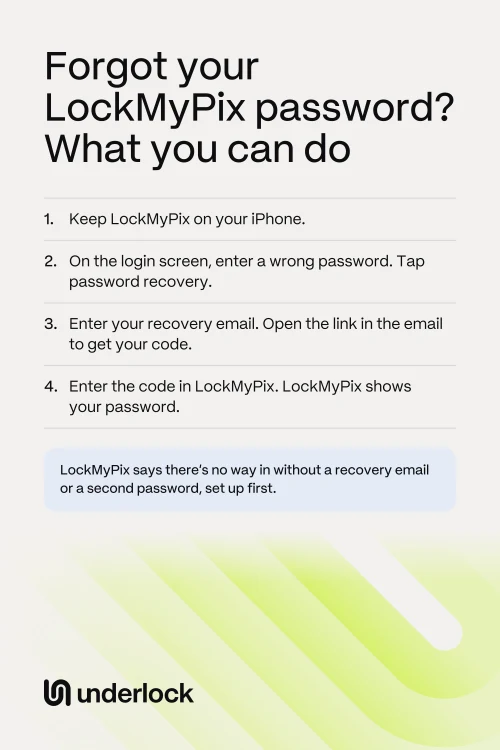
This works only if you added a recovery email before you forgot your password. LockMyPix asks for one at setup. Did you turn on Face ID for LockMyPix? Try Face ID first. If your vault opens, skip to After you’re back in. If not, take these steps on your iPhone:
- Open LockMyPix.
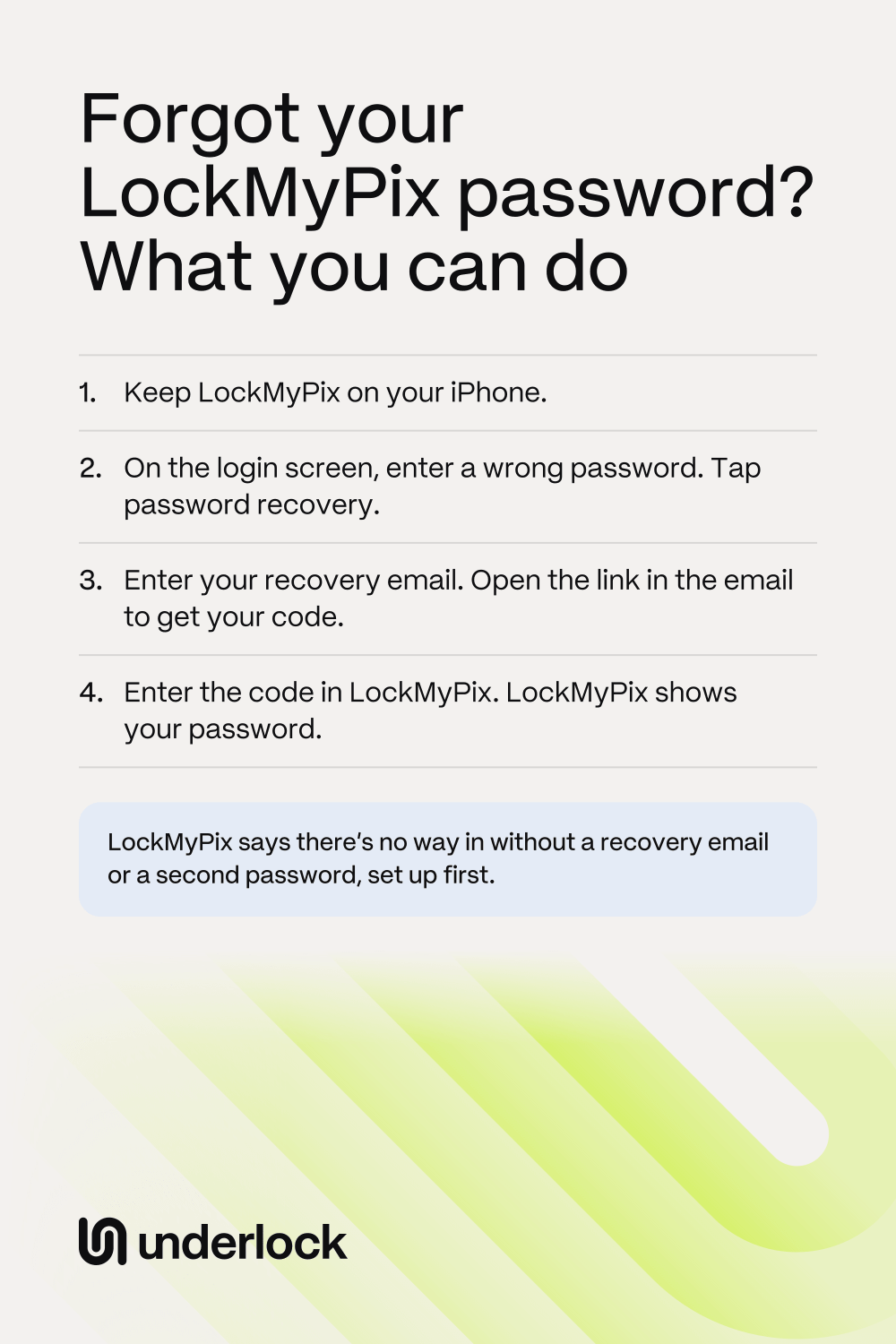
- On the login screen, enter any wrong password. LockMyPix then shows password recovery in the menu at the top.
- Tap password recovery.
- Type the email address you set up for recovery, and confirm.
- Wait for the email, without asking for a new code. LockMyPix says the email can take up to 5 minutes.
- Open LockMyPix’s email. The code isn’t in the email itself: open the link in LockMyPix’s email to see the code.
- Go back to LockMyPix, and enter the code.
- LockMyPix shows your password. Use the password to open your vault.
Never set up a recovery email? LockMyPix may then say it can’t find the email. No email? See If the email doesn’t come. The password doesn’t work? See If the password doesn’t work.
If the email doesn’t come
LockMyPix says the email can take up to 5 minutes. LockMyPix asks you to wait 30 minutes before you ask for a new code. Try these steps, in this order:
- Check that you entered the email address you set up for recovery.
- Look in your spam folder.
- After 30 minutes with no email, tap the refresh button on the screen that asks for the code. LockMyPix sends a new code.
- Use the newest code. LockMyPix says a new code makes the old one stop working.
- Still no email? Write to support@lockmypix.com.
Use your second password
LockMyPix calls this an Alternative Access Password. It works only if you set it up before you forgot your main password. LockMyPix says it works without the internet. On your iPhone:
- Open LockMyPix.
- On the login screen, enter any wrong password. LockMyPix then shows password recovery in the menu at the top.
- Tap password recovery.
- Type your second password, and confirm. If the second password is right, LockMyPix opens your vault.
- Open LockMyPix’s settings, then tap Change password. Choose a new main password, if you need one.
- Changed your main password? Then set up your second password again. LockMyPix asks you to, after a change.
If the password doesn’t work
LockMyPix’s email recovery keeps a copy of your password on LockMyPix’s servers: the password you had when you turned recovery on. That copy may be out of date if:
- you changed your password while LockMyPix was offline. LockMyPix updates the copy only when the app can reach the internet.
- you changed phones, or reset LockMyPix to bring back a backup. LockMyPix says a change of phone or a reset turns recovery off, so the copy stays old.
- you entered a different email address from the one you set up.
Try any older passwords you used. LockMyPix’s help says you can try as many times as you like, with no time limit. A password must match exactly, capitals included. Did your password stop working after you moved to a new iPhone? See If LockMyPix won’t open on your new iPhone.
Check a password you think is right
LockMyPix has a password deep check. It tests a password on a file from your vault. LockMyPix says you can use the check as often as you like. On iPhone, LockMyPix’s help gives these steps:
- Open LockMyPix.
- On the login screen, tap the code options at the top right. Choose Alpha-Numeric Code.
- Type the password you want to test, but don’t send it.
- Press and hold the LockMyPix logo until a message shows.
- Follow the message on the screen. LockMyPix tells you whether the password opened a file.
Can’t find the logo? Write to LockMyPix’s support. LockMyPix’s help also suggests reinstalling the app, but on iPhone, deleting the app deletes its files, unless you made a backup.
If you can’t get into that email
The code goes only to the recovery email you set up. So try to get back into that email first:
- Use your email provider’s own recovery steps. To find them, search the web for your provider’s name and “account recovery”.
- Was the address for work or school? Ask your workplace or school for help.
- Did you also set up a second password? Use your second password instead.
- Keep LockMyPix on your iPhone while you try.
Lost that email for good? LockMyPix’s help says its support team can change your recovery email. You’d need to send proof that the old address is yours. LockMyPix’s pages don’t say what counts as proof.
If you never set up password recovery
LockMyPix says that without a recovery email or a second password, you can’t get back in. LockMyPix says there’s no other way in, and its team doesn’t know your password. Here’s what’s left:
- Keep trying passwords you might have used. LockMyPix’s help says there’s no limit on tries, and no time limit. The deep check can test each one.
- Can Face ID still open LockMyPix? Then save the photos you can’t lose to the Photos app now.
- A LockMyPix backup won’t help here. LockMyPix says a backup opens only with the password it was made with.
After you’re back in
Turn on password recovery, so a forgotten password can’t lock you out next time. To add a recovery email, on your iPhone:
- Open LockMyPix.
- Open LockMyPix’s settings.
- Tap E-Mail Address.
- Enter an email address that only you can get into.
- Does LockMyPix say the email isn’t available? That address is already linked to a different password. Use that password, or ask LockMyPix’s support to remove the address.
To add a second password, open LockMyPix’s settings, then tap Alternative Access Password. Enter a password with at least 6 characters. LockMyPix says you can change this password later, but not remove it. Then write your passwords down, somewhere only you can reach.
How to reach LockMyPix support
- Email support@lockmypix.com. LockMyPix’s contact page gives this address for support.
- What support can do. LockMyPix says its team doesn’t know your password, so support can’t tell you what it is. Support can change or remove a recovery email, if you prove that the email is yours.
Using a different vault app? See Forgot your photo vault password? LockMyPix won’t open at all? See Photo vault app not working?
In Underlock, 12 words get you back in
We make Underlock, a private vault on your iPhone for photos, videos, files and notes. You open your vault by drawing a pattern on a grid of dots. If you forget your pattern, a recovery phrase gets you back in.
Underlock is coming soon to the App Store. Here’s how it will work.
- 12 words on paper. At setup, Underlock shows you 12 words to write on paper: your recovery phrase.
- If you forget your pattern. On the pattern screen, tap Use recovery phrase, then type your 12 words. Then choose a new pattern. Your photos are all still in your vault.
- If you forget your pattern and lose the paper. Nobody can open your vault, not even us.

See how the recovery phrase works.
Questions people ask
No. LockMyPix says its team doesn’t know your password. LockMyPix can show your password after an emailed code, or open your vault with your second password, if you set one up.
Yes, if you set up a second password before you forgot. LockMyPix calls it an Alternative Access Password. Without it, and without a recovery email, LockMyPix says nobody can get you back in.
No. LockMyPix’s help says that on iPhone, deleting the app deletes its files, unless you made a backup. A backup opens only with the password it was made with.
LockMyPix says up to 5 minutes. After 30 minutes, ask for a new code. A new code makes the old one stop working.
As many times as you like, LockMyPix’s help says, with no time limit.
No. Underlock is a different app, from a different company. Only LockMyPix’s own recovery can get you back into LockMyPix.
No. We can’t see your files, your pattern or your recovery phrase, so we have nothing to reset. Your 12 words let you choose a new pattern yourself.