What an iCloud backup holds
An iCloud backup is a copy of what’s on your iPhone and doesn’t already sync to iCloud. With Back Up This iPhone on, your iPhone makes the copy each day, while your iPhone is locked, charging and on Wi-Fi. An iCloud backup holds:
- Your settings. That means your device settings, your Home Screen layout and how your apps are organized.
- App data. That means the data of the apps you downloaded, such as games and messaging apps. If an app keeps its data in iCloud Drive, that data stays out of the backup.
- Photos and videos, if iCloud Photos is off. With iCloud Photos on, your photos and videos are already in iCloud. So the backup leaves them out.
- Messages, if Messages in iCloud is off. That means iMessage, text and MMS messages.
- Your Apple Watch backup. Your Apple Watch is backed up with your iPhone.
- A few small things, such as ringtones you bought and your Visual Voicemail password.
An iCloud backup doesn’t hold notes that already sync to iCloud, Apple Mail data, Apple Pay information, or your Face ID and Touch ID settings. Data in other services, like Gmail, stays out too. Hidden photos are like your other photos: they’re in the backup only if iCloud Photos is off. See are hidden photos saved to iCloud?
What a backup on your computer holds
A backup on your Mac or PC holds almost all of your iPhone’s data and settings. The backup leaves out:
- App Store, iTunes Store and Apple Books content
- Things you synced from your computer, like imported music, videos and photos
- Data already in iCloud, like iCloud Photos and messages you sync with iCloud
- Your Face ID and Touch ID settings, Apple Pay information and Apple Mail data
- Your Activity, Health and Keychain data, until you encrypt the backup
Is your iPhone backup encrypted?
It depends on where the backup is. Encrypted means scrambled, and a key is the long code that unscrambles the backup.
- An iCloud backup is always encrypted. But by default, Apple holds the keys to your backup, so Apple can unscramble the backup. Apple uses those keys to help you restore your backup on a new device. With Advanced Data Protection on, only your devices hold the keys. See what Advanced Data Protection changes.
- A backup on your computer isn’t encrypted until you turn on encryption. The setting is called Encrypt local backup. You choose a password, and you need that password to use the backup. An encrypted backup also holds your saved passwords, Wi-Fi settings, website history, Health data and call history. Apple says an encrypted backup doesn’t include Face ID, Touch ID or passcode data.
Encrypt a backup on your computer
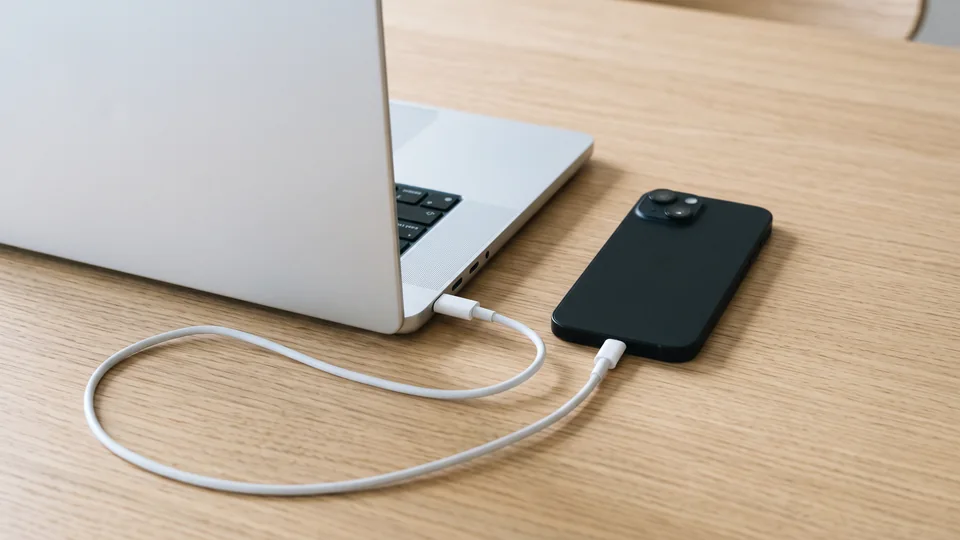
You need a cable, and a Mac or a PC with the Apple Devices app.
- On a Mac, open the Finder. On a PC, open the Apple Devices app.
- Connect your iPhone to your computer with the cable.
- Select your iPhone.
- In the General tab, select Encrypt local backup.
- Create a password when your computer asks. Write the password down, and keep the paper somewhere safe.
The backup then starts by itself. The new encrypted backup replaces your earlier backups. To check, click Manage Backups: a lock next to your iPhone’s name means that backup is encrypted. Forgot the password? You can’t restore that backup without the password. Apple’s steps let you make a new encrypted backup, but the new password doesn’t open your old backups.
See what your iCloud backup holds
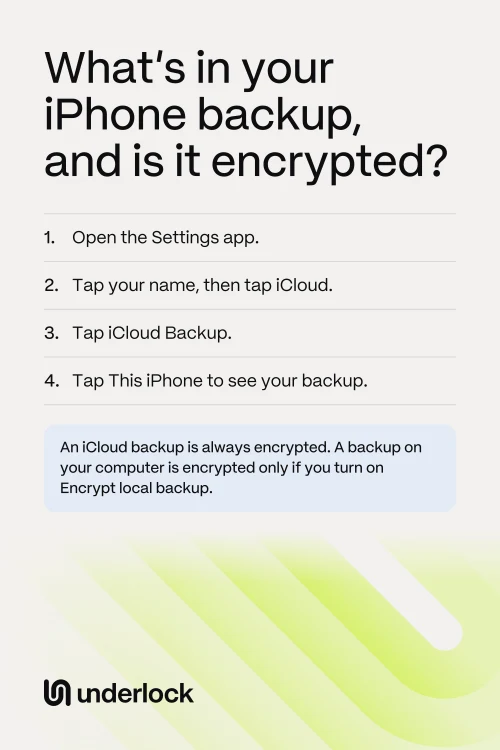
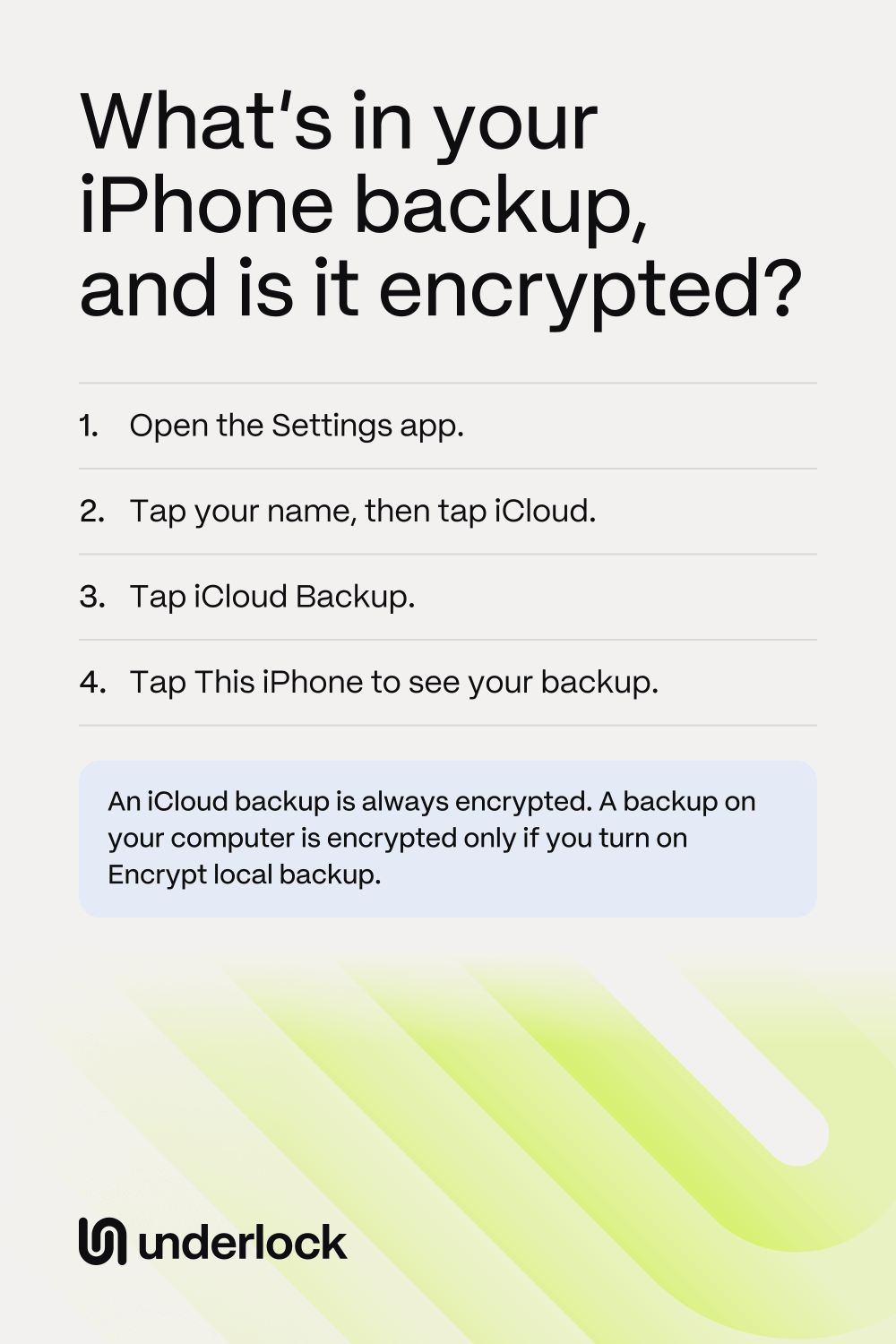
- Open the Settings app.
- Tap your name, then tap iCloud.
- Tap iCloud Backup.
- Tap This iPhone.
You see your last backup, the size of your next backup and the apps in the backup. Turning an app off here deletes that app’s backup data from iCloud. And if you turn off iCloud Backup for your iPhone, Apple keeps your backups for 180 days, then deletes them.
Is a vault app in your backup?
It depends on the vault app. A vault app’s data counts as app data, so the data can be in your iPhone backup. But any app can keep files out of your backup. So ask the company that makes your vault app 3 questions:
- Are my photos in my iPhone’s backup? A vault app can keep its photos out, and use a backup of its own.
- Will my photos open on a new iPhone? Your photos can come over in a backup, but the vault app may not be able to open them there.
- Are my photos encrypted before they reach the backup? If not, anyone who can read the backup can read your photos.
The list of apps under This iPhone, in the steps above, shows whether iCloud backs up your vault app. The list doesn’t show whether your photos are inside. For more questions to ask, see are photo vault apps safe?
If you use Underlock
We make Underlock, a private vault for photos, videos, files and notes. You open your vault by drawing a pattern on a grid of dots. Everything you add to your vault is encrypted on your iPhone before Underlock saves it.
Underlock is coming soon to the App Store. Here’s how it will work.
- Your vault’s files are in your iPhone’s backup. The files are still encrypted, so your iPhone’s backup holds nothing readable from your vault.
- On a new iPhone, your 12 words open those files. Your 12 words are the recovery phrase Underlock asks you to write on paper at setup. Your pattern can’t open those files. Your pattern works only with one small part inside your old iPhone, its security chip. After you restore your iPhone’s backup, open Underlock. Tap Use recovery phrase. Type your 12 words, then choose a new pattern.
- With no backup at all, a lost iPhone means lost files.
Questions people ask
Only if iCloud Photos is off. With iCloud Photos on, your photos sync to iCloud and stay out of your backup. That’s true for an iCloud backup and for a backup on your computer. To check, open the Settings app and tap your name, then iCloud, then Photos. If Sync this iPhone is on, your photos are in iCloud Photos.
With iCloud Photos off, they normally are, because hidden photos are in the Photos app with your other photos. See are hidden photos saved to iCloud?
By default, yes. Apple holds the keys to your backup and can unscramble the backup. With Advanced Data Protection on, only your devices hold the keys, and Apple says that nobody else can read the backup, not even Apple.
Either, or both. An iCloud backup is always encrypted and works anywhere with Wi-Fi, but it uses your iCloud storage. A backup on your computer uses your computer’s space, and you turn on encryption yourself.
If you turn off iCloud Backup for your iPhone, Apple keeps your backups for 180 days, then deletes them.
Only with your 12 words. The vault’s files in your iPhone’s backup are encrypted, and on another iPhone only your 12 words open them. Your pattern can’t open them there. A password on your iPhone’s backup doesn’t replace your 12 words. So keep the paper with your 12 words somewhere safe.