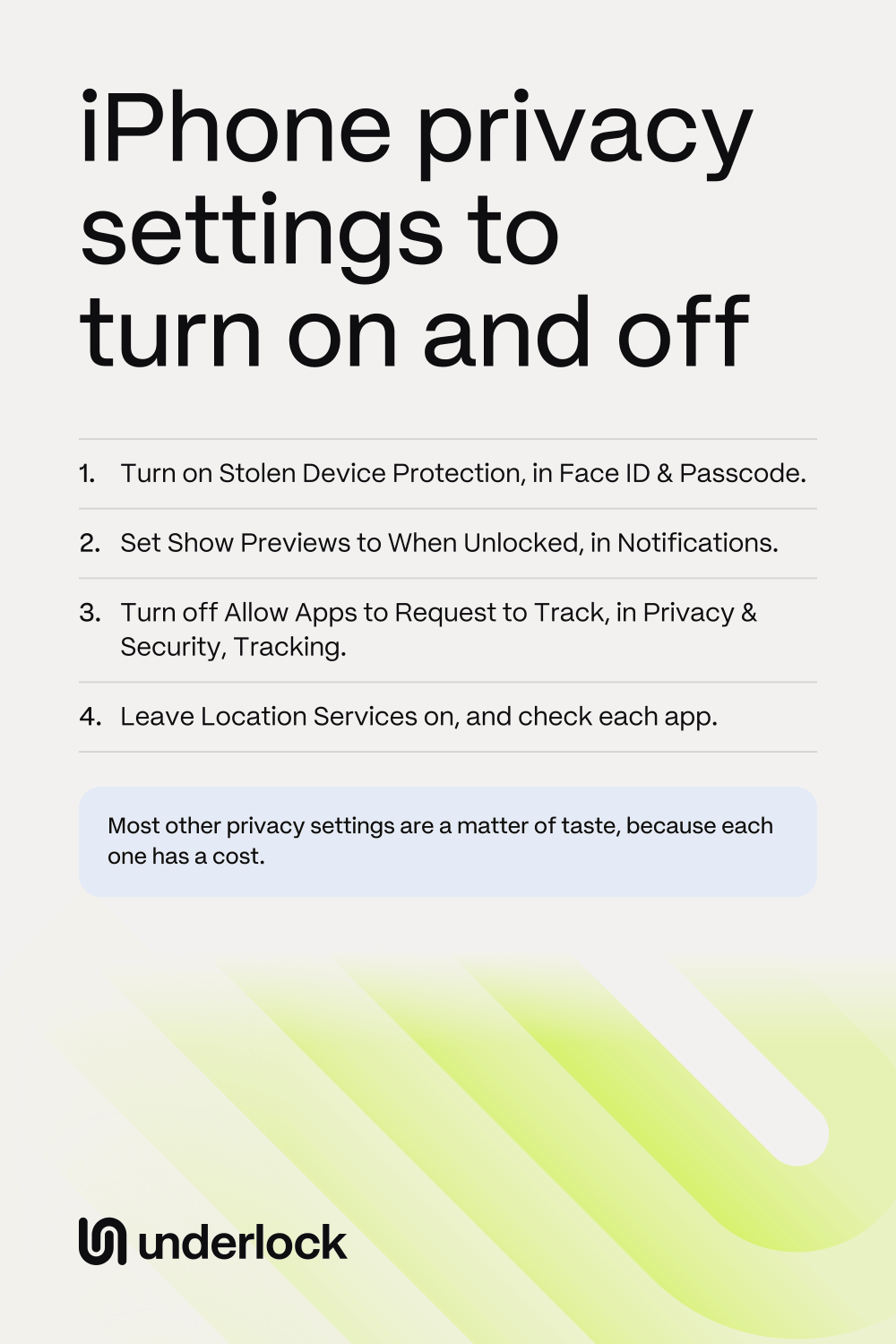
Privacy settings to turn on
This page covers your whole iPhone. For your photos, use the iPhone photo privacy checklist, which this page doesn’t repeat. The first 2 settings here suit nearly everyone. The other 2 are a matter of taste.
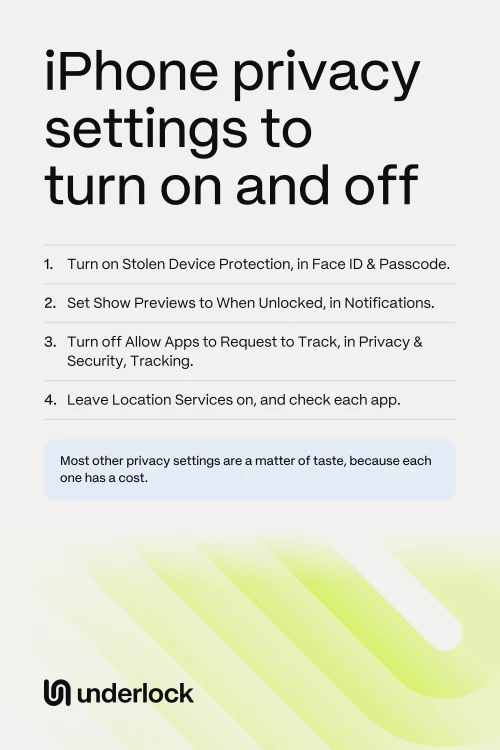
- Stolen Device Protection: on. This setting helps if someone steals your iPhone and knows your passcode. Familiar places are ones like home and work, where you regularly use your iPhone. Away from familiar places, actions like using saved passwords need Face ID or Touch ID, with no passcode option. Changes like a new passcode also need a wait of one hour. To turn the setting on, open the Settings app. Tap Face ID & Passcode or Touch ID & Passcode, then enter your passcode. Tap Stolen Device Protection. The cost: if you change your own passcode away from those places, you wait that hour too. You need iOS 17.3 or later, and Apple says the setting may already be on.
- Show Previews: When Unlocked. Apple says notification previews can include text from Messages and lines from Mail. With this setting, that text shows only once your iPhone is unlocked. In the Settings app, tap Notifications, then Show Previews. The cost: you unlock your iPhone to read an alert. See how to keep message text off your Lock Screen.
- Protect Mail Activity: on, if you use Apple’s Mail app. Apple says this setting stops senders from seeing whether you opened their email. This setting also hides your IP address, a number that can help show where you are. In the Settings app, tap Apps, then Mail, then Privacy Protection. Turn on Protect Mail Activity. Apple says Limit IP Address Tracking has to be on too. To check, tap Wi-Fi in the Settings app, then tap the Info button next to your network. This setting costs you little, but Apple says the setting doesn’t cover links or attachments.
- App Privacy Report: on for 7 days, if you’re curious. The report shows how often each app used your location, camera, microphone and more, in the past 7 days. The report also lists the web addresses each app contacted. Apple says this data is encrypted and stored only on your iPhone. In the Settings app, tap Privacy & Security, then App Privacy Report. Tap Turn On App Privacy Report. A matter of taste: the report only shows you information, so turn the report on only if you’ll read it. Turning the report off clears its data.
On iOS 17, the Settings app has no Apps step: tap Mail on the first screen.
Privacy settings to turn off
The first setting here costs you almost nothing. The other 2 are a matter of taste.
- Allow Apps to Request to Track: off. Each app has to ask before linking your activity in the app to other companies’ apps and websites. Apps link activity this way for advertising, or to share with data brokers. With this switch off, you get no more questions. Your iPhone answers for you, as if you tapped Ask App Not to Track. In the Settings app, tap Privacy & Security, then Tracking. Turn off Allow Apps to Request to Track. The cost: almost nothing, because Apple says you can use all of an app either way.
- Share iPhone Analytics: off, if you prefer. This setting sends Apple details about your iPhone, and about how you use your devices and apps. Apple says these details help improve its products, and that none of them identify you personally. If Location Services is on, these details may include your iPhone’s location too. In the Settings app, tap Privacy & Security, then Analytics & Improvements. Turn off Share iPhone Analytics. With an Apple Watch, the switch says Share iPhone & Watch Analytics. The cost: Apple’s pages name no feature that stops. So you decide whether to send these details.
- Allow Access When Locked: off for what you don’t use. This list sets what works on your Lock Screen before you unlock, such as Control Center, widgets and media controls. In the Settings app, tap Face ID & Passcode or Touch ID & Passcode, then enter your passcode. Scroll down to Allow Access When Locked. Apple says turning a feature off stops someone holding your iPhone from seeing what that feature shows, like an event in a Calendar widget. The cost, Apple says, is that you lose quick access too.
Privacy settings to check app by app
These 2 settings aren’t simply on or off. Each app gets its own answer, and an app with less access may do less.
- Location Services: leave the main switch on, then check each app. Apple says many important iPhone features stop working with the main switch off. In the Settings app, tap Privacy & Security, then Location Services. Tap an app, then choose how much access the app gets. An app often needs your location only while you use the app. For an app that only needs your rough area, turn off Precise Location. The cost: a maps or delivery app with less access may ask again, or work less well.
- Camera, Microphone, Contacts and more: off for apps that don’t need them. In the Settings app, tap Privacy & Security, then tap a category. You see only the apps that asked for access. Turn off any app with no reason to use that category. The cost: the part of the app that needs this access stops working until you turn access back on. For your photos, see which apps can see your iPhone photos.
Safety Check: a check, not a switch
Safety Check shows what you share with people, apps and devices, and lets you stop sharing. There’s nothing to leave on. Use Safety Check when your life changes, like when you move out, or when you want to share less with someone. You need iOS 16 or later, and two-factor authentication on your Apple Account.
- Open the Settings app.
- Tap Privacy & Security, then tap Safety Check.
- Tap Manage Sharing & Access.
- Follow the steps on your screen.
Before you change anything, Apple asks you to think about how a change could affect your safety and privacy. The cost: someone you stop sharing with loses access, such as seeing your location in Find My. The other button, Emergency Reset, is for emergencies: this button stops sharing with all people and apps at once.
Privacy settings to leave alone
These 3 settings can look worth changing, but most people lose more than they gain:
- Significant Locations & Routes. Apple says Stolen Device Protection needs this setting, so leave the setting on. You find the setting in Location Services, under System Services.
- Find My. Apple says Stolen Device Protection needs Find My on too. With Stolen Device Protection on, you can’t turn off Find My.
- Lockdown Mode. Apple calls Lockdown Mode an extreme protection for the very few people who might be personally targeted. Apple says most people are never targeted this way. With Lockdown Mode on, Apple says your iPhone won’t work as it usually does.
All 10 settings at a glance
| Setting | Set it to | Who it suits |
|---|---|---|
| Stolen Device Protection | On | Nearly everyone |
| Show Previews | When Unlocked | Nearly everyone |
| Allow Apps to Request to Track | Off | Nearly everyone |
| Location Services | On, then check each app | Nearly everyone |
| Camera, Microphone, Contacts and more | Off for apps that don’t need them | Nearly everyone |
| Protect Mail Activity | On | Anyone who uses Apple’s Mail app |
| App Privacy Report | On for 7 days | A matter of taste |
| Share iPhone Analytics | Off, if you prefer | A matter of taste |
| Allow Access When Locked | Off for what you don’t use | A matter of taste |
| Safety Check | Use when your life changes | Anyone, when needed |
You can change each setting back in the same place. Stolen Device Protection may ask you to wait one hour first.
A lock of its own for private photos
We make Underlock, a private vault on your iPhone for photos, videos, files and notes. The settings above change what your iPhone shares, but they don’t give your private photos a lock of their own.
Underlock is coming soon to the App Store. Here’s how it will work.
- Your own pattern. You open your vault by drawing a pattern on a grid of dots. Your iPhone passcode, Face ID and Touch ID don’t open your vault.
- No account, no email, no analytics. You have nothing to sign up for.
- Out of iCloud Photos. Photos in your vault aren’t in the Photos app, so they’re not in iCloud Photos, and your iPad, Mac and iCloud.com don’t show them.
Questions people ask
Start with Allow Apps to Request to Track. Then turn off any access an app doesn’t need, like a game’s use of your microphone. Share iPhone Analytics and Allow Access When Locked are a matter of taste. Leave the main Location Services switch on.
Start with Stolen Device Protection. Then set Show Previews to When Unlocked. If you use Apple’s Mail app, turn on Protect Mail Activity too.
Apple says many important iPhone features stop working. Apps can’t use your location, and Stolen Device Protection needs Location Services. Apple says your iPhone’s location may still be used when you place an emergency call.
Open the Settings app. Tap General, then Transfer or Reset iPhone. Tap Reset, then Reset Location & Privacy. This button puts your location and privacy settings back to how they came. Apple says apps then stop using your location until you allow them again. Erase All Content and Settings is a different button: that button erases your iPhone.
Advanced Data Protection is the setting to know. With this setting on, only your devices hold the keys to most of your iCloud data. The cost is real: if you lose access to your account, Apple can’t help you get that data back. See what Advanced Data Protection changes.
See the iPhone photo privacy checklist: 10 checks for the Hidden album, shared albums, apps with photo access and more.