What iPhone can and can’t do
The Messages app can pin, mute, filter and delete a conversation. Apple’s pages show no way to hide one message or one conversation and keep it. So start with what you need:
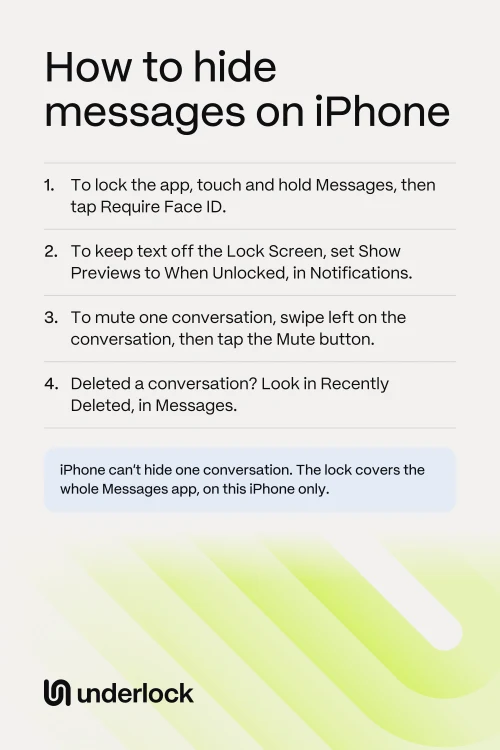
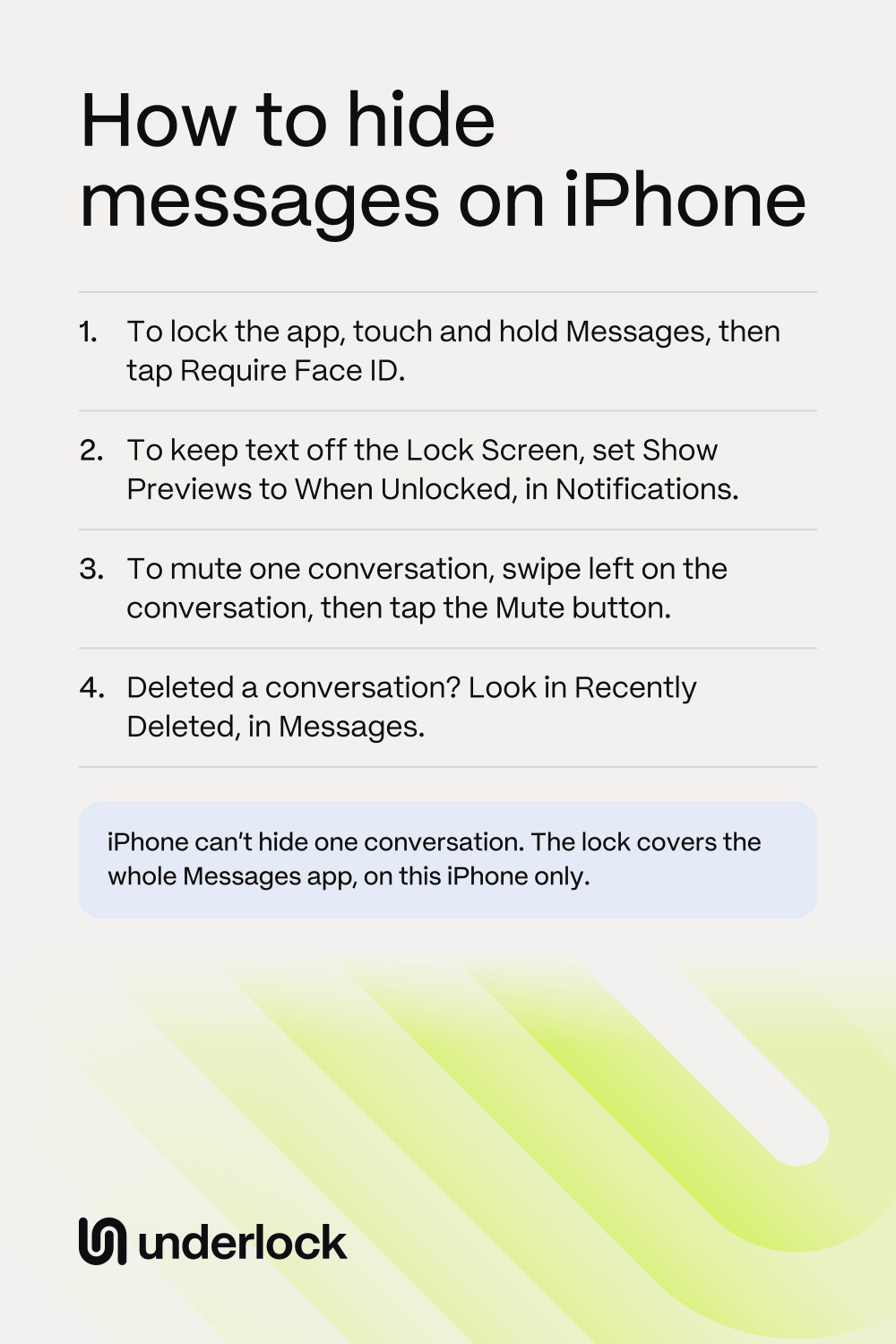
- You hand your iPhone to other people. Lock the Messages app. The lock covers every conversation, not just one.
- Message text shows on your locked iPhone. Keep the text off your Lock Screen.
- Alerts from one person keep showing. Mute that conversation. The conversation stays in your list.
- You don’t need a conversation any more. Delete the conversation, then check what deleting leaves behind.
Lock the Messages app with Face ID
On iOS 18 or later, you can lock the Messages app. Messages then asks for Face ID, Touch ID or your passcode before it opens. Your messages keep arriving. On an iPhone with Touch ID, the buttons say Touch ID instead of Face ID. To see your iOS version, open the Settings app and tap General, then Software Update. Looking there doesn’t install anything.
- Go to your Home Screen.
- Touch and hold the Messages app until a menu opens.
- Tap Require Face ID.
- In the box that opens, tap Require Face ID again.
- Use Face ID or your passcode.
- Less shows elsewhere. Apple says information in a locked app doesn’t appear in notification previews or search.
- Your passcode opens the app too. So anyone who knows your iPhone passcode can open Messages. There is one exception. With Stolen Device Protection on, away from places like home or work, only Face ID or Touch ID opens a locked app.
- Only on this iPhone. Apple says the lock doesn’t sync. An iPad or Mac that shows your messages stays unlocked.
- You can lock Messages, but you can’t hide the app. Apple says apps that came with your iPhone can’t go in the Hidden folder.
- iOS 17. On iOS 17, the iPhone can’t lock apps. The next steps on this page still work.
To take the lock off, see How to lock or hide an app on iPhone.
Keep message text off your Lock Screen
Apple says notification previews can include text from Messages. To keep that text off your locked iPhone, change one setting:
- Open the Settings app.
- Tap Notifications.
- Below Notification Style, tap Messages.
- Tap Show Previews.
- Tap When Unlocked. Or tap Never, so alerts never show the text.
With When Unlocked, previews show again once your iPhone is unlocked. To change previews for every app, tap Show Previews on the first Notifications screen. To keep alerts from Messages off the Lock Screen altogether, go back to the Messages screen. Then, under Alerts, turn off Lock Screen.
Mute alerts from one conversation
Muting stops the alerts from one conversation. New messages still arrive, and the conversation stays in your list. Apple says the sender receives a note that you have notifications silenced.
- Open the Messages app.
- In your list of conversations, swipe left on the conversation.
- Tap the Mute button.
To turn alerts back on, do the same steps again. The Mute button and the Hide Alerts switch do the same thing. To find the switch, open the conversation and tap the contact icon at the top. To stop getting messages from one person at all, Apple says you can block that person’s number.
Delete a conversation
Deleting isn’t hiding: the conversation leaves your list. You have up to 30 days to change your mind.
- Open the Messages app.
- In your list of conversations, swipe left on the conversation.
- Tap the Delete button.
To get the conversation back, tap the Filter button at the top of your list. Tap Recently Deleted. Select the conversation, then tap Recover. On iOS 18 or earlier, tap Filters, then Recently Deleted. If you don’t see Filters, tap Edit, then Show Recently Deleted.
What deleting leaves behind
Deleting a conversation on your iPhone doesn’t reach every copy. Check these places:
- Recently Deleted, in Messages. A deleted conversation waits here for up to 30 days. To remove the conversation sooner, open Recently Deleted. Select the conversation, then tap the Delete button. Tap Delete to confirm. Apple says you can’t undo this delete.
- The other person’s phone. Deleting doesn’t change what the other person sees. Apple says you can’t delete messages for anyone else. There is one exception: for 2 minutes after you send an iMessage, you can touch and hold the message, then tap Undo Send.
- Your iPad and Mac. Messages in iCloud is a setting that keeps your conversations the same on your devices. A delete on your iPhone then reaches every device with Messages in iCloud on. A device with Messages in iCloud off keeps its own copy, so delete the conversation on that device too. To check this setting on your iPhone, open the Settings app. Tap your name, then iCloud, then Messages. If you don’t see Messages, tap See All first.
- Your photo library. Apple says photos and videos shared with you in Messages save to your photo library by themselves. So a photo can stay in the Photos app after you delete the conversation. To stop these saves, open the Settings app. Tap Apps, then Messages, then Shared with You. Then turn off Photos.
- A backup. If you don’t use Messages in iCloud, your messages go in your iCloud backup instead. So an older backup can still hold a conversation you deleted. See what’s in your iPhone backup.
To delete a photo for good, see How to permanently delete photos on iPhone. On iOS 17, the Settings app has no Apps step: tap Messages on the first screen.
Underlock holds photos, not messages
We make Underlock, a private vault on your iPhone for photos, videos, files and notes. Underlock holds no messages, and Underlock doesn’t lock the Messages app. But a photo someone sends you can go into your vault.
Underlock is coming soon to the App Store. Here’s how it will work.
- Getting the photo in. Save the photo to the Photos app. Open Underlock and draw your pattern. Tap the Add button (a plus sign), then Import from Photos. Importing puts a copy of the photo in your vault.
- The other copies. Underlock then asks Remove the originals from Photos?, with Remove and Keep. The photo in the conversation stays until you delete the photo there.
Questions people ask
Not one by one. You can lock the whole Messages app, keep message text off your Lock Screen, and mute a conversation. Once Messages is open, every conversation still shows in your list.
Not the messages themselves. You can mute alerts from that person’s conversation, so no alert shows when a message arrives. The conversation stays in your list. Apple says the sender receives a note that you have notifications silenced.
Yes, while that Focus is on. A Focus is a setting that pauses alerts while you do something, like work. Open the Settings app, tap Focus, then tap a Focus. Scroll down to Focus filters, then tap Add Filter. Tap Messages. You can then see only conversations from people you allowed for that Focus. When the Focus is off, every conversation shows again.
No. Apple says a lock is only on the iPhone where you set the lock, and doesn’t sync with iCloud. So your iPad and Mac still open Messages as usual.
Deleting doesn’t change what the other person sees, so that person’s copy stays. Apple’s pages mention no alert to the other person.
Yes. Open the Settings app. Tap Apps, then Messages, then Keep Messages, below Message History. Then choose a time other than Forever. Apple says your iPhone then removes older messages and their attachments by itself, in every conversation.