Lock an app
On iOS 18 or later, you can lock an app, so the app asks for Face ID, Touch ID or your passcode before it opens. If your iPhone has Touch ID, the buttons on your screen say Touch ID instead of Face ID. For example, you’ll see Require Touch ID. To see your iOS version, open the Settings app and tap General, then Software Update. Looking there doesn’t install anything. To hide the app as well as lock it, use the steps in Hide an app.
- Go to your Home Screen.
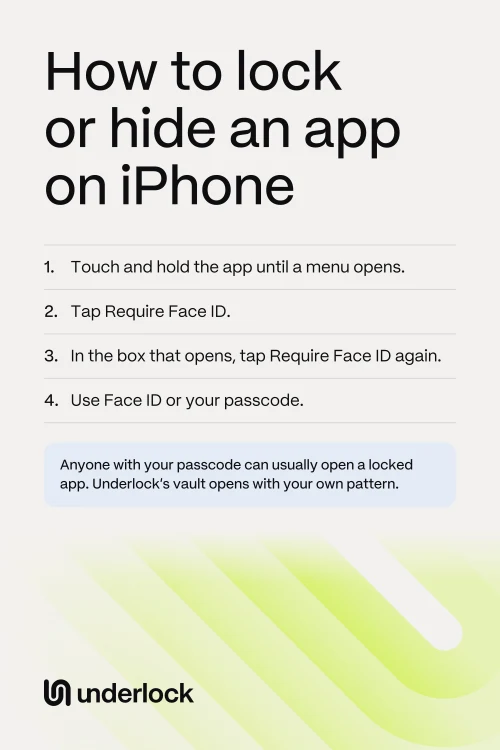
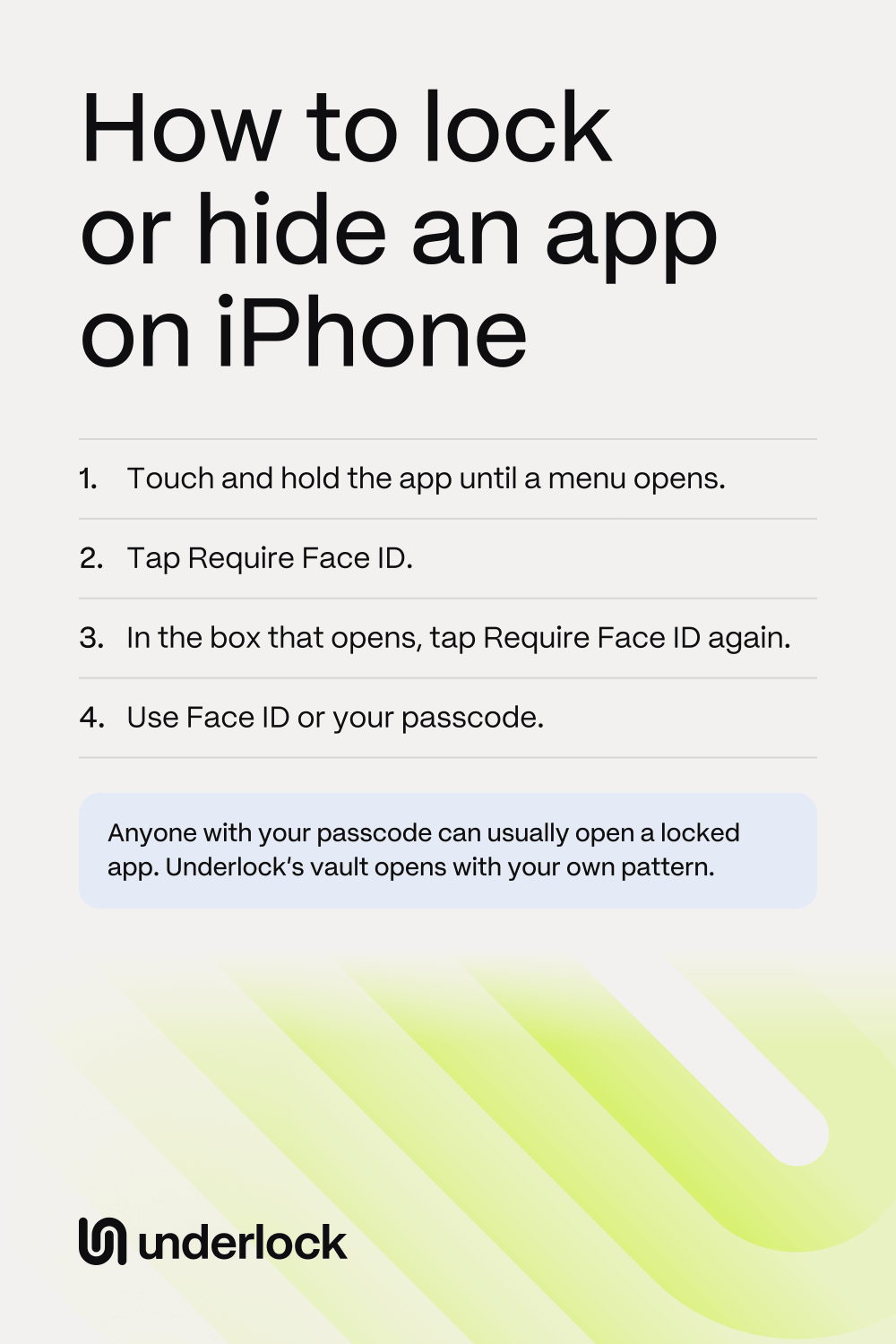
- Touch and hold the app until a menu opens.
- Tap Require Face ID.
- In the box that opens, tap Require Face ID again.
- Use Face ID or your passcode.
To check the lock, tap the app on your Home Screen. The app asks for Face ID before it opens. Search results and notifications don’t show what’s inside a locked app. To lock Messages and keep message text off your Lock Screen, see how to hide messages on iPhone. Apple’s steps for locking an app
Hide an app
Hiding an app locks the app too, and takes it off your Home Screen and out of search. You can hide apps you got from the App Store, but not the apps that came with your iPhone.
- Go to your Home Screen.
- Touch and hold the app until a menu opens.
- Tap Require Face ID. The choice to hide the app comes in the next step.
- In the box that opens, tap Hide and Require Face ID.
- Use Face ID or your passcode.
- Tap Hide App.
The app leaves your Home Screen and moves to the Hidden folder at the bottom of App Library.
Find and open a hidden app
App Library is the screen after your last Home Screen page. The Hidden folder sits at the bottom of App Library.
- Go to your Home Screen.
- Swipe left past all your Home Screen pages to reach App Library.
- Scroll to the bottom of App Library.
- Tap the Hidden folder.
- Use Face ID or your passcode.
- Tap the app.
- Use Face ID or your passcode again. Your iPhone asks once for the folder and once for the app.
The Settings app also lists your hidden apps. To see the list, open the Settings app and tap Apps, then Hidden Apps. Then use Face ID or your passcode. Can’t find the app in the Hidden folder? Maybe the app was only taken off your Home Screen, not hidden. Search for the app at the top of App Library.
Unlock or unhide an app
- Find the app. A locked app stays in its usual place. For a hidden app, open the Hidden folder first, as in the steps above.
- Touch and hold the app until a menu opens.
- Tap Don’t Require Face ID. This button unlocks the app, and also takes a hidden app out of the Hidden folder.
- Use Face ID or your passcode.
If the app was hidden, the app then shows near the top of App Library.
What locking and hiding don’t do
Apple’s lock is built in and free, but the lock has limits:
- Your passcode opens the app. A locked or hidden app opens with Face ID or your iPhone passcode. So anyone who knows your passcode can open the app. There is one exception. With Stolen Device Protection on, away from places like home or work, only Face ID or Touch ID opens a locked app.
- A hidden app’s name still shows. Anyone with your passcode can see the list of hidden apps in Settings, under Apps, then Hidden Apps. Someone holding your unlocked iPhone may also see a hidden app’s name in Settings, under Screen Time and under Battery. The name may show in your App Store purchases too.
- Only on this iPhone. Locking or hiding an app on your iPhone doesn’t lock or hide the app on your iPad.
- Not every app. Apps that came with your iPhone can’t be hidden. Some of them can’t be locked either, such as Camera, Clock and Settings.
- iOS 18 or later. On iOS 17, the iPhone can’t lock or hide apps.
If you’re the only one who knows your passcode, Apple’s lock may be all you need. If others know your passcode, you can change your passcode in the Settings app, under Face ID & Passcode (or Touch ID & Passcode). Or keep private photos and files in a vault app with a lock of its own.
Keep photos and files behind your own pattern
We make Underlock, a private vault on your iPhone for photos, videos, files and notes. You open your vault by drawing a pattern on a grid of dots. Your iPhone passcode and Face ID don’t open your vault. Underlock doesn’t lock other apps.

Underlock is coming soon to the App Store. Here’s how it will work.
- Apple’s lock works on Underlock too. On iOS 18 or later, you can lock or hide Underlock like any app. Touch and hold Underlock’s icon, then follow the same steps.
- Two locks. With Apple’s lock on Underlock, your iPhone first asks for Face ID or your passcode. Then your pattern opens your vault.
- Nothing to see without your pattern. Someone who knows your passcode can open Underlock, but finds only the pattern screen.
- Hidden, but still listed. If you hide Underlock, Settings still lists Underlock under Hidden Apps, like any hidden app. Your App Store purchases list Underlock too.
Questions people ask
To the Hidden folder at the bottom of App Library. To reach App Library, swipe left past all your Home Screen pages. The Hidden folder opens with Face ID or your passcode.
No. You can hide only apps you got from the App Store, like a bank’s app or a game. You can lock many apps that came with your iPhone, like Photos, but not all of them: Camera, Clock and Settings can’t be locked.
No. Locking and hiding apps needs iOS 18 or later. To check for an update, open the Settings app and tap General, then Software Update.
No. Apple’s lock uses your iPhone’s own Face ID, Touch ID or passcode.
Yes, but the app won’t be locked. Touch and hold the app, then tap Remove App. Tap Remove from Home Screen, not Delete App. The app moves to App Library, where anyone can still open the app.