Who holds the keys to your iCloud photos
Encrypted means scrambled. A key is the long code that unscrambles your photos. Your photos in iCloud are always encrypted, and Apple offers two settings for who holds the keys:
- Standard data protection. Every Apple Account starts with this setting. Apple holds the keys to your photos and can unscramble them. Apple uses those keys to bring your photos back when you sign in on a new device or forget your password.
- Advanced Data Protection. A setting you turn on yourself. Only your devices hold the keys to your photos, your iCloud Backup, iCloud Drive, Notes and more. Apple says nobody else can unscramble your photos, not even Apple. When you sign in on a new device, you may be asked to enter the passcode of one of your devices.
Some iCloud data, like your passwords and Health data, has keys that only your devices hold, whichever setting you choose. To see whether your photos are in iCloud Photos, open the Settings app and tap your name, then iCloud, then Photos. If the switch called Sync this iPhone is on, your photos are in iCloud Photos.
What Advanced Data Protection changes
With Advanced Data Protection on, a few other things change too:
- Apple can’t get your data back for you. To get back in after you lose access, you need the passcode of one of your devices, a recovery contact or a recovery key. A recovery contact is a friend or family member who can give you a code. A recovery key is a 28-character code that you keep, to get back into your account. Without one of these, nobody can get your data back.
- iCloud.com stops showing your data. With the setting on, the iCloud.com website no longer shows your photos, notes or other iCloud data. You can turn web access back on in the Settings app, under your name, then iCloud, then iCloud.com. Even then, each visit to iCloud.com needs your OK on one of your devices.
- Recent software on every device. While the setting is on, you can sign in to your Apple Account only on devices with recent software. Recent means iOS 16.2 or later on an iPhone, iPadOS 16.2 or later on an iPad, and macOS 13.1 or later on a Mac.
- You can turn the setting off at any time. Apple then holds the keys again.
Turn on Advanced Data Protection
If you’re in the UK, these steps won’t work: Apple no longer offers the setting there. Everywhere else, check 3 things before you start. Your Apple Account needs two-factor authentication. Your iPhone needs a passcode. And every device signed in to your Apple Account needs recent software. Two-factor authentication means that signing in on a new device asks for your password and a 6-digit code, and most accounts already use it. An older device that can’t update stops you from turning the setting on. To go ahead, remove that device from your Apple Account first. While Advanced Data Protection is on, that device can’t sign back in. Child accounts and work or school accounts can’t use Advanced Data Protection.
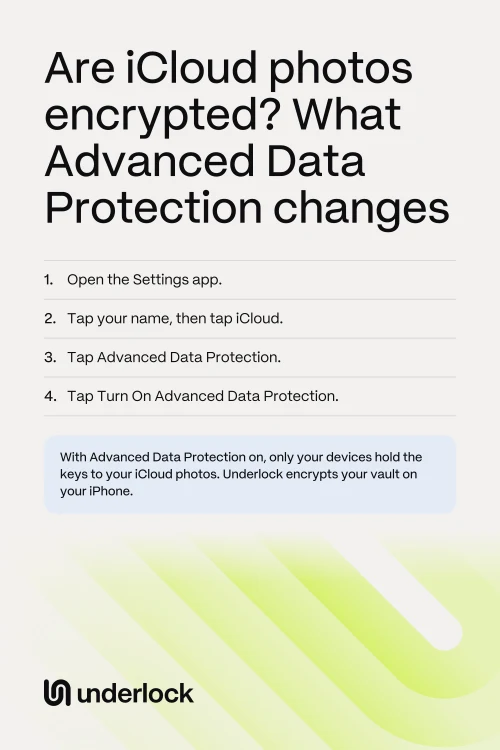
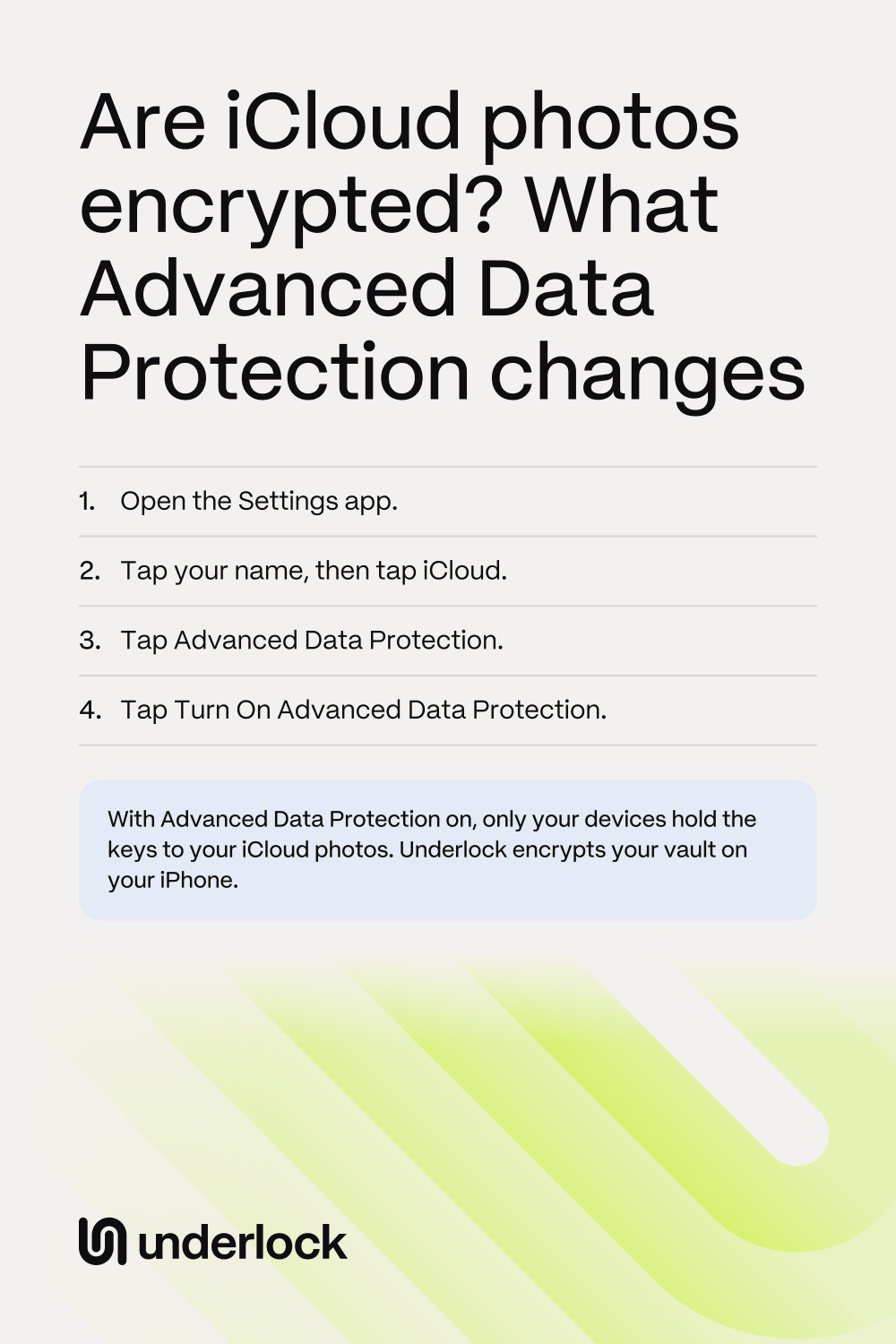
- Open the Settings app.
- Tap your name.
- Tap iCloud.
- Scroll down to Advanced Data Protection.
- Tap Advanced Data Protection.
- Tap Turn On Advanced Data Protection.
- Follow the steps on the screen. If you don’t have a recovery contact or a recovery key yet, your iPhone asks you to set one up first.
The setting then applies to every device on your Apple Account. Apple’s steps for Advanced Data Protection
A vault with keys we never receive
We make Underlock, a private vault for photos, videos, files and notes. You open your vault by drawing a pattern on a grid of dots. Everything you add to your vault is encrypted on your iPhone before Underlock saves it. We never receive your files, your pattern or your keys.

Underlock is coming soon to the App Store. Here’s how it will work.
- A lock of its own. Your iPhone passcode, Face ID and Touch ID don’t open your vault, so people who know your passcode can’t open your vault with it.
- 12 words to get back in. At setup, Underlock shows you 12 words to write on paper: your recovery phrase. If you forget your pattern, the 12 words open your vault. If you forget your pattern and lose the paper, nobody can open your vault, not even us.
For the details, read How Underlock protects your files.
Questions people ask
If you use iCloud Photos, Apple holds the keys to your hidden photos and can unscramble them, unless you turn on Advanced Data Protection. With Advanced Data Protection on, only your devices hold those keys. Apple still holds the keys to a few details about each photo, such as whether the photo is hidden. When iCloud Photos is off and your iPhone backs up to iCloud, your photos are in that backup instead. Apple holds the keys to that backup too, unless Advanced Data Protection is on. See where hidden photos go.
It depends on who holds the keys to your photos. With standard data protection, Apple holds the keys to iCloud Photos, hidden photos included, so Apple can unscramble them. With Advanced Data Protection on, Apple says it can’t access your photos or hand over copies of them.
It’s a trade-off. With Advanced Data Protection on, only your devices hold the keys to your photos. But if you lose access to your account, Apple can’t get your data back for you. Advanced Data Protection suits you if you have a recovery contact you trust, or a recovery key you won’t lose. If you’d rather Apple could help you get back in, keep standard data protection.
Apple’s steps start with updating your iPhone to the latest iOS. Then open the Settings app and tap your name, then iCloud. Scroll down and turn off Advanced Data Protection. Apple then holds the keys again.
Yes. Underlock is free forever: one vault, no file limit. If the free plan ever changes, you keep the plan you started with. More vaults come with Pro, Underlock’s paid plan.