The 10 checks
Go down the list with your iPhone in your hand. Looking changes nothing, and you only change what you choose to change.
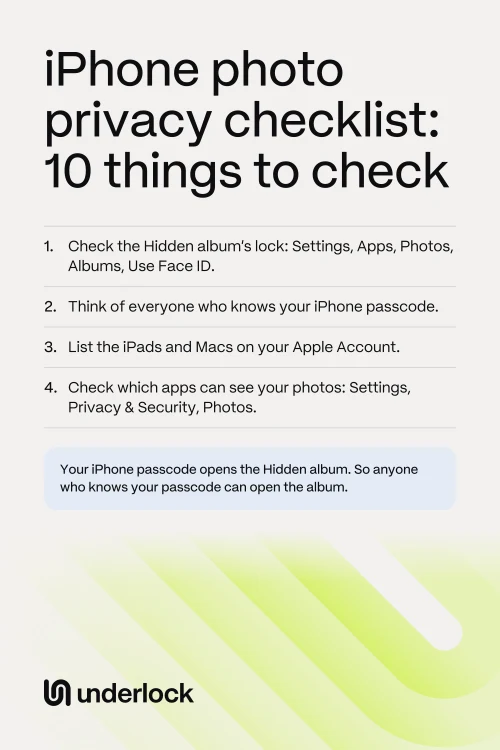
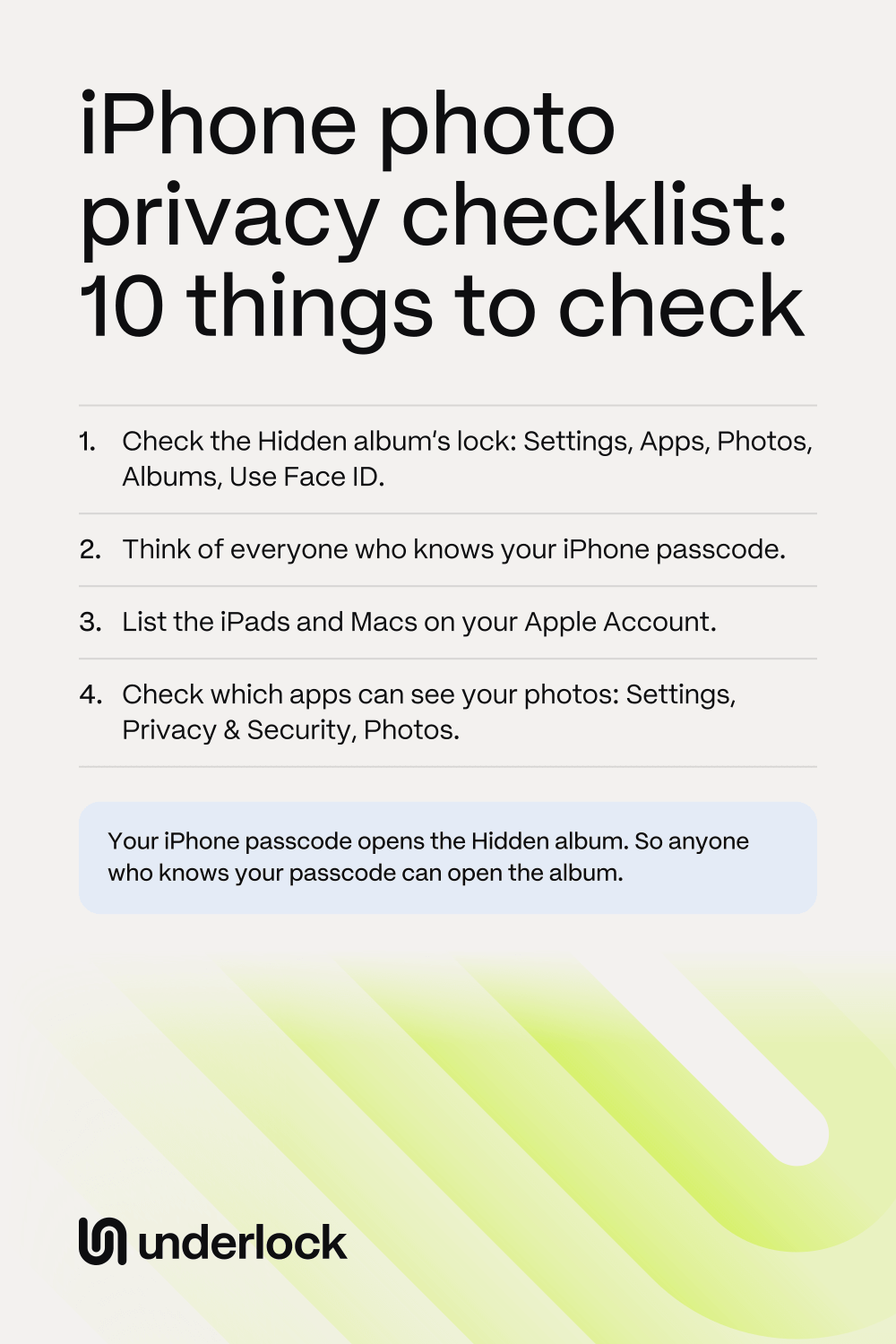
- The Hidden album’s lock. In the Settings app, tap Apps, then Photos, then Albums if you see it. Check that Use Face ID or Use Touch ID is on. With that switch off, anyone holding your unlocked iPhone can open the Hidden album. See how to check the lock.
- Who knows your passcode. Think of everyone who knows your iPhone passcode. Your passcode opens the Hidden album, so each of those people can open the album. See what to do when someone else knows your passcode.
- iPads and Macs on your Apple Account. To list your devices, open the Settings app, tap your name, then scroll down. With iCloud Photos on, an iPad or Mac on that list can show your photos. See your photos on a shared iPad or Mac.
- Shared albums. In the Photos app, tap Collections, then Shared Albums. Check that each album has only the people you want in it. See how to remove someone from a shared album.
- A Shared Library. In the Settings app, tap Apps, then Photos, then Shared Library. In a Shared Library, everyone can add, edit and delete the photos. See how to leave a Shared Library.
- Apps with photo access. In the Settings app, tap Privacy & Security, then Photos. Apple says an app with full access can see every photo and video in your library, even the ones in your Hidden album. See how to check what each app can see.
- Memories and widgets. The Photos app chooses some photos by itself for Memories, Featured Photos and the Photos widget on your Home Screen. To turn these off, tap Collections in the Photos app, then your account, then turn off Show Featured Content. See other ways to choose what shows.
- Lock Screen and Search. If your Lock Screen uses Photo Shuffle, check which photos Photo Shuffle can choose from. Then decide if you want your photos to show in iPhone Search. See how to choose for both.
- Photo location. In the Photos app, tap Collections, then Map, to see which photos have a location saved. When you share a photo, the location goes too, unless you leave the location out. See how to remove the location.
- Deleted photos. In the Photos app, tap Collections, then Recently Deleted, below Utilities, and see which photos are still there. A photo you delete waits in Recently Deleted for 30 days, and your iPhone passcode opens Recently Deleted. See what happens to deleted photos.
What these checks don’t cover
These checks look at Apple’s settings on your iPhone. They don’t reach everything:
- The lock is your passcode. The Hidden album and Recently Deleted open with your iPhone passcode. Apple’s settings don’t give these albums a lock of their own.
- Copies other people have. Stopping a share doesn’t reach a photo someone already saved. See what stopping doesn’t take back.
- Your backups. An iPhone backup can hold copies of your photos. See what’s in your iPhone backup.
Give private photos a lock of their own
We make Underlock, a private vault on your iPhone for photos, videos, files and notes. You open your vault by drawing a pattern on a grid of dots. Your iPhone passcode, Face ID and Touch ID don’t open your vault.
Underlock is coming soon to the App Store. Here’s how it will work.
- Out of iCloud Photos. Photos in your vault aren’t in the Photos app, so they’re not in iCloud Photos, and your iPad, Mac and iCloud.com don’t show them.
- Out of the places on this list. Memories, Featured Photos, the Photos widget, Photo Shuffle and Apple Watch never show photos from your vault. Nothing from your vault shows up in iPhone Search either.
- The originals are your choice. Importing puts a copy of each photo in your vault. The originals stay in the Photos app until you remove them.
Questions people ask
No. Each check only asks you to look. If you’re happy with what you find, leave the setting as it is.
It depends on who’s around your iPhone. Most people can start with the Hidden album’s lock, who knows your passcode, your iPads and Macs, and the apps that can see your photos.
Nearly. Apple’s Safety Check can list what you share with each person. Open the Settings app, then tap Privacy & Security. Tap Safety Check, then tap Manage Sharing & Access.
When something changes: a new iPad or Mac, a new app, or someone who no longer needs to see your photos.
Yes. Underlock is free forever: one vault, no file limit. If the free plan ever changes, you keep the plan you started with. More vaults come with Pro, Underlock’s paid plan.