Apple Wallet’s ID is for the US only
Apple Wallet can hold 2 kinds of ID. Both work only in the US:
- A driver’s license or state ID. The card has to come from a US state or territory that works with Wallet. Apple’s list has 16 states and Puerto Rico, like California, Georgia and Ohio. Your state decides whether to approve your card in Wallet.
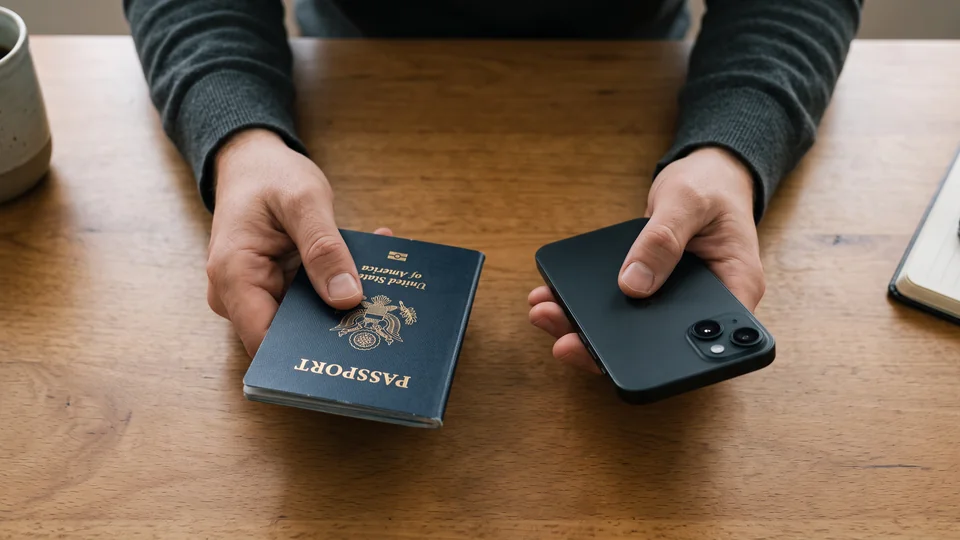
- A Digital ID, made from your US passport. Your iPhone reads your passport, and Apple checks the passport. Apple then adds your Digital ID to Wallet. You need to be 13 or older, with a US passport that hasn’t expired.
Both kinds need your iPhone’s region set to United States. Both also need Face ID or Touch ID turned on, and two-factor authentication on your Apple Account. A Digital ID needs an iPhone 11 or later, with iOS 26.1 or later. A driver’s license needs an iPhone 8 or later. Outside the US, skip to a photo of your ID.
How to add your ID to Apple Wallet
Have your card or passport with you, in a well-lit spot. Then:
- Open the Wallet app.
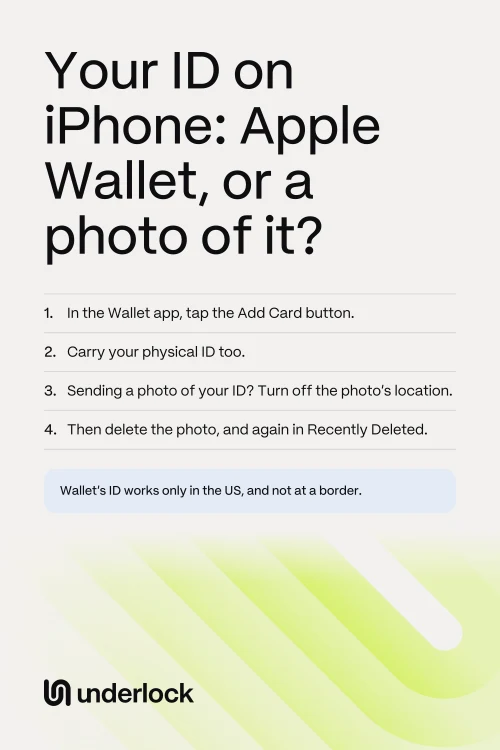
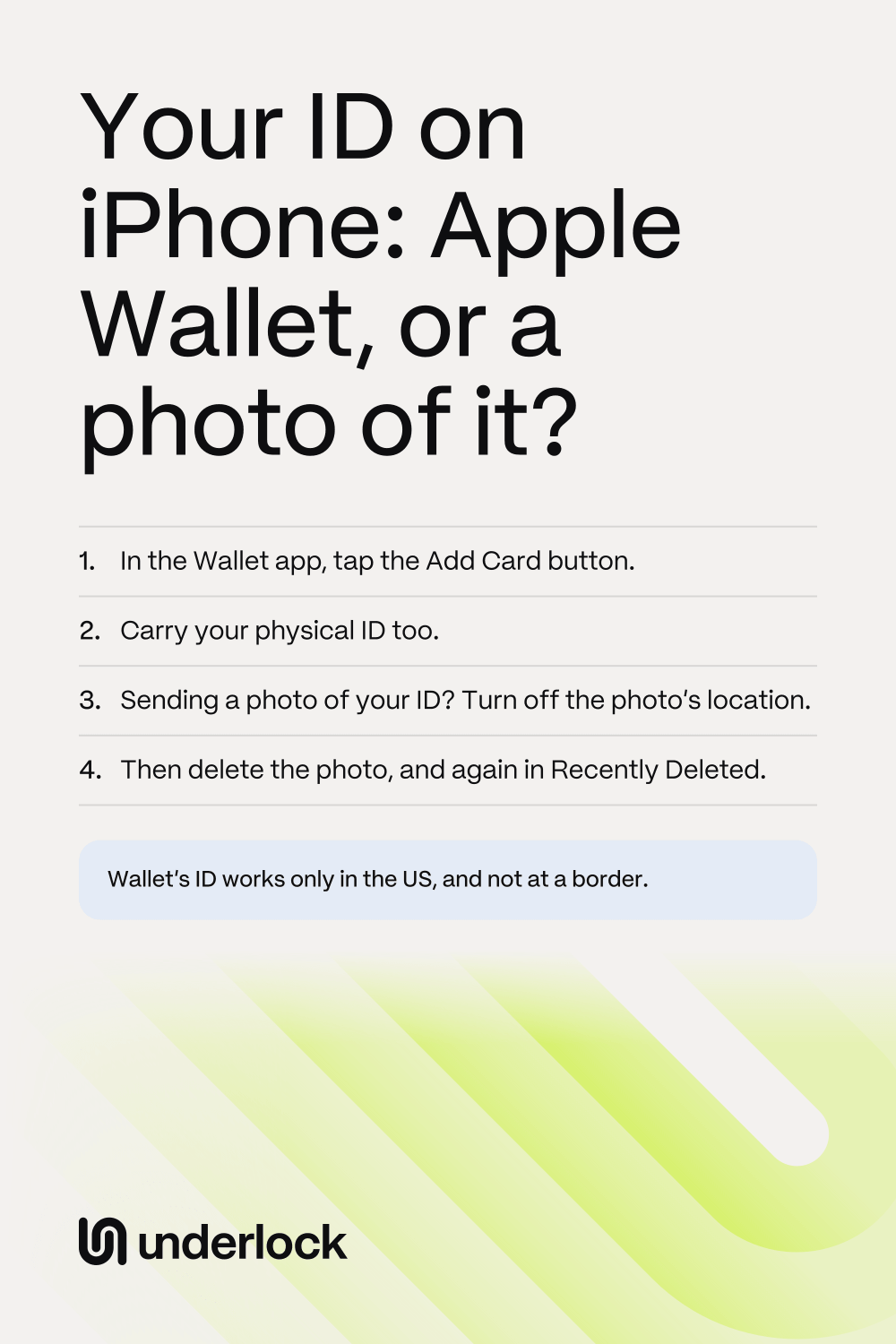
- Tap the Add Card button (a plus sign).
- Tap Driver’s License or ID Cards.
- Choose your state. For a US passport, tap Digital ID instead.
- Choose whether to add the ID to your iPhone only, or to your Apple Watch too.
- Scan your card or passport, as your iPhone shows you. For a passport, you also hold your iPhone on the passport’s chip.
- Take a selfie when your iPhone asks for one. Your iPhone may also ask you to turn your head or smile.
- Confirm with Face ID or Touch ID.
Apple’s pages have every step, for a driver’s license and for a Digital ID.
Where you can show Wallet’s ID, and where you can’t
Apple and TSA, the agency that runs security at US airports, say where Wallet’s ID works:
- At airport security, for flights inside the US. TSA says more than 250 airports take digital IDs at their checkpoints. Before you travel, Apple says to check that your airport accepts ID on a phone.
- To show your age, or who you are. Some businesses, apps and websites accept Wallet’s ID. In an app, you tap Verify with Apple Wallet. On a website in Safari, you tap Verify Identity.
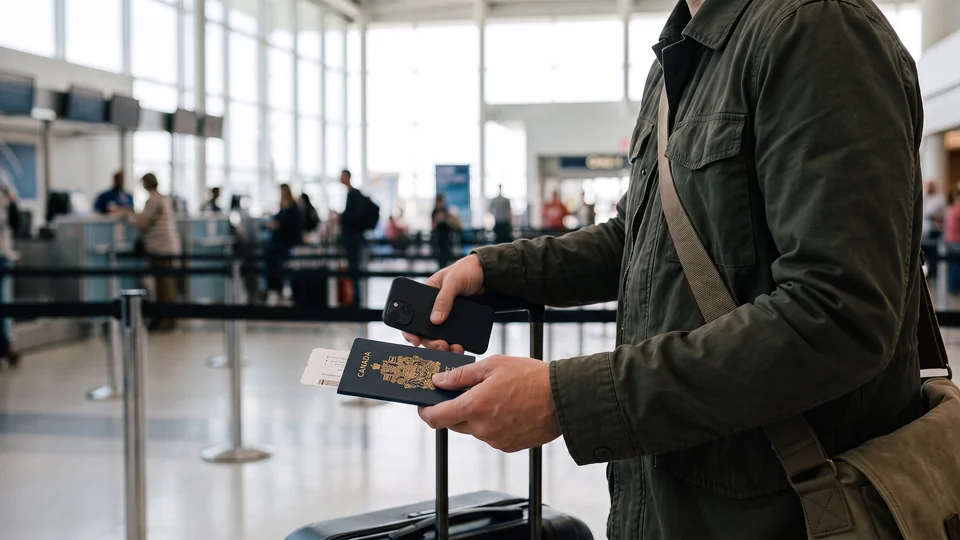
- Not abroad, and not at a border. Apple says a Digital ID can’t be used instead of a passport, to travel abroad or to cross a border. For what officers can check on your phone at a border, see phone searches at the US and Canadian borders.
Wallet’s ID doesn’t replace the card in your pocket either. TSA says all passengers still need to carry an acceptable physical ID. Apple says you may still need your physical ID too.
What Wallet shares when you show your ID
Here’s what Apple says happens when you show Wallet’s ID:
- Your iPhone stays in your hand. You hold the top of your iPhone near the ID reader. Apple says you don’t need to unlock, show or hand over your iPhone. If your iPhone is locked, it stays locked.
- You approve each time. Apple says your details are shared only after you confirm with Face ID or Touch ID.
- You can see what’s asked for. In person, tap the Present menu on your ID. Choose With Review. You then see every detail that’s asked for, before you share it.
- Apple doesn’t see where you use your ID. Apple says it can’t see when or where you show your ID. Your ID is encrypted on your iPhone, so others, Apple included, can’t read your ID unless you show it. Your iPhone also keeps a list of where you showed your ID, and Apple can’t see that list.
A photo of your ID is different. A photo shows everything printed on your ID, like your date of birth and your ID number. Anyone you send the photo to has a copy, and you can’t take that copy back.
Where a photo of your ID goes on your iPhone
Wallet’s ID works only where a business or an app accepts it. Anywhere else, someone may ask you for a photo of your ID instead. A photo you take with the Camera app can end up in these places:
- Your camera roll. The Camera app saves each photo to your photo library, in the Photos app.
- iCloud, and your other devices. With iCloud Photos on, each photo you take uploads to iCloud. Your iPad and Mac show the photo too, if iCloud Photos is on there.
- A Shared Library. In an iCloud Shared Photo Library, everyone in the library can see, edit and delete its photos. The Camera app saves to your own library, unless you tap the button at the top to switch. Two settings can also send new photos to the Shared Library by themselves: Share Automatically and Share When At Home. To find them, tap Collections in the Photos app, then tap your account at the top right. Then tap Shared Library, then Sharing from Camera.
- Utilities, on iOS 27. On iOS 27, the Photos app gathers photos of identity documents in Utilities. To find Utilities, tap Collections in the Photos app, then scroll down. Apple’s page says Hidden and Recently Deleted are locked. Apple’s page doesn’t say whether photos of IDs are locked. In Utilities, a locked collection shows a lock.
Send the photo without its location, then delete it
Your iPhone can save the place where you took a photo. Apple says that location goes with the photo when you share it. So:
- Turn off the location as you share the photo. See how to share a photo without its location.
- Send the photo.
- Delete the photo in the Photos app.
- Delete the photo again in Recently Deleted, under Utilities. Otherwise the photo stays in Recently Deleted for 30 days.
With iCloud Photos on, Apple says a photo deleted from Recently Deleted is gone from iCloud and your other devices too.
Keep the photo in a vault, and share it without its location
We make Underlock, a private vault for photos, videos, files and notes. You open your vault by drawing a pattern on a grid of dots. Everything you add to your vault is encrypted on your iPhone before Underlock saves it.
Underlock is coming soon to the App Store. Here’s how it will work.
- Take the photo in Underlock. Tap Add, then tap Take photo or video. The photo goes straight into your vault. Nothing goes to the Photos app.
- Your own pattern. Your vault opens with your own pattern, not your iPhone passcode.
- Underlock asks before it shares. When you tap Share, Underlock asks you to confirm. Underlock shares a copy, and that copy is no longer encrypted. The photo itself stays in your vault.
- No location on what you share. The confirm step has a Remove location switch, which is on. So the photo leaves without its location, unless you turn the switch off.
- 12 words to get back in. At setup, Underlock shows you 12 words to write on paper: your recovery phrase. If you forget your pattern, the 12 words open your vault.

A photo of your ID doesn’t replace the real card, so keep the card too. See how to keep IDs and documents in your vault.
Questions people ask
Yes, for a US passport that hasn’t expired. Wallet makes a Digital ID from your passport. Apple says a Digital ID isn’t a passport. A Digital ID can’t be used instead of your passport to travel abroad or cross a border.
Not on its own. TSA takes digital IDs at more than 250 airports, for flights inside the US. But TSA says all passengers still need to carry an acceptable physical ID.
TSA can, but TSA says the photo is optional. To say no, tell the officer before you show your ID. TSA says you won’t lose your place in line.
That depends on who gets the photo. A photo shows everything printed on your ID. The person who gets the photo has a copy you can’t take back. Before you send the photo, leave its location out. Afterwards, delete the photo. Then delete the photo from Recently Deleted too.
No. Apple says it can’t see when or where you show your ID. Your iPhone keeps an encrypted list of where you showed your ID, and Apple can’t see that list.
Not the kinds on this page. A driver’s license has to come from a US state or territory that works with Wallet. A Digital ID needs a US passport, and your iPhone’s region set to United States.