What your iPhone saves with a photo
When the Camera app can use your location, your iPhone saves where you took each photo and video. The location is saved inside the photo, with details like the date, and which iPhone took the photo. Apple calls these details metadata. When you share a photo, the photo’s metadata goes with it, the location too. Any app you let see your photos can also see where you took them.
To see where you took a photo, open the photo in the Photos app. Then swipe up, or tap the Info button (the letter i in a circle). To see all your photos that have a location, tap Collections, then tap Map. To check which apps can see your photos, open the Settings app, then tap Privacy & Security, then Photos.
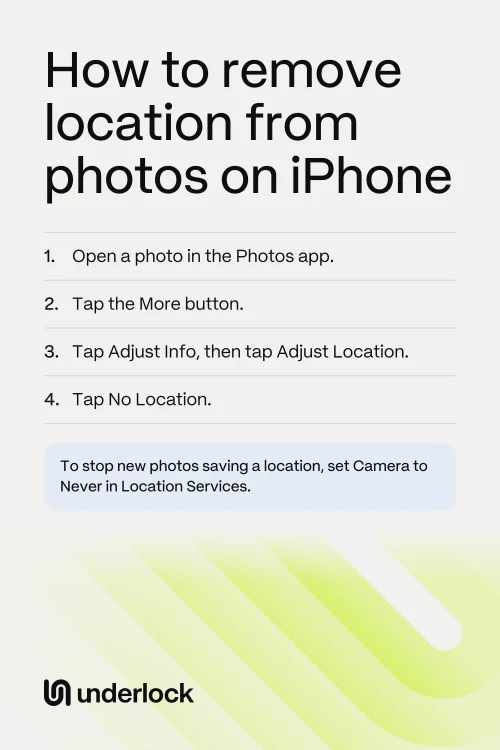
Remove the location from photos you have
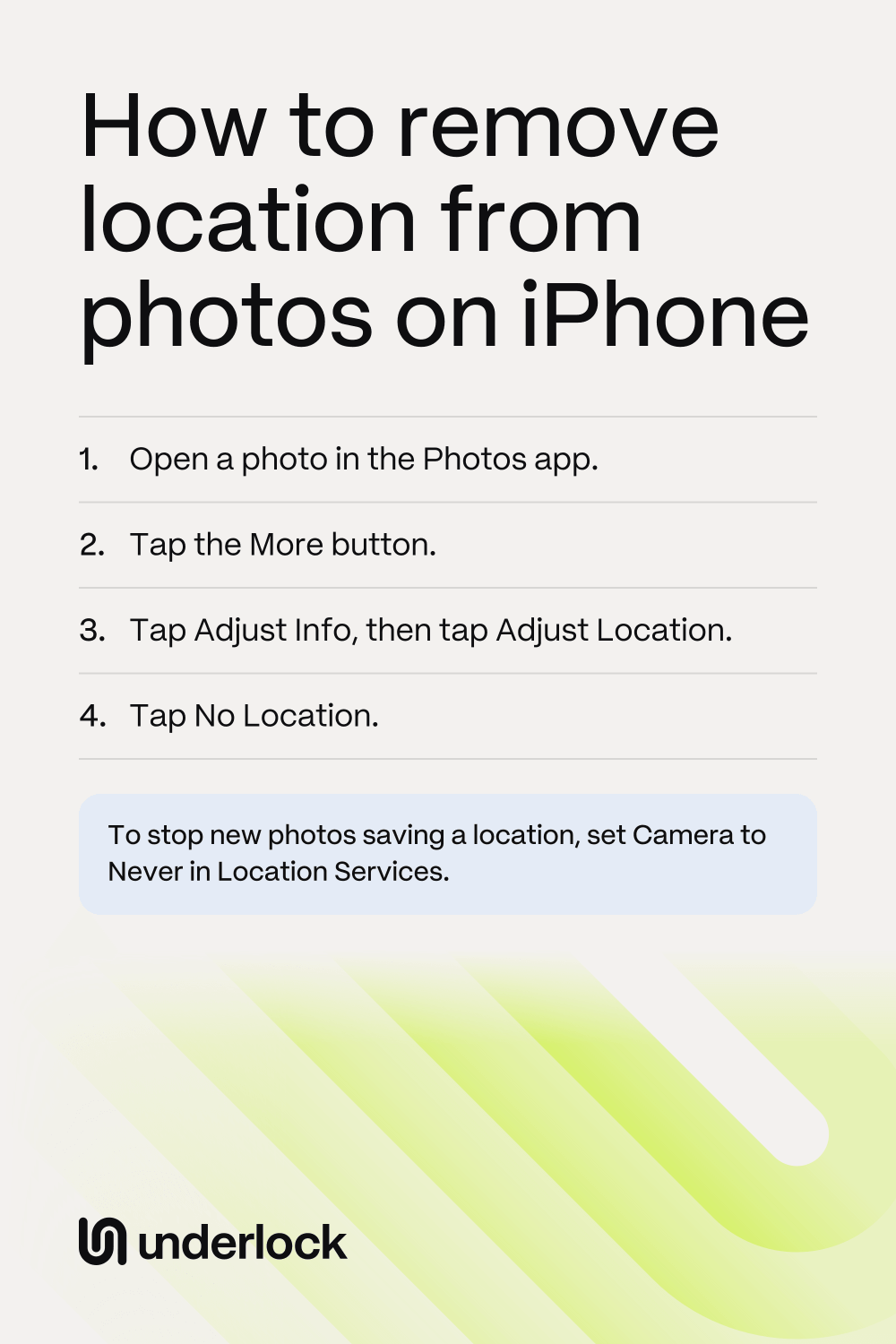
- Open the Photos app.
- Open the photo.
- Tap the More button (three dots).
- Tap Adjust Info, then tap Adjust Location.
- Tap No Location.
To check, open the photo again, then swipe up. The photo’s details no longer show a location. To do many photos at once, tap Select in the Photos app, then tap the photos. Then tap the More button, Adjust Info, Adjust Location and No Location.
Share a photo without its location
When you tap the Share button, your iPhone opens the share sheet: the list of ways to share a photo. When you share a photo, the location goes too. In the share sheet, you can leave the location out:
- In the Photos app, open the photo you want to share.
- Tap the Share button.
- Tap Options.
- Turn off Location.
- Tap Done, or Close if that’s what your iPhone shows.
- Check that Location Not Included shows above Options.
- Choose how to share the photo.
To share several photos, tap Select in the Photos app, then tap the photos. Then tap the Share button, then Options, and turn off Location. Check for Location Not Included each time you share.
Stop saving the location of new photos
The Camera app saves a location only when it’s allowed to use Location Services. Location Services is how your iPhone works out where it is. To turn off Location Services for the Camera app:
- Open the Settings app.
- Tap Privacy & Security.
- Tap Location Services.
- Tap Camera.
- Tap Never.
Photos you take with the Camera app from now on have no location. The Photos app’s Map won’t show photos with no location. Photos you took before keep their location, until you remove it. The Never setting covers only Apple’s Camera app. Other apps that take photos, like a chat app’s camera, have their own setting. To see or change one, tap the app in the same Location Services list.
Keep private photos outside the Photos app
We make Underlock, a private vault for photos, videos, files and notes. Photos in your vault aren’t in the Photos app. So even an app with full access to your photos can’t see the photos in your vault.

Underlock is coming soon to the App Store. Here’s how it will work.
- Your own pattern. You open your vault by drawing a pattern on a grid of dots. Your iPhone passcode, Face ID and Touch ID don’t open your vault.
- Move photos in. Tap the Add button (a plus sign), then Import from Photos. Choose your photos. Importing puts a copy of each photo in your vault. Keep Underlock open until the import finishes.
- Remove the originals. When the import finishes, Underlock asks whether to remove the originals from the Photos app. If you tap Remove, the originals move to Recently Deleted, in the Photos app. Recently Deleted keeps the originals for 30 days.
- Then delete the originals for good. Your vault keeps its own copy. Anyone with your iPhone passcode can open Recently Deleted, under Utilities in the Photos app. So delete the originals from Recently Deleted. Apple’s page shows how to delete from Recently Deleted.
- 12 words to get back in. At setup, Underlock shows you 12 words to write on paper: your recovery phrase. If you forget your pattern, the 12 words open your vault. Keep the paper somewhere safe. If you forget your pattern and lose the paper, nobody can open your vault, not even us.
See how Underlock’s setup works, step by step.
Questions people ask
Yes. Open the photo in the Photos app, then tap the More button. Tap Adjust Info, then Adjust Location, then No Location.
Yes, unless you leave the location out. In the share sheet, tap Options, then turn off Location. Then Location Not Included shows above Options. If you add a photo from inside another app, remove the location in the Photos app first.
Open the Settings app. Tap Privacy & Security, then Location Services. Tap Camera, then tap Never. Photos you take with the Camera app after that have no location.
Open the photo, then swipe up or tap the Info button. To see all your photos that have a location, tap Collections in the Photos app, then tap Map.
Yes. Any app that can see a photo can see the photo’s location too. To check which apps can see your photos, open the Settings app, then tap Privacy & Security, then Photos.
Yes. Underlock is free forever: one vault, no file limit. If the free plan ever changes, you keep the plan you started with. More vaults come with Pro, Underlock’s paid plan.