What Apple keeps from each way to confirm
Your iPhone shows the ways that work where you live. Here’s what Apple says about each one:
- Your Apple Account. Apple might first check what your account already holds, like a credit card on file. Apple might also look at how long you’ve had the account.
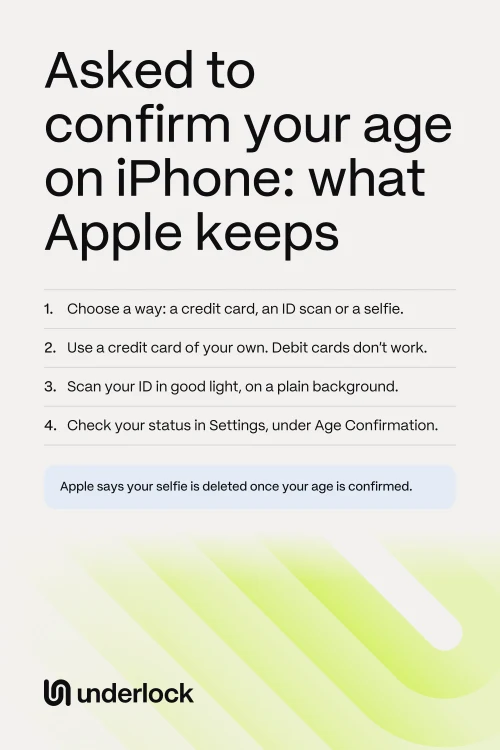
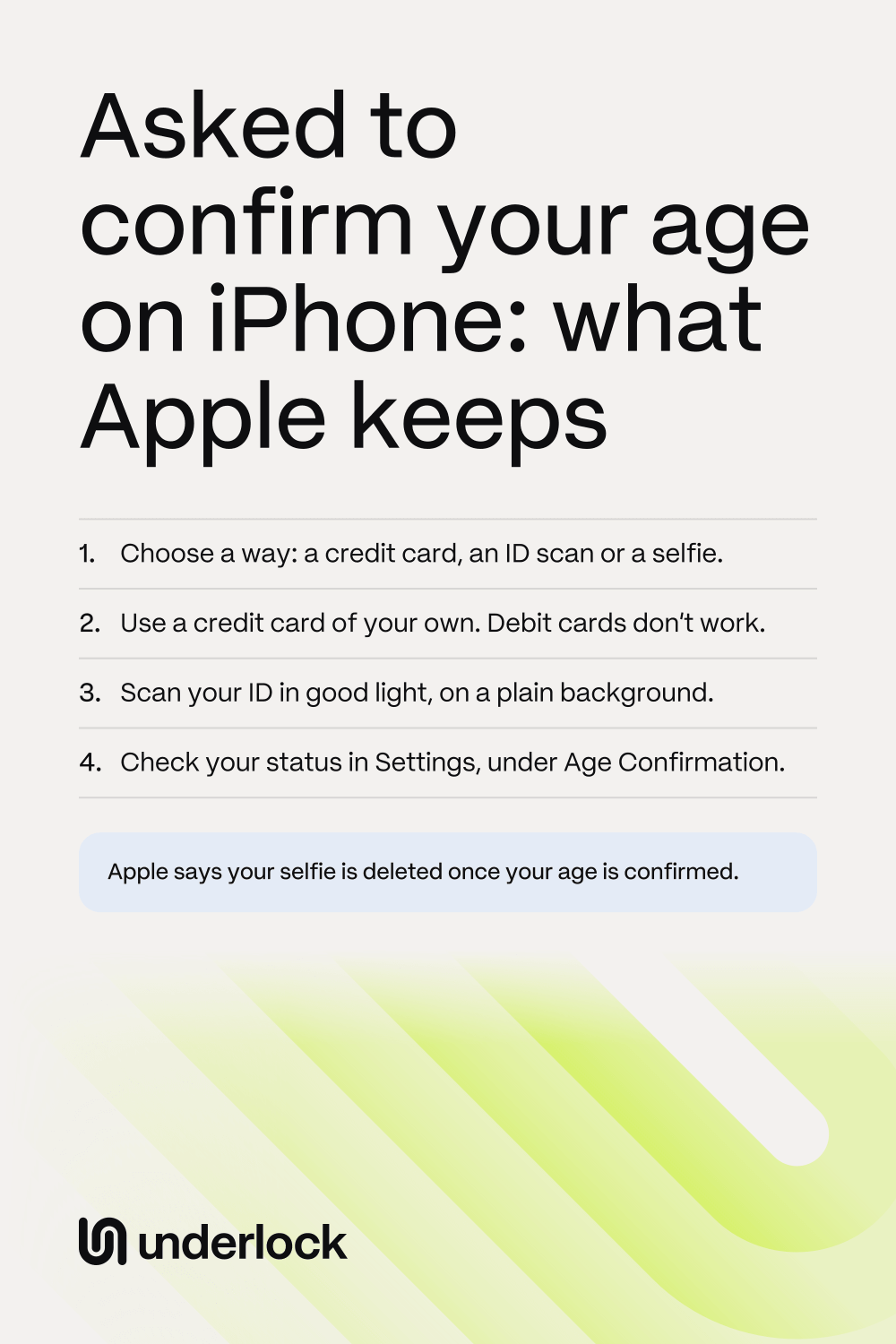
- A credit card. Add a credit card of your own. You can also add the card as a way to pay. If you don’t, Apple says the card isn’t stored. Debit cards and gift cards don’t work.
- A scan of your ID. Scan your driver’s license, or another ID from your government. In some places, a passport works too. Apple and companies working for Apple use the image to confirm that you’re an adult, and to prevent fraud. Apple says the image is kept for a short time, then deleted.
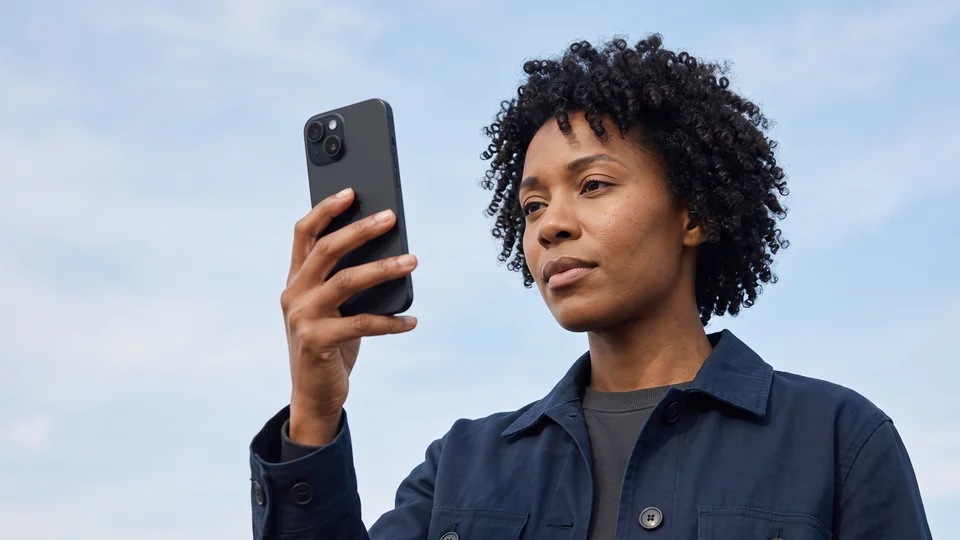
- A selfie. In some places, you can take a selfie instead, on iOS 27.2 or later. Apple checks the selfie automatically, on your iPhone and in Apple’s cloud. Apple says nobody can see the selfie during the check, not even Apple. Once your age is confirmed, Apple says the selfie is deleted and isn’t kept in any form.
- A Digital ID in Apple Wallet. If you have a US passport, Apple says a Digital ID made from the passport works wherever you live. See how a Digital ID works.
Why your iPhone asks you to confirm your age
Apple says some states, countries and regions require an age check by law. In those places, your iPhone might ask you to confirm that you’re an adult when you:
- Make a new Apple Account.
- Update your iPhone’s software.
- Change some safety settings.
- Download or buy an app rated 18+.
Apple’s list of these places is Australia, Brazil, Singapore, South Korea, the UK, and Texas in the United States. In Texas, Apple says the rules are for new Apple Accounts made from 4 June 2026. Once you’ve confirmed your age, Apple says you don’t have to confirm again.
How to confirm with a selfie
The selfie needs iOS 27.2 or later. Apple’s list of places with the selfie is Australia, Brazil, Singapore and the UK. When your iPhone asks you to confirm your age:
- Choose the selfie option.
- Tap Get Started.
- Hold your iPhone in front of you, with your face in the frame.
- Turn your head slowly to the right, left, up and down, as the screen shows you.
- Wait a moment while your age is checked.
Tap Accessibility Options at any point for spoken instructions, or other help. If the selfie doesn’t work, check that your iPhone is online. Or choose another way, like a credit card or your ID.
How to scan your ID clearly
Apple’s tips for a scan that works:
- Find a place with good light, like a bright room indoors.
- Lay your ID on a plain background.
- Keep glare off your ID.
- Check that the image is clear and in focus before you send it.
Sometimes an ID needs a closer check. Apple asks whether you want to send your ID for that check. If you agree, Apple sends you a notification when the check is done.
Check whether you’ve confirmed your age
Your status is in the Settings app:
- Open the Settings app.
- Tap your name.
- Tap Personal Information.
- Tap Age Confirmation to see your status.
If you don’t confirm, or can’t
Here’s what Apple says happens:
- You can say no. Apple says you can keep using your iPhone. But you need to confirm before you can turn off some safety settings, or download apps rated 18+.
- You can confirm later. The Settings app may show a message where you can confirm. Or your iPhone asks again the next time, like when you download an app rated 18+.
- If confirming doesn’t work. Update your iPhone’s software first. Then use a credit card of your own, or your ID. Some ways work only on iPhone and iPad, not on a Mac, Apple Watch or Apple TV.
- If you’re under 18. Apple says you might need to be in a Family Sharing group with an adult, like a parent, who has confirmed their age. Some things might not be available until you turn 18. See how Family Sharing is set up.
What apps can learn about your age
An app might ask to see the age range on your Apple Account. Apple says your birthday sets the age range. Sharing the age range keeps your real age and birthday private, Apple says. In Texas and Brazil, Apple says your age range is always shared with the companies that make apps, and you can’t turn that off. In other places, you choose what apps see:
- Open the Settings app.
- Tap your name.
- Tap Personal Information.
- Tap Age Range for Apps.
- Tap Share with Apps.
- Choose whether apps can always see your age range, or have to ask you first.
The same screen lists each app that asked, with Shared or Not Shared beside it.
If an app or website asks for a photo of your ID
Some apps and websites check your age their own way, with a photo of your ID. A photo you take with the Camera app goes to your camera roll. With iCloud Photos on, the photo goes to iCloud too. After you upload the photo, the app or website has its own copy.
Keep a photo of your ID out of your camera roll
We make Underlock, a private vault for photos, videos, files and notes. You open your vault by drawing a pattern on a grid of dots. Everything you add to your vault is encrypted on your iPhone before Underlock saves it.
Underlock is coming soon to the App Store. Here’s how it will work.
- Take the photo in Underlock. Tap Add, then tap Take photo or video. The photo goes straight into your vault. Nothing goes to the Photos app.
- Not in iCloud Photos. Photos in your vault aren’t in the Photos app, so they’re not in iCloud Photos, and your iPad, Mac and iCloud.com don’t show them.
- Underlock asks before it shares. When you tap Share, Underlock asks you to confirm. Underlock shares a copy, and that copy is no longer encrypted. The photo itself stays in your vault.
- No location on what you share. The confirm step has a Remove location switch, which is on. So the photo leaves without its location, unless you turn the switch off.

Questions people ask
No, Apple says. Once your age is confirmed, your selfie is deleted and isn’t kept in any form. Apple says nobody can see the selfie during the check, not even Apple. Apple’s page doesn’t say what happens to a selfie that doesn’t confirm your age.
For a short time. Apple and companies working for Apple use the image of your ID to confirm your age, and to prevent fraud. Then Apple says the image is deleted. Apple’s page doesn’t give an exact time.
Apple says debit cards and gift cards don’t work. Use a credit card of your own. Or choose another way, like a scan of your ID.
Apple’s UK page lists your passport, your driver’s license, or a PASS proof of age card: CitizenCard, My ID Card, TOTUM ID card or Young Scot National Entitlement Card. A credit card of your own, or a selfie, works too.
No. Apple says you confirm only once. Your status is in the Settings app, under Age Confirmation. See how to check your status.
Yes, with a Digital ID made from a US passport. Apple says this works wherever you live. See how a Digital ID works.