Take photos in the Notes app
In the Notes app, you can take a photo or video right inside a note. A Notes setting called Save to Photos decides whether that photo also goes to the Photos app. With the switch off, the photo stays in the note only.
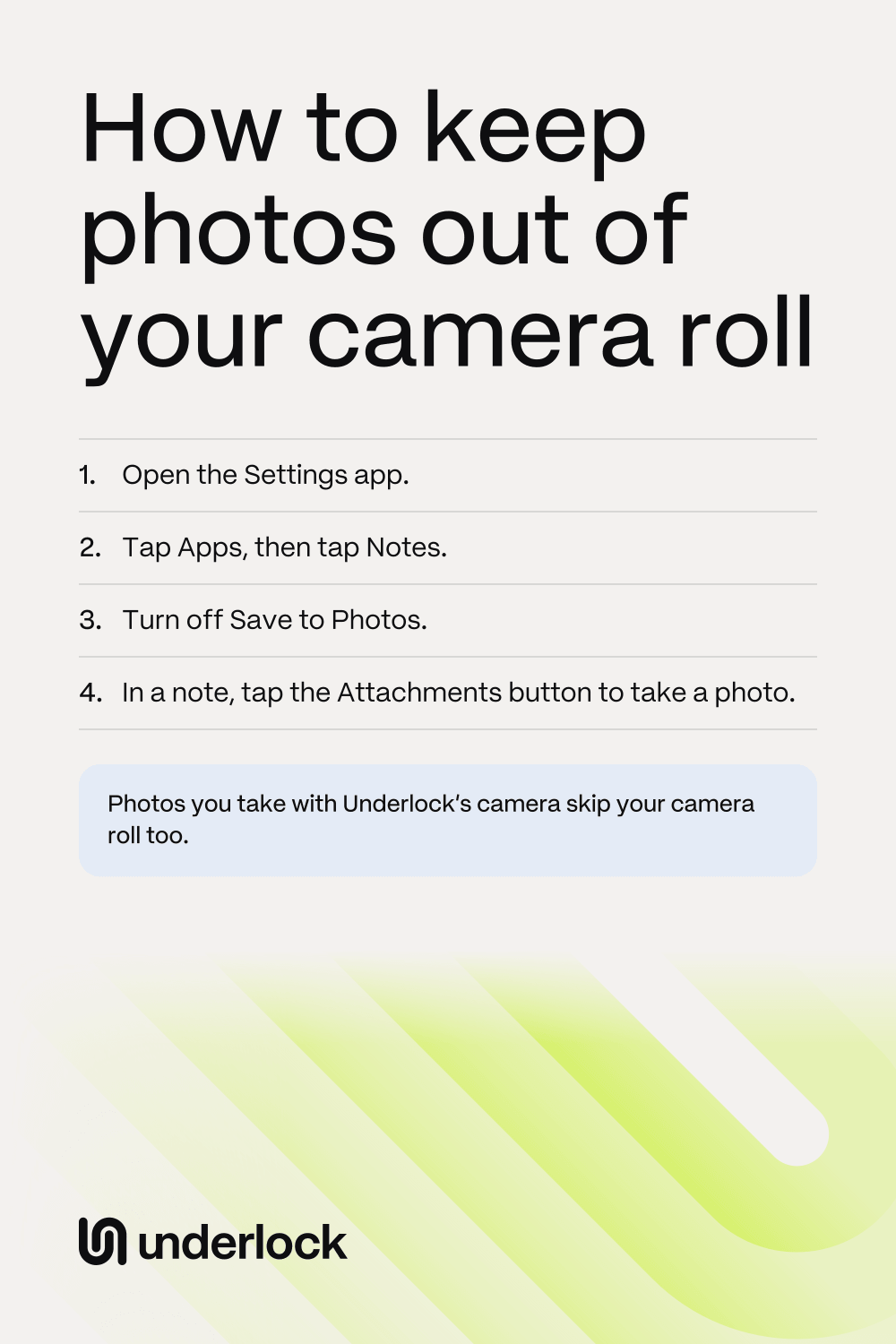
- Open the Settings app.
- Tap Apps. If you don’t see Apps, go to the next step.
- Tap Notes.
- Turn off Save to Photos, if the switch is on.
- Open the Notes app, then open a note or start a new one.
- Tap the Attachments button (a paper clip), then choose to take a new photo or video.
No Attachments button? Tap the Camera button in the note instead.
Stop WhatsApp saving photos to your camera roll
When people send you photos and videos in WhatsApp, WhatsApp saves them to the Photos app. WhatsApp has its own switch for this, also called Save to Photos, and the switch is on by default. To stop saving for all chats, groups included:
- In WhatsApp, tap Settings. If you don’t see Settings, tap your profile picture.
- Tap Chats.
- Turn off Save to Photos.
To stop saving for one chat or group only, open that chat and tap its name at the top. Tap Save to Photos, then choose Never. Want one chat to keep saving? Open that chat, tap its name, tap Save to Photos, then choose Always. A chat set to Always keeps saving, even with the switch for all chats off.
Hide photos people send you in Messages
Photos that people in your contacts send you in the Messages app show up in your photo library. Apple calls these photos Shared with You. To hide these photos from your library:
- Open the Photos app.
- Tap the Sort and Filter button. No Sort and Filter button? Swipe down on your photos, then tap Filter.
- Tap View Options.
- Tap Shared with You to turn it off. Your library then stops showing these photos.
The photos stay in your Messages conversations. To show these photos in your library again, tap Shared with You a second time.
Find photos you saved from other apps
Shared with You is only for photos people send you in Messages. When you save a photo yourself, from Messages, Safari, Mail or another app, the photo goes to Recently Saved in the Photos app. Photos people send you with AirDrop show up there too.
- Open the Photos app.
- Tap Collections.
- Tap Recently Saved, under Utilities.
To move one of these photos to the Hidden album, follow our steps for hiding photos.
Use a camera that skips your camera roll
We make Underlock, a private vault for photos, videos, files and notes. You open your vault by drawing a pattern on a grid of dots. Underlock has a camera of its own. Photos and videos you take with Underlock’s camera go straight into your vault. Nothing goes to the Photos app.
Underlock is coming soon to the App Store. Here’s how it will work.

- Open Underlock.
- Draw your pattern to open your vault.
- Tap Add (the plus at the bottom right), then tap Take photo or video.
- Take your photo. For a video, switch to Video first.
Photos you already took stay in your camera roll until you move them. Underlock’s setup steps show how to move photos into your vault. At setup, Underlock gives you a recovery phrase: 12 words you write on paper. The 12 words open your vault if you forget your pattern. If you forget your pattern and lose the paper, nobody can open your vault, not even us.
Questions people ask
It depends where the photos come from. For photos you take, use the camera in the Notes app with Save to Photos off, or Underlock’s camera. For WhatsApp, turn off WhatsApp’s Save to Photos. For Messages, hide Shared with You in the Photos app.
In WhatsApp, tap Settings, then tap Chats. Turn off Save to Photos. For one chat only, tap the chat’s name, tap Save to Photos, then choose Never.
Photos that people in your contacts send you in Messages show up in your library, as Shared with You. To hide these photos, open the Photos app and tap the Sort and Filter button. Tap View Options, then tap Shared with You.
Yes. When someone sends you a photo with AirDrop, the photo is saved in the Photos app, in Recently Saved. You can decline each AirDrop when it arrives.
Yes. Take the photo in the Notes app with Save to Photos off. Once Underlock is out, you can also use Underlock’s camera. Either way, nothing goes to the Photos app.
Yes. Underlock’s camera is part of the free plan. Underlock is free forever: one vault, no file limit. If the free plan ever changes, you keep the plan you started with. More vaults come with Pro, Underlock’s paid plan.