Why a delete reaches iCloud
With iCloud Photos on, your iPhone, your other devices and iCloud all show one library. So Apple says a photo you delete on one device is deleted everywhere. The photo waits in Recently Deleted for 30 days. After that, you can’t get the photo back. To see if iCloud Photos is on:
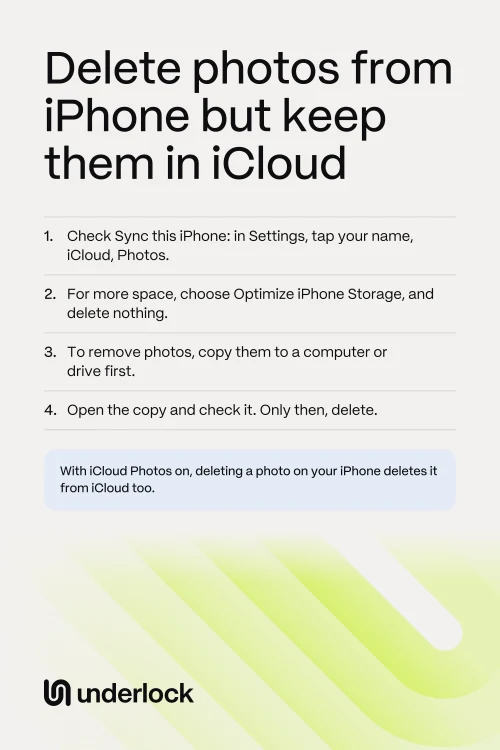
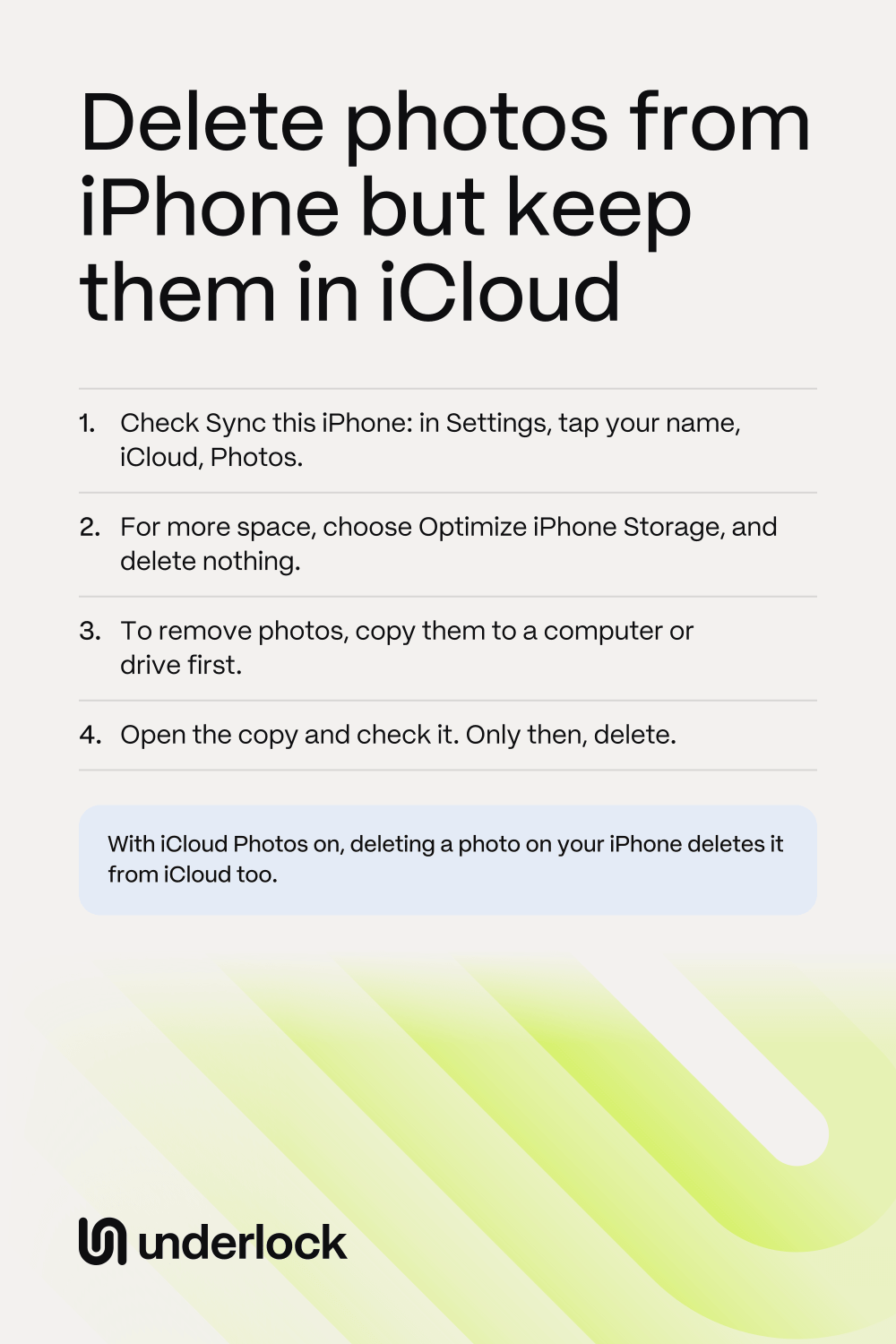
- Open the Settings app.
- Tap your name, then tap iCloud.
- Tap Photos.
- Look at Sync this iPhone. If the switch is on, iCloud Photos is on.
If the switch is off, a delete on your iPhone doesn’t reach iCloud Photos. Already deleted a photo by mistake? You can get the photo back from Recently Deleted, for 30 days.
What works instead
Each way has a cost. Choose by what you want:
- You want more space on your iPhone. Use Optimize iPhone Storage. You delete nothing.
- You want photos off your iPhone, and out of iCloud too. Copy the photos to a computer or a drive, then delete.
- You want photos off your iPhone, but still in iCloud. Turn off Sync this iPhone. Your iPhone then stops syncing.
- You use Google Photos. See what Google says.
Not sure? Start with Optimize iPhone Storage, because that way deletes nothing.
More space, nothing deleted: Optimize iPhone Storage
With this setting on, iCloud keeps your full-size photos and videos, and your iPhone keeps smaller versions. Every photo still shows in the Photos app. Apple says the setting is on by default, so yours may be on already.
- Open the Settings app.
- Tap your name, then tap iCloud.
- Tap Photos.
- Tap iPhone Storage. On iOS 26 or earlier, skip this step.
- Tap Optimize iPhone Storage.
- iCloud needs room for your whole library. Apple gives you 5 GB free. If your library is bigger, you pay for more iCloud storage.
- Your iPhone saves space only when your iPhone needs space. Apple says your iPhone starts with the photos you open least.
- Full size takes a download. To see a full-size photo, your iPhone downloads the photo over Wi-Fi or cellular.
- A delete is still a delete. With this setting on, deleting a photo still deletes the photo everywhere.
Is this setting already on, and your iPhone still full? To see what’s using the space, open the Settings app. Tap General, then iPhone Storage. See Apple’s ways to manage storage.
To take photos off your iPhone, copy them first
A copy on a computer or a drive stays there when you delete the photo on your iPhone. With iCloud Photos on, iCloud loses the photo too, so your copy becomes the only copy. Choose one way to make the copy:
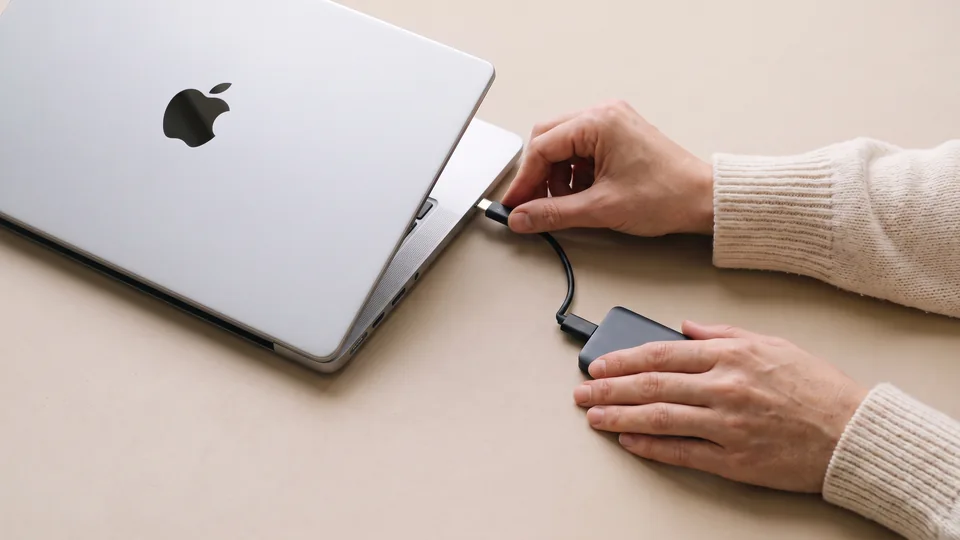
- To a drive, from your iPhone. Connect your iPhone to Wi-Fi. Then connect the drive to your iPhone, with an adapter if you need one. In the Photos app, tap Select, then tap the photos. Tap the Share button, then tap Export Unmodified Originals. Below Locations, tap your drive, then tap Save.
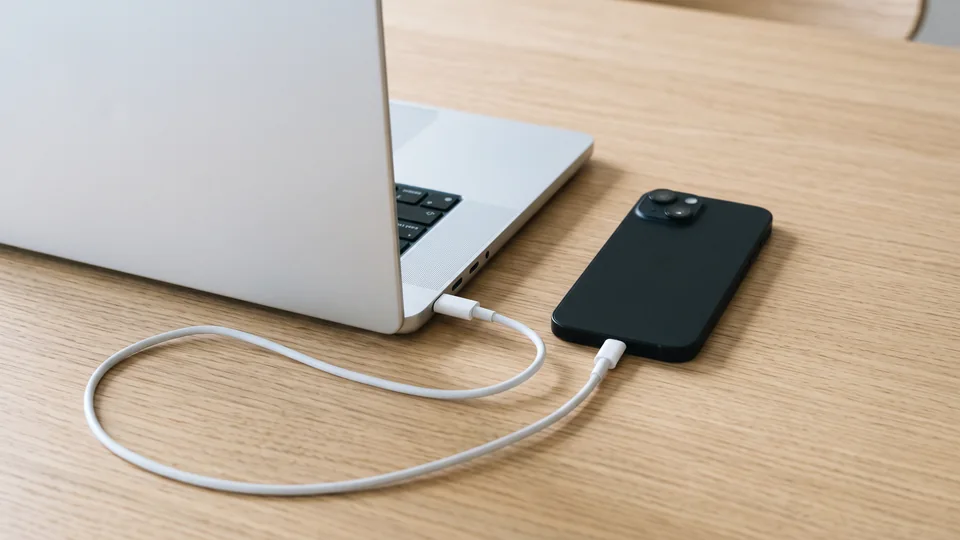
- To a Mac without iCloud Photos. Connect your iPhone to the Mac with a USB cable. Open the Photos app on the Mac. Select the photos, then click Import Selected. Or click Import All New Items.
- To a Mac with iCloud Photos on. That Mac isn’t a second copy yet, because a delete on your iPhone reaches the Mac too. To make a second copy, open the Photos app on the Mac. Choose Photos, then Settings, then click iCloud. Click Download Originals to this Mac, and wait for the download. Then open System Settings, click your name, then iCloud, then Photos. Turn off Sync this Mac, then choose Download. Deletes on your iPhone then no longer reach that Mac.
- To any computer, from iCloud.com. On the computer, go to icloud.com/photos and sign in. Select up to 1,000 photos at a time, then click the Download button. For more photos, repeat this step. To keep each photo as you took it, click the More button, then More Download Options, then Unmodified Originals. This way works on a PC too.
Apple says photos in the Hidden album aren’t copied to a drive while the Hidden album is locked. To include those photos, open the Settings app. Tap Apps, then Photos, then Albums if you see it. Then turn off Use Face ID. Turn Use Face ID back on when you finish. On iOS 17, the Settings app has no Apps step: tap Photos on the first screen.
Check your copy before you delete
After 30 days, you can’t undo a delete. So check your copy first:
- If your iPhone is connected to the computer or drive, disconnect your iPhone. Now you know you’re looking at the copy.
- Open the copy on the computer.
- Count the files. You should have at least as many files as the photos and videos you chose.
- Open your oldest photo, your newest photo and one video. Each photo should open at full size, and the video should play.
- Keep a second copy of photos you can’t replace. Apple says to keep backup copies of your library, and one drive can fail.
- Now delete the photos on your iPhone.
- Leave the photos in Recently Deleted for now. For 30 days, you can still change your mind.
For the delete itself, see How to permanently delete photos on iPhone.
Keep photos in iCloud, but not on your iPhone
This way takes photos off your iPhone and leaves them in iCloud. You turn off iCloud Photos on this iPhone only. If this iPhone is your only device with iCloud Photos on, copy the photos to a computer or a drive first. The last item under these steps says why. Next, make sure iCloud has every photo:
- In the Photos app, tap Collections, then tap your account icon at the top right. On iOS 18, tap the account icon straight away. On iOS 17, tap Library, tap All Photos, then scroll to the bottom.
- Read the status near your name. If syncing is paused or still going, wait. Apple says a large library may need a night on power and Wi-Fi.
- On a computer, go to icloud.com/photos. Check that your newest photo and newest video are there.
- On your iPhone, open the Settings app. Tap your name, then iCloud, then Photos.
- Turn off Sync this iPhone.
- Tap Remove from iPhone. To keep a copy on your iPhone instead, tap Download Photos & Videos.
- Your iPhone stops syncing. Apple says new photos, edits and deletes no longer sync between this iPhone and your other devices. So a new photo stays on this iPhone, and stays out of iCloud Photos.
- You see these photos somewhere else. The Photos app on this iPhone no longer shows these photos. Use icloud.com/photos, or another device with iCloud Photos on.
- Turning sync back on brings the photos back. Apple says the photos in iCloud then show on your iPhone again.
- You keep paying for the space. Photos in iCloud use your iCloud storage.
- iCloud may hold your only copy. Apple says iCloud Photos isn’t in your iCloud backup, and says to keep backup copies of your library.
- If this iPhone is your only device with iCloud Photos on, make a copy first. Apple says photos delete from iCloud 30 days after you stop using the service. Apple’s page doesn’t say whether turning off Sync this iPhone counts as stopping the service. So copy the photos to a computer or a drive before you tap Remove from iPhone.
If syncing seems stuck, Apple says to leave iCloud Photos on, because turning iCloud Photos off restarts the sync.
Delete from iPhone but keep in Google Photos
Google Photos keeps its own copy of your photos in your Google Account, once backup has finished. Google says you can then delete photos from your iPhone, and still see them in Google Photos. Read the list under these steps before you start, because that list says what the delete can cost. These are Google’s steps, and Google can change them:
- Open the Google Photos app.
- Tap your profile picture or initial, at the top right. Check that your status says Backup complete.
- On a computer, go to photos.google.com. Open your oldest photo, your newest photo and one video.
- In the Google Photos app, tap your profile picture or initial again. Then tap Free up space on this device.
- Tap the button that shows the number of items to delete from this device. Then tap Delete.
- The photos now wait in Recently Deleted, in Apple’s Photos app. Google says to delete the same photos there, to free the space. Do that when you’re sure.
- With iCloud Photos on, iCloud loses these photos too. Google’s button deletes photos from your iPhone’s library, and Apple says a delete there reaches iCloud. So your only copy is then in Google Photos.
- The Trash button deletes both copies. Google says deleting a photo in the Google Photos app also deletes the copy on your device. To remove one photo from your iPhone only, select the photo. At the top, tap More, then tap Delete from device.
- Check your backup quality first. Google says Storage saver keeps photos and videos at a slightly reduced quality. Original quality keeps photos and videos as you took them. After you delete the originals, the copy in Google Photos is the version you have.
- Only older photos. Google says Free up space on this device covers photos and videos older than 30 days.
- Your Google storage. Google says each account comes with up to 15 GB, shared with Gmail and Drive. Google also says that if you’re inactive in Google Photos for 2 years or more, your content may be deleted.
After this, you see these photos in the Google Photos app or at photos.google.com, not in Apple’s Photos app.
Your options, side by side
| Frees iPhone space | Stays in iCloud | The cost | |
|---|---|---|---|
| Optimize iPhone Storage | Yes, when your iPhone needs space | Yes | iCloud needs room for your whole library |
| Copy first, then delete | Yes | No. Your copy is on a computer or a drive. | You look after that copy yourself |
| Turn off iCloud Photos on your iPhone | Yes, with Remove from iPhone | Yes | Your iPhone stops syncing |
| Google Photos, then delete | Yes | No, if iCloud Photos is on. Your copy is in Google Photos. | Your Google Account needs room |
Out of your camera roll, but still on your iPhone
We make Underlock, a private vault on your iPhone for photos, videos, files and notes. Underlock doesn’t free up space, because your vault’s files stay on this iPhone. Underlock is for a different wish: keeping a photo, but not in the Photos app.
Underlock is coming soon to the App Store. Here’s how it will work.
- A copy in your vault. Importing puts a copy of each photo in your vault. The originals stay in the Photos app until you remove them.
- Out of iCloud Photos. Photos in your vault aren’t in the Photos app, so they’re not in iCloud Photos, and your iPad, Mac and iCloud.com don’t show them.
- Your vault keeps its copy. If you delete the original in the Photos app, the copy in your vault stays.
- Keep another copy of photos you can’t replace. Your vault is on this iPhone, so your vault isn’t a second copy of your iPhone’s photos.
Questions people ask
Not with iCloud Photos on. The photo goes from your iPhone, iCloud and your other devices. For 30 days, you can still get the photo back from Recently Deleted.
No. Your full-size photos stay in iCloud, and your iPhone keeps smaller versions. Every photo still shows in the Photos app.
Apple’s steps for one device don’t delete anything from iCloud. Turn Off and Delete Photos is the button that does. If this iPhone is your only device with iCloud Photos on, keep a copy elsewhere as well, because Apple’s page doesn’t settle that case.
Only if that Mac doesn’t use iCloud Photos, or you first turn off Sync this Mac and choose Download. With iCloud Photos on, a delete on your iPhone reaches the Mac too.
Not with iCloud Photos on. Apple says your photos aren’t in your iCloud backup then. See what’s in your iPhone backup.
Yes. Google says deleting in the Google Photos app deletes the Google Photos copy and the copy on your device. To remove a photo from your iPhone only, use Delete from device.