First, delete the photo twice
A deleted photo first moves to Recently Deleted, and waits there for 30 days. So you delete the photo once in your library, and once in Recently Deleted.
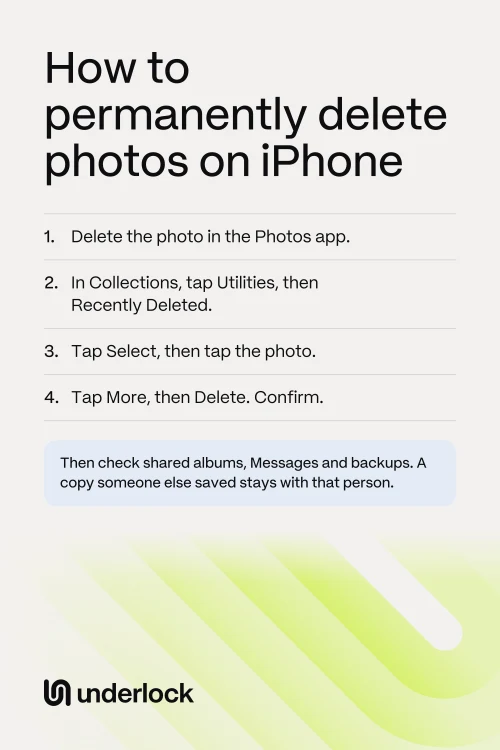
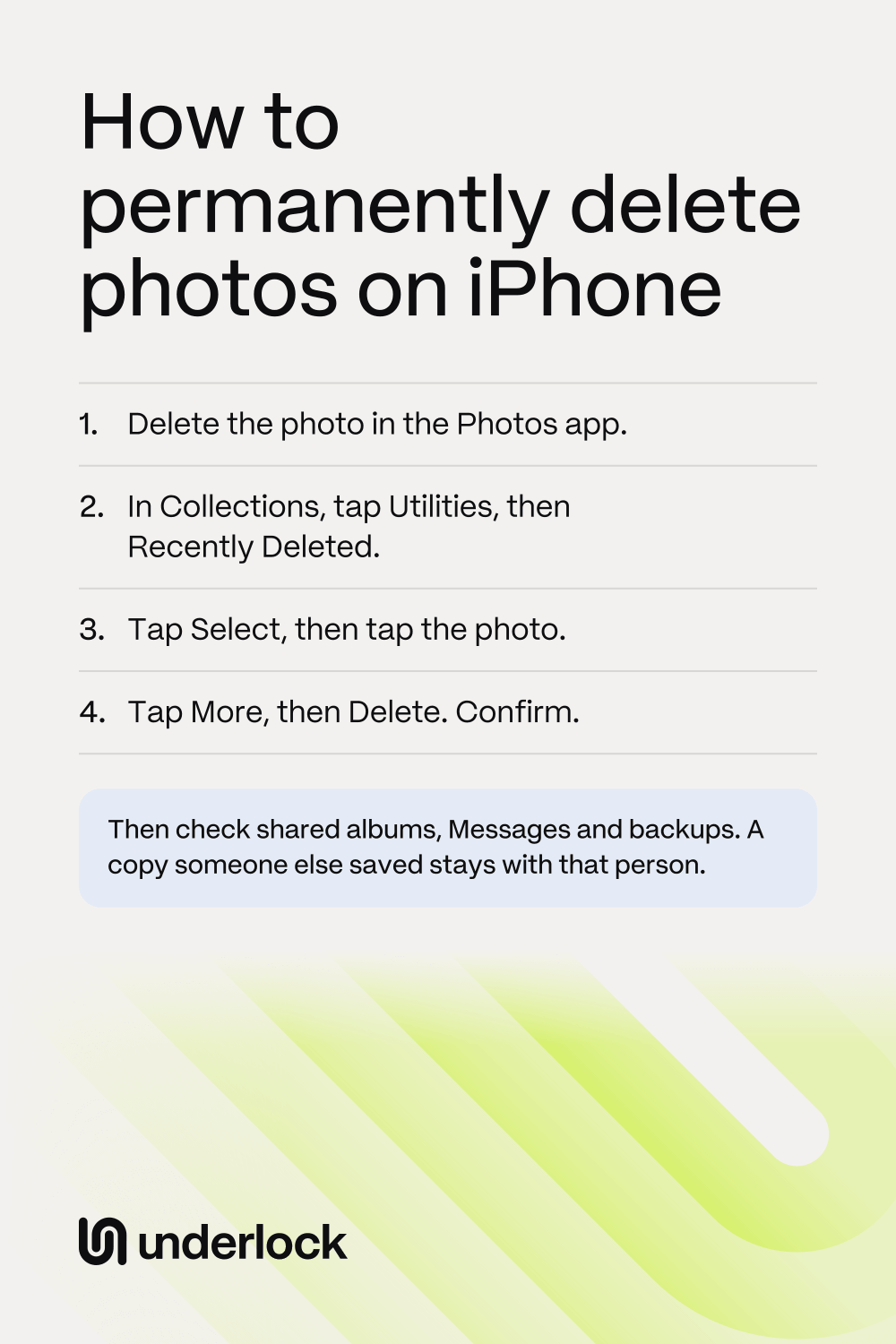
- In the Photos app, open the photo.
- Tap the Delete button (the trash can). Confirm when your iPhone asks.
- Tap Collections.
- Scroll down, then tap Utilities.
- Tap Recently Deleted, then tap View Album.
- Use Face ID, Touch ID or your iPhone passcode.
- Tap Select, then tap the photo. You can tap several photos.
- Tap the More button (three dots), then tap Delete.
- Confirm when your iPhone asks. The button may say Delete from All Devices or Delete Photos I Added.
Apple says you can’t get back a photo you delete from Recently Deleted. To start with many photos, tap Select in your library, tap the photos, then tap the Delete button. No Collections button? Your iPhone runs an older iOS. If you see Albums, tap Albums, then scroll down to Utilities. If you don’t see Albums, scroll down the main Photos screen to Utilities.
Then check where a copy can stay
Deleting twice covers your photo library. Now go down this list, and skip what you don’t use:
- iCloud and your other devices. With iCloud Photos on, your delete also reaches iCloud and your other devices. To check, open the Settings app. Tap your name, then iCloud, then Photos. If Sync this iPhone is on, iCloud Photos is on. An iPad or Mac with iCloud Photos off keeps its own copy. So delete the photo on that device too.
- A Mac or PC. A photo you copied to a computer stays on the computer until you delete it there.
- The same photo twice. A duplicate is a second copy, so deleting one leaves the other. See how to merge duplicates.
- A shared album. Deleting your own copy leaves the photo in the album. So open the album, and delete the photo there too. Apple says a photo deleted from a shared album goes at once, with no 30-day wait.
- A Shared Library. Anyone in the library can delete a photo. The photo then waits in Recently Deleted. Only the person who added the photo can delete the photo from Recently Deleted. If that person does nothing, the photo is deleted after 30 days.
- Messages. A photo you sent or got stays in the conversation until you delete it there. A deleted message then waits in Recently Deleted, in Messages, for 30 days. A photo someone sent you in Messages can also save to your library by itself. So look in your library too.
- Another app. An app that backs up your photos may have its own copy. Check that app too.
For the steps in a shared album, a Shared Library and Messages, see other places a copy can stay.
A copy in a backup
While iCloud Photos is on, your photos aren’t in your iPhone’s backup. So if iCloud Photos has always been on, you can skip this part. With iCloud Photos off, your photos can be in the backup, and restoring that backup can bring a deleted photo back. Apple’s pages show no way to take one photo out of a backup. You can only delete the whole backup, which deletes everything else in that backup too. You can’t get a deleted backup back. So delete a backup only if you need to.
- An iCloud backup: open the Settings app. Tap your name, then iCloud. Tap Storage or Manage Account Storage, then Backups. Tap your iPhone, then tap Turn Off and Delete from iCloud. Tap Turn Off and Delete to confirm. Deleting the backup also turns off iCloud Backup. If you still want a backup, turn iCloud Backup on again.
- A backup on your computer: a new backup replaces the old backup, unless you archived the old backup. So after you delete the photo, you can simply back up again. To delete a backup instead, connect your iPhone to your computer. Open the Finder on a Mac, or the Apple Devices app on a PC. Select your iPhone. In the General tab, click Manage Backups. Right-click the backup, then choose Delete. Then click OK.
Not sure what your backup holds? See what’s in your iPhone backup.
What you can’t reach
Some copies are out of your hands. Only the person who has the copy can delete it:
- A photo someone saved from a shared album. The saved photo stays in that person’s own library, even after the album is deleted.
- A photo you sent in Messages. Deleting the photo on your iPhone doesn’t delete it for the person who got it. There’s one exception: for 2 minutes after you send an iMessage, you can touch and hold the message, then tap Undo Send. Undo Send doesn’t work for SMS, MMS or RCS. If that person’s device runs an older system, the photo may stay, and your iPhone tells you so.
- A photo you sent by AirDrop or email. That copy is on the other person’s device.
- A copy from a Shared Library. After more than 7 days in a Shared Library, a person who leaves or is removed keeps a copy of everything in the library.
- A copy in someone else’s backup or on someone else’s computer.
- A photo you posted or sent in another app. The app decides what happens to that copy. Look in the app for a way to delete the photo.
To get one of these copies deleted, you have to ask the person. If you’re worried about a photo someone already has, see how to stop sharing photos.
Deleting in Underlock
We make Underlock, a private vault for photos, videos, files and notes. Underlock has its own Recently deleted, inside your vault, apart from the Photos app’s Recently Deleted.
Underlock is coming soon to the App Store. Here’s how it will work.
- 30 days. A file you delete in Underlock waits in Recently deleted for 30 days. After 30 days, the file is deleted for good.
- Sooner, if you choose. To delete a file for good sooner, select the file in Recently deleted, then tap Delete now.
Questions people ask
Not from the Photos app. Apple says you can’t get back a photo you delete from Recently Deleted. Apple’s pages describe no other way back, apart from an older backup that holds the photo. To get a photo back within the 30 days, see how to recover deleted photos.
Up to 30 days, in Recently Deleted. There is one exception. If your iCloud storage is full, Apple says your iPhone removes a deleted photo at once, and the photo never reaches Recently Deleted.
Yes, if you use iCloud Photos. The photo moves to Recently Deleted on your other devices too. After 30 days, or once you delete the photo from Recently Deleted, the photo is gone from your iPhone, iCloud and your other devices.
If the Delete button is gray, the photo probably came from a computer sync. To take the photo off your iPhone, stop syncing photos from that computer: Apple’s steps show how. The original stays on the computer, so delete the original there too.
Yes, if that person knows your iPhone passcode. Face ID, Touch ID or your passcode opens Recently Deleted.
No. Before you sell your iPhone, you erase the whole iPhone. See what to do before you sell.