Check whether your hidden photos are in iCloud
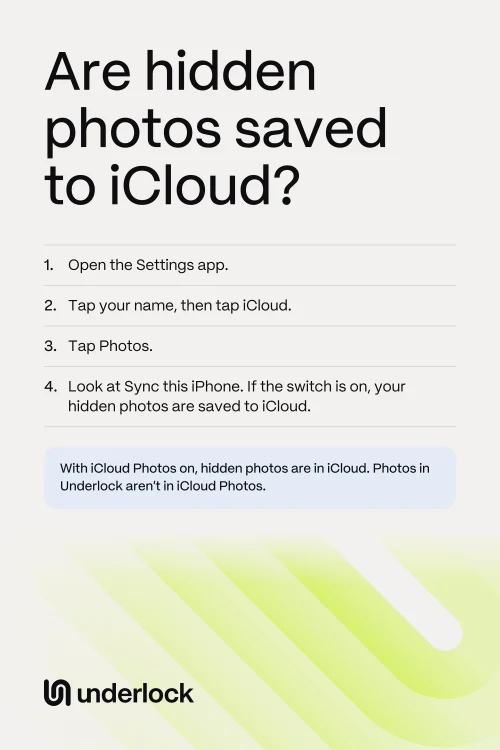
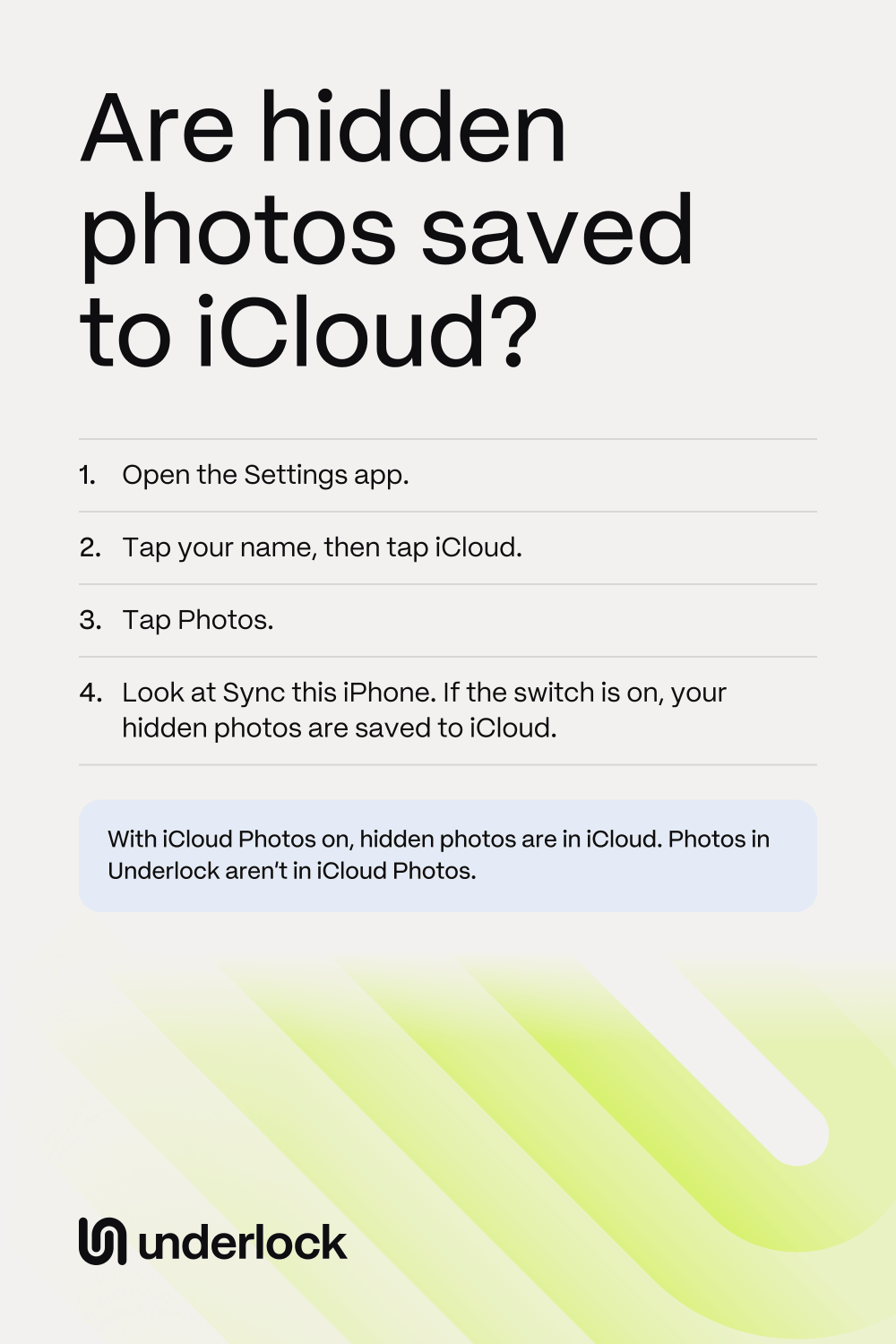
iCloud Photos saves every photo and video in the Photos app to iCloud, and keeps them up to date on all your devices. Hidden photos are included. Hiding a photo only moves it to the Hidden album, and the Hidden album is in iCloud Photos too. To see whether iCloud Photos is on:
- Open the Settings app.
- Tap your name.
- Tap iCloud.
- Tap Photos.
- Look at the switch called Sync this iPhone.
If Sync this iPhone is on, your hidden photos are saved to iCloud Photos. In iCloud, your photos are encrypted, but Apple holds the keys and can unscramble them. A setting called Advanced Data Protection keeps the keys on your devices only, so Apple can’t unscramble your photos. Our guide to iCloud encryption explains the setting.
Where else your hidden photos show
With iCloud Photos on, a photo you hide on your iPhone also goes to the Hidden album in these places:
- An iPad or Mac on your Apple Account. On an iPad, Face ID, Touch ID or the iPad’s passcode opens the Hidden album. On a Mac, Touch ID or the Mac’s login password opens the album. So anyone who can unlock that iPad or Mac can open your Hidden album.
- iCloud.com. In a web browser, signing in to your Apple Account is enough to open the Hidden album.
- A Shared Library. If you hide a photo that’s already in an iCloud Shared Photo Library, the photo stays shared. The photo goes to the Hidden album of everyone in that library. Everyone in the library can see the photo there, or unhide the photo.
Is a family iPad or Mac signed in to your Apple Account? You can turn off iCloud Photos on just that iPad or Mac, and keep iCloud Photos on your iPhone. Our steps for a shared iPad or Mac show how.
Keep your photos off iCloud.com
iCloud.com shows your photos in any web browser, once you sign in to your Apple Account. You can turn off web access, so iCloud.com stops showing your photos. Your photos still open on your iPhone, iPad and Mac. iCloud.com stops showing your mail, notes and files too, but they still work on your devices.
- Open the Settings app.
- Tap your name.
- Tap iCloud.
- Tap iCloud.com.
- Turn off Allow Data Access. This switch is for iCloud.com only.
Don’t see iCloud.com at step 4? Look on that same screen for a switch called Access iCloud Data on the Web. Turn that switch off. Either way, your photos stay in iCloud Photos, and you can turn web access back on at any time.
Keep private photos out of iCloud Photos
With iCloud Photos on, the only way to keep a photo out of iCloud Photos is to take the photo out of the Photos app. We make Underlock, a private vault for photos, videos, files and notes. You open your vault by drawing a pattern on a grid of dots.
Underlock is coming soon to the App Store. Here’s how it will work.
- Outside the Photos app. Photos in your vault aren’t in the Photos app, so they’re not in iCloud Photos, and your iPad, Mac and iCloud.com don’t show them.
- Originals out of iCloud Photos. Underlock copies the photos you choose into your vault. Then Underlock asks whether to remove the originals from the Photos app. If you tap Remove, the originals move to Recently Deleted on every device that uses your iCloud Photos. To get rid of the originals everywhere at once, delete them from Recently Deleted on your iPhone. If you leave the originals in Recently Deleted, they stay there on each device for 30 days, then they’re gone everywhere.
- A camera that skips the Photos app. Photos you take with Underlock’s camera never go to the Photos app, so iCloud Photos never sees them.
- No syncing between devices. Underlock doesn’t sync your vault to an iPad or Mac.

See how Underlock’s setup works, step by step.
Questions people ask
Yes. With iCloud Photos, sign in to the new iPhone with the same Apple Account. Then, on the new iPhone, turn on Sync this iPhone. Your hidden photos come over, and they stay hidden. Without iCloud Photos, set up the new iPhone from your old iPhone or from a backup. Your photos, hidden ones too, move with the rest of your data.
Not while iCloud Photos is on. iCloud Photos saves every photo in the Photos app, hidden photos too. To keep one photo out of iCloud Photos, move the photo out of the Photos app, for example into a vault app.
No. Turning off Sync this iPhone stops syncing on your iPhone only. Your photos stay in iCloud and on your other devices. Your iPhone then asks what to do with the photos on it. Choose Download Photos & Videos to keep all your photos on your iPhone. The other choice, Remove from iPhone, takes the photos off your iPhone, but they stay in iCloud. To delete all your photos from iCloud, Apple has a different button, Turn Off and Delete Photos. You’ll find that button in the Settings app, under your name, then iCloud, then Storage, then iCloud Photos. Apple deletes the photos from iCloud 30 days later.
Yes. Underlock is free forever: one vault, no file limit. If the free plan ever changes, you keep the plan you started with. More vaults come with Pro, Underlock’s paid plan.