Change your Apple Account password first
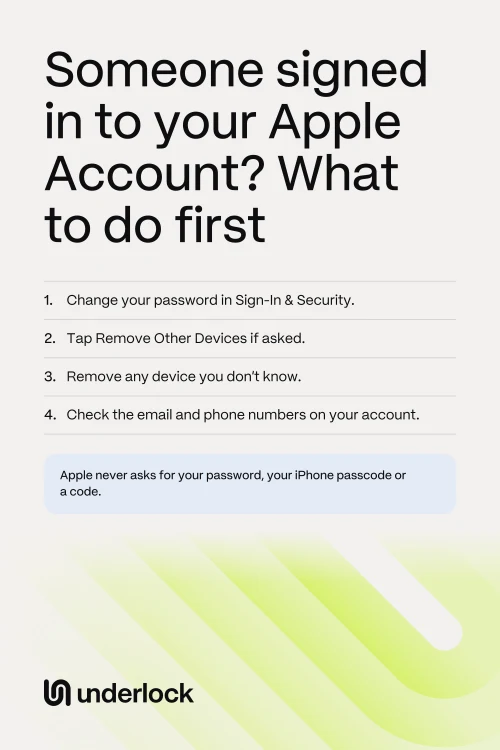
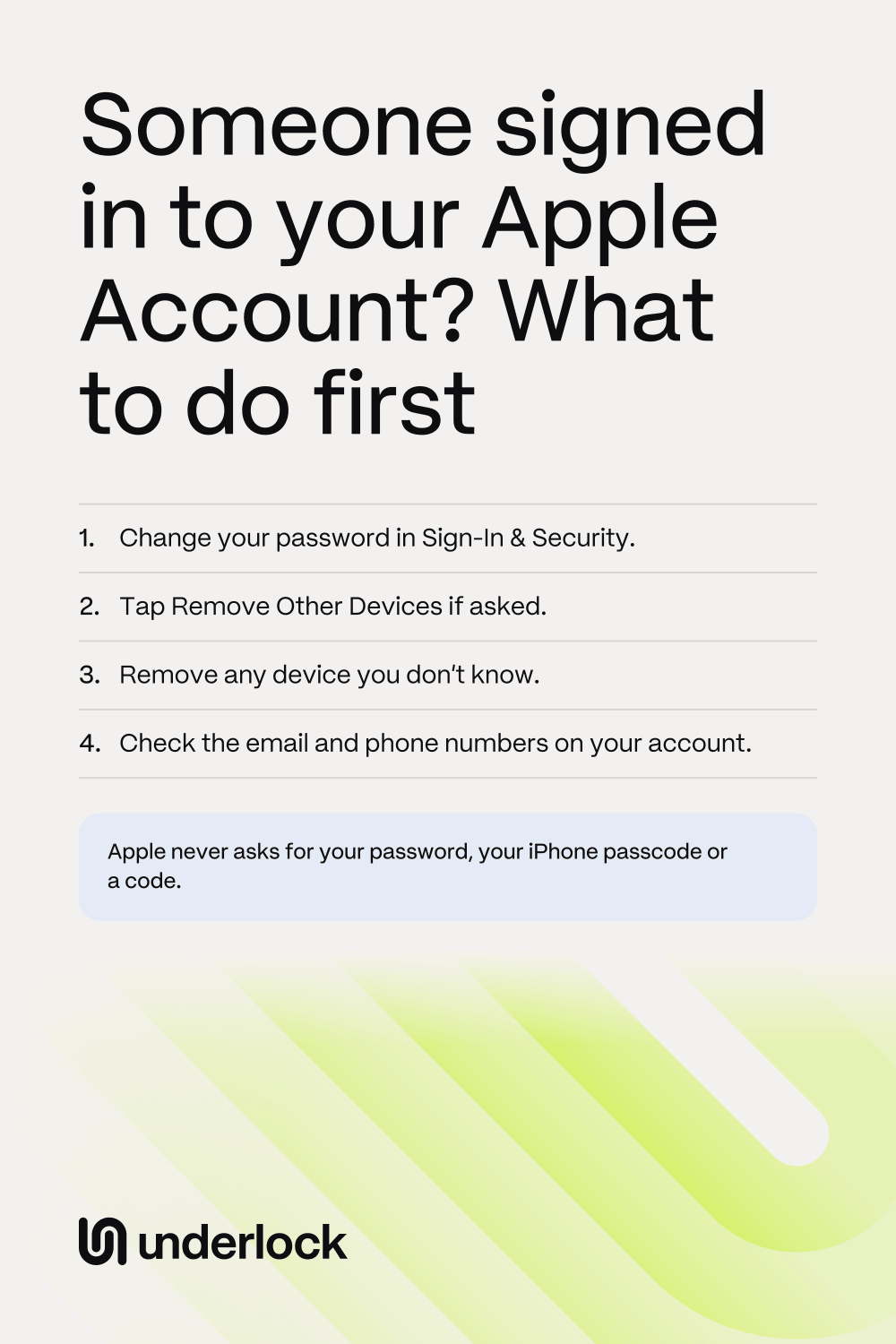
Apple’s first step is a new password for your Apple Account. Choose a strong password that you don’t use for anything else. If the person may be someone you live with, read When someone checks or controls your phone before you change anything. On your iPhone:
- Open the Settings app.
- Tap your name.
- Tap Sign-In & Security.
- Tap Change Password.
- Follow the steps on the screen to choose a new password.
- If your iPhone asks about your other devices, tap Remove Other Devices.
Remove Other Devices signs your other devices out of your account. Apple says each device then has to sign in again, with your new password. Have you turned on Stolen Device Protection? Then, away from home or work, your iPhone may ask you to wait an hour before you can change your password. Has someone already changed your password, so you can’t sign in? See what to do when you’re locked out. Apple’s steps to change your password
Remove devices you don’t know
Your Apple Account keeps a list of every device signed in to it. A device you don’t know on that list may be someone else’s. Apple says someone using a device on the list could change your password, get your verification codes or change your details. A verification code is the 6-digit code that Apple shows or texts you when you sign in on a new device. To check the list on your iPhone:
- Open the Settings app.
- Tap your name.
- Scroll down to the list of devices.
- Tap a device you don’t know.
- Tap Remove from Account.
- Confirm that you want to remove the device.
Apple says a removed device loses iCloud, Find My and other Apple services, and no longer gets your verification codes. The device comes back on the list only if someone signs in on it again. So change your password first, as above. Otherwise, someone with your old password could sign in on that device again. Don’t have an Apple device with you? Sign in at account.apple.com, then choose Devices. Apple’s steps for your list of devices
Check your email addresses and phone numbers
Apple uses the email addresses and phone numbers on your account to reach you, and to send your codes. Make sure each one is yours:
- On your iPhone. In the Settings app, tap your name, then Sign-In & Security. Check each email address and phone number there. Then tap Two-Factor Authentication to check your trusted phone numbers. Apple texts your codes to those numbers.
- With your email and phone companies. Apple says to check that you control every email address and phone number on your account. For example, ask your phone company whether your texts are being forwarded to another number.
- Two-factor authentication. With two-factor authentication on, a new device needs your password and a verification code to sign in. Apple says most accounts already use it. If your account doesn’t use two-factor authentication, turn it on in Sign-In & Security.
On the web, sign in at account.apple.com and change any detail that isn’t yours. What Apple says to do if someone else may be using your account
See what you share, with Safety Check
Did you once share your password or a device with someone? Apple’s Safety Check shows what you share with each person, and which devices are on your account. You need iOS 16 or later and two-factor authentication. On your iPhone:
- Open the Settings app.
- Tap Privacy & Security.
- Scroll down, then tap Safety Check.
- Tap Manage Sharing & Access.
- Follow the steps on the screen.
In Safety Check, you can also remove devices, check your phone numbers and change your Apple Account password. Apple asks you to think about your safety and privacy before you change anything. Apple’s guide to Safety Check
What someone signed in can see
Someone signed in to your Apple Account can see what you keep in iCloud. With iCloud Photos on, the person can see:
- Your photos and videos. A device signed in to your account can show your iCloud Photos. So can iCloud.com, in any web browser.
- Your Hidden album, where the Photos app keeps photos you hide. On iCloud.com, signing in to your Apple Account is enough to open the Hidden album. On an iPad or Mac, anyone who can unlock that iPad or Mac can open the album.
To stop iCloud.com from showing your photos, you can turn off web access to your iCloud data. Your photos still show on your own devices. See how to keep your photos off iCloud.com.
Signs Apple says to look for
Apple lists these signs that someone else may be using your Apple Account:
- An alert you didn’t expect. Apple sends a notification or an email about something you didn’t do. For example, your account was signed in on a device you don’t know, or your password changed.
- A code you didn’t ask for. A verification code arrives on your device or by text, when you weren’t signing in.
- Changes you didn’t make. For example, messages you didn’t send, things you didn’t delete, or a device you didn’t add.
- Your password stops working. Or someone else locked your device, or put your device in Lost Mode, which is Apple’s lock for a missing device.
A sign-in alert appears on your iPhone when someone signs in to your account on a new device. The alert can show a map and an Allow button. Apple says the map shows roughly where the sign-in is, based on the network. If you aren’t the one signing in, don’t tap Allow. Allow shows the code that the new device needs. Change your password instead.
Apple never asks for your password or a code
Some messages and calls pretend to come from Apple. Apple says it will never ask you to:
- Give your Apple Account password, your iPhone passcode or a verification code.
- Sign in on a website that someone sends you to.
- Approve a sign-in alert on your device.
- Turn off a security setting, like two-factor authentication or Stolen Device Protection.
If a caller says they’re from Apple and asks for one of these, Apple says to hang up. To talk to Apple, contact Apple Support yourself. Did you type your password into a page you didn’t trust? Apple says to change your password straight away. To report a message or a call that seemed to come from Apple, see Apple’s steps for reporting.
Your vault, if someone signed in to your Apple Account
We make Underlock, a private vault for photos, videos, files and notes. You open your vault by drawing a pattern on a grid of dots. Everything you add to your vault is encrypted on your iPhone before Underlock saves it.
Underlock is coming soon to the App Store. Here’s how it will work.
- Your Apple Account doesn’t open your vault. Your vault opens with your own pattern, or with your recovery phrase: 12 words you write on paper.
- iCloud.com doesn’t show your vault. iCloud Photos saves what’s in the Photos app. Photos in your vault aren’t in the Photos app, so they’re not in iCloud Photos, and your iPad, Mac and iCloud.com don’t show them.
- Your vault’s files are in your iPhone’s backup. The files are still encrypted, so your iPhone’s backup holds nothing readable from your vault.
Questions people ask
Yes, if you tap Remove Other Devices when your iPhone asks. Apple says your other devices then have to sign in again, with your new password. Then remove any device you don’t know from your list of devices.
Don’t give the code to anyone. Apple lists a code you didn’t ask for as a sign that someone else may be using your account. Change your Apple Account password, then check your list of devices.
No. Apple says it never asks for your password, your iPhone passcode or a verification code. Apple says to hang up on a call like this. If you gave the caller a code or your password, change your Apple Account password straight away.
It may be real, or it may be a fake. Don’t tap the links in the email. Apple says a link in a fake message can look right but lead to another website. Instead, open the Settings app and check your list of devices yourself.
Yes, if iCloud Photos is on. On iCloud.com, signing in to your Apple Account is enough to open the Hidden album. See where hidden photos show up.
No. Your Apple Account doesn’t open your vault. Your vault opens with your own pattern, or with your 12 words.
Apple’s advice: use a strong password that you don’t use anywhere else. Keep two-factor authentication on. Don’t let others use your Apple Account, even family members. Keep your password and your codes to yourself. You can also turn on Stolen Device Protection.