What Stolen Device Protection does
Stolen Device Protection is a setting in the Settings app on iPhone. Apple says the setting helps if someone steals your iPhone and knows your passcode. The setting works away from familiar places. Apple says familiar places are your home, your work and other places where you often use your iPhone. Away from familiar places, some actions need more than your passcode:
- Face ID or Touch ID, with no passcode option. Apple’s list includes using saved passwords, erasing your iPhone and opening a locked app. The list also includes turning off Lost Mode, Apple’s lock for a missing iPhone.
- A wait of one hour. Changes like a new passcode or a new Apple Account password take an hour. Your iPhone asks for Face ID or Touch ID, then again after the hour.
At home or work, your passcode works as usual. If you arrive at a familiar place during the hour, your iPhone may end the wait early. Apple’s page about Stolen Device Protection
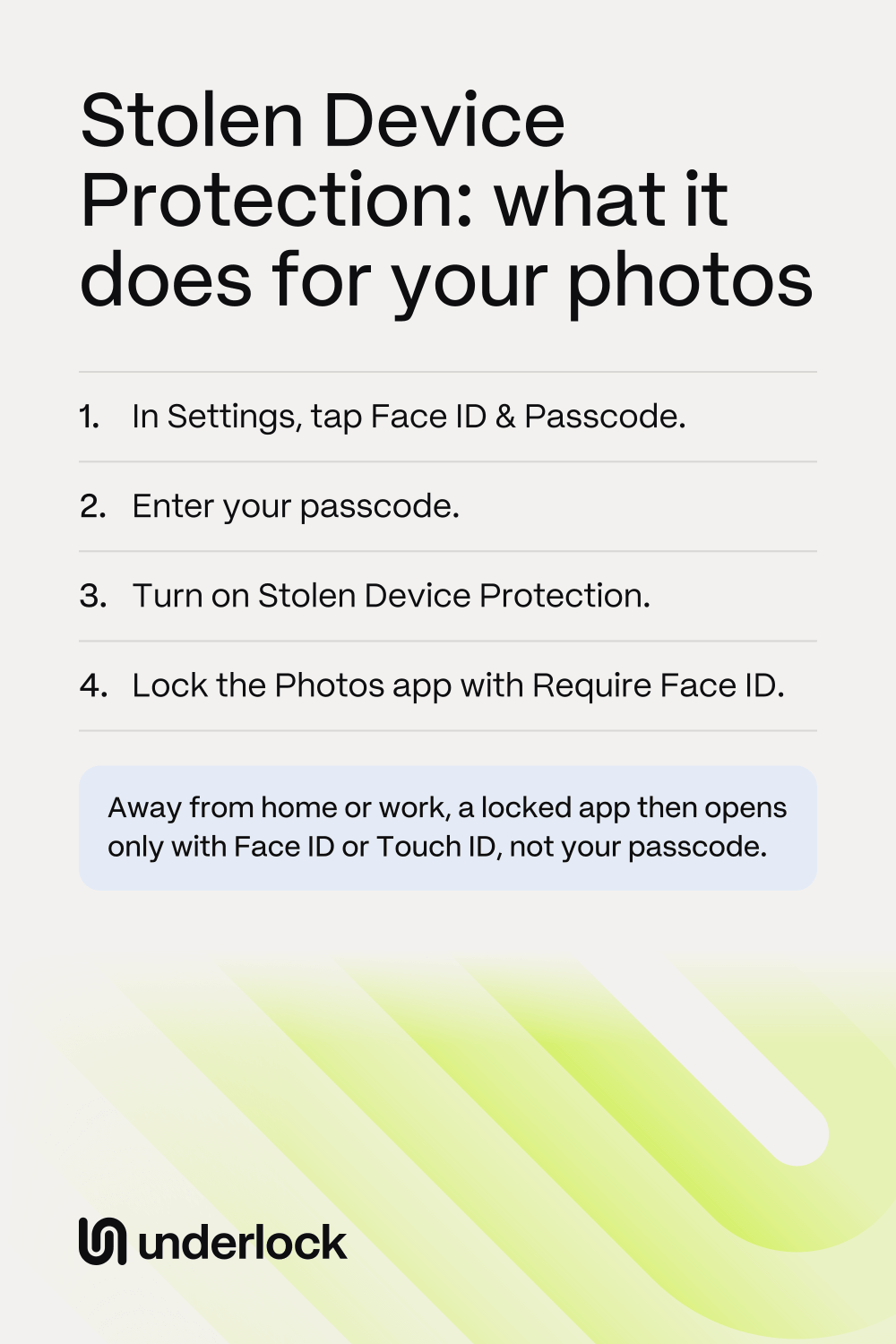
Turn on Stolen Device Protection
You need iOS 17.3 or later, with Face ID or Touch ID set up. To see your iOS version, open the Settings app and tap General, then Software Update. Looking there doesn’t install anything. Apple says Find My and Significant Locations & Routes need to be on too. You find Significant Locations & Routes in Privacy & Security, under Location Services, then System Services.
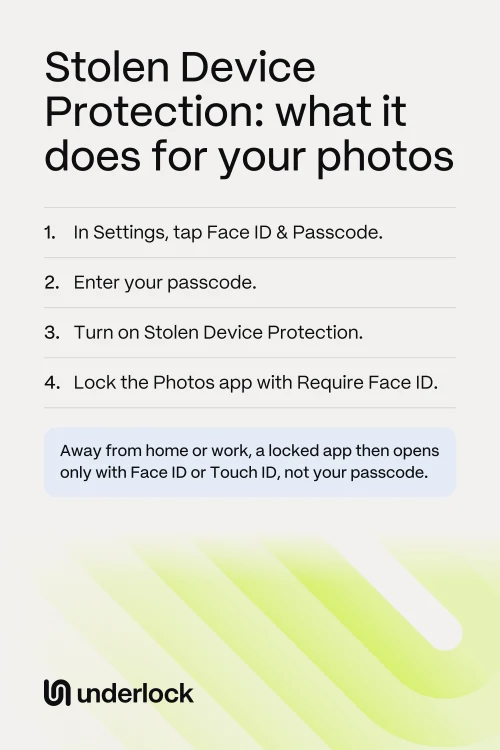
- Open the Settings app.
- Tap Face ID & Passcode. On an iPhone with Touch ID, tap Touch ID & Passcode.
- Enter your passcode.
- Tap Stolen Device Protection.
- Turn on Stolen Device Protection. Apple says the setting may already be on. If the switch is already on, you’re done.
Apple’s default choice is Away from Familiar Locations: the extra checks happen only away from home, work and other familiar places. If you don’t see Stolen Device Protection, set up Face ID or Touch ID first. Apple’s steps
What the setting changes for your photos
Apple’s list includes opening a locked app. So what changes for your photos depends on whether you lock the Photos app:
- The Photos app, not locked. Nothing changes. Someone who unlocks your iPhone with your passcode can open Photos, at home or away.
- A locked Photos app. Away from familiar places, the Photos app opens only with Face ID or Touch ID. Apple says there’s no option to use your passcode. At home or work, your passcode opens the Photos app as usual, unless you choose Always.
- The Hidden album. Apple’s Photos guide says the Hidden album opens with Face ID, Touch ID or your passcode. Apple’s pages about Stolen Device Protection don’t say whether the Hidden album changes too.
Want Face ID or Touch ID before the Hidden album? Lock the whole Photos app. The Hidden album is inside the Photos app, so someone has to get past the Photos app’s lock first.
Lock the Photos app
On iOS 18 or later, you can lock the Photos app. With Stolen Device Protection on, away from familiar places, Face ID or Touch ID then opens the Photos app.
- Go to your Home Screen.
- Touch and hold the Photos app until a menu opens.
- Tap Require Face ID. On an iPhone with Touch ID, tap Require Touch ID.
- In the box that opens, tap Require Face ID again (or Require Touch ID).
- Use Face ID or Touch ID to confirm.
To lock or hide other apps, see how to lock or hide an app.
If someone at home knows your passcode
At home or work, Stolen Device Protection asks for nothing extra. Your passcode works as usual, and opens a locked Photos app too. To have the extra checks everywhere:
- Open the Settings app.
- Tap Face ID & Passcode. On an iPhone with Touch ID, tap Touch ID & Passcode.
- Enter your passcode.
- Tap Stolen Device Protection.
- Under Require Security Delay, tap Always.
With Always, the actions on Apple’s list need Face ID or Touch ID everywhere, including opening a locked app. The wait of one hour applies everywhere too, even when you change your own passcode at home. With Always and a locked Photos app, your passcode can’t open the Photos app anywhere. So the Hidden album inside the Photos app needs Face ID or Touch ID too.
What Stolen Device Protection doesn’t do
Stolen Device Protection helps, but the setting has limits:
- No passcode option for you either. Away from familiar places, if Face ID or Touch ID doesn’t work, your passcode can’t open a locked app. With Apple’s default choice, your passcode works again at home or work.
- Turn the setting on now. Apple says Stolen Device Protection has to be on before your iPhone is lost or stolen.
- Lost Mode still comes first. If your iPhone is stolen, mark your iPhone as lost quickly. Apple says Stolen Device Protection only gives you more time to do so. See when your iPhone is lost or stolen.
- Your other devices. With iCloud Photos, your photos are on your iPad and Mac too. The setting on your iPhone doesn’t lock Photos on your iPad or Mac.
Your own pattern, at home or away
We make Underlock, a private vault on your iPhone for photos, videos, files and notes. You open your vault by drawing a pattern on a grid of dots. Your iPhone passcode and Face ID don’t open your vault.

Underlock is coming soon to the App Store. Here’s how it will work.
- The same lock everywhere. Underlock asks for your own pattern wherever your iPhone is. Stolen Device Protection doesn’t change how your vault opens.
- Nothing to see without your pattern. Someone who knows your passcode can open Underlock, but finds only the pattern screen.
- Locks as you leave. By default, your vault locks the moment you leave Underlock.
- Apple’s lock works on Underlock too. You can lock Underlock like any app. With Stolen Device Protection on, away from familiar places, your iPhone then asks for Face ID or Touch ID before Underlock opens. Then your pattern opens your vault.
Questions people ask
Stolen Device Protection adds checks for when someone has your iPhone and knows your passcode. Away from familiar places, some actions need Face ID or Touch ID, with no passcode option. Changes like a new Apple Account password also take an hour.
The extra checks apply to you too. Away from familiar places, if Face ID or Touch ID doesn’t work, your passcode can’t open a locked app. Changing your own passcode away from home takes an hour. And you can’t turn off Find My while the setting is on.
Yes. When you hide an app, your iPhone locks the app too. So away from familiar places, a hidden app opens only with Face ID or Touch ID. Hidden apps wait in the Hidden folder at the bottom of App Library, which isn’t the Hidden album in Photos. Apple’s pages don’t say whether the Hidden folder also needs Face ID or Touch ID away from familiar places.
Apple doesn’t say. Apple’s Photos guide says the Hidden album opens with Face ID, Touch ID or your passcode. To have Face ID or Touch ID asked first away from home, lock the whole Photos app.
No. Your vault opens with your own pattern, at home or anywhere else. Your iPhone passcode and Face ID don’t open your vault.