Locked out right now? Start here
Apple says the easiest way back in is with a trusted device. That’s an Apple device, like an iPhone, iPad or Mac, where you’re already signed in to your Apple Account. Try these in order:
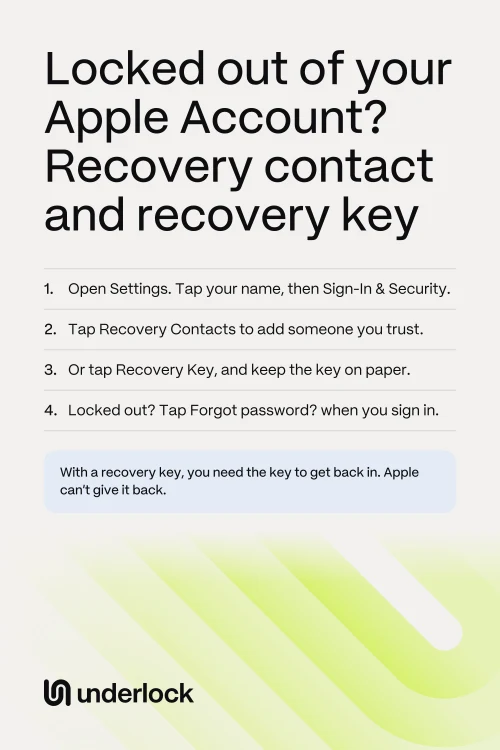
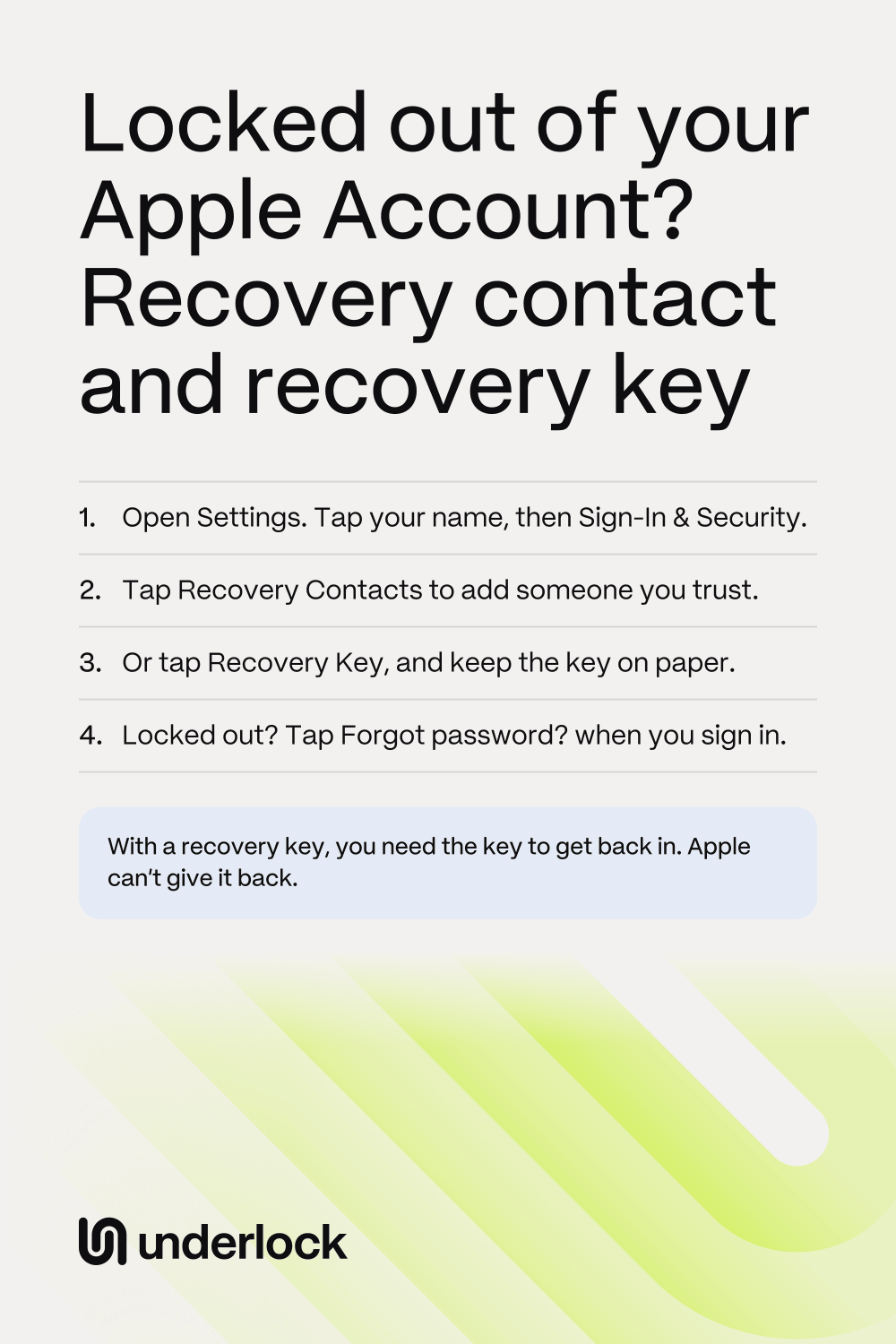
- Still signed in on one of your devices? Change your password there. On an iPhone, open the Settings app and tap your name. Tap Sign-In & Security, then Change Password.
- Not signed in anywhere? On the sign-in screen, tap Forgot password? and follow the steps. Apple may ask for a code sent to your trusted phone number, which is the number Apple sends your sign-in codes to. Apple may also ask for a code from your recovery contact, or for your recovery key.
- Still can’t reset your password? Ask Apple for account recovery. In Safari, go to iforgot.apple.com and follow the steps. On a borrowed iPhone, you can use Apple’s Support app instead. Scroll to Support Tools, tap Reset Password, then tap Help Someone Else.
Will you have your trusted device or phone number back soon? Then Apple says to wait, because you’ll get back in faster. Apple’s steps if you forgot your password
Recovery contact: someone who can give you a code
A recovery contact is someone you trust, like a family member or a close friend. If you’re locked out, you ask that person for help, by phone or in person. That person gets a 6-digit code for you on their own device. You enter the code on your device, then reset your password. Apple says your recovery contacts won’t have any access to your account. To protect your privacy, Apple doesn’t know who your recovery contacts are. So remember who you chose. To add a recovery contact:
- Open the Settings app.
- Tap your name.
- Tap Sign-In & Security.
- Tap Recovery Contacts.
- Tap Add Recovery Contact, then follow the steps on the screen.
- Choose someone suggested, or tap Choose Someone Else.
Someone in your Family Sharing group is added straight away. Anyone else gets an invitation in the Messages app, and has to accept it. You can add up to 5 recovery contacts. Your recovery contact needs an Apple device with recent software, like an iPhone with iOS 15 or later. Your own devices need recent software too. You both need iMessage on, and you both need to be over 13. In some countries, the age is higher. Your contact’s steps for getting the code are under Questions people ask. Apple’s steps for a recovery contact
Recovery key: a 28-character code you keep
A recovery key is a 28-character code that your iPhone makes for you. With the key, your trusted phone number and an Apple device, you can get back into your account. A recovery key changes how you get back in:
- Apple’s account recovery turns off. Account recovery is Apple’s slow way back in, described below. Apple says a recovery key gives you more control, and makes it harder for someone else to take over your account. To reset your password, you then need your recovery key and your trusted phone number.
- Apple can’t give the key back. If you lose access to your account and don’t have the key, Apple says you’re locked out for good.
- Apple may ask for the key at other times. For example, Apple asks for the key when you add a new trusted phone number.
- Apple says to keep the key on paper. Print the key or write it down, and think about keeping copies in more than one place. You can give a copy to a family member you trust. Apple says not to keep the key in the Passwords app, Notes, iCloud Photos or iCloud Drive. If you’re locked out, you can’t open those to find the key.
To make a recovery key, open the Settings app and tap your name. Tap Sign-In & Security, then Recovery Key. Tap Continue, then follow the steps on the screen. To finish, your iPhone asks you to confirm the key. To turn Apple’s account recovery back on, tap Remove Recovery Key in the same place. Apple’s steps for a recovery key
With neither: Apple’s account recovery
If you can’t reset your password, Apple’s account recovery can still get you back in. Apple says account recovery may take several days or more. The wait is on purpose, to protect your account, and Apple Support can’t shorten it. Here is what to expect:
- An email within 72 hours. The email gives the date and time when you can expect to get back in.
- One request is enough. Apple says a second request won’t speed things up, and might make the wait longer.
- Your devices during the wait. If you started account recovery on an iPhone with iOS 17 or later, you can keep using that iPhone. If you started on a website, turn off all your Apple devices. Apple says using another device that’s signed in to your account cancels your request.
- Your status, any time. Check at iforgot.apple.com. Use the same email address and phone number you used to start.
- When the wait is over, Apple sends you an email, and a text or an automated call. Then follow the steps Apple sends you.
Got the email, but didn’t ask for account recovery? Apple says to use the cancel link in the email right away. Then think about changing your password. What Apple says to expect during account recovery
If you use Advanced Data Protection
Advanced Data Protection is an iCloud setting that stays off unless you turn it on. With the setting on, only your devices hold the keys to most of your iCloud data, like your photos. Apple then doesn’t have the keys to help you recover that data. To get that data back, you need the passcode of one of your devices, a recovery contact or a recovery key. Apple’s account recovery alone can’t bring that data back. So before you turn the setting on, your iPhone asks you to set up a recovery contact or a recovery key.
On a new device, your encrypted iCloud data may not show at first. Apple says your device then asks for your recovery contact or your recovery key. See what else Advanced Data Protection changes.
Recovery contact or recovery key, side by side
| What it is | What you need to get back in | The catch | |
|---|---|---|---|
| Recovery contact | Someone you trust | A 6-digit code from that person | You need to reach that person, by phone or in person |
| Recovery key | A 28-character code | The key, your trusted phone number and an Apple device | Apple can’t give a lost key back, and Apple’s account recovery is off |
| Neither | Apple’s account recovery | Details like your trusted phone number and email address | The wait can take several days or more |
Your Apple Account and your vault
We make Underlock, a private vault for photos, videos, files and notes. You open your vault by drawing a pattern on a grid of dots. Everything you add to your vault is encrypted on your iPhone before Underlock saves it.
Underlock is coming soon to the App Store. Here’s how it will work.
- Your Apple Account doesn’t open your vault. Your vault opens with your own pattern. So if you’re locked out of your Apple Account, your vault on your iPhone still opens with your pattern. If you forget your pattern, your recovery phrase opens your vault: 12 words you write on paper.
- Apple’s recovery key and Underlock’s recovery phrase are different things. Apple’s 28-character key gets you back into your Apple Account. Underlock’s 12 words get you back into your vault. The key doesn’t open your vault, and the 12 words don’t open your Apple Account.
- Your vault goes into your iPhone’s backup, still encrypted. If that backup is in iCloud, a new iPhone needs your Apple Account to restore the backup.
Questions people ask
Apple leaves the choice to you. With a recovery contact, Apple’s account recovery still works if your contact can’t help. With a recovery key, you need the key, and Apple can’t give it back. Apple says a recovery key gives you more control, and can help stop someone else from taking over your account.
No. Apple says your recovery contacts won’t have any access to your account. They can only give you a code.
If you can still sign in on one of your devices, make a new key. Open the Settings app and tap your name. Tap Sign-In & Security, then Recovery Key, then Replace Recovery Key. If you’ve lost access to your account and don’t have the key, Apple says you can’t get back in.
No. Apple says Apple Support can’t shorten the wait. A second request won’t speed things up either, and might make the wait longer.
Open the Settings app and tap your name. Tap Sign-In & Security, then Recovery Contacts. Under Account Recovery For, tap that person’s name, then Get Recovery Code. Tell the code only to that person. Apple says that if anyone else asks you for a code for them, don’t give it.
Not as your only copy. If you lose your iPhone, the key in your vault goes with it, unless your iPhone’s backup brings the key back. That backup may need your Apple Account too. Keep the key on paper, as Apple says.