First, find out how you share
Your iPhone has a few ways to share photos. Check these places:
- A shared album. A shared album is one album you share with people you choose. To see yours, open the Photos app. Tap Collections, then tap Shared Albums.
- A Shared Library. An iCloud Shared Photo Library is a second photo library that you share with up to 5 other people. Everyone in the library can add, edit and delete its photos. To check, open the Settings app. Tap Apps, then Photos, then Shared Library. If the screen offers to set one up, you aren’t in a Shared Library.
- Family Sharing. A family group gets a shared album of its own. See Family Sharing and your photos.
- Another device on your Apple Account. With iCloud Photos on, every iPad or Mac signed in to your Apple Account shows your photos. iCloud Photos isn’t a sharing setting, so the steps on this page don’t change what those devices show. See our steps for a shared iPad or Mac.
Remove someone from a shared album
You can remove people from an album you made. The person then loses access to the album and its photos. The album stays for you and anyone else in it.
- In the Photos app, tap Collections, then tap Shared Albums.
- Tap the album you made.
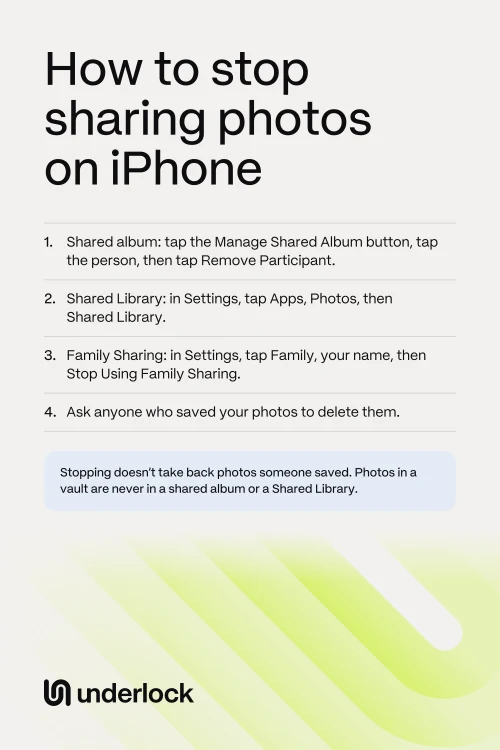
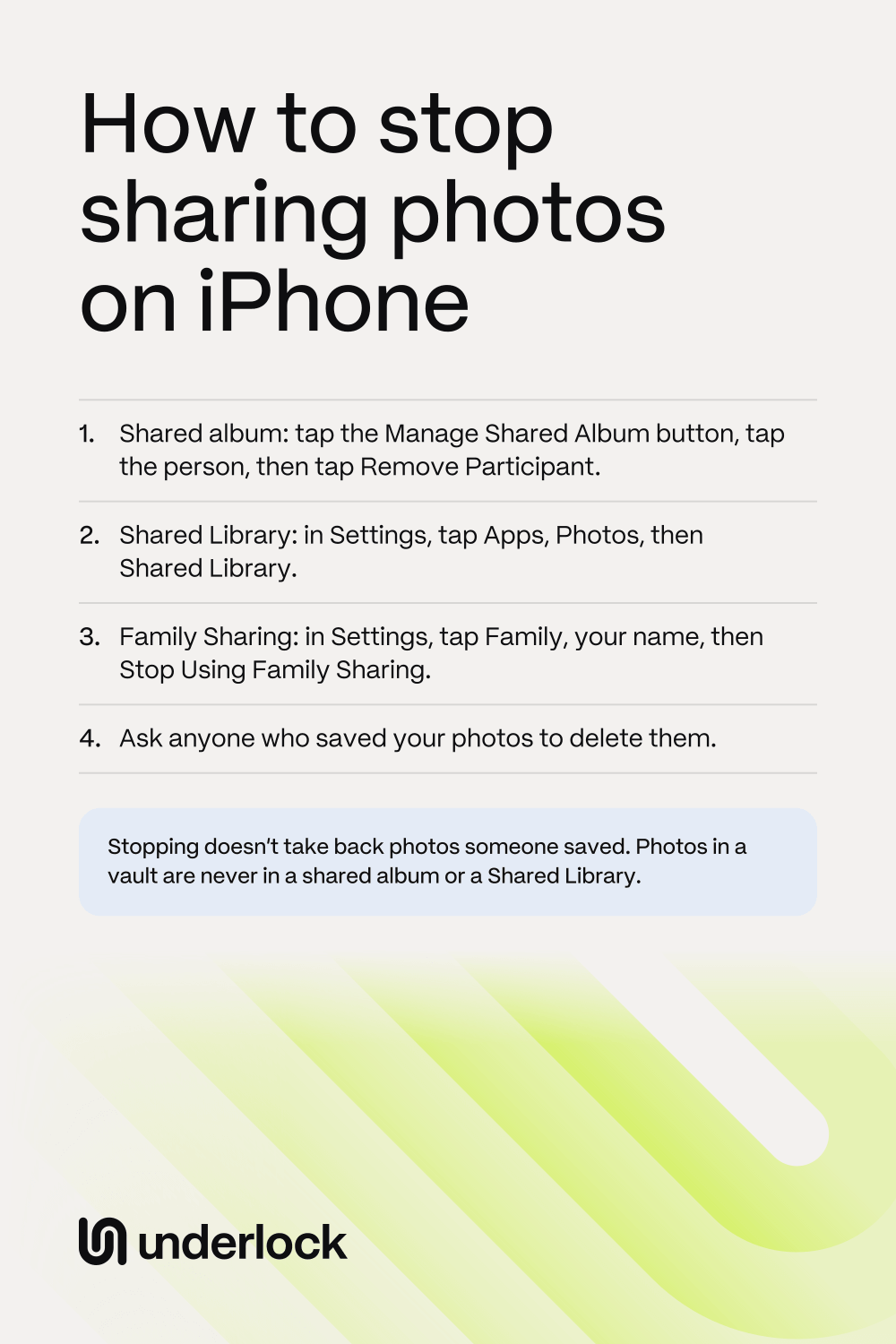
- Tap the Manage Shared Album button.
- Tap the person you want to remove.
- Tap Remove Participant.
On iOS 26 or earlier, tap the More button, tap the album’s name, then tap the person. Then tap Remove Subscriber. Did you share the album with a link? See the question about links.
Delete a shared album, or leave one
If you made the album, you can delete the album. Deleting removes the album from everyone’s devices, and deletes every photo in the album. So first save any photo you want to keep. If someone else made the album, you can leave the album.
- In the Photos app, tap Collections, then tap Shared Albums.
- Tap the album.
- Tap the More button.
- If you made the album, tap Delete Shared Album, then tap Delete. If someone else made the album, tap Leave Shared Album.
On iOS 27, your iPhone also offers Make Album Temporary, which deletes the album in 30 days. Photos you saved from the album to your own library stay in your library. Leaving may not take your photos out of the album. To take a photo out first, open the photo in the album. Tap the Delete button, then tap Delete From All Devices.
Leave a Shared Library
Anyone in a Shared Library can leave at any time. Only the person who set up the library can remove someone. Leaving may not take your photos out of the library. So before you leave, take back the photos you added: open each photo, tap the More button, then tap Move to Personal Library. Then follow these steps:
- Open the Settings app.
- Tap Apps. If you don’t see Apps, skip to the next step.
- Tap Photos.
- Tap Shared Library.
- Tap Leave Shared Library.
- Choose what your own library keeps a copy of: everything, or only what you added.
- Tap Leave Shared Library again to confirm.
Stay signed in to iCloud, with iCloud Photos on, until your iPhone finishes.
If you set up the Shared Library
You can remove one person, or delete the Shared Library for everyone. Open the Settings app. Tap Apps, then Photos, then Shared Library. Then:
- To remove one person: tap the person, then tap Remove from Shared Library. Tap Remove from Shared Library again to confirm.
- To delete the Shared Library: tap Delete Shared Library. Choose what your own library keeps: Keep Everything or Keep Only What I Contributed. Tap Delete Shared Library again to confirm.
Removing one person sends that person a notification. Deleting the library sends everyone in the library a notification. In both cases, how long a person was in the library decides what that person keeps. After more than 7 days, the person keeps a copy of everything in the library. After less than 7 days, the person keeps a copy of only what that person added. To keep a photo of yours out of those copies, move the photo back to your own library first.
Family Sharing and your photos
Family Sharing doesn’t share your photo library, but it does set up one shared album for your family group. Everyone in the group can see what’s added to that album.
- To take a photo out of the family album: open the album, then tap the photo. Tap the Delete button, then tap Delete From All Devices.
- To leave the family group: open the Settings app. Tap Family, below your name. Tap your name, then tap Stop Using Family Sharing. You then lose what the family shares, such as subscriptions.
- If you set up the family group: the same steps turn off Family Sharing for everyone. Or tap a person’s name, then tap the button to remove that person. With a child under 13 in the group, see Apple’s steps first.
What stopping doesn’t take back
Stopping ends a person’s access from now on, but doesn’t reach copies that person already has:
- Photos saved from a shared album. A saved photo stays in that person’s own library, even after you delete the album.
- Copies from a Shared Library. After more than 7 days in a Shared Library, a person keeps a copy of everything in the library.
- Photos you sent another way. A photo you sent in Messages, by email or by AirDrop stays with the person who got it. See other places a copy can stay.
To get one of these copies deleted, you have to ask the person.
After a breakup
After a breakup, or when a friend or a relative moves on, check each place, in this order:
- Your shared albums: remove the person from each album you made.
- Your Shared Library: leave the library, or remove the person if you set the library up.
- Your family group: see Family Sharing and your photos.
- Your devices: see our steps for a shared iPad or Mac, in case the other person’s device is signed in to your Apple Account.
Apple’s Safety Check can list what you share with each person. Open the Settings app, then tap Privacy & Security. Tap Safety Check, then tap Manage Sharing & Access. Going through a divorce? See the papers to gather and the copies to keep. If someone checks or controls your phone, read When someone checks or controls your phone before you change anything.
Photos in a vault stay out of shared albums
We make Underlock, a private vault for photos, videos, files and notes. You open your vault by drawing a pattern on a grid of dots.
Underlock is coming soon to the App Store. Here’s how it will work.
- Never in a shared album or a Shared Library. Photos in your vault aren’t in the Photos app, so they’re never in a shared album or a Shared Library.
- Not in iCloud Photos either. Your iPad, Mac and iCloud.com don’t show photos from your vault.
- Importing makes a copy. Importing puts a copy of each photo in your vault. The originals stay in the Photos app until you remove them. A photo already in a shared album stays in that album until you delete it from the album.
- Sharing out is up to you. Underlock doesn’t share a photo by itself. If you tap Share, Underlock first tells you that the photo will leave the vault and will no longer be encrypted.

Questions people ask
If you remove someone from a Shared Library or delete the library, yes: Apple sends a notification. Apple’s pages don’t say whether a notification goes out when you leave a Shared Library, or when you remove someone from a shared album. But a person you remove from an album loses that album from the Photos app, and may notice.
Yes. Stopping doesn’t reach photos someone saved to their own library. To get those photos deleted, you have to ask the person.
No. Removing someone from a shared album or a Shared Library doesn’t delete your photos. Only deleting a shared album deletes that album’s photos.
Removing a person doesn’t change the link. In the album’s Sharing Options, choose People You Choose. Anyone else with the link then has to ask you first. An album made on iOS 26 or earlier may have Public Website on. To turn it off, tap the More button, then tap Shared Album Details.
No. Family Sharing doesn’t share your photo library. Only photos someone adds to the family’s shared album are shared in that album.
Yes, with iCloud Photos on. Every device signed in to your Apple Account shows your photos. See our steps for a shared iPad or Mac.