Lock a note
The first time you lock a note, the Notes app asks which password to use: your iPhone passcode, or a Notes password. Your iPhone passcode is the code that unlocks your iPhone. A Notes password is a separate password, just for Notes. If someone else knows your passcode, choose a Notes password. If you forget a Notes password, Apple can’t help you open the notes locked with it.
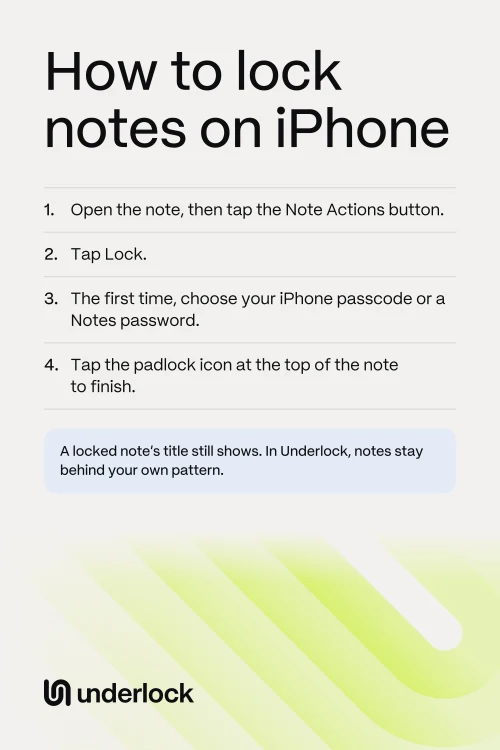
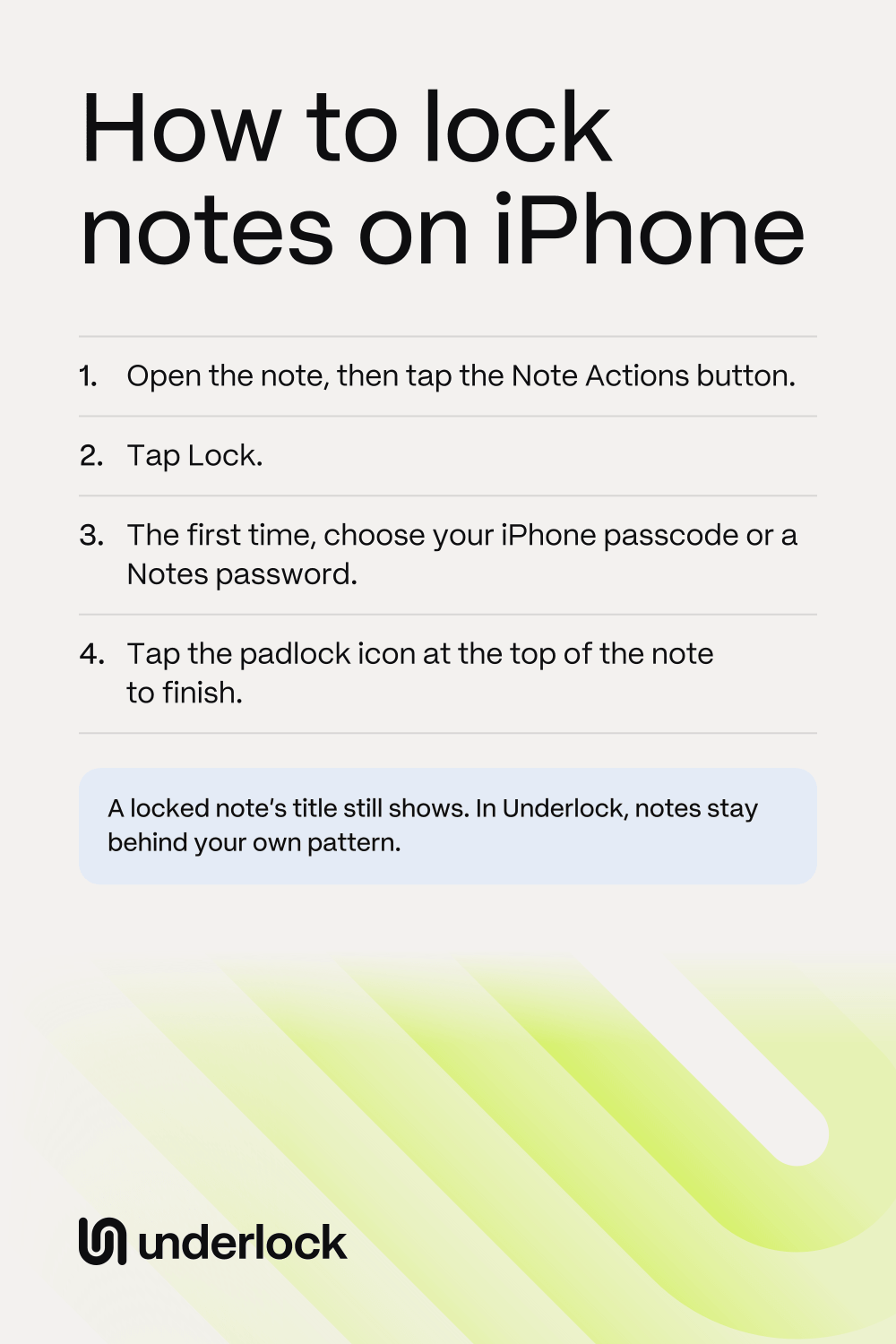
- Open the Notes app.
- Open the note you want to lock.
- Check the note’s first line, which still shows in your notes list after you lock the note. Change any private words in the first line.
- Tap the Note Actions button (three dots).
- Tap Lock.
- The first time, choose your iPhone passcode or a Notes password. For a Notes password, type a password and a hint, as the screen asks. Notes shows the hint after a wrong password, so choose a hint that only you would understand.
- To finish, tap the padlock icon at the top of the note. The note then locks.
The note also locks by itself when your iPhone screen turns off, or when you close the Notes app. A locked note can hold photos. To put photos from the Photos app in a locked note, follow our steps for photos.
What a locked note still shows
A locked note still shows its title, in your notes list and in search results in Notes. The title is the note’s first line. Everything after the first line stays out of sight until you open the note.
Open a locked note
- In your notes list, tap the locked note.
- Tap View Note.
- If you turned on Face ID for Notes, Face ID opens the note. If not, type the passcode or Notes password you chose.
For several minutes after you open one locked note, anyone holding your iPhone can open your other locked notes without a password. To lock all your notes again right away, tap Lock Now at the top of your notes list. Your notes also lock again when your iPhone screen turns off, or when you close the Notes app.
Let Face ID open your locked notes
- Open the Settings app.
- Tap Apps. If you don’t see Apps, skip to the next step.
- Tap Notes.
- Tap Password.
- If you see more than one account, tap the account your notes are in, such as iCloud.
- Turn on Face ID. On an iPhone with Touch ID, turn on Touch ID.
Remember your Notes password even with Face ID on. The Notes app asks for your Notes password again whenever your Face ID settings change.
Change your Notes password
- Open the Settings app.
- Tap Apps. If you don’t see Apps, skip to the next step.
- Tap Notes.
- Tap Password.
- If you see more than one account, tap the account your notes are in, such as iCloud.
- Tap Change Password.
- Use Face ID, or type your current Notes password.
- Type a new password and a hint.
- Tap Done.
On the same Password screen, you can switch which password your notes use. The choice Use Device Passcode means your iPhone passcode. The choice Use Custom Password means a Notes password.
Which lock fits your notes
Here’s what each lock does.
| What opens it | Someone who knows your passcode can open it | Title shows while locked | Holds videos and PDFs | |
|---|---|---|---|---|
| Note locked with your passcode | Your iPhone passcode, or Face ID if you turn it on | Yes | Yes, in your notes list | No |
| Note locked with a Notes password | Your Notes password, or Face ID if you turn it on | No | Yes, in your notes list | No |
| Underlock | Your own pattern | No | No, not until your vault opens | Yes |
If you’re the only one who knows your passcode, a note locked with your passcode may be all you need.
Keep notes behind your own pattern
We make Underlock, a private vault on your iPhone for photos, videos, files and notes. You open your vault by drawing a pattern on a grid of dots. Your iPhone passcode and Face ID don’t open your vault.

Underlock is coming soon to the App Store. Here’s how it will work.
- Notes in your vault. In your vault, tap Add (the plus at the bottom right), then New note. The note saves as you type.
- Keyboard suggestions off. Keyboard suggestions are the words your keyboard offers as you type. In Underlock’s notes, keyboard suggestions stay off unless you turn them on in Underlock’s settings.
- Titles don’t show. Until you draw your pattern, Underlock shows only the pattern screen: no notes and no titles.
- 12 words to get back in. At setup, Underlock shows you 12 words to write on paper: your recovery phrase. If you forget your pattern, the 12 words open your vault. If you forget your pattern and lose the paper, nobody can open your vault, not even us.
See how Underlock’s setup works, step by step.
Questions people ask
Not completely. You can lock a note, but a locked note’s title still shows in your notes list and in search. In Underlock, nothing shows until you draw your pattern, not even a note’s title.
Not the folder itself. The Notes app locks one note at a time, so lock each note in the folder. In Underlock, your vault’s pattern opens every note and folder in your vault.
Yes, on iOS 18 or later. Touch and hold the Notes app, then tap Require Face ID. In the box that opens, tap Require Face ID again. A locked Notes app opens with Face ID or your iPhone passcode, so anyone who knows your passcode can still open it.
Yes. Locked notes in iCloud stay locked on your iPad and Mac too. If you chose a Notes password, the same Notes password opens your locked notes on every device that uses your Apple Account. If you chose your iPhone passcode, use your iPad’s own passcode on your iPad, and your Mac’s login password on your Mac.
Open the note. Tap the Note Actions button (three dots), then tap Remove. Tapping Remove takes away only the lock, not the note. The lock comes off on your other devices too.
Yes. Underlock is free forever: one vault, no file limit. If the free plan ever changes, you keep the plan you started with. More vaults come with Pro, Underlock’s paid plan.