Try these before you reset
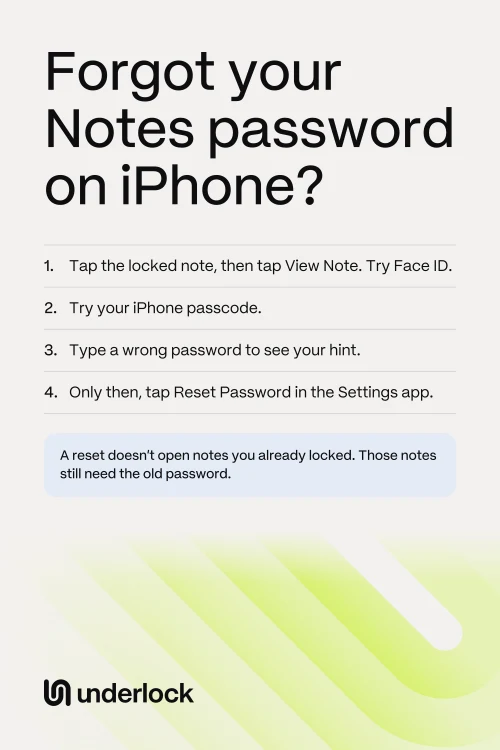
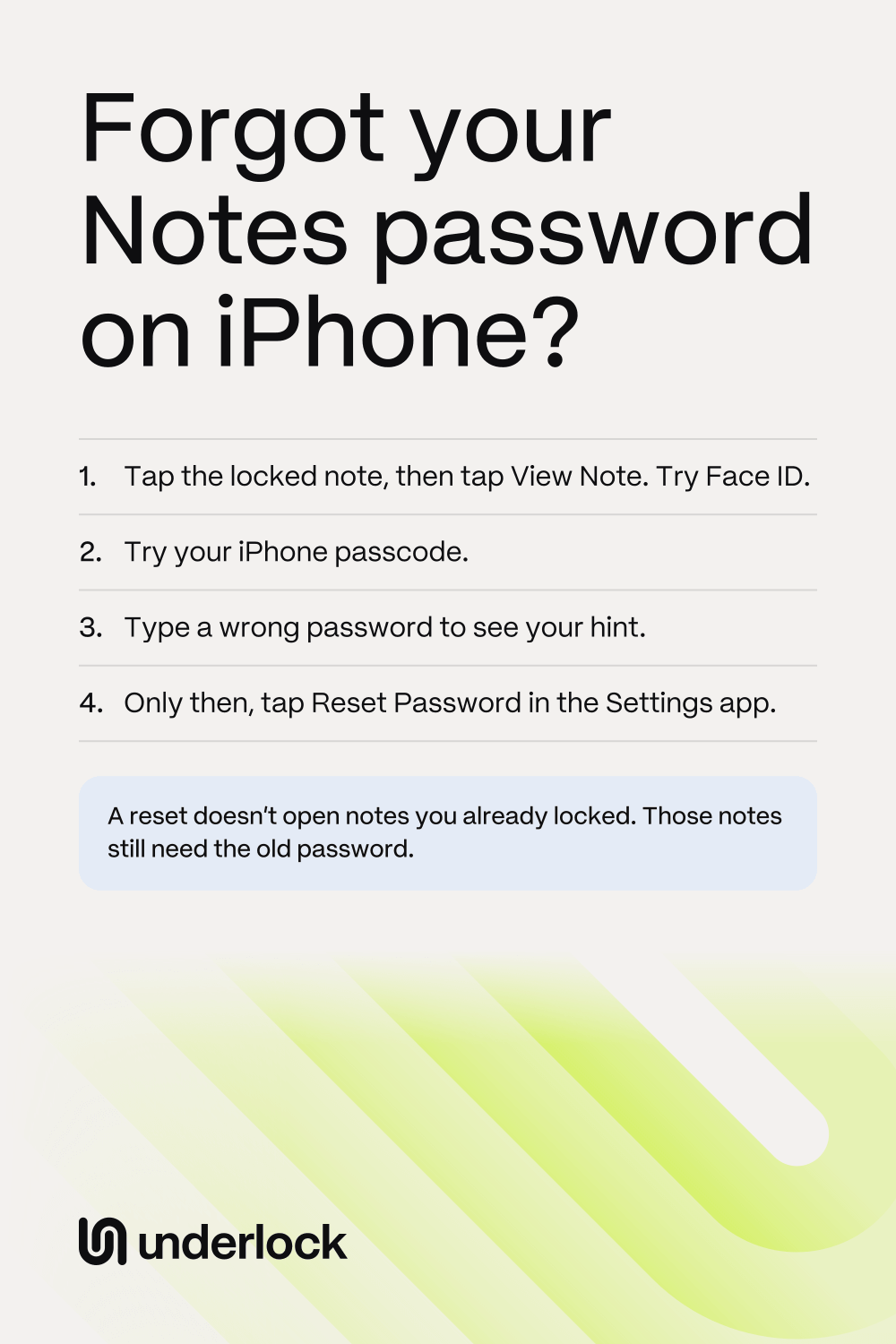
One of these may still open your locked notes. Try them in this order:
- Open the Notes app. Tap the locked note, then tap View Note.
- If Face ID is on for Notes, Face ID opens the note. On an iPhone with Touch ID, use Touch ID.
- If your iPhone asks for a password, try your iPhone passcode. Your notes may lock with your passcode, not a Notes password. To see which lock your notes use, open the Settings app. Tap Apps, then Notes, then Password.
- Still locked? Type a password you think might work. After a wrong password, Notes shows your hint.
- Try your older passwords too. If you ever changed your Notes password, an older note may still use the older password.
- Try your iPad or Mac, if one is signed in to your Apple Account. Face ID or Touch ID may be on for Notes on that device.
Did a password work? Write the password down, somewhere only you can reach. Did Face ID work? See If Face ID opens your notes before you change anything.
If Face ID opens your notes
Face ID can open your notes without the password. That may not last: if you change your Face ID settings, such as by resetting Face ID, Notes asks for your Notes password again. So switch your notes to your iPhone passcode now. After that, these notes open without the old password.
- Open the Settings app. Tap your name, then tap iCloud.
- Tap See All, then tap Passwords & Keychain. Check that Sync this iPhone is on. This setting turns on iCloud Keychain. Apple says notes can lock with your passcode only if iCloud Keychain is on.
- Go back to the first screen of the Settings app.
- Tap Apps. If you don’t see Apps, skip to the next step.
- Tap Notes.
- Tap Password.
- Tap Use Device Passcode.
- Use Face ID when your iPhone asks.
Your locked notes then open with your iPhone passcode, so anyone who knows your passcode can open them. Later, on the same Password screen, you can choose Use Custom Password and set a new Notes password.
What Apple’s reset opens, and what it doesn’t
A reset gives you a new Notes password. It doesn’t bring back the old password.
- Notes you lock from now on. These notes use your new password.
- Notes you already locked. These notes still need the old password. The reset doesn’t open them, and Apple can’t open them either.
- Your old notes stay. The reset doesn’t delete them. If you remember the old password later, type it, and the note opens. Notes then offers to move that note to your current password.
Reset your Notes password
- Open the Settings app.
- Tap Apps. If you don’t see Apps, skip to the next step.
- Tap Notes.
- Tap Password.
- If you see more than one account, tap the account your notes are in, such as iCloud.
- Tap Reset Password.
- Type your Apple Account password, then tap OK.
- Tap Reset Password again.
- Use your iPhone passcode, or type a new password and a hint. With your passcode, you have no new password to remember. But anyone who knows your passcode can then open the notes you lock from now on.
- Tap Done.
After a reset, you may have 2 Notes passwords. An older note keeps asking for its older password, and Notes shows the hint for that older password.
If your notes stay locked
Apple says there’s no way to open a locked note without its password. So keep the notes. Each note’s title still shows in your notes list, and the note still opens if the old password comes back to you. To see why Apple can’t open a locked note, read Are locked notes on iPhone encrypted?
To lock your notes again with a password you can keep track of, follow How to lock notes on iPhone.
In Underlock, 12 words get you back in
We make Underlock, a private vault on your iPhone for photos, videos, files and notes. You open your vault by drawing a pattern on a grid of dots. If you forget your pattern, a recovery phrase gets you back in.
Underlock is coming soon to the App Store. Here’s how it will work.
- 12 words on paper. At setup, Underlock shows you 12 words to write on paper: your recovery phrase.
- If you forget your pattern. On the pattern screen, tap Use recovery phrase, then type your 12 words. Then choose a new pattern. Your notes are all still in your vault.
- If you forget your pattern and lose the paper. Nobody can open your vault, not even us.
- For your vault only. The 12 words open your Underlock vault. They can’t open a note locked in Apple’s Notes app.

See how the recovery phrase works.
Questions people ask
No. Apple doesn’t have access to notes locked with a Notes password, so Apple can’t open them for you.
No. Your old notes stay in your notes list, locked with the old password. A reset only sets the password for notes you lock from now on.
Because that note still uses the old password. Notes shows the hint for the old password. If you type the old password, Notes offers to move that note to your current password.
No. A Notes password is a separate password, just for Notes. A reset asks for your Apple Account password, but your Apple Account password doesn’t open locked notes.
Only if Face ID or Touch ID still opens the note. Open the note. Tap the Note Actions button (three dots), then tap Remove.
Try your iPad or Mac first. On an iPad or Mac signed in to the same Apple Account, that device’s own passcode or login password opens your locked notes. For your iPhone, see Apple’s steps for a forgotten passcode. Some of those steps erase your iPhone, so read them before you start.