Secure Folder isn’t on iPhone
Samsung makes Secure Folder for Galaxy phones and tablets only, so your iPhone can’t open Secure Folder. Some apps on the App Store use the name Secure Folder, but Samsung didn’t make them. On a Galaxy, Secure Folder does these things:
- A lock of its own. You choose a PIN, a password or a pattern for Secure Folder. On some Galaxy phones, your fingerprint can open Secure Folder too.
- Photos, files and apps. Secure Folder holds photos, videos and files, and it can hold apps too.
- Out of sight. You can hide Secure Folder’s icon, or change its name and icon.
- A reset with your Samsung account. At setup, Secure Folder offers a switch called Reset with Samsung account. With the switch on, you can sign in to your Samsung account to set a new lock if you forget yours. With the switch off, you can’t get back in if you forget your lock. You can only remove Secure Folder, which deletes everything in it.
- On that phone only. Secure Folder opens only on the phone or tablet, not on the web or a computer.
Move your files out of Secure Folder
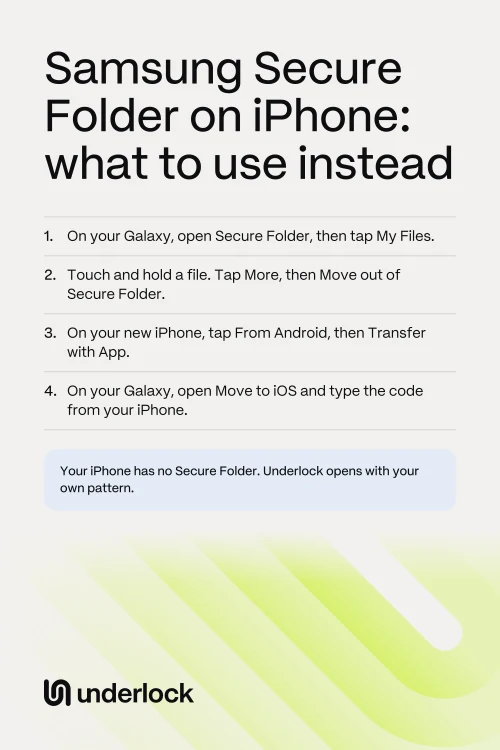
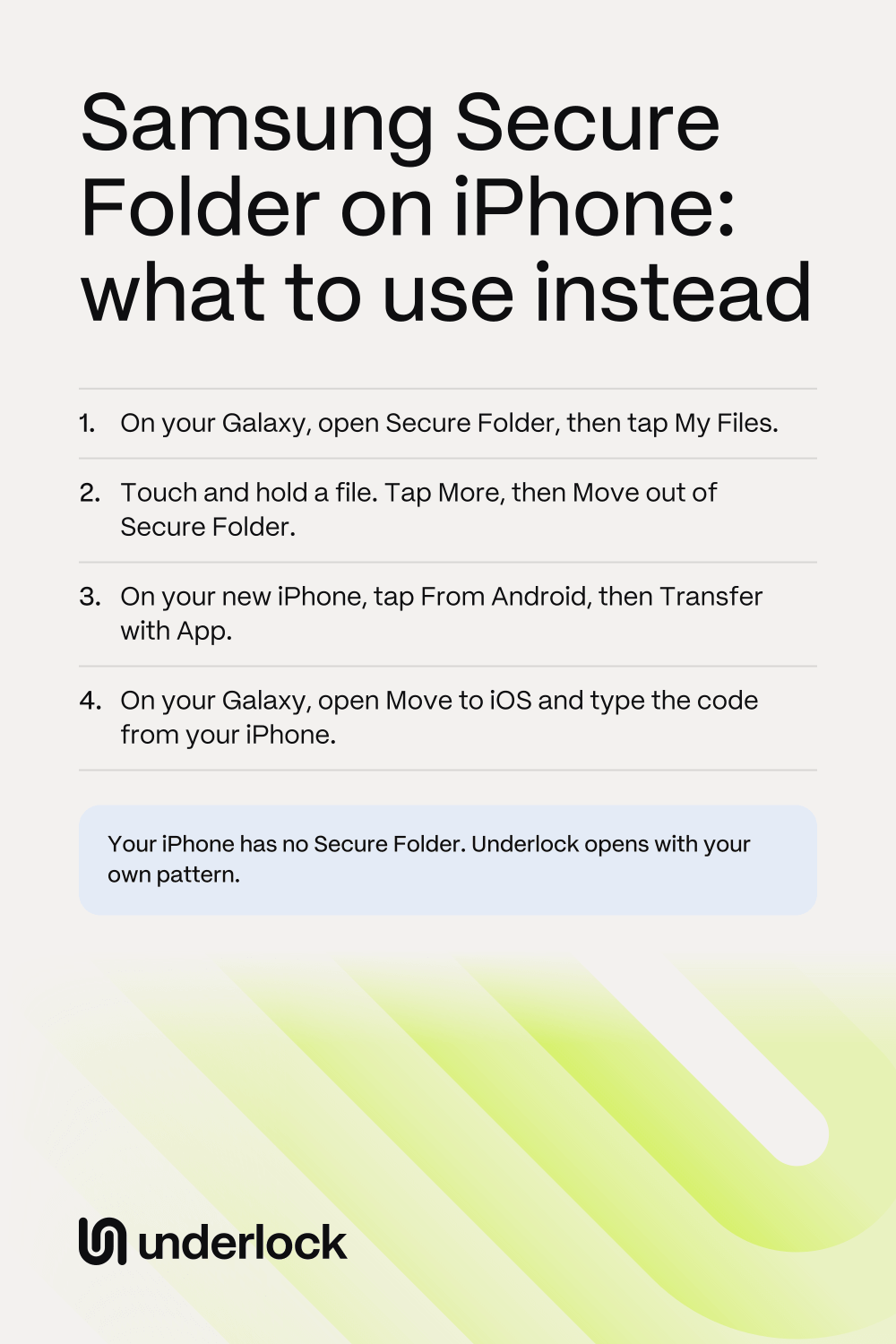
Samsung’s Smart Switch app moves Secure Folder only to another Galaxy or Android phone. So before you switch to iPhone, move the files you want to keep out of Secure Folder. On your Galaxy:
- Open Secure Folder. Enter your PIN, password or pattern.
- Tap My Files. For photos and videos, you can tap Gallery instead.
- Touch and hold a file to select it.
- Tap More, then tap Move out of Secure Folder.
Once out of Secure Folder, the files sit with your other files on your Galaxy, outside Secure Folder’s lock. So move the files out just before you copy them to your iPhone.
Copy your files to your iPhone
Apple’s Move to iOS app copies photos, videos, albums, files and folders from an Android phone to your new iPhone. The copy happens while you set up your iPhone.
- Turn on your new iPhone. Follow the setup steps.
- On the Quick Start screen, tap Set Up Without Another Device. The Quick Start screen’s other choice is for moving from an iPhone or iPad.
- On the Transfer Your Apps & Data screen, tap From Android, then tap Transfer with App.
- On your Galaxy, open Apple’s Move to iOS app. If you don’t have the app yet, get it from Google Play.
- Type the code from your iPhone into the Move to iOS app.
- On your Galaxy, choose what to copy, then tap Continue.
- Leave both phones alone until the bar on your iPhone fills.
Then check on your iPhone that your files arrived. Once the files have arrived, you can delete the copies left on your Galaxy. Your photos are in the Photos app, with all your other photos. If iCloud Photos is on, your photos also go to iCloud and to your other Apple devices, such as an iPad. To keep private photos out of sight on all your devices, hide the photos in the Hidden album, or move the photos into a vault. Apple’s steps for Move to iOS
What your iPhone can lock
Your iPhone has its own ways to keep photos private:
- The Hidden album. In the Photos app, the Hidden album keeps photos out of your library, the main view of all your photos. The Hidden album opens with Face ID, Touch ID or your iPhone passcode.
- A locked app. On iOS 18 or later, you can lock an app, such as Photos. A locked app opens with Face ID, Touch ID or your passcode. To see your iOS version, open the Settings app and tap General, then Software Update.
- A locked note. The Notes app can lock a note with your iPhone passcode, or with a password just for Notes. A locked note can hold photos, but a note with a video in it can’t be locked.
So anyone who knows your iPhone passcode can open the Hidden album and a locked app. A locked note opens with your passcode too, unless you give Notes a password of its own. See how to lock photos on iPhone, step by step. New to iPhone? See iPhone privacy words, in plain English.
A pattern lock like Secure Folder’s
We make Underlock, a private vault for photos, videos, files and notes. Like Secure Folder, Underlock has a lock of its own. You open your vault by drawing a pattern on a grid of dots. Your iPhone passcode, Face ID and Touch ID don’t open your vault.

Underlock is coming soon to the App Store. Here’s how it will work.
- A pattern or a passphrase. You choose your pattern at setup: at least 6 dots on a 5 by 5 grid. Prefer to type? Choose a passphrase instead: a few words, like a short sentence you’ll remember.
- 12 words, not an account. Underlock needs no account. At setup, Underlock shows you 12 words to write on paper: your recovery phrase. If you forget your pattern or passphrase, the 12 words open your vault. If you forget your pattern or passphrase and lose the paper, nobody can open your vault, not even us.
- Locks as you leave. By default, your vault locks as soon as you leave Underlock for another app.
- Off your Home Screen, if you like. On iOS 18 or later, your iPhone can hide any app you get from the App Store, Underlock included.
Unlike Secure Folder, Underlock can’t hold apps.
Move your photos into Underlock
When Underlock is in the App Store, here’s how to move your photos into your vault:
- Open Underlock. Draw your pattern.
- Tap the Add button (a plus sign), then Import from Photos.
- Choose the photos you want in your vault. Keep Underlock open until a message says the photos are imported.
- Underlock then asks whether to remove the photos from the Photos app. Tap Remove, then confirm when your iPhone asks. The photos go to the Recently Deleted album in the Photos app. For 30 days, you can still get them back from that album.
- Check that the photos are in your vault.
- In the Photos app, delete the photos from Recently Deleted. Then the photos leave the Photos app for good, and stay in your vault.
For documents, tap Import from Files in step 2 instead.
Questions people ask
No. Samsung makes Secure Folder for Galaxy phones and tablets only. Apps on the App Store with the same name aren’t Samsung’s.
Not as a whole folder. Samsung’s Smart Switch app moves Secure Folder only to another Galaxy or Android phone. So move your files out of Secure Folder first. Then copy the files to your iPhone with Apple’s Move to iOS app.
Your iPhone has no Secure Folder of its own. The Hidden album and a locked app open with your iPhone passcode, Face ID or Touch ID. For a lock of its own, use a vault app. Underlock, the vault app we make, opens with a pattern you draw.
Yes, by hand, with a computer. Apple’s steps show how to copy photos, videos and documents from an Android phone to a computer, and then to your iPhone. Apple’s steps for moving by hand
Yes. Underlock is free forever: one vault, no file limit. If the free plan ever changes, you keep the plan you started with. More vaults come with Pro, Underlock’s paid plan.