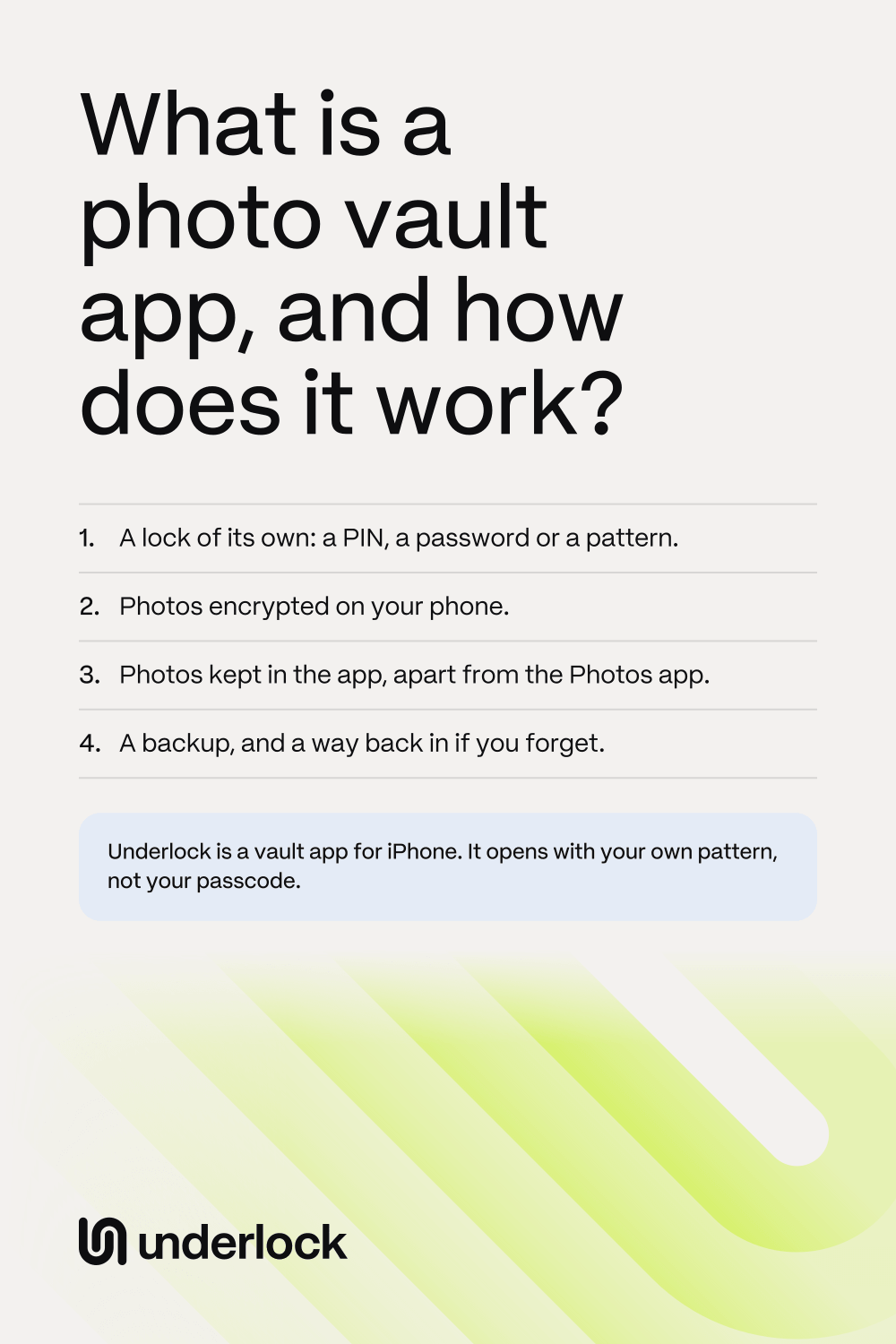
How a photo vault app works
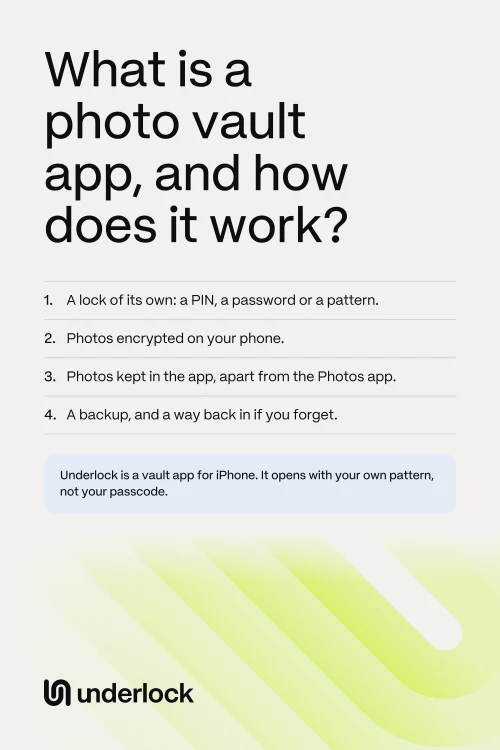
A photo vault app has five parts: a lock, encryption, a place for your photos, a backup and a way back in. Here’s what each part does.
- A lock of its own. When you set up a vault app, you choose a PIN, a password or a pattern. The vault opens with that lock, not with your phone’s passcode. Some vault apps let Face ID open the vault too.
- Encryption on your phone. Many vault apps encrypt your photos: they scramble each photo before saving it on your phone. To unscramble your photos, the app needs a key: a long random number you never see. The key isn’t your PIN, password or pattern. Your PIN, password or pattern unlocks the key, and then the key unscrambles your photos. Anyone with the key can see your photos, and with some apps, the company that makes the app has a copy of the key. So check who has the key before you choose an app.
- A place of its own. A vault app keeps your photos in its own storage on your phone, apart from the Photos app. When you import photos, the app copies each photo into the vault. The original stays in the Photos app until you delete it. Deleted photos then wait in Recently Deleted, in the Photos app, for 30 days. Anyone with your iPhone passcode can open Recently Deleted, so delete the originals there too.
- A backup. The vault lives on your phone. Without a backup, a lost phone means lost photos. Deleting the app deletes the photos in the vault too. Some vault apps keep a backup online, on the company’s own servers or in your own iCloud.
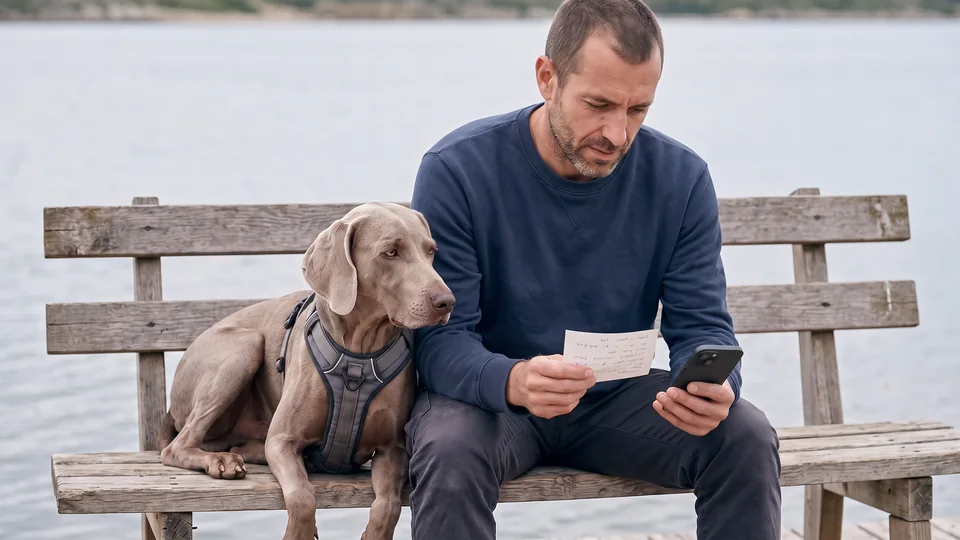
- A way back in if you forget. If you forget your PIN, password or pattern, some vault apps can reset it through your email. Others give you a recovery phrase: a list of words you write on paper. See what to do if you forget your vault password.
To see these parts side by side in several apps, read Photo vault apps for iPhone, compared. For other words you meet on these pages, see iPhone privacy words, in plain English.
Questions to ask before you choose a vault app
Vault apps differ in what they keep and what they charge for. Before you move any photos in, look for these answers on the app’s page in the App Store and on the company’s website.
- What can the app keep? Photos and videos only, or files and notes too.
- What happens to the originals? Check whether the app offers to remove the originals from the Photos app after an import. If the app doesn’t, you delete the originals yourself.
- What happens when you get a new phone? Check how the vault moves to your next phone, and what you need to open the vault there.
- What’s free, and what costs money? Some free plans limit how many photos you can keep, or how many get backed up. Check what happens to your photos if you stop paying.
Before you trust an app with your photos, also check who can see them. Our guide to vault app safety gives five questions to ask.
How Underlock works
We make Underlock, a private vault for photos, videos, files and notes on your iPhone.

Underlock is coming soon to the App Store. Here’s how it will work.
- Its own lock. You draw a pattern that connects at least 6 dots on a 5 by 5 grid. Or you type a passphrase, like a short sentence you’ll remember. Your iPhone passcode, Face ID and Touch ID don’t open your vault.
- Encrypted on your iPhone. Your photos, videos, files and notes are encrypted on your iPhone before Underlock saves them. The names and dates of your files are encrypted too. We never receive your files, your pattern or your keys.
- Out of the Photos app. Importing puts a copy of each photo in your vault. When the import finishes, Underlock asks whether to remove the originals from the Photos app: you choose Remove or Keep. Removed originals wait in Recently Deleted, in the Photos app, for 30 days, so delete them there too. If you tap Keep, the originals stay in the Photos app, and in iCloud Photos if you use it.
- Your vault’s photos aren’t on your other devices. Photos in your vault aren’t in the Photos app, so they’re not in iCloud Photos, and your iPad, Mac and iCloud.com don’t show them.
- 12 words to get back in. At setup, Underlock shows you 12 words to write on paper: your recovery phrase. If you forget your pattern or passphrase, the 12 words open your vault. If you also lose the 12 words, nobody can open your vault, not even us.
How Underlock protects your files explains each part in more detail.
Questions people ask
To keep some photos apart from the rest of the Photos app. A vault can hold photos of your passport, medical photos or plans for a surprise. Then you can lend your phone to a friend, and your vault stays locked. For what reviewers say, see what people use photo vault apps for.
Not quite. Photos in the Hidden album don’t show anywhere else in the Photos app, but the Hidden album is still part of the Photos app. Face ID, Touch ID or your iPhone passcode opens the Hidden album, so anyone who knows your passcode can open the album. A vault app has a lock of its own.
Not if you’re the only one who knows your passcode. Anyone who knows your passcode can unlock your iPhone and open the Hidden album. If family or friends know your passcode, a vault app gives private photos a lock your passcode doesn’t open.
In the app’s own storage on your phone, apart from the Photos app. Some apps also keep a backup online. Deleting a vault app deletes the vault on your phone, so without a backup, the photos are gone.
Yes. Underlock is free forever: one vault, no file limit. If the free plan ever changes, you keep the plan you started with. More vaults come with Pro, Underlock’s paid plan.