What you need
- Your new iPhone. During setup, sign in with the same Apple Account as your old iPhone.
- Your old iPhone, if you still have it. Your vault stays on your old iPhone until you erase that iPhone. Without a backup, your old iPhone may hold the only copy of your vault.
- What your vault app asks for, such as a PIN, a password or a recovery phrase.
- Wi-Fi, and a charger for each iPhone.
- Your vault, checked first. Before Quick Start, check 3 things in your vault app. If you use Underlock, follow Underlock’s steps instead.
Move your apps with Quick Start
Quick Start is Apple’s way to set up a new iPhone from your old iPhone. Quick Start copies your apps and their data. Apple’s Quick Start steps have the details.
- On your old iPhone, turn on Wi-Fi and Bluetooth.
- Turn on your new iPhone.
- Place your new iPhone next to your old iPhone.
- Follow the steps on the screen.
- When asked how to transfer your data, choose iCloud or your old iPhone.
- Keep both iPhones close together and plugged in until the transfer finishes.
If you choose iCloud, your apps and data download from your iPhone’s own iCloud Backup, and you can start using your new iPhone right away. If you transfer straight from your old iPhone, both iPhones are busy until the transfer finishes. No old iPhone? During setup, on the Transfer Your Apps & Data screen, tap From iCloud Backup to restore your old iPhone’s backup. Apple’s restore steps show the rest.
What Quick Start can’t check
Quick Start copies your apps and their data, but it can’t check whether a vault app opens its files on your new iPhone. A vault’s files may come over and not open, or not come over at all. Each vault app works its own way. Before Quick Start, if you can, find out 3 things in your vault app. If you use Underlock, skip to Underlock’s steps.
- Is the vault app’s backup on? If the vault app has a backup, check that the backup is on and finished.
- What will the vault app ask for on the new iPhone? The vault app might ask for your PIN or password, an account sign-in or a recovery phrase. Have your PIN, sign-in or phrase ready.
- Does the vault app have its own steps for a new iPhone? Follow those steps too. If the vault app has no backup and no steps, ask the company that makes the vault app how to move your vault.
If your vault doesn’t open on your new iPhone, keep your old iPhone, and ask the company that makes the vault app for help. Using Keepsafe or Private Photo Vault? See how to move Keepsafe or how to move Private Photo Vault.
Get your Underlock vault ready
Underlock is the private vault we make for photos, videos, files and notes. You open your vault with a pattern you draw. Underlock keeps its own backup of your vault in your iCloud. Your iPhone’s own backup can be in iCloud too, but the two backups are separate. The steps below check Underlock’s backup. Do these steps on your old iPhone before Quick Start.
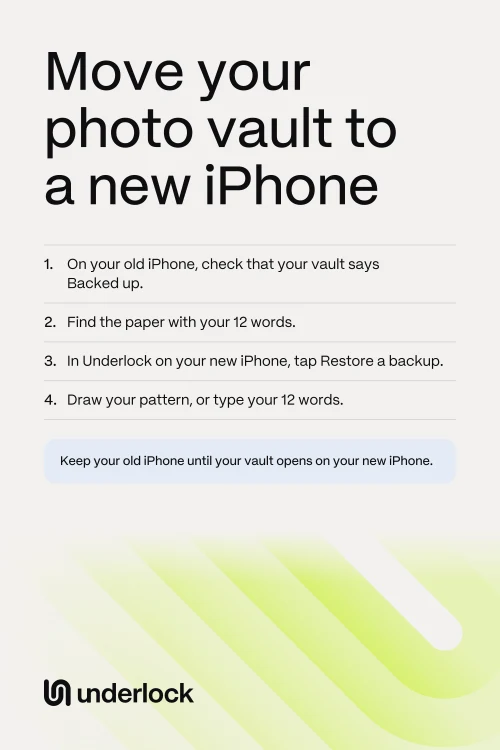
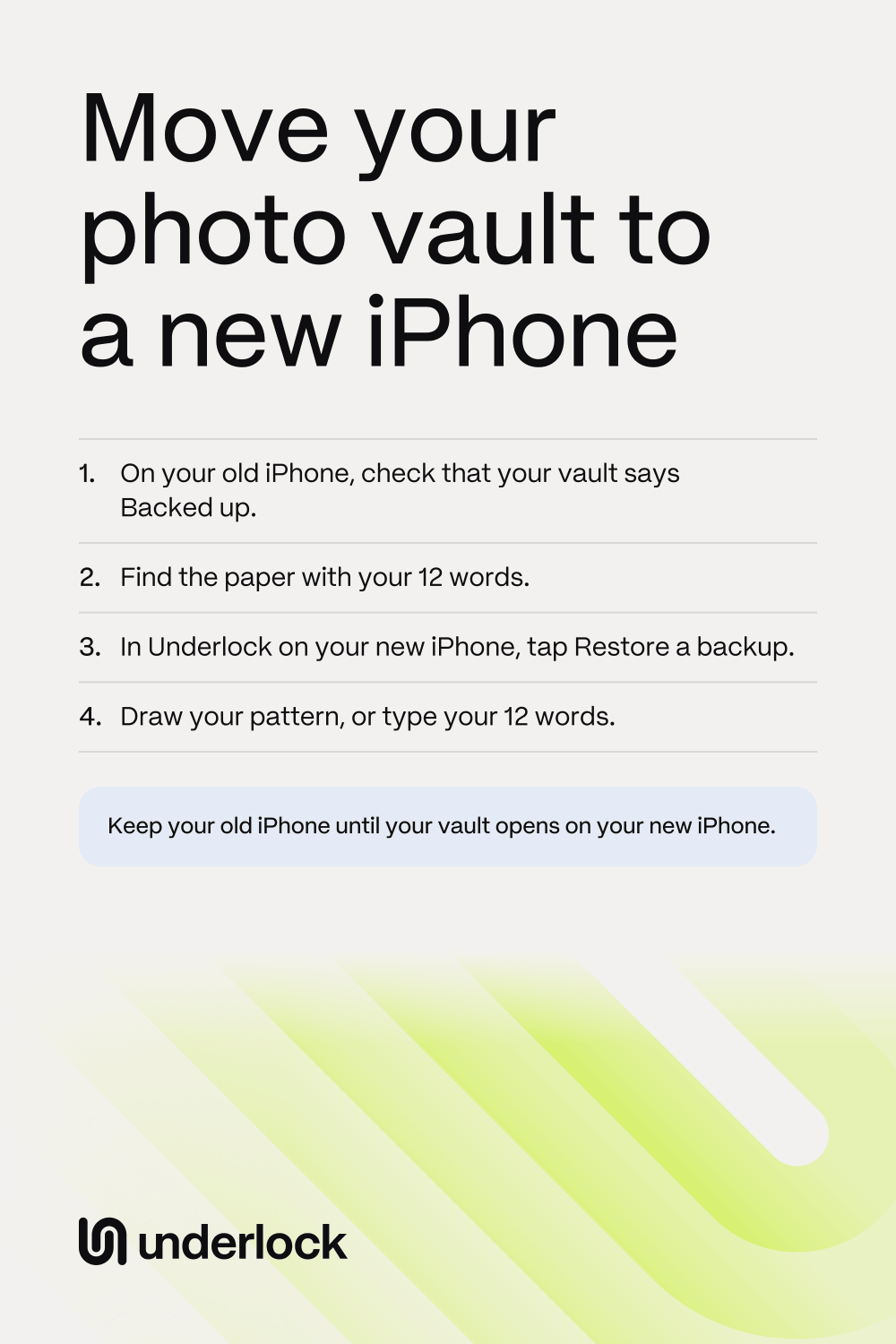
- On your old iPhone, open Underlock.
- Draw your pattern to open your vault.
- Look at the backup status under your vault’s name. Backed up means every file in your vault is in Underlock’s backup.
- Find the paper with your 12 words, your recovery phrase.

If the status says iCloud backup is off, Underlock’s backup is off. You can still move your vault: on your new iPhone, you’ll open your vault with your 12 words and choose a new pattern. To use your pattern on your new iPhone instead, tap the status. Turn on Back up to iCloud. Then wait until the status says Backed up. Underlock’s backup is free, and the backup uses your own iCloud storage. If your iCloud is full, the status says so.
Restore your vault from Underlock’s backup
Once your new iPhone is set up, open Underlock on it. When Underlock’s backup was on, Underlock shows Restore a backup: follow these steps. If Underlock says Your vault data came over from your old iPhone instead, follow the steps in the next section.
- Tap Restore a backup.
- Draw the pattern of the vault you backed up.
- Keep Underlock open until the restore finishes.
Your whole vault comes back: photos, videos, files and notes. If Underlock closes, open Underlock again, and the restore continues from where it stopped. Your pattern now works on your new iPhone, and your new iPhone keeps Underlock’s backup up to date.
If Underlock says your vault data came over
You see Your vault data came over from your old iPhone when Underlock’s backup was off, or not finished, during the move. Your vault was then copied with Quick Start or with your iPhone’s backup. On your new iPhone, you use your 12 words, because your pattern is tied to the security chip inside your old iPhone.
- Tap Use recovery phrase.
- Type the 12 words from your paper, in order.
- Tap Open.
- Draw a new pattern, then draw it again.
- Tap Open vault.
Choosing a new pattern doesn’t change your 12 words. Lost the paper? If you still have your old iPhone, open your vault there to see your 12 words again. To move with your pattern next time, turn on Back up to iCloud in your vault’s Settings, under Backup.
Before you erase, sell or trade in your old iPhone
If you open Underlock on your old iPhone again, Underlock may say that your vault was restored on another device. If you moved your vault to your new iPhone, tap That was me. If you didn’t move your vault, tap That wasn’t me. Underlock then helps you change your Apple Account password and your pattern.
- On your new iPhone, check that your photos, videos, files and notes are in your vault.
- On your old iPhone, open the Settings app, then tap General, then Transfer or Reset iPhone, then Erase All Content and Settings.
Apple’s steps for erasing an iPhone have the rest.
Questions people ask
Quick Start copies your apps and their data. Whether a vault opens on your new iPhone depends on the vault app, so check the vault app’s backup before you erase your old iPhone. With Underlock’s backup on, you restore your vault from that backup. With Underlock’s backup off, your vault comes over with Quick Start, and your 12 words open your vault.
It depends on your vault app’s backup. With Underlock’s backup on, your vault comes back on your new iPhone. In Underlock, tap Restore a backup. Then draw your pattern, or type your 12 words. Without Underlock’s backup, your vault can come back only from your iPhone’s own backup. Then your 12 words open your vault.
In Underlock, tap Use recovery phrase on the pattern screen. Type your 12 words. Then choose a new pattern. If you lose both your pattern and your 12 words, nobody can open your vault, not even us.
If you chose Recovery phrase only when you set up Underlock’s backup, your pattern can’t open the backup. Your choice shows on your old iPhone, in your vault’s Settings, under Backup. If Underlock says Your pattern can’t open this backup at the moment, iCloud may still be setting up on your new iPhone. Try again later. Your 12 words open your backup on any iPhone.
Yes, one at a time, and each vault comes back with its own 12 words. Tap Lock at the top right to close the vault you’re in. On the pattern screen, tap Use recovery phrase. Type the next vault’s 12 words. Then choose a new pattern for that vault. You don’t need Pro, Underlock’s paid plan, to bring your vaults back.
Check that your new iPhone is signed in to the same Apple Account as your old iPhone. Then try again. If your old iPhone still has your vault, look at the backup status under your vault’s name there. If the status says iCloud backup is off, turn on Back up to iCloud on your old iPhone. When the status says Backed up, try again on your new iPhone.