If Underlock just showed you 12 words
Those 12 words are your recovery phrase. If you ever forget your pattern, the 12 words get you back in. Here is what to do now:
Underlock is coming soon to the App Store. Here’s how it will work.

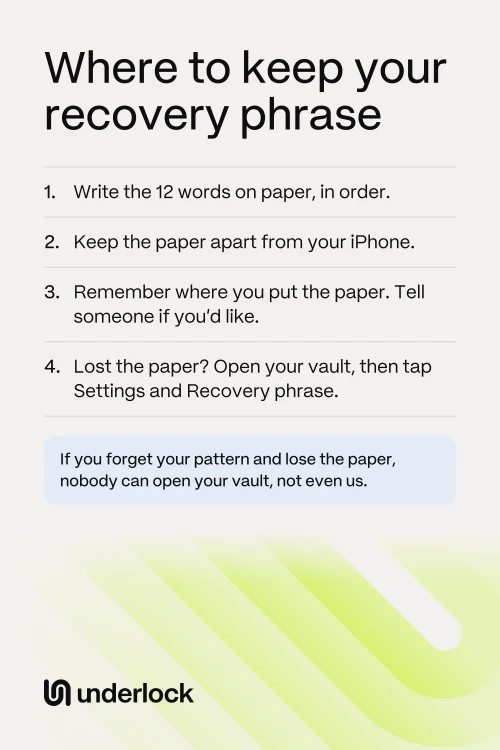
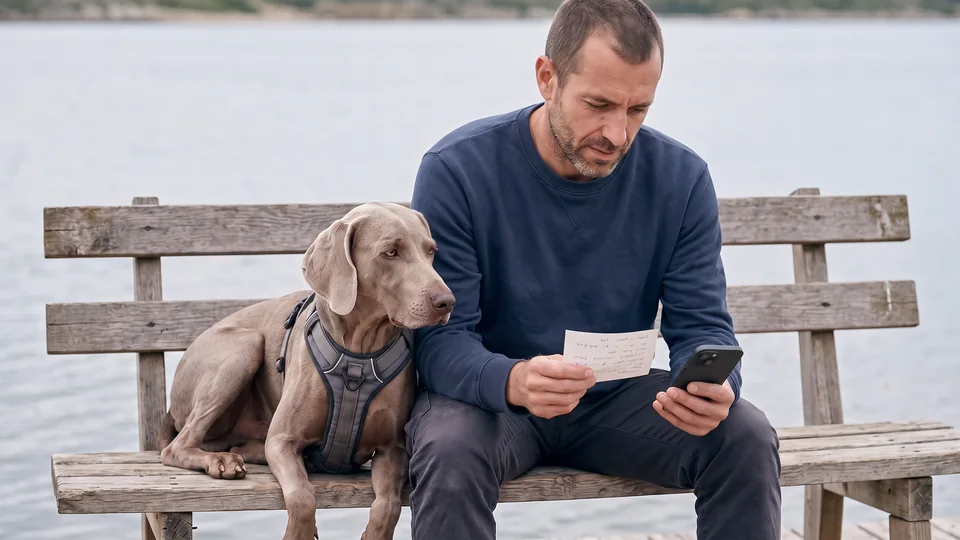
- Write the 12 words on paper with a pen, in order, with their numbers.
- Check each word against the screen.
- Tap I’ve written it down.
- Underlock then asks for 3 of the words. Tap each word from your paper. Need another look? Tap See the phrase again.
When all 3 are right, your vault is ready. Then put the paper in the place you choose below. You don’t need to decide before you finish setup.
What Underlock says, and where our advice starts
Underlock’s screens tell you 3 things about your 12 words:
- Write the 12 words down, in order.
- Keep the paper somewhere safe.
- Don’t take a photo or save the 12 words in another app.
That’s where the app’s advice ends. Underlock doesn’t ask where you keep the paper, and can’t check. The rest of this page is our own advice, as the people who make Underlock. None of it is a rule. You know your home and your life better than we do.
Why paper
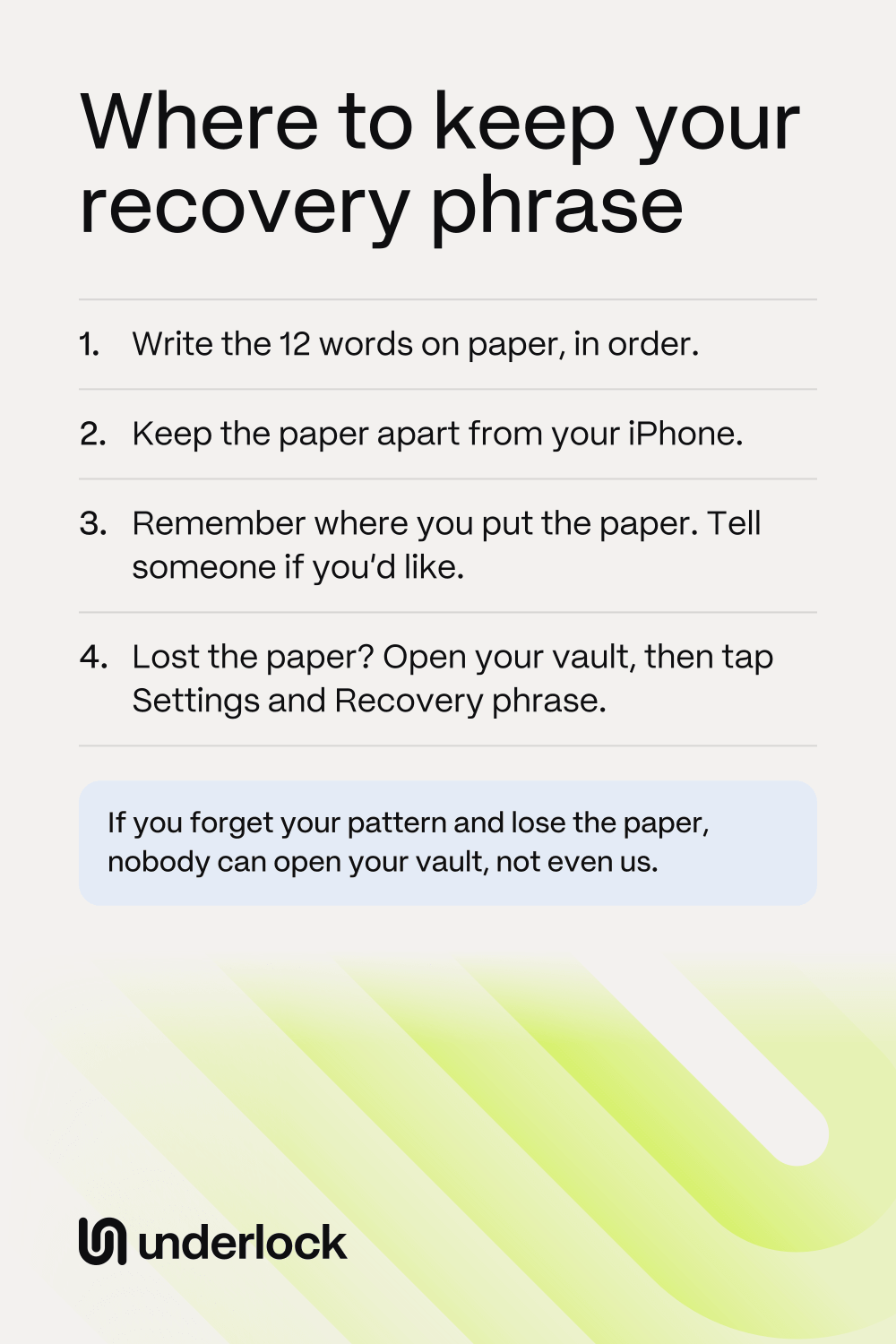
Your 12 words can open your vault without your pattern. So the 12 words belong somewhere that stays apart from your iPhone:
- Paper isn’t on your iPhone. If you lose your iPhone, you still have the paper. On a new iPhone, your 12 words can open a backup of your vault.
- Paper isn’t in iCloud. A photo of the paper goes to the Photos app. With iCloud Photos on, that photo also goes to iCloud and your other devices.
- Paper isn’t in another app. Anyone who opens that app could read your 12 words. That’s why Underlock’s phrase screen has no Copy or Download button.
Paper has a catch too. Paper can get lost, and anyone who finds your paper can read your 12 words. If that person can also reach your iPhone or a backup of your vault, that person can open that vault.
Where to keep the paper: your choices
No place is perfect. Each choice below has a catch, so choose the one that fits your life:
- With your important papers at home. Your passport or birth certificate may already be there. You’re likely to find the paper years from now. The catch: anyone who goes through those papers can read your 12 words, and a fire or a flood can reach the paper.
- In a locked box or a home safe. Other people can’t easily reach the paper. The catch: you need the key or the code years from now. A box may not protect paper from fire or water, so read what the box says.
- In a place only you know. Nobody else is likely to come across the paper. The catch: you may forget the place, and someone may throw the paper away while tidying up.
- With someone you trust. A sealed envelope at that person’s home stays apart from yours, so one fire can’t reach both. The catch: that person can open the envelope, and you need that person when you need the paper.
- In a bank safe deposit box. The paper is away from your home, and locked up. The catch: you pay for the box, and you can reach the box only when the bank is open.
- On 2 papers, in 2 places. If you lose one paper, you still have the other. The catch: someone could find either paper. If you make a new phrase later, you have to replace both papers.
- In your bag or your phone case. The paper is always with you. The catch: if someone takes your iPhone, that person may have the paper too. We’d keep the paper somewhere else.
Wherever you choose, remember the place. A paper you can’t find can’t help you.
One paper for each vault
Each vault has its own 12 words. The 12 words for one vault don’t open another vault. So if you have more than one vault, keep one paper for each vault. Write the vault’s name at the top of the paper, as Underlock’s phrase screen says.
You choose how to keep the papers. Papers kept together are easier to look after. Papers kept apart mean that someone who finds one paper can read the words for one vault only.
If you lose or damage the paper
If your vault still opens, you can get your 12 words back. Underlock shows the 12 words again, from inside the vault, and they’re the same 12 words as on the old paper. These steps also work if the paper is wet, torn or faded.
- Open Underlock, and draw your pattern.
- Tap the Settings button (a gear).
- Tap Recovery phrase.
- Tap Show recovery phrase.
- Draw your pattern again.
- Write the 12 words on new paper, in order. Then tap Done.
Worried that someone could find the lost paper? Then choose Make a new recovery phrase instead of Show recovery phrase. Underlock warns that your current phrase will stop working. Tap Make new phrase, draw your pattern, then write down the new words. Underlock then asks for 3 of the words, as at setup. When the check ends, Underlock says New phrase saved, and the lost paper no longer works.
If you lose the paper and forget your pattern
Then nobody can open your vault, not even us. We can’t see your files, your pattern or your recovery phrase, so we have nothing to reset. There’s no email reset either, because Underlock never asks for an email.
Forgot your pattern, but still have the paper? See how the recovery phrase gets you back in. In another vault app? See what to do when you forget a vault password.
Check your paper now and then
At setup, Underlock checks only 3 of your words. Ink can fade, and handwriting can be hard to read later. So check all 12 words now and then. You choose how often. In your vault, tap Settings, then Recovery phrase, then Show recovery phrase. Draw your pattern, then compare the words with your paper.
You could also type the 12 words on the pattern screen. But Underlock then asks you to choose a new pattern, so Show recovery phrase is the simpler check.
Underlock, in a few words
We make Underlock, a private vault on your iPhone for photos, videos, files and notes. You open your vault by drawing a pattern on a grid of dots. See how the recovery phrase works.
Questions people ask
Underlock asks you not to. You can still do it, but the photo goes to the Photos app. Anyone who opens the Photos app could read your 12 words. With iCloud Photos on, so could anyone who opens your iPad, your Mac or your iCloud account.
Write the 12 words on paper first. Then delete the photo from the Photos app, then from Recently Deleted. See how to permanently delete a photo. If someone else may have seen the photo, choose Make a new recovery phrase in Underlock’s Settings, under Recovery phrase.
Underlock asks you not to save them in another app. You can still type them in, because Underlock can’t stop you. The catch: anyone who opens that app can read your 12 words. If that app syncs, your 12 words go wherever the app syncs.
No. The paper opens your vault, but the paper doesn’t hold your files. With no backup at all, a lost iPhone means lost files, even with the paper. See what’s in your iPhone backup.
Not with the paper alone. That person also needs your vault: your iPhone, or a backup that holds your vault. With both, that person can open that one vault with the 12 words.
Start typing the word. On the Enter your recovery phrase screen, Underlock offers only words from its list that start with those letters. If the words still don’t fit, Underlock says so, and asks you to check each one against your paper.
Yes. After you use your 12 words and choose a new pattern, your 12 words stay the same. So keep the paper. Your paper stops working if you make a new recovery phrase.
Yes. Each vault has its own 12 words. One vault is free. More vaults come with Pro, Underlock’s paid plan.