Turn on Guided Access
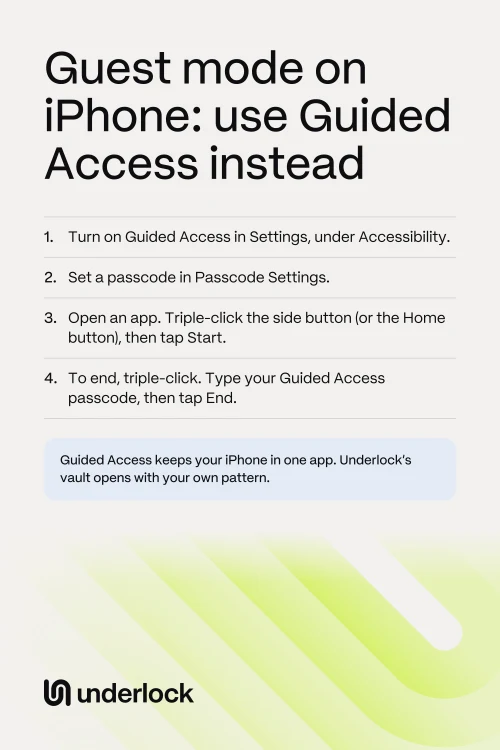
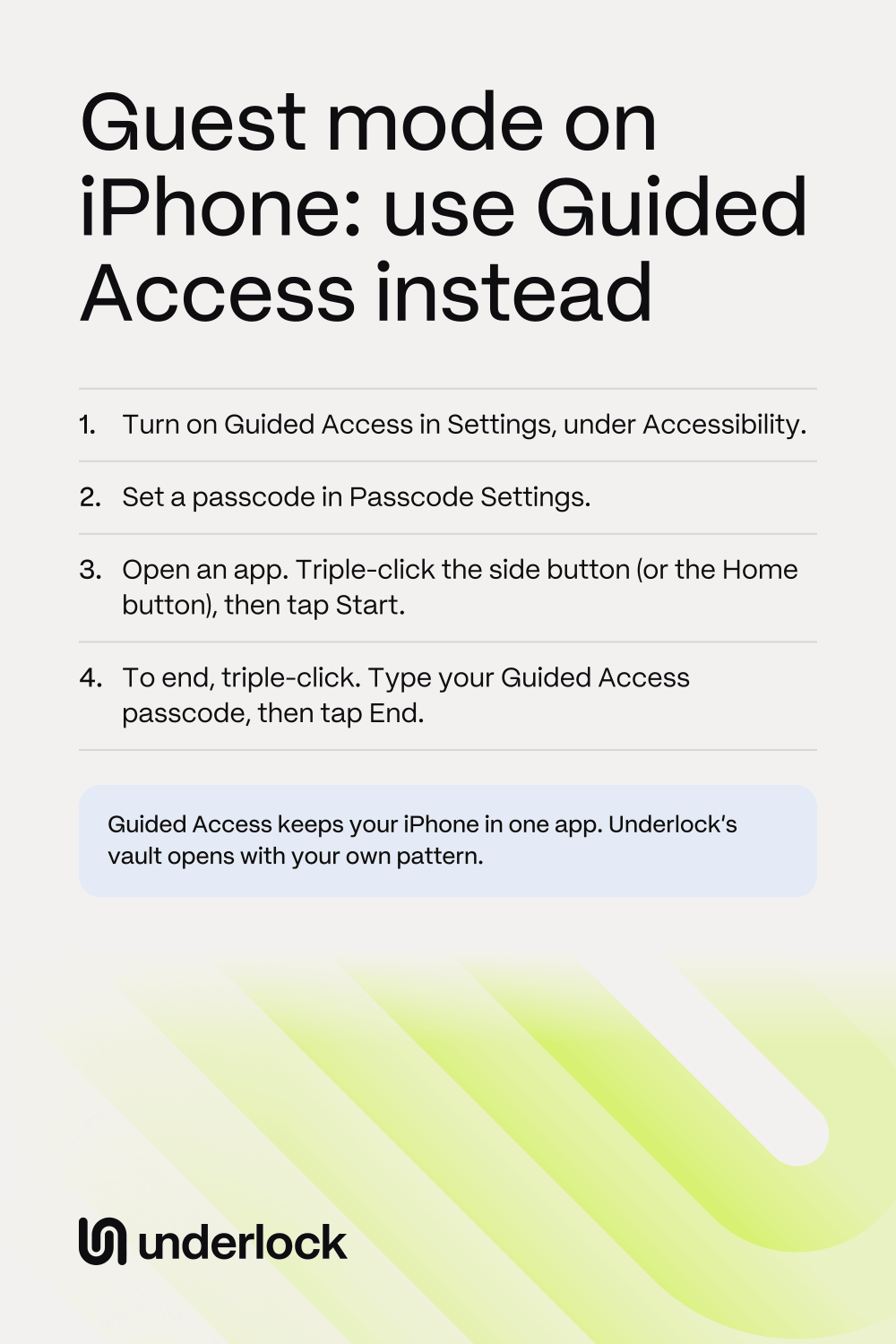
You turn on Guided Access once, in the Settings app. You also choose a passcode for Guided Access. You’ll need that passcode to end each session.
- Open the Settings app.
- Tap Accessibility, then tap Guided Access.
- Turn on Guided Access.
- Tap Passcode Settings, then tap Set Guided Access Passcode.
- Type a passcode for Guided Access.
If someone else knows your iPhone passcode, choose a different passcode for Guided Access, so they can’t end a session. In Passcode Settings, you can also turn on Face ID or Touch ID, as another way to end a session.
Start a session
- Open the app the other person will use, such as a game.
- Triple-click the side button: press it 3 times, quickly. On an iPhone with a Home button, triple-click the Home button.
- If a list of shortcuts appears, tap Guided Access.
- Tap Session Settings, then turn off anything the other person won’t need. (If you see Options instead, tap Options.)
- Tap Done, then tap Start.
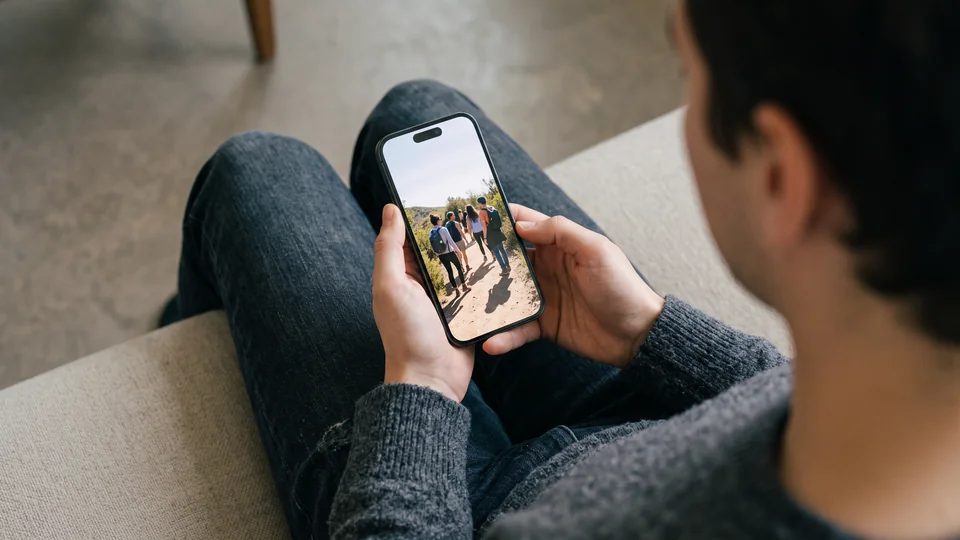
Session Settings has switches for the Side Button, the Volume Buttons, Motion, Software Keyboards, Touch and a Time Limit. With Touch off, the screen ignores every tap and swipe. Turning off Touch helps when you show someone a photo: see how to show one photo. For the other steps before you hand over your iPhone, see the hand-over checklist.
End a session
- Triple-click the side button, or the Home button on an iPhone with one.
- Type your Guided Access passcode.
- Tap End.
If you turned on Face ID or Touch ID for Guided Access, you can use Face ID or Touch ID instead of the passcode. Then tap End. On iOS 18 or earlier, press the side button (or the Home button) twice instead of three times. Use Face ID or Touch ID, then tap End. To see your iOS version, open the Settings app and tap General, then Software Update.
What Guided Access doesn’t do
Guided Access is free and built in, but it has limits:
- The whole app stays open. The other person can use everything in the app you chose. In the Photos app, for example, a swipe shows the next photo, unless you turn off Touch.
- The passcode ends the session. Anyone who knows your Guided Access passcode can end a session.
- No emergency calls during a session. To call emergency services, end the session first.
- One app at a time. A session can’t include a second app. If someone needs several apps, skip Guided Access. Lock the apps the other person doesn’t need instead, such as Photos. On iOS 18 or later, a locked app asks for Face ID or Touch ID before the app opens: see how to lock an app. Anyone who knows your iPhone passcode can still open a locked app.
Keep private photos behind your own pattern
We make Underlock, a private vault on your iPhone for photos, videos, files and notes. You open your vault by drawing a pattern on a grid of dots. Your iPhone passcode, Face ID and Touch ID don’t open your vault.

Underlock is coming soon to the App Store. Here’s how it will work.
- Out of the Photos app. Underlock copies the photos you choose into your vault, then asks whether to remove the originals from the Photos app. Photos in your vault aren’t in the Photos app, so a swipe in the Photos app never reaches them.
- Locked before you hand over your iPhone. By default, your vault locks as soon as you leave Underlock for another app.
- Nothing to see without your pattern. Someone who opens Underlock finds only the pattern screen.
- Wrong tries erase nothing. A wrong pattern never erases your vault, however many times someone tries.
You can use Guided Access and Underlock together. Guided Access keeps the other person in one app. Underlock keeps your vault locked, with or without Guided Access.
Questions people ask
No. An iPhone has no guest mode, and you can’t add a second user. The closest thing is Guided Access, which keeps your iPhone in one app until you end the session.
Triple-click the side button, or the Home button on an iPhone with one. Type your Guided Access passcode, then tap End.
Yes. When you start a session, tap Session Settings, then turn on Time Limit and choose a time. When the time is up, a full-screen message says Time Expired. To end the session, triple-click. Type your Guided Access passcode, then tap End.
No. During a session, your iPhone can’t call emergency services. End the session first.
Yes. Underlock is free forever: one vault, no file limit. If the free plan ever changes, you keep the plan you started with. More vaults come with Pro, Underlock’s paid plan.