
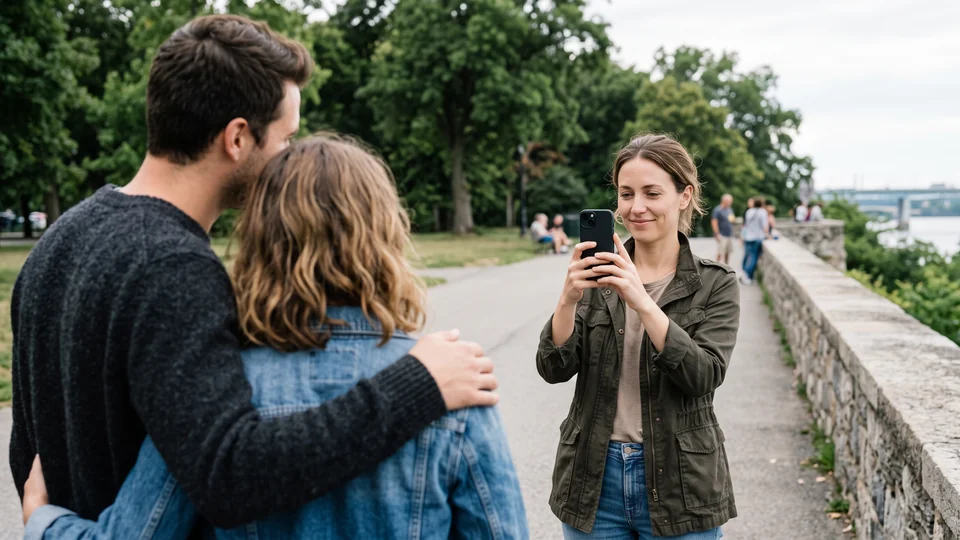
When you ask someone to take your photo
What to do
Hand over your iPhone locked
These steps work on any iPhone with iOS 17 or later, with or without a Home button.
- Press the side button to lock your iPhone.
- Hand your iPhone to the person taking your photo.
- Ask the person to press the side button to wake your iPhone. The Lock Screen appears.
- Ask the person to swipe left on the Lock Screen. Apple’s camera opens.
- To take the photo, the person taps the Shutter button or presses either volume button.
What the camera shows while your iPhone is locked
To see a new photo, the person taps the small picture in the lower-left corner of the camera. Apple says your iPhone stays locked, and the camera shows only the photos and videos taken since the camera opened. Your earlier photos don’t show. To see more, the person has to unlock your iPhone.
On an unlocked iPhone, the same small picture leads to the photos you took recently. The All Photos button then opens your whole photo library. So lock your iPhone first.
When you get your iPhone back
Unlock your iPhone, then open the Photos app. Apple says all photos and videos you take with your iPhone’s camera are saved in the Photos app.
Keep message previews off the Lock Screen
A notification preview can show part of a message on the Lock Screen, even while your iPhone is locked. To show previews only after you unlock your iPhone:
- Open the Settings app.
- Tap Notifications, then Show Previews.
- Tap When Unlocked.
Underlock is coming soon to the App Store. Here’s how it will work.
Keep private photos out of your camera roll
Forgot to lock your iPhone? The person can then reach your camera roll. Underlock keeps private photos in a vault. You open your vault by drawing a pattern on a grid of dots. Your iPhone passcode doesn’t open your vault. Photos in your vault aren’t in the Photos app.

Importing puts a copy of each photo in your vault. The originals stay in the Photos app until you remove them.
- In Underlock, tap the Add button (a plus sign), then Import from Photos.
- Choose the photos you want in your vault.
- Keep Underlock open until the import finishes.
- When the import finishes, Underlock asks whether to remove the originals from the Photos app. Tap Remove.
- When iOS asks to delete the originals, confirm. The originals move to Recently Deleted in the Photos app.
- While the originals are in Recently Deleted, check that the photos are in your vault.
- To remove the originals for good, delete the originals from Recently Deleted. Until then, Recently Deleted keeps the originals for 30 days. After 30 days, the originals are gone for good.
For new private photos, use Underlock’s camera. In Underlock, tap Add, then Take photo or video. The photo goes straight into your vault, not the Photos app.
What Underlock does
- Not in your camera roll. Photos in your vault aren’t in the Photos app, so a swipe in the Photos app doesn’t reach them.
- Your passcode doesn’t open your vault. Your vault opens with your own pattern, not your iPhone passcode or Face ID.
- A camera that skips your camera roll. Photos and videos you take in Underlock go straight into your vault.
- Locks as you leave. By default, your vault locks the moment you leave Underlock.