Hide a video in the Photos app
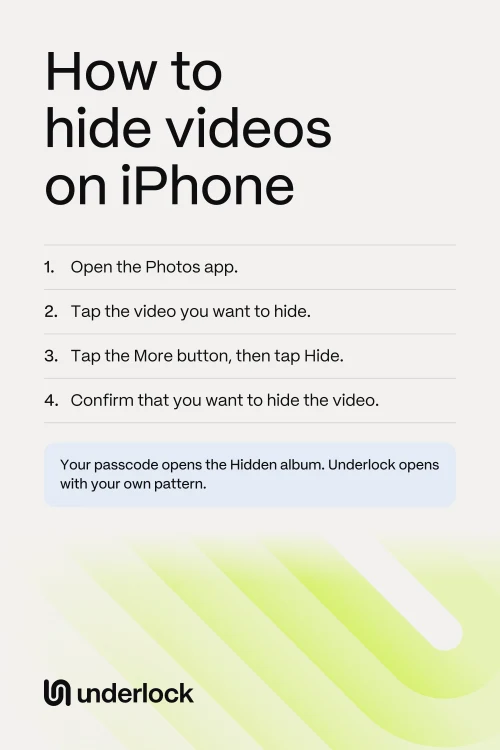
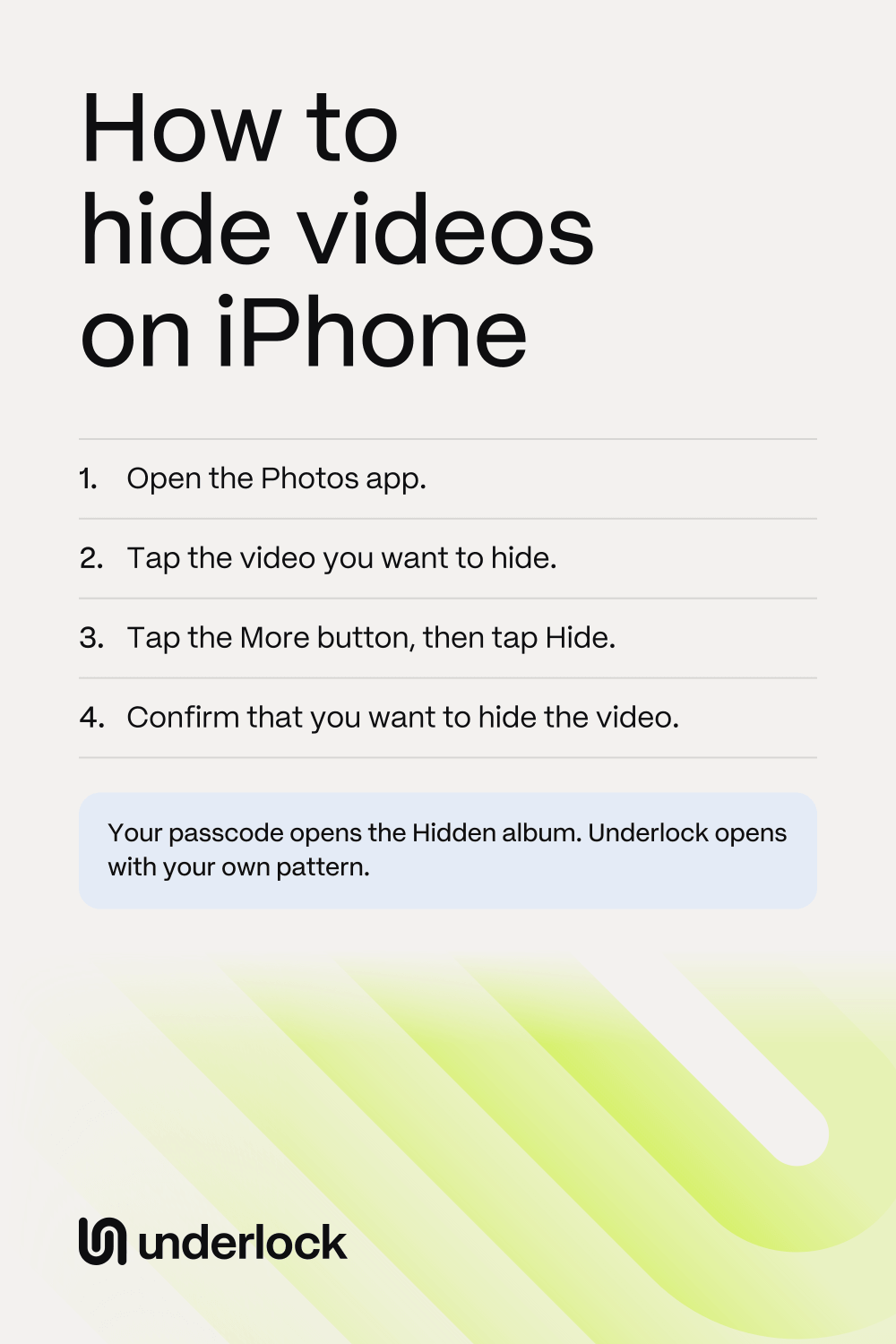
- Open the Photos app.
- Tap the video you want to hide.
- Tap the More button (three dots), then tap Hide.
- Confirm that you want to hide the video.
To hide several videos at once, tap Select, then tap each video. Tap the More button, then tap Hide. Hidden videos no longer show with your other photos and videos: they move to the Hidden album. Nothing is deleted.
Find your hidden videos
- In the Photos app, tap Collections.
- Scroll down to Utilities, then tap Hidden.
- Tap View Album, then use Face ID, Touch ID or your iPhone passcode.
To unhide a video, open the video, tap the More button, then tap Unhide. Don’t see Collections, or the Hidden album? See Hidden album on iPhone.
Who can open the Hidden album
The Hidden album is locked by default. Even on an unlocked iPhone, the album asks for Face ID, Touch ID or your passcode before it opens.
- Anyone who knows your passcode. Your passcode opens the Hidden album, so anyone who knows your passcode can open your hidden videos.
- Anyone who can unlock your iPad or Mac, if you use iCloud Photos. iCloud Photos puts your photos on your iPad and Mac too, so your hidden videos are in the Hidden album there.
To check the Hidden album’s lock, open the Settings app. If you see Apps, tap Apps. Then tap Photos. If you see Albums, tap Albums. Check that Use Face ID is on. On some iPhones, the switch says Use Touch ID or Use Passcode. If the switch is off, tap the switch to turn it on. If nobody else knows your passcode, and nobody else can unlock your iPad or Mac, the Hidden album may be all you need.
Give videos a lock of their own
We make Underlock, a private vault for photos, videos, files and notes. You open your vault by drawing a pattern on a grid of dots. Your iPhone passcode, Face ID and Touch ID don’t open your vault.

Underlock is coming soon to the App Store. Here’s how it will work.
- Record straight into your vault. In Underlock, tap Add (the plus at the bottom right), then Take photo or video. Switch to Video to record. Your video goes into your vault. Nothing goes to the Photos app.
- Bring in the videos you have. Tap the Add button (a plus sign), then Import from Photos, and choose your videos. Importing puts a copy of each video in your vault. Keep Underlock open until the import finishes.
- Remove the originals. When the import finishes, Underlock asks whether to remove the originals from the Photos app. If you tap Remove, the originals move to Recently Deleted, in the Photos app. Recently Deleted keeps the originals for 30 days.
- Then delete the originals for good. Your vault keeps its own copy. Anyone with your passcode can open Recently Deleted, under Utilities in the Photos app. So delete the originals from Recently Deleted. Apple’s page shows how to delete from Recently Deleted.
- 12 words to get back in. At setup, Underlock shows you 12 words to write on paper: your recovery phrase. If you forget your pattern, the 12 words open your vault. Keep the paper somewhere safe. If you forget your pattern and lose the paper, nobody can open your vault, not even us.
- Locks as you leave. By default, your vault locks as soon as you leave Underlock for another app.
See how Underlock’s setup works, step by step. Read more about Underlock’s camera.
Questions people ask
Yes. In the Photos app, open the video, tap the More button, then tap Hide. The video moves to the Hidden album, which opens with Face ID, Touch ID or your iPhone passcode.
No. A hidden video moves to the Hidden album and stays on your iPhone. With iCloud Photos on, the video stays in iCloud too.
To the Hidden album, in the Photos app. Tap Collections, scroll down to Utilities, then tap Hidden.
Yes, by default. To check, open the Settings app. If you see Apps, tap Apps. Then tap Photos. If you see Albums, tap Albums. Check that Use Face ID is on. If the switch is off, tap the switch to turn it on. On some iPhones, the switch says Use Touch ID or Use Passcode. While the switch is off, the album opens without asking for anything, not even your passcode.
No. The Notes app can’t lock a note that has a video in it.
Yes. Underlock is free forever: one vault, no file limit. If the free plan ever changes, you keep the plan you started with. More vaults come with Pro, Underlock’s paid plan.