The Photos app keeps no record
The Hidden album opens with Face ID, Touch ID or your iPhone passcode. The Photos app doesn’t list each time the album opens, and it doesn’t say who opened it. Two other places may come to mind, but neither one answers the question:
- Screen Time. If Screen Time is on, its report shows which apps were used, and for how long. The report can show the Photos app. It can’t show which album was open.
- Recently Viewed. The Photos app has a Recently Viewed collection. Apple says hidden photos don’t show anywhere else in the Photos app, so they don’t show in Recently Viewed either.
Who is able to open your Hidden album
You can’t find out afterwards. But you can see who is able to open the album:
- Anyone who knows your iPhone passcode. Your passcode opens the Hidden album, even with Face ID on.
- Anyone holding your unlocked iPhone, if Use Face ID is off. Use Face ID is a switch in the Settings app. With the switch on, the album asks for Face ID, Touch ID or your passcode. With the switch off, the album asks for nothing.
- Anyone whose face was added to Face ID. Face ID can hold a second face, which Apple calls an alternate appearance. Face ID opens the album for that face too.
- Anyone who can unlock your iPad or Mac. With iCloud Photos on, a photo you hide on your iPhone is also in the Hidden album on your iPad and Mac. On your iPad or Mac, the album opens with the lock of that iPad or Mac.
- Anyone signed in to your Apple Account on iCloud.com. In a web browser, signing in is enough to open the Hidden album.
This list shows who is able to open the album. It doesn’t say that anyone did.
Change what opens the album
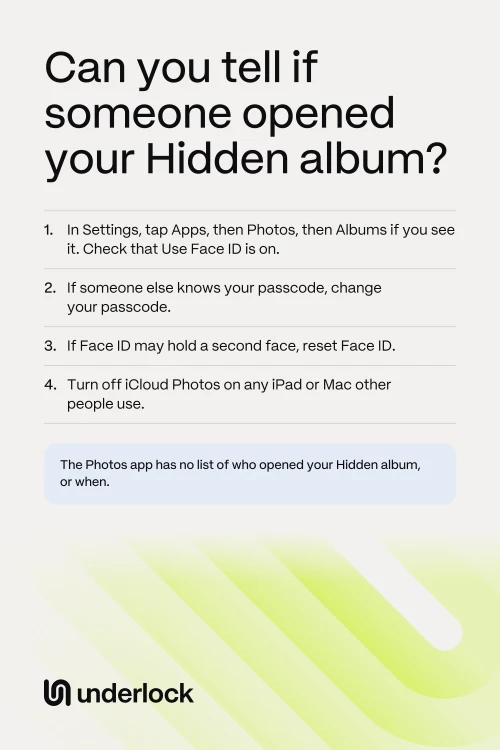
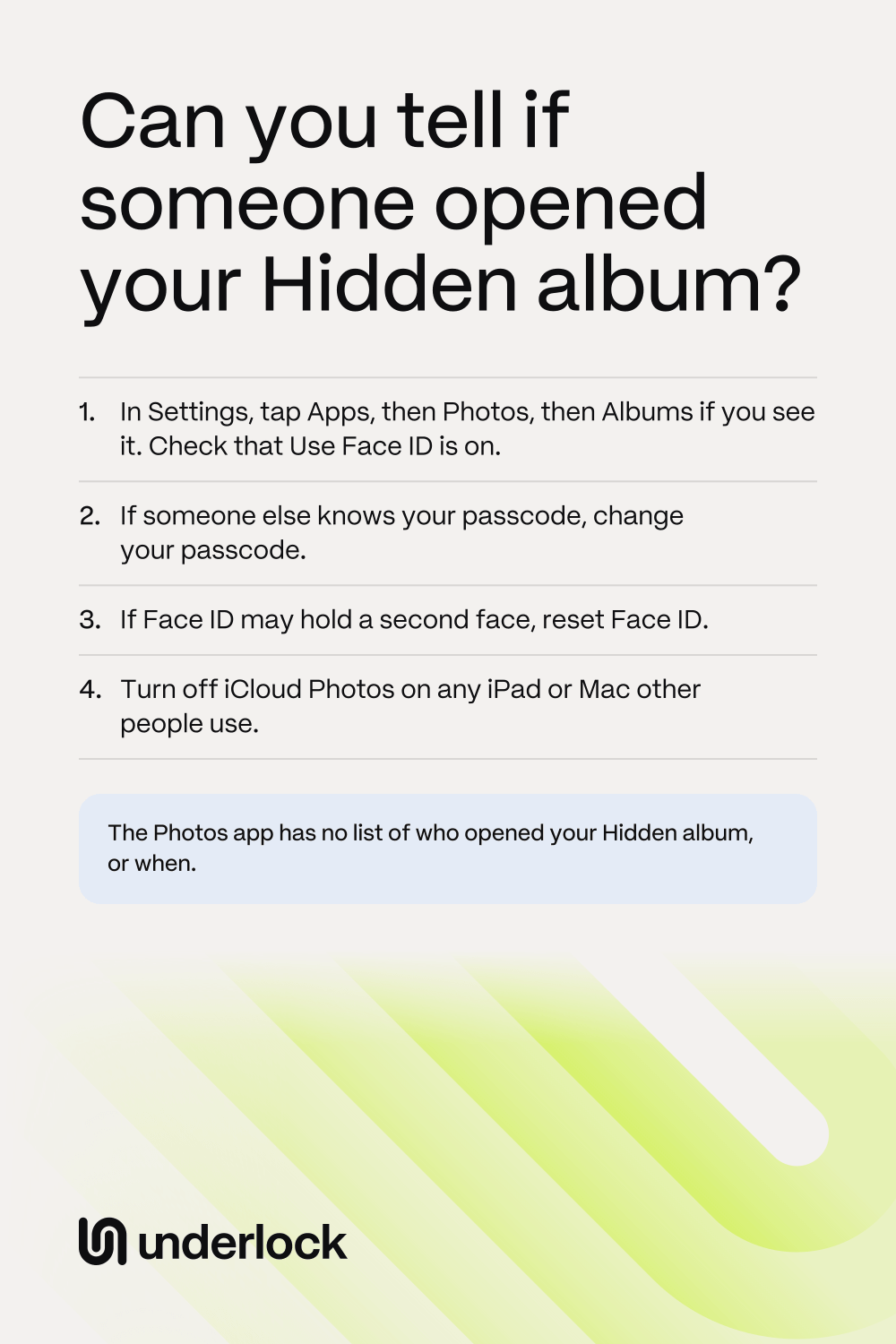
Each step changes who is able to open the album from now on. None of them tells you what happened before:
- Check that Use Face ID is on: see Check that the lock is on.
- If someone else knows your passcode, change your passcode.
- If Face ID may hold a second face, reset Face ID. Open the Settings app, tap Face ID & Passcode, then tap Reset Face ID. Then set up Face ID again with your own face.
- If other people use an iPad or Mac on your Apple Account, turn off iCloud Photos on that iPad or Mac.
- To keep your photos off iCloud.com, turn off web access.
What Underlock notes: wrong tries
We make Underlock, a private vault for photos, videos, files and notes. You open your vault by drawing a pattern on a grid of dots. Your iPhone passcode and Face ID don’t open your vault.
Underlock is coming soon to the App Store. Here’s how it will work.
- Wrong tries are noted. Underlock notes the time of each wrong try on the pattern screen.
- You see the tries the next time you open your vault. A line at the top says, for example: “Someone tried to open your vault at 9:14 PM, 4 times.” Tap See tries to see the time of each try, and its photo if Photo on wrong tries is on. The line shows once: when you close it or lock your vault, Underlock deletes those tries, except photos you keep in your vault.
- A photo of each try, if you choose. If you turn on Photo on wrong tries in App settings, Underlock takes one photo with the front camera after each wrong try. A wrong try in the 10 seconds before you open your vault is your own, and Underlock deletes it with its photo.
- Nothing on the pattern screen. Wrong tries show only after your vault opens.
- Right patterns aren’t noted. If someone draws your right pattern, no line shows. If you think someone has learned your pattern, change your pattern.


Questions people ask
No. The Photos app shows no date or time for when the Hidden album was last opened.
Yes. Your iPhone passcode opens the Hidden album too. See what opens the Hidden album.
No. Screen Time can show how long the Photos app was used. It can’t show which album was open.
No. Underlock notes wrong tries, not the times your vault opened.
No. Noting wrong tries comes with Pro, Underlock’s paid plan. If Pro ends, Underlock stops noting new tries. Tries it already noted still show, the next time you open your vault. Your vault still opens as usual.